Settings screen
Settings
Configure device behavior including schedule, time settings, location, weather, and connected accessories.
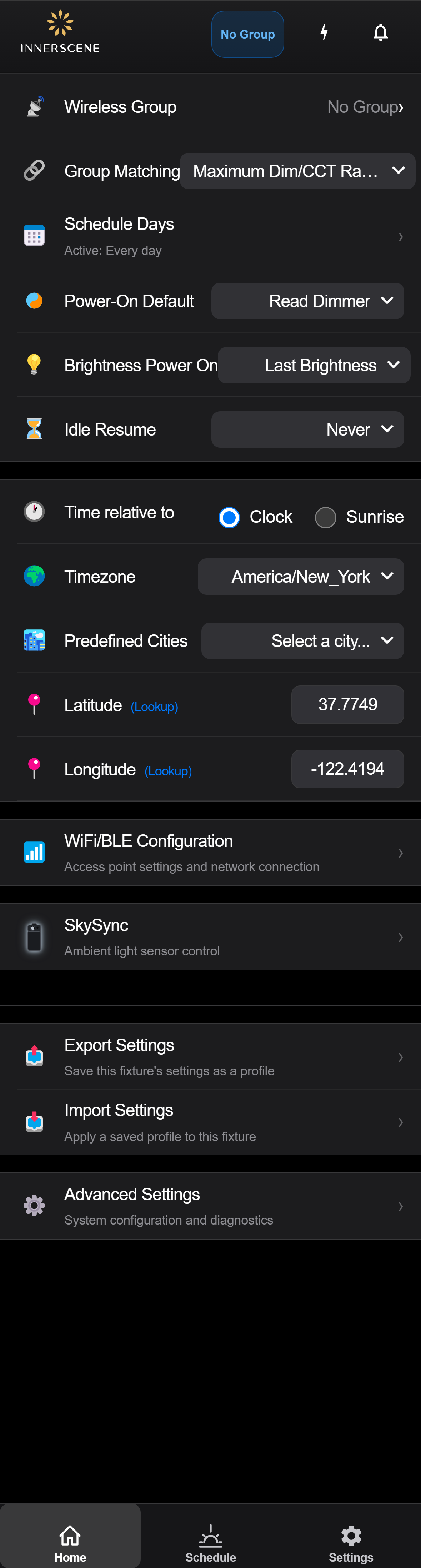
Controls on this screen
- Wireless Group
Configure wireless synchronization group. Devices in the same group sync their lighting state using Innerscene's proprietary wireless protocol.
- Group Matching
Controls how a wireless group handles members that are not identical. Maximum surface lux varies with fixture size, and the smaller sizes are the brighter ones at the surface: a larger fixture emits more total light, spread over more area, so its peak surface lux is lower. All Circadian Sky fixtures cover the same CCT range whatever their size, so color temperature only has to be reconciled in a group that mixes product lines. "Maximum Dim/CCT Range" lets each fixture use everything it is capable of. "Match Dim/CCT Ranges" holds every fixture to the narrowest range the group has in common. Turn matching on when a group mixes fixture sizes that sit close enough together for the brightness difference to be visible.
- Maximum Dim/CCT Range (default) Each fixture uses its full color temperature and brightness range independently. Fixtures with wider capabilities will show their full range even if other fixtures in the group cannot match. In a group of mixed fixture sizes the smaller fixtures reach a higher maximum surface lux, so at full output they look brighter than the larger ones.
- Match Dim/CCT Ranges All fixtures in the group constrain their output to the narrowest common range. This ensures every fixture in the group always shows the same color temperature and brightness, providing visual consistency across the installation. The brightness half of the match is the one that usually matters, because maximum surface lux varies with fixture size. The CCT half only comes into play in a group that mixes product lines, since every fixture within a product line already shares one CCT range.
- Schedule Days
Select which days of the week the lighting schedule is active. Allows different schedules for weekdays vs weekends.
- CCT Power On
Sets the color temperature when the device first powers on. Options include: follow dimmer input, follow schedule, use last CCT value, demo mode, or a fixed temperature from 2200K to 200000K.
- Read Dimmer The fixture reads the external 0-10V dimmer input at power on to determine the initial color temperature. Requires a 0-10V control signal connected to the CCT channel.
- Use Schedule The fixture immediately enters schedule mode at power on, setting the color temperature to whatever the active schedule specifies for the current time of day.
- Last CCT The fixture restores the last color temperature that was set before it was powered off. The value is saved to non-volatile memory.
- Demo Mode The fixture runs a continuous color temperature demonstration cycle, sweeping from warm to cool and back. Useful for showroom displays.
- 2,200K Ultra-warm candlelight tone. Similar to low-dimmed incandescent bulbs. Ideal for relaxation spaces.
- 2,700K Warm white, equivalent to standard incandescent lighting. Comfortable for residential evening use.
- 3,000K Soft warm white, equivalent to halogen lighting. Popular for hospitality and retail environments.
- 4,000K Neutral white. Good general-purpose work lighting with a balanced warm/cool tone.
- 5,000K Cool white, approaching daylight. Often used in offices and task-oriented spaces for alertness.
- 6,000K Full daylight equivalent. Bright, energizing light suitable for workspaces requiring high visual acuity.
- 10,000K Blue-enriched daylight. Provides strong circadian stimulation for morning wake-up or alertness therapy.
- 200,000K Blue sky simulation. Maximum circadian stimulation, replicating the color of a clear blue sky.
- 200,000K Deep blue sky. The most extreme blue available, simulating the zenith sky color.
- Configure Controls
Opens 0-10V or DMX configuration for fixtures with external control inputs. Only visible on primary fixtures with daughter boards.
- Brightness Power On
Sets the brightness level when the device first powers on. Choose "Last" to resume previous brightness, "Off" to start dark, or a fixed percentage.
- Last Brightness Restores the brightness level that was set before the fixture was powered off. The value is saved to non-volatile memory so it persists across power cycles.
- Turn Off The fixture powers on with the LEDs off (0% brightness). Useful when you want the fixture to wait for an external trigger such as a motion sensor, dimmer, or schedule event before turning on.
- 1% Very dim ambient glow. Minimal light output for nightlight-level illumination.
- 5% Low ambient light level. Suitable for background accent lighting.
- 10% Gentle low light. Good for corridors and transitional spaces.
- 25% Moderate low light. Comfortable evening reading level.
- 50% Half brightness. Balanced general illumination.
- 75% Bright general illumination for most tasks.
- 100% Full brightness. Maximum light output from the fixture.
- Idle Resume
How long the fixture stays in manual mode before automatically rejoining the schedule. The countdown starts at the last manual change (dimmer, app, or button) and the fixture holds your manual CCT and brightness until it expires, at which point it returns to the active circadian schedule. One safety carve-out: if the fixture is off when the timer would fire, the schedule does not switch it back on, the fixture stays off. Choose "Never" to remain in manual mode indefinitely. Range: 30 seconds to 24 hours.
- Never The fixture stays in manual control mode indefinitely after a manual adjustment. It will not return to the schedule until you explicitly re-enable it.
- After 30 seconds Returns to the automated schedule 30 seconds after the last manual adjustment. Best for quick temporary overrides.
- After 1 minute Returns to schedule after 1 minute of no manual input.
- After 5 minutes Returns to schedule after 5 minutes. Good for brief manual adjustments.
- After 15 minutes Returns to schedule after 15 minutes.
- After 30 minutes Returns to schedule after 30 minutes.
- After 1 hour Returns to schedule after 1 hour.
- After 2 hours Returns to schedule after 2 hours.
- After 6 hours (default) (default) Returns to schedule after 6 hours. This is the factory default, providing a long manual override window while still eventually returning to the automated schedule.
- After 12 hours Returns to schedule after 12 hours.
- After 24 hours Returns to schedule after a full day.
- Clock Time Mode
Schedule times are based on the wall clock (e.g., 8:00 AM is always 8:00 AM regardless of season).
- Clock (default) Schedule times are fixed to wall clock time. For example, a schedule point set at 8:00 AM always activates at 8:00 AM, regardless of the season or sunrise time.
- Sunrise Schedule times are relative to the local sunrise and sunset. Schedule points automatically shift throughout the year to follow the natural solar cycle. This provides the most natural circadian alignment, especially at higher latitudes where sunrise times vary significantly.
- Sunrise Time Mode
Schedule times are relative to sunrise/sunset. Schedule points shift automatically with the seasons for natural circadian alignment.
- Clock (default) Schedule times are fixed to wall clock time.
- Sunrise Schedule times shift with the local sunrise and sunset throughout the year.
- Timezone
Set the device's timezone for accurate schedule timing and sunrise/sunset calculations.
- America/New_York (default) Eastern Time (US & Canada)
- America/Chicago Central Time (US & Canada)
- America/Denver Mountain Time (US & Canada)
- America/Los_Angeles Pacific Time (US & Canada)
- America/Anchorage Alaska Time
- America/Adak Hawaii-Aleutian Time
- Pacific/Honolulu Hawaii Time (no DST)
- Europe/London Greenwich Mean Time / British Summer Time
- Europe/Paris Central European Time
- Europe/Berlin Central European Time
- Europe/Rome Central European Time
- Asia/Tokyo Japan Standard Time (UTC+9)
- Asia/Shanghai China Standard Time (UTC+8)
- Asia/Kolkata India Standard Time (UTC+5:30)
- Australia/Sydney Australian Eastern Time
- Sunrise Location
Set your geographic location for accurate sunrise/sunset times. Opens a map selector.
- Predefined Cities
Quick-select from ~80 major world cities to set your latitude and longitude for sunrise calculations.
- Latitude
Your geographic latitude coordinate for sunrise/sunset calculations. Positive = North, Negative = South.
- Longitude
Your geographic longitude coordinate for sunrise/sunset calculations. Positive = East, Negative = West.
- World Map
Click/tap on the map to set your geographic location. The selected point determines sunrise/sunset times.
- SkySync
Configure the SkySync ambient light sensor. When connected, the fixture automatically matches outdoor sky color and brightness.
- Advanced Settings
Access advanced configuration including WiFi, system config, diagnostics, hardware control, calibration, device values, and firmware updates.
- Voice & Widgets
Opens [[voice_groups|Voice & Widgets]], where you name your groups for Siri, the home-screen widgets and the Android microphone. Shown in the iOS and Android apps only. See [[voice_control|Voice Control]] for setup and sample commands.
Open this screen in the interactive guide to explore it with clickable callouts, search, and a live simulator, or browse all screens.