Home Screen screen
Home
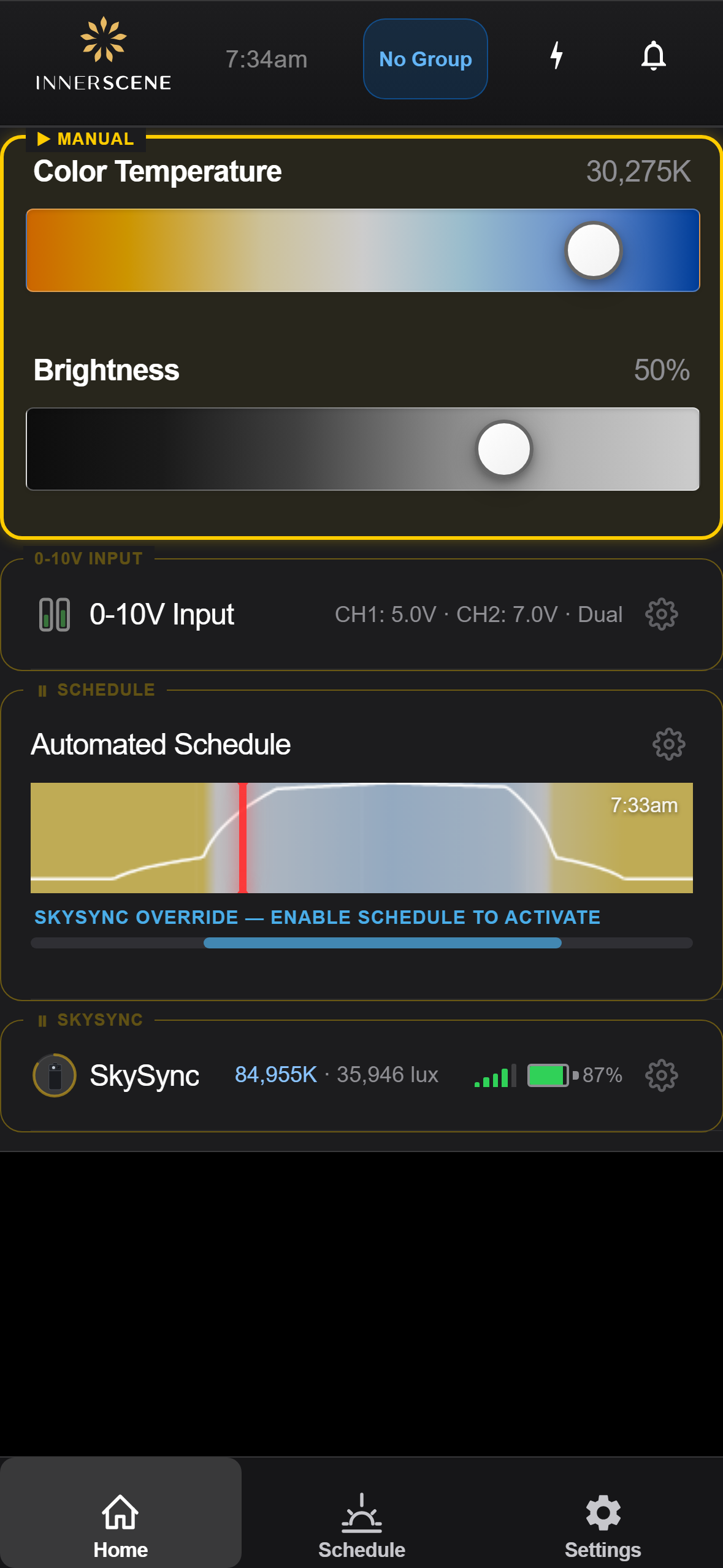
Main control screen with CCT and brightness sliders, quick presets, and schedule preview.
Overview
The home screen is organized as a vertical stack of control cards. At the top is the Manual section with color temperature (CCT) and brightness sliders for direct control. Below that, additional cards appear based on your device's configuration: 0-10V/DALI/DMX external inputs, the Automated Schedule with its preview graph, and a SkySync outdoor light sensor row.
At any given time, one card is the active controller — indicated by a yellow highlight border. This is the control source currently driving the fixture's light output. When you adjust a slider or enable the schedule, that card becomes the new active controller and receives the yellow highlight. When SkySync is linked to the schedule, both cards share a connected highlight to show they work together as a single control source.
Most cards have a ⚙ gear icon on their right side. Tapping the gear opens that card's dedicated settings page without changing which controller is active. For example, the schedule gear opens the schedule editor, while the SkySync gear opens sensor configuration. This lets you adjust settings without interrupting the current control mode.
Cards appear and disappear dynamically based on what peripherals are connected. SkySync appears when a sensor is linked, and external input cards appear when a daughterboard is installed. The bottom navigation bar provides quick access to the Home, Schedule, and Settings screens.
Controls on this screen
- CCT Slider
Adjusts the color temperature of the light from warm (2200K) to cool/blue sky (200000K+). Drag left for warmer, right for cooler light.
- 2,200K (Ultra Warm) Candlelight-like warmth. Minimal blue content to avoid disrupting melatonin production before sleep.
- 2,700K (Warm White) Standard incandescent warmth. Comfortable and familiar for residential evening use.
- 4,000K (Neutral White) Balanced light with a slight warm tone. Good for general tasks and office work.
- 6,500K (Daylight) Full daylight white. Crisp and energizing, equivalent to overcast noon sky.
- 10,000K+ (Blue-enriched) Blue-enriched daylight for strong circadian stimulation. Promotes alertness and focus.
- 200,000K+ (Blue Sky) Simulates a clear blue sky overhead. Maximum melanopic stimulation for circadian entrainment.
- Brightness Slider
Controls the light output from 0% (off) to 100% (full brightness). The percentage is shown to the right of the slider.
- 0% (Off) Light is completely off.
- 0.1% (Minimum) Barely perceptible glow. Used in the "Before Sleep" preset for minimal nighttime illumination.
- 25% Low ambient light. Suitable for relaxed evening environments.
- 50% Half brightness. Good for background illumination and casual activities.
- 100% (Maximum) Full brightness output. Used for task lighting and daytime simulation.
- CCT Value
Displays the current color temperature setting in Kelvin (K).
- Brightness Value
Displays the current brightness as a percentage.
- Surface Lux
Shows the measured light level at the surface in lux. Only visible when enabled in Diagnostics settings.
- Schedule Preview
Shows today's lighting schedule as a graph. Tap to toggle schedule mode on/off. Long-press to open the schedule editor.
- Tap — Toggle Schedule A single tap toggles the automated schedule on or off. When the schedule is active, the graph border turns gold and the fixture follows the programmed color temperature and brightness curve throughout the day.
- Long Press — Edit Schedule Press and hold the schedule graph to open the full schedule editor, where you can add, move, and delete schedule points.
- Wireless Group Badge
Shows the current wireless sync group number. Tap to configure wireless group settings.
- WiFi Status
Indicates the device is connected to a WiFi network. Tap for network details.
- Disconnected
Indicates the device has no WiFi network connection.
- Channels
Opens individual LED channel control for fine-tuning white, cool, green, blue, and sun channels.
- Messages
Shows notification messages from the device. Badge number indicates unread count.
- 0-10V Input
Shows the current 0-10V analog input readings (CH1 and CH2 voltage levels) and mode (Dual/Single). Appears when a 0-10V daughterboard is installed. Tap the row to select 0-10V as the active controller. The ⚙ gear icon on the right opens 0-10V configuration where you can set the input mode, channel mapping, and response curve.
- 0-10V Settings Gear
Opens the [[010v_config|0-10V Configuration]] page where you can set the input mode (Dual/Single channel), voltage trim, filter response, and dimming curve.
- Schedule Settings Gear
Opens the [[schedule|Schedule Editor]] where you can add, edit, and remove schedule time points, set active days, and configure schedule behavior. This is different from tapping the schedule graph itself, which toggles the automated schedule on or off.
- SkySync
Displays live SkySync outdoor light sensor readings: sky color temperature, ambient color temperature, and illuminance (lux). Signal strength bars and battery percentage are shown on the right. When SkySync is linked to the schedule, both cards share a connected yellow highlight indicating they work together as the active controller. The ⚙ gear icon opens [[skysync_settings|SkySync Settings]] including calibration, aiming, and update interval.
- SkySync Settings Gear
Opens the [[skysync_settings|SkySync Settings]] page where you can configure the sensor update interval, sky CCT weight, ambient CCT weight, and illuminance response. Also provides access to [[skysync_hardware|Sensor Hardware]] info, calibration, and aiming tools.
- Password Reminder
Banner reminding you to change the default device password for security.
Open this screen in the interactive guide to explore it with clickable callouts, search, and a live simulator, or browse all screens.