Device Connection screen
Legacy Firmware Upgrade
WiFi-based firmware upgrade for older devices that do not support Bluetooth connections. The Innerscene Studio app joins the fixture's built-in Wi-Fi access point with one tap and then uploads firmware directly over HTTP.
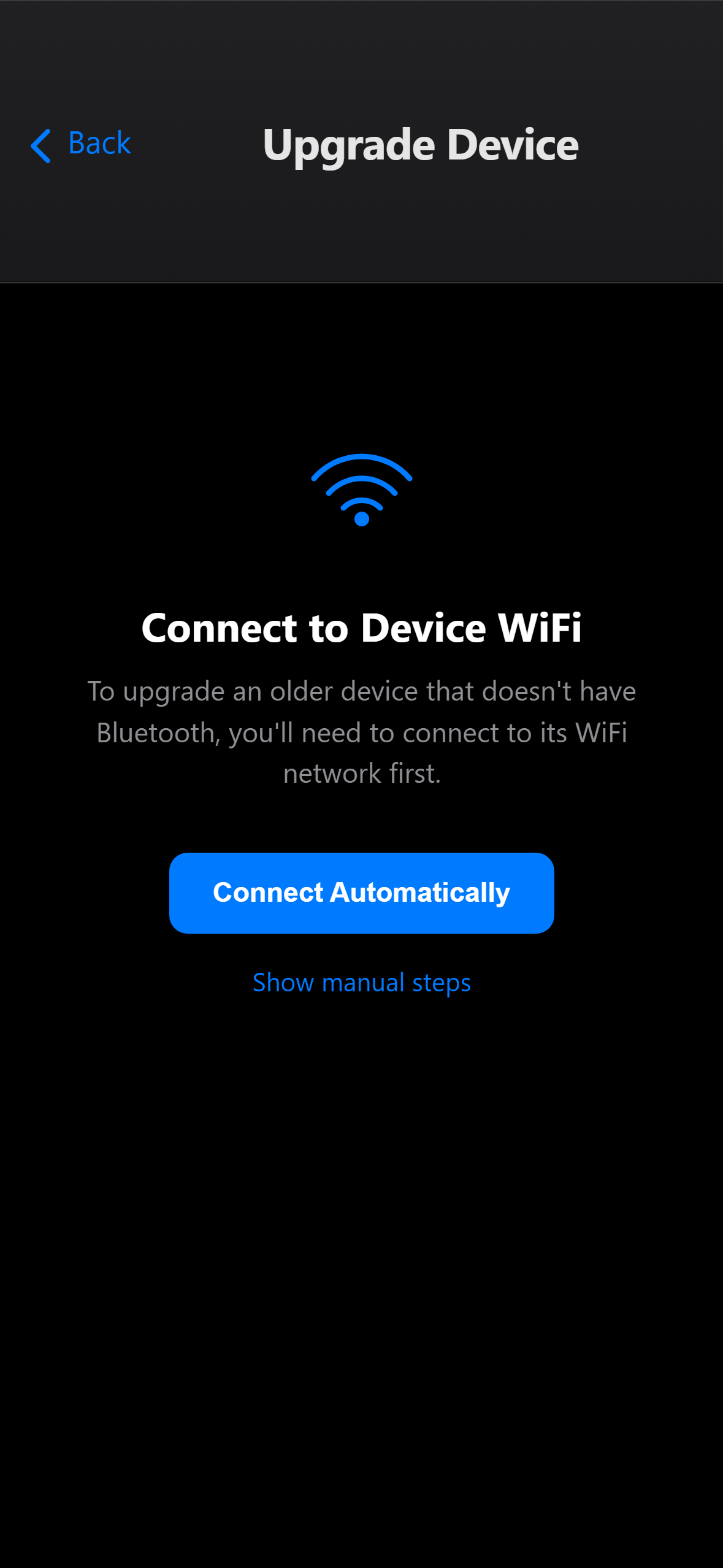
Controls on this screen
- Step Title
Shows the current step of the upgrade process: "Connect to Device WiFi", "Device Found", "Uploading Firmware", or "Upgrade Complete".
- Connect Automatically
One-tap join: the OS prompts to join the fixture's Wi-Fi network (an SSID starting with "Innerscene-"). The app waits for the connection, probes the fixture at 172.30.0.1, and advances to the firmware comparison step. The phone rejoins your previous Wi-Fi when the upgrade finishes.
- Show Manual Steps
Reveals the manual fallback: open phone Settings, pick the Innerscene network, return to the app. Use this if the automatic join cannot be used (for example, the fixture is not using the default Wi-Fi password, or the phone is on Android API 28 or older).
Open this screen in the interactive guide to explore it with clickable callouts, search, and a live simulator, or browse all screens.