Advanced screen
Firmware Updates
View the installed firmware version, install verified updates from the server, update or provision the fixtures in your group, or upload a firmware package manually.
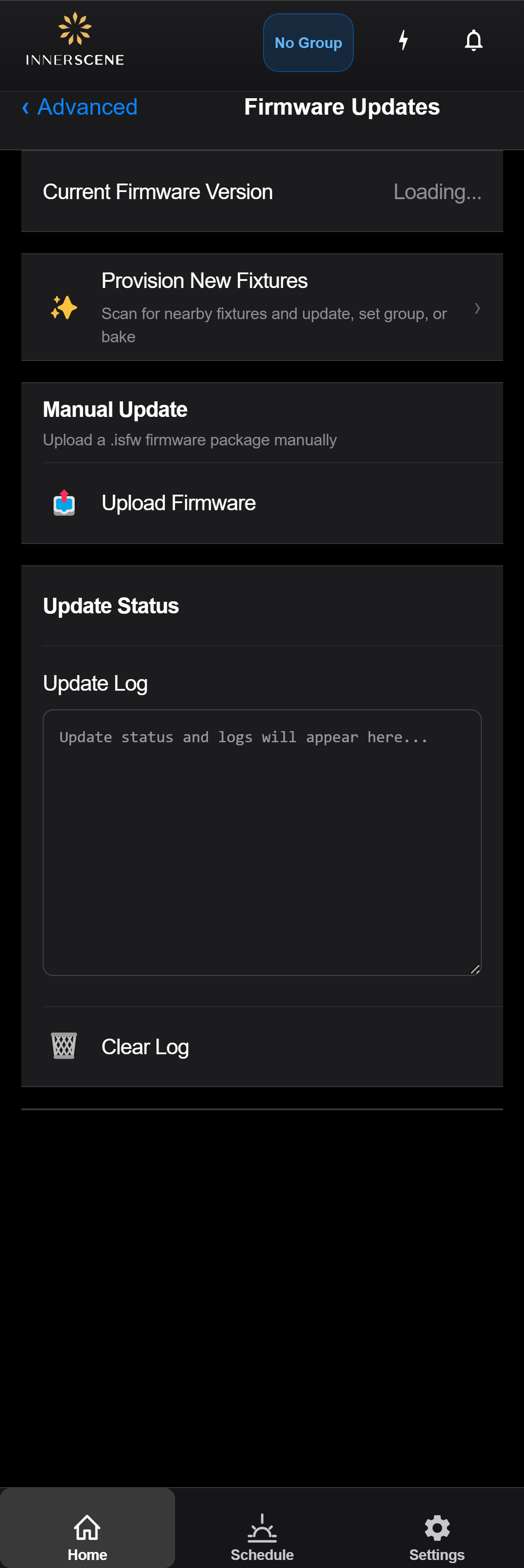
Overview
The Firmware Updates screen updates the firmware on the connected fixture. The current version is shown at the top. When a newer build is available, an Update Available card appears with Download & Install, which fetches a signature-verified update directly from the Innerscene server, flashes it, and reboots the fixture. Progress and any errors are shown in the card below.
When the Innerscene Studio mobile app carries a newer bundled build than the fixture is running, an additional Install Bundled Firmware option appears. This is useful when the fixture has no internet access: connect the phone to the fixture's Wi-Fi and install the build straight from the app. During the upload the phone briefly joins the fixture's Wi-Fi access point, which is roughly ten times faster than a Bluetooth transfer, then rejoins your previous network automatically.
Update Group Firmware opens a wizard that scans for nearby unconfigured fixtures still broadcasting their factory Innerscene access points, then installs firmware, assigns a wireless group, and bakes settings across them in one batch. For special cases, Upload Firmware lets you apply a firmware package (.isfw) manually from a file, with progress and a detailed log shown below.
Controls on this screen
- Current Firmware Version
Displays the firmware version currently installed on the device. Compare this with the latest available version to determine if an update is needed.
- Download & Install
Downloads and installs a verified firmware update directly from the Innerscene server. Shown when a newer version is available. The update is signature-checked, flashed, and the device reboots automatically. Progress and any errors appear in the section below.
- Install Bundled Firmware
Installs firmware bundled inside the Innerscene Studio app. Available in the iOS/Android app when it carries a newer build than the fixture is running, which is useful when the fixture has no internet access (connect to the fixture WiFi, then install).
- Update Group Firmware
Opens the [[batch_provision_scan|Provision Fixtures]] wizard. Scans nearby WiFi for unprovisioned Innerscene fixtures and, in one batch, installs firmware on them, assigns them to a wireless group, and bakes their settings. Useful when commissioning a fresh installation where the new fixtures are still broadcasting their factory Innerscene-* access points.
- Upload Firmware
Opens a file picker to select a firmware package (.isfw) from your computer for a manual update. The package is uploaded to the device over-the-air, verified, flashed, and the device reboots automatically.
- Upload Progress
Visual progress bar showing the firmware upload percentage. The bar fills from left to right during the upload. Upload speed depends on the connection type (WiFi is faster than BLE).
- Update Log
Monospace text area showing real-time status messages during the firmware update process. Includes upload progress, verification status, flash operations, and any errors encountered. Useful for troubleshooting failed updates.
- Clear Log
Clears the update log text area. Useful for starting a fresh log before a new update attempt.
Open this screen in the interactive guide to explore it with clickable callouts, search, and a live simulator, or browse all screens.