Advanced screen
Provision New Fixtures: Scan
Step 1 of the batch provisioning wizard. Scans nearby WiFi for fixtures broadcasting their factory Innerscene-* access points. Pick the targets, then continue to choose which actions to apply.
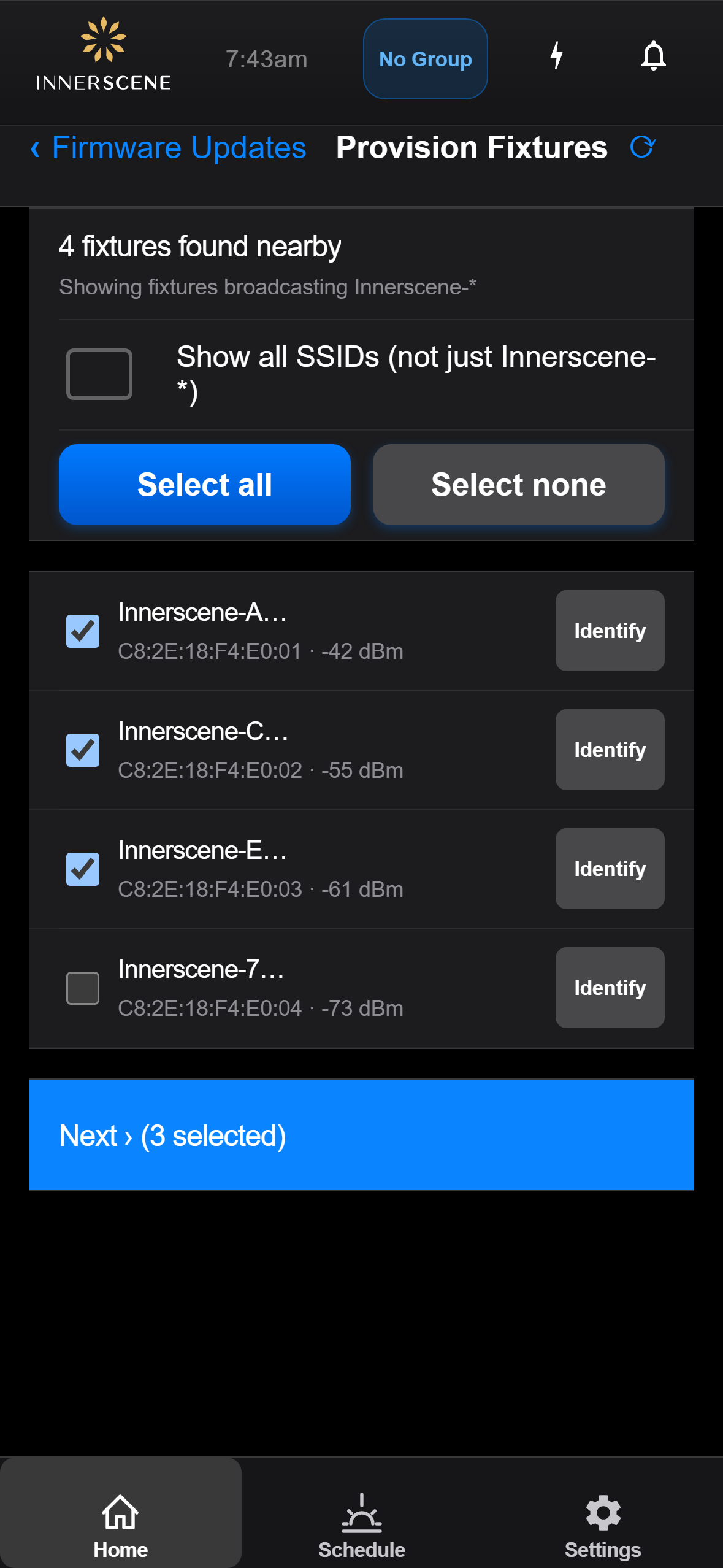
Controls on this screen
- Scan Summary
Live status of the scan, for example Scanning for fixtures or how many candidate access points were found. Updates as the scan progresses.
- Scan Filter Description
Explains what is being shown in the device list. By default only Innerscene-* access points are listed; toggle Show all SSIDs to inspect every nearby network.
- Rescan
Triggers a fresh WiFi scan. Use when a fixture you expected to see is missing, or after powering on additional fixtures nearby.
- Show All SSIDs
When enabled, the device list shows every nearby WiFi network instead of just fixtures broadcasting Innerscene-* SSIDs. Useful for diagnosing whether a target is being filtered out, but most provisioning runs leave this off.
- Select All
Marks every fixture currently shown in the list for provisioning. The Next button enables as soon as one or more fixtures are selected.
- Select None
Clears the current selection so you can pick a different subset of fixtures.
- Device List
Scrollable list of every nearby fixture (or every SSID, if Show all SSIDs is on). Each row shows the fixture name, an identify button to make it flash, and the signal strength. Tap a row to include or exclude that fixture from the batch.
- Next
Advances to the [[batch_provision_config|configuration step]] where you choose which actions to apply (firmware update, set wireless group, bake). Disabled until at least one fixture is selected.
Open this screen in the interactive guide to explore it with clickable callouts, search, and a live simulator, or browse all screens.