Advanced screen
Provision New Fixtures: Config
Step 2 of the batch provisioning wizard. Pick which actions to apply to each selected fixture (install firmware from this controller, set the wireless group, bake the settings), then start the batch. The orchestrator processes targets one at a time over WiFi.
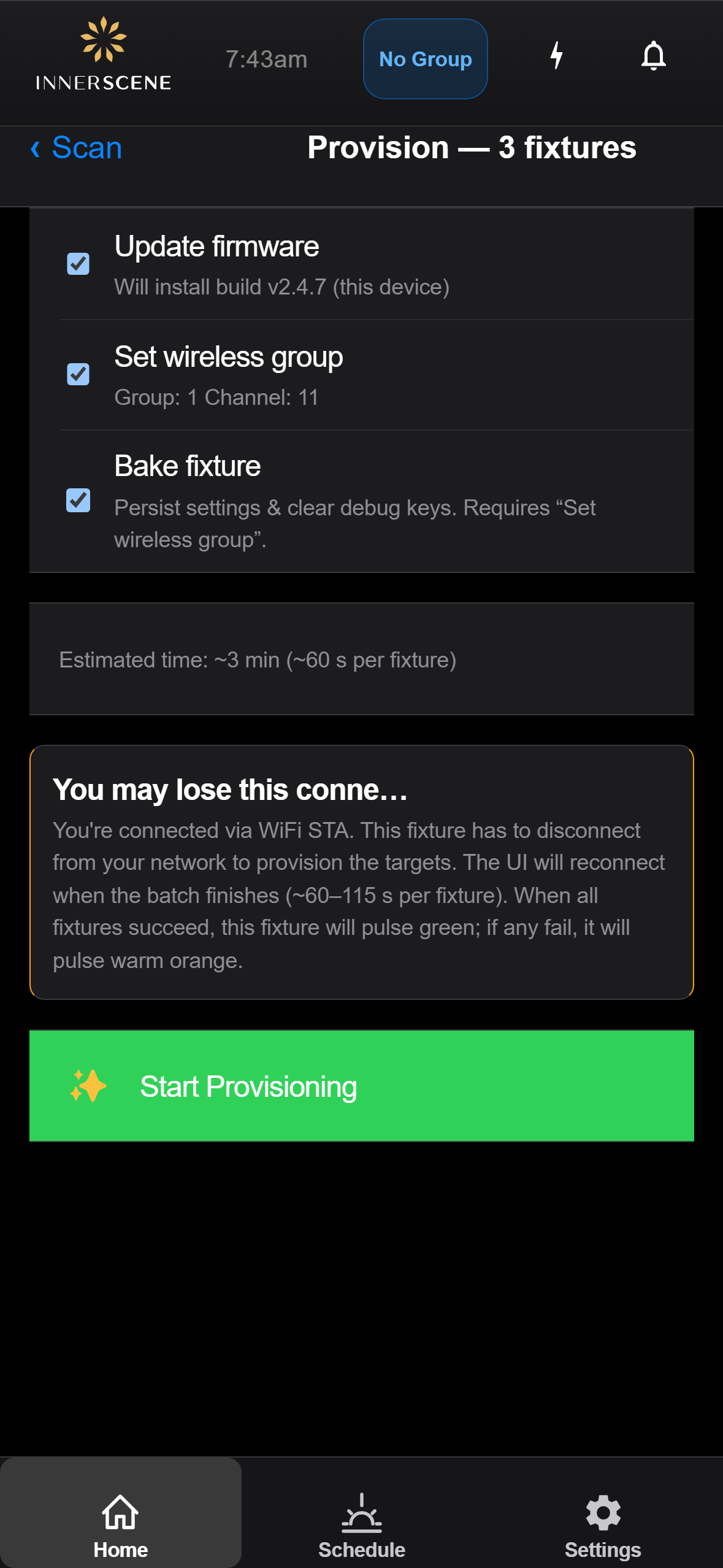
Controls on this screen
- Selection Header
Shows how many fixtures were selected in the previous step. The actions below will be applied to each of them in sequence.
- Update Firmware
When checked, the firmware running on this controller is installed on every selected fixture. Most provisioning runs leave this on so all fixtures ship at the same build.
- Firmware Source Detail
Indicates which firmware build will be sent, typically the version currently running on this controller. The same image is used for every target.
- Set Wireless Group
When checked, the wireless group and radio channel of this controller are applied to every target. This is what makes the new fixtures synchronise with the existing ones.
- Group Detail
Shows the group number and radio channel that will be written to each fixture. These come from this controller, so configure the group on this device first if it needs to change.
- Bake Fixture
When checked, settings are persisted into long-term storage and debug keys are cleared on each fixture once provisioning succeeds. Requires Set wireless group to be enabled, since baking without a final group assignment is rarely useful.
- Estimated Time
Rough estimate of how long the batch will take, scaled to the number of fixtures and the actions selected. Each fixture typically takes 60 to 115 seconds.
- Connection Loss Warning
Conditional. Appears when you are reaching this controller through your home WiFi (STA mode). During provisioning the controller has to disconnect from your network to talk to each target, so the UI will go offline for a couple of minutes. The status LED pulses green on success or warm orange if any target failed.
- Start Provisioning
Kicks off the batch. Navigates to the [[batch_provision_progress|progress page]] where you can watch each fixture move through the chosen actions.
Open this screen in the interactive guide to explore it with clickable callouts, search, and a live simulator, or browse all screens.