Device Connection screen
Device Connection
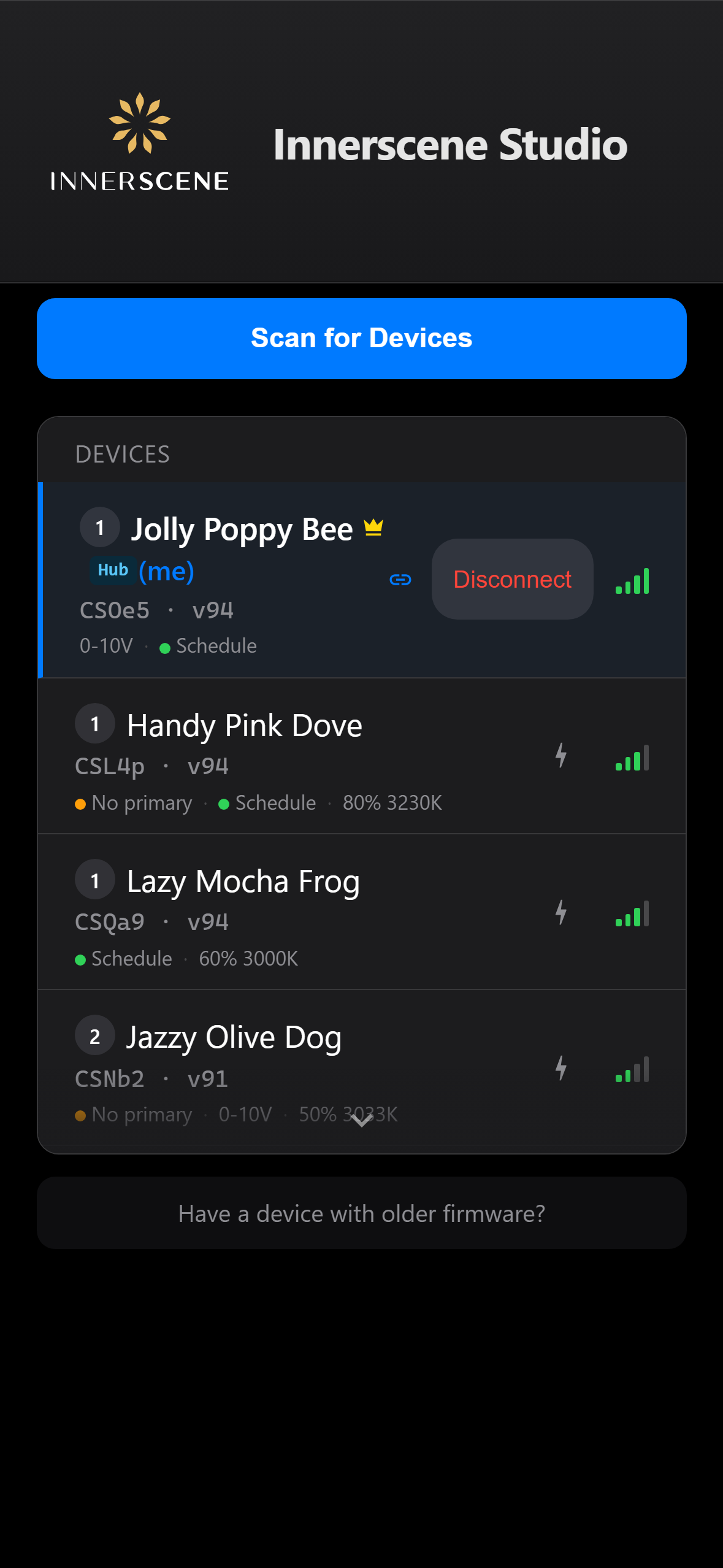
The device scanning and connection screen shown when the app launches. Scans for nearby Innerscene fixtures via Bluetooth and displays them as a list with signal strength, status, and identify controls.
Overview
This is the first screen you see when opening the Innerscene Studio app. It scans for nearby Circadian Sky fixtures via Bluetooth Low Energy (BLE) and displays them as a list.
Each device in the list shows its name, wireless group number (as a colored circle), firmware version, signal strength bars, and a live status line with current brightness, CCT, and active control source. Devices marked with a crown icon are primaries in their wireless group.
Tap any device to connect. If the device has a password set, you will be prompted to authenticate. Once connected, the app navigates to the Home screen where you can control the fixture.
The "Scan for Devices" button starts a fresh 10-second scan. Devices you have connected to before appear immediately with a "(me)" label. The Legacy WiFi Upgrade link at the bottom is for devices running older firmware that does not support Bluetooth connections.
Controls on this screen
- Title Bar
Shows the Innerscene Studio branding and connection status indicator at the top of the screen.
- Scan for Devices
Starts a Bluetooth Low Energy scan for nearby Innerscene fixtures. Discovered devices appear in the list below as they are found. The scan runs for about 10 seconds.
- Stop Scanning
Stops the active Bluetooth scan. Use this if you have already found the device you want to connect to.
- Device List
Shows all Innerscene fixtures discovered during the scan. Each device shows its name, wireless group number, signal strength bars, firmware version, and live status (brightness, CCT, active source). Tap a device to connect.
- Simulator
A built-in simulator option for testing the app without a physical fixture. Only visible in development and demo modes.
- Legacy WiFi Upgrade
For devices running older firmware that does not support Bluetooth. Opens the [[wifi_upgrade|Legacy Firmware Upgrade]] screen where you connect to the device's WiFi network and upload firmware directly.
Open this screen in the interactive guide to explore it with clickable callouts, search, and a live simulator, or browse all screens.