Device Info screen
Wireless Group
Configure wireless synchronization between multiple Innerscene fixtures. Devices in the same group automatically sync their lighting state.
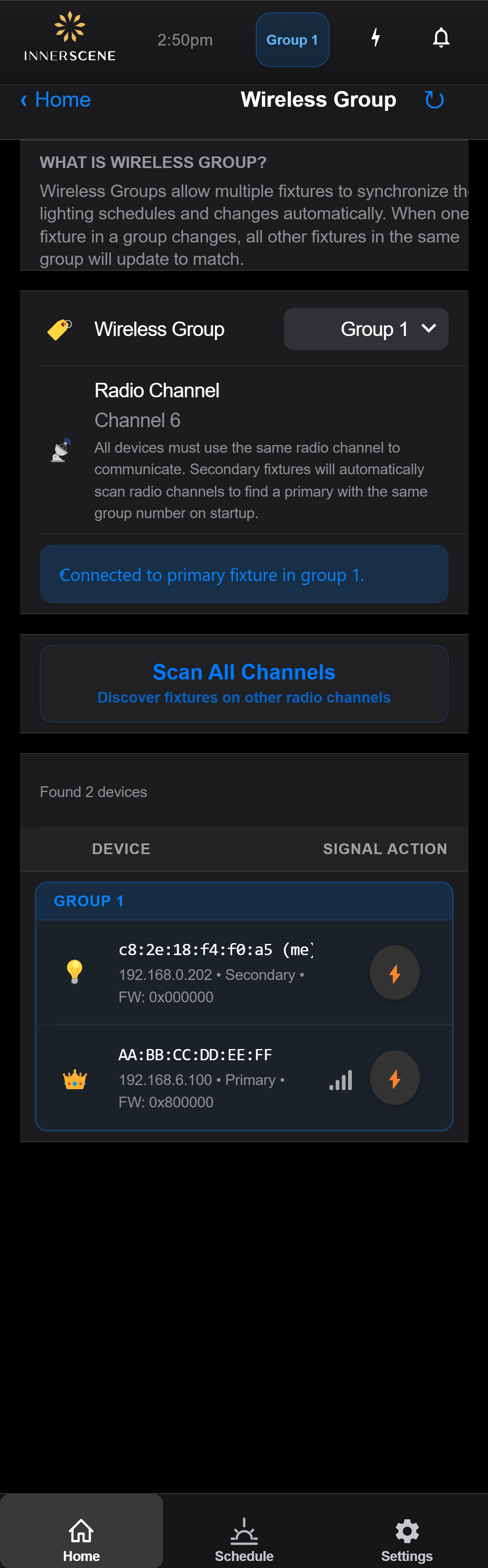
Controls on this screen
- Wireless Group
Select a group number (1-15) to synchronize this fixture with others, or "Disable Sync" to operate independently. All fixtures assigned to the same group number will automatically mirror each other's color temperature, brightness, and schedule state.
- Disable Sync (default) The fixture operates independently. It will not send or receive lighting changes from other fixtures. Use this for standalone installations.
- Group 1 Assigns this fixture to Group 1. All fixtures set to Group 1 will synchronize their CCT, brightness, and schedule state automatically.
- Group 2 Assigns this fixture to Group 2.
- Group 3 Assigns this fixture to Group 3.
- Group 4 Assigns this fixture to Group 4.
- Group 5 Assigns this fixture to Group 5.
- Group 6 Assigns this fixture to Group 6.
- Group 7 Assigns this fixture to Group 7.
- Group 8 Assigns this fixture to Group 8.
- Group 9 Assigns this fixture to Group 9.
- Group 10 Assigns this fixture to Group 10.
- Group 11 Assigns this fixture to Group 11.
- Group 12 Assigns this fixture to Group 12.
- Group 13 Assigns this fixture to Group 13.
- Group 14 Assigns this fixture to Group 14.
- Group 15 Assigns this fixture to Group 15. Up to 15 independent groups can coexist in the same space.
- Radio Channel
Shows the current radio channel used for wireless communication. All devices must be on the same radio channel to communicate. Secondary fixtures automatically scan channels on startup to find a primary fixture with the matching group number.
- Scan All Channels
Scans all radio channels (1-11) to discover Innerscene fixtures that may be on different channels. Useful when setting up a new group or troubleshooting connectivity between fixtures.
- Discovered Peers
Lists other Innerscene fixtures discovered on the network. Shows each fixture's name, group assignment, radio channel, and allows you to interact with them. Peers are discovered automatically via the wireless protocol.
Open this screen in the interactive guide to explore it with clickable callouts, search, and a live simulator, or browse all screens.