Settings screen
SkySync Settings
Configure how the SkySync sensor controls the fixture including control mode, sensor selection, brightness and CCT limits, and night mode behavior.
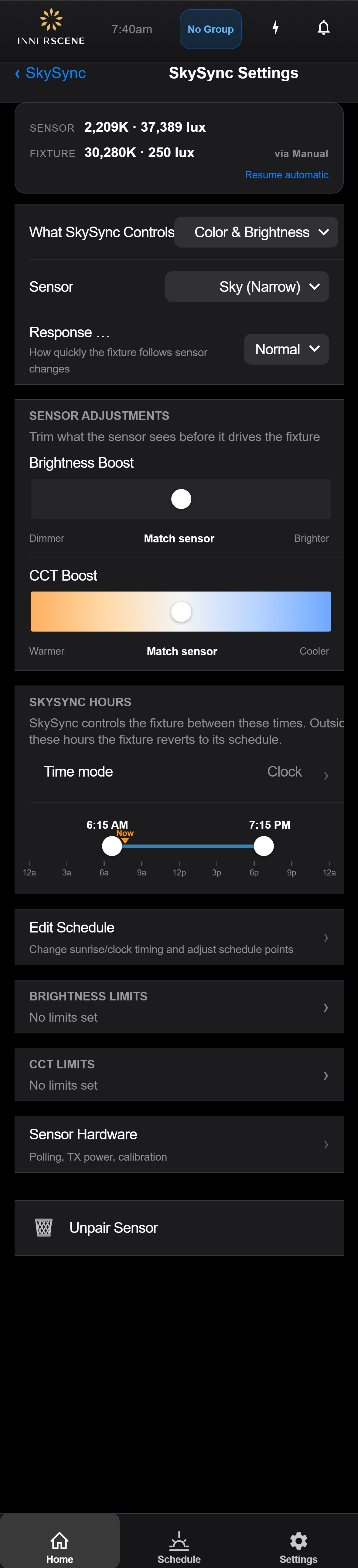
Controls on this screen
- Live Preview
Shows the current sensor reading alongside the resulting fixture output (CCT and lux). Updates continuously so you can see how your adjustments change the light.
- What SkySync Controls
Which aspects of the fixture follow the sensor. Choose Color & Brightness, Color Only (brightness stays on schedule), or Brightness Only (CCT stays on schedule).
- Color & Brightness (default) The sensor controls both the fixture's color temperature and brightness. The fixture fully tracks outdoor sky conditions, adjusting warmth/coolness and dimming level simultaneously.
- Color Only The sensor controls only the color temperature. Brightness remains under manual or schedule control. Useful when you want natural color but consistent brightness levels.
- Brightness Only The sensor controls only the brightness level. Color temperature remains under manual or schedule control. Useful when you want daylight-responsive dimming but a fixed CCT.
- Sensor Source
Which physical sensor on the SkySync unit drives the fixture. Sky (narrow angle, aimed at the sky) reads outdoor light quality. Ambient (wide angle) reads general room light. Average Both blends the two.
- Sky (Narrow) (default) Uses the narrow-angle sky-facing sensor. This sensor is designed to be pointed upward through a window to read the actual sky color. Best for accurate sky color tracking when the sensor has a clear view of the sky.
- Ambient (Wide) Uses the wide-angle ambient sensor. This sensor reads the general light level in the room or near the window. Better for tracking overall brightness in situations where the sky sensor doesn't have a direct sky view.
- Average Both Averages the readings from both the sky and ambient sensors. Provides a blended reading that accounts for both direct sky conditions and reflected ambient light.
- Response Time
How quickly the fixture tracks sensor changes. Fast reacts immediately but can flicker when conditions fluctuate. Slow smooths out transient shadows and clouds at the cost of responsiveness.
- Fast The fixture reacts to sensor changes within a few seconds. Best when you want the room light to closely track quick cloud movements or direct sun transitions. Can cause visible flicker on rapidly changing days.
- Normal (default) Balanced response — smooths out momentary shadows and passing clouds while still following the overall trend of the day. Recommended default for most installations.
- Slow Heavy smoothing. The fixture only responds to sustained changes in sky conditions, ignoring brief transients. Best for spaces where any visible change in light would be distracting.
- Brightness Boost
Biases the fixture brighter or dimmer than the sensor reading suggests. Keep at "Match sensor" for direct 1:1 tracking; slide toward Brighter to add headroom on overcast days, toward Dimmer to cap peak output.
- CCT Boost
Biases the fixture's color temperature warmer or cooler than the sensor reading. Keep at "Match sensor" for direct tracking; slide Warmer for a cozier feel, Cooler for more daytime clarity.
- Time Mode
How the SkySync operating window is expressed — Clock time (e.g., 8:00 AM to 6:00 PM) or Sunrise-relative (e.g., from 30 min after sunrise to 30 min before sunset).
- SkySync Hours
The daily window during which SkySync drives the fixture. Outside these hours the fixture falls back to the scheduled lighting. Drag either end to adjust.
- Edit Schedule
Opens the [[schedule|Schedule Editor]] so you can adjust what the fixture does outside the SkySync window, or shift sunrise/sunset points.
- Brightness Limits
Optional floor/ceiling on the brightness SkySync produces. Prevents the sensor from dimming too low at dusk or from pushing to full output on exceptionally bright days.
- When it's too dark
What the fixture does when the sensor reads below the minimum brightness threshold — dim to minimum, follow the lighting schedule instead, or hold at a fixed level.
- Dim to minimum (default) When the sensor reads below the brightness minimum, the fixture dims to its lowest configured output and stays there. Useful for keeping just enough light to navigate after dark.
- Follow schedule instead Hands control back to the lighting schedule when it gets too dark outside. Lets the fixture transition to evening/night programming based on time rather than sensor readings.
- Use fixed value Holds the fixture at a fixed brightness and color temperature until the sensor returns to the working range. Useful when you want a known nighttime appearance regardless of schedule.
- CCT Limits
Optional warm/cool limits on the color temperature SkySync produces. Useful to keep the fixture within a comfortable range regardless of sky conditions.
- Sensor Hardware
Opens the [[skysync_hardware|Sensor Hardware]] page for polling interval, transmit power, calibration, and diagnostics on the paired SkySync unit.
- Unpair Sensor
Removes the paired SkySync sensor from this fixture. After unpairing, the fixture returns to manual or schedule control and stops responding to the sensor.
Open this screen in the interactive guide to explore it with clickable callouts, search, and a live simulator, or browse all screens.