Settings screen
Voice & Widgets
Name your groups and choose which group voice commands control when you don't name one. Available in the iOS and Android apps. Every fixture group the app has connected to appears here; the names you give them are the names you say to Siri or the widget microphone. See [[voice_control|Voice Control]] for setup, sample commands and troubleshooting.
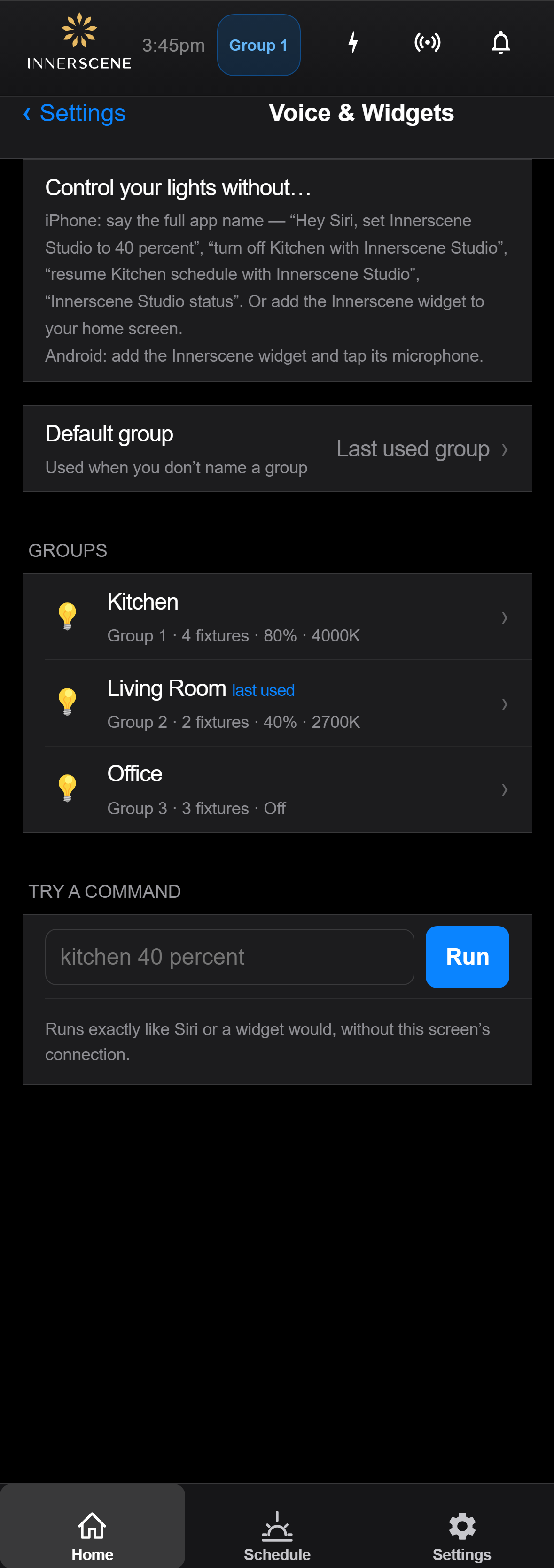
Overview
Voice & Widgets is where the Innerscene Studio app keeps the groups that Siri, the home-screen widgets and the Android microphone control. It is only in the iOS and Android apps, not in the fixture's web interface.
Every wireless group the app has connected to appears in the list, with its last known brightness and color temperature. Give each group the name you will say, such as Kitchen or Living Room. Default group decides what a command controls when it doesn't name a group: by default that is the group you last used, in the app or by voice.
Try a command runs typed text exactly as Siri or a widget would, which is a quick way to check a name before you use it out loud. See Voice Control (under Getting Started) for setup on each phone, sample commands and troubleshooting.
Controls on this screen
- Default Group
The group a command controls when it doesn't name one, for example "Hey Siri, turn off Innerscene Studio". "Last used group" (the default) follows whichever group you last connected to in the app or last named in a voice command. Pick a specific group to always control that one instead.
- Groups
Every wireless group the app has connected to, with its group number, fixture count and last known brightness and color temperature. "last used" marks the group an unnamed command will control. Tap a group to rename it, make it the default, or forget it. Names must be unique and can't be words that are also commands, such as "warm" or "off". Connect to one fixture in a group and the whole group appears.
- Try a Command
Type a command exactly as you would say it, for example "kitchen 40 percent" or "living room warmer". Useful for checking a group name before using it with Siri.
- Run
Runs the typed command the same way Siri or a widget would, including finding the fixtures on your network, without using this screen's own connection.
- Result
What the command did, the reply Siri would speak, and how each group was reached (over WiFi or Bluetooth) with the time it took. Shown in green on success and red if a group could not be reached.
Open this screen in the interactive guide to explore it with clickable callouts, search, and a live simulator, or browse all screens.