Schedule screen
Edit Schedule Point
Edit an individual schedule point's time, brightness, and color temperature. Changes can be previewed live on the fixture before saving.
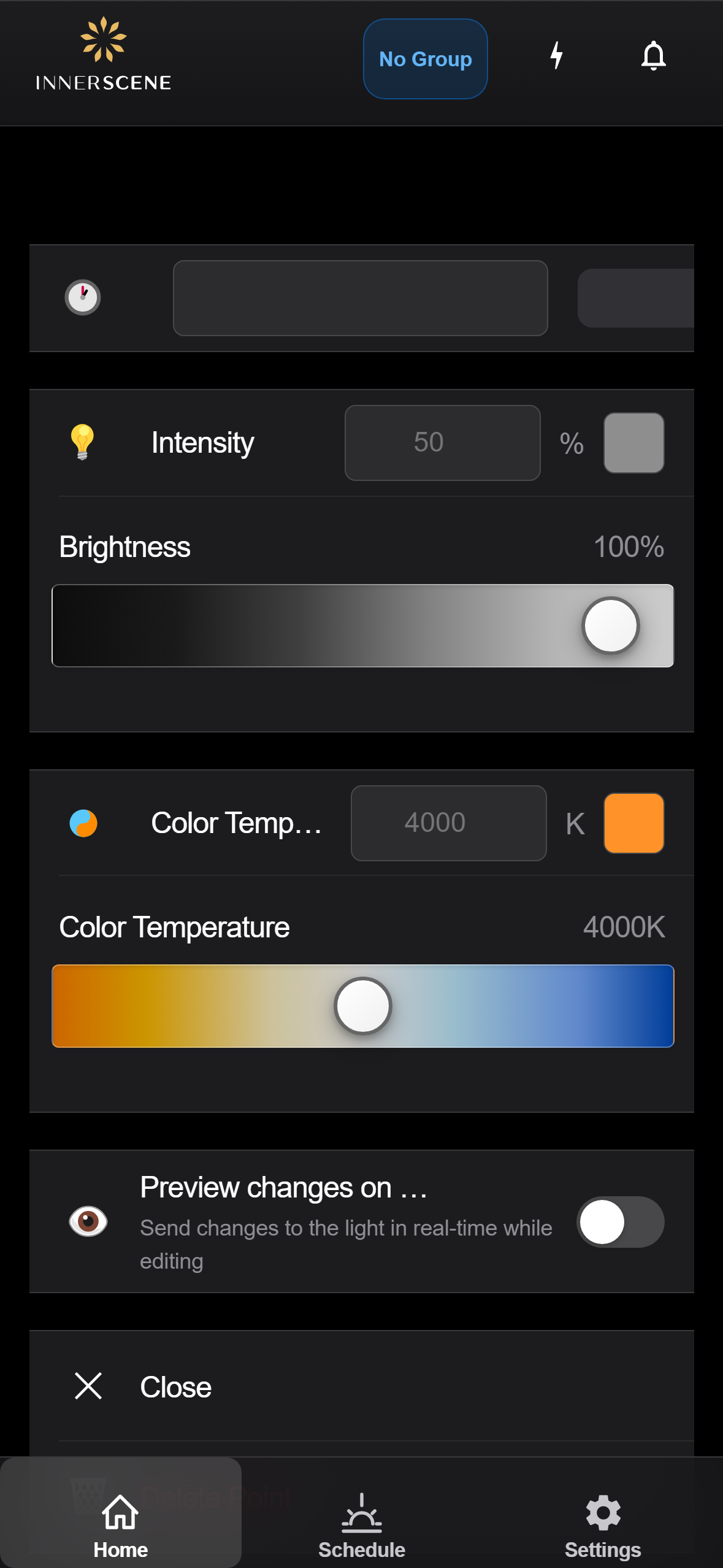
Controls on this screen
- Time Input
Set the time for this schedule point. Enter a time in hours and minutes. When using Sunrise mode, times are shown as offsets from sunrise/sunset (e.g., "sunrise + 1h"). The midnight point (12:00 AM) is fixed and cannot be changed.
- Time Picker
Dropdown with preset time options for quick selection. The available options depend on whether the schedule uses Clock or Sunrise time mode.
- Intensity Input
Enter the brightness percentage for this schedule point (0-100%). You can type a precise value including decimals (e.g., 0.1% for the minimum visible level). The slider below updates to match.
- Brightness Slider
Drag to set the brightness visually. The slider maps 0-100% brightness with fine-grained control. The numeric input above updates in real-time as you drag.
- CCT Input
Enter the color temperature in Kelvin for this schedule point (2200K-65000K). Lower values produce warmer light, higher values produce cooler/bluer light. A color preview swatch shows the approximate light color.
- CCT Slider
Drag to set the color temperature visually. The gradient shows the full range from warm (left) to cool blue (right). The numeric input and color preview swatch update in real-time.
- Preview on Fixture
When enabled, changes you make to brightness and CCT are sent to the physical fixture in real-time as you adjust the sliders. This lets you see exactly how the light will look at this schedule point before saving.
- Preview Enabled As you adjust brightness and CCT sliders, the changes are sent to the physical fixture in real-time. You can see exactly how the light will look at this schedule point before saving.
- Preview Disabled Changes are only applied when the schedule point is saved. The fixture continues displaying its current state while you edit.
- Close
Closes the editor and returns to the schedule view. Any changes you've made to this point are automatically saved when you close.
- Delete Point
Permanently removes this schedule point. The schedule will interpolate between the remaining adjacent points. The midnight point cannot be deleted as it serves as the schedule's anchor.
Open this screen in the interactive guide to explore it with clickable callouts, search, and a live simulator, or browse all screens.