Advanced screen
WiFi Configuration
Manage the device's WiFi access point, connect to external networks, configure radio channel, SSID visibility, and security settings.
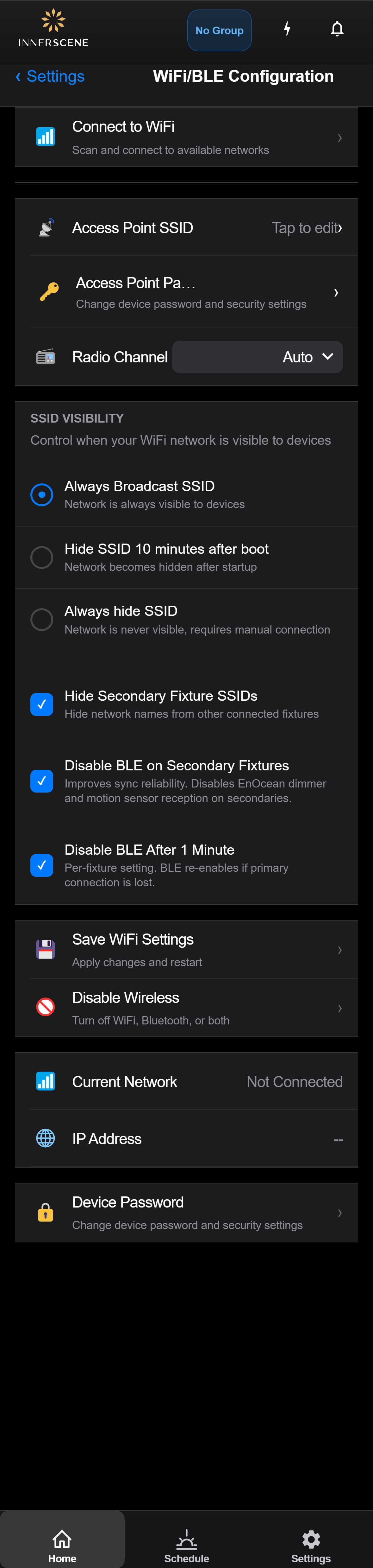
Controls on this screen
- Connect to WiFi
Scan for nearby WiFi networks and connect the device to one for internet access. This enables cloud features like weather modulation, NTP time sync, and remote firmware updates. The device maintains its own access point while also connecting to the external network.
- Access Point SSID
Change the name of the device's own WiFi access point. This is the network name that appears when you scan for WiFi on your phone or computer. The default name includes the device model and a unique identifier.
- Access Point Password
Change the password required to connect to the device's WiFi access point. Also configures security settings for the device's web interface.
- Radio Channel
Set the WiFi radio channel for the device's access point. "Auto" lets the device choose the least congested channel automatically. Manually selecting a channel (1-11) can help avoid interference in environments with many WiFi networks.
- Auto (default) The device automatically selects the least congested WiFi channel on startup. Recommended for most installations.
- Channel 1 2.412 GHz — One of the three non-overlapping channels (1, 6, 11). Good default if you need a fixed channel.
- Channel 2 2.417 GHz
- Channel 3 2.422 GHz
- Channel 4 2.427 GHz
- Channel 5 2.432 GHz
- Channel 6 2.437 GHz — Non-overlapping channel. Good choice in environments with multiple WiFi networks.
- Channel 7 2.442 GHz
- Channel 8 2.447 GHz
- Channel 9 2.452 GHz
- Channel 10 2.457 GHz
- Channel 11 2.462 GHz — Non-overlapping channel. Use to avoid interference from networks on channels 1 and 6.
- Always Broadcast SSID
The device's WiFi network name is always visible when scanning for networks. This is the default and recommended setting for easy access.
- Always Broadcast SSID (default) The device's WiFi network is always visible when scanning. This is the default and makes it easy to find and connect to the device.
- Hide After 10 Minutes The SSID is visible for 10 minutes after boot, then hidden. Connect within the first 10 minutes, or manually enter the network name later.
- Always Hide SSID The SSID is never broadcast. Reduces WiFi clutter but requires manually entering the network name to connect.
- Hide After 10 Minutes
The SSID is visible for 10 minutes after the device boots, then becomes hidden. You can still connect by manually entering the network name. Useful for reducing WiFi clutter once initial setup is complete.
- Always Hide SSID
The SSID is never broadcast. The device's network won't appear in WiFi scans — you must manually enter the network name to connect. Provides the cleanest WiFi environment but requires knowing the SSID.
- Hide Secondary Fixture SSIDs
When enabled, secondary fixtures in a wireless group hide their individual SSIDs, leaving only the primary fixture's network visible. Reduces WiFi clutter in multi-fixture installations.
- Disable BLE on Secondary Fixtures
When enabled, secondary fixtures in the group turn off their Bluetooth radio. This improves wireless sync reliability, but disables EnOcean dimmer and motion-sensor reception on those secondaries. The primary fixture keeps Bluetooth on.
- Disable BLE After 1 Minute
A per-fixture setting that turns the Bluetooth radio off one minute after the fixture boots, to reduce RF activity. Bluetooth re-enables automatically if the fixture loses its connection to the primary, so the fixture can still be recovered.
- Save WiFi Settings
Applies all WiFi configuration changes and restarts the WiFi subsystem. The device may briefly disconnect while the new settings take effect.
- Disable WiFi
Completely turns off the device's WiFi access point. Warning: this will make the device unreachable via WiFi. You will need a physical connection or BLE to re-enable it.
- Current Network
Shows the name of the external WiFi network the device is currently connected to, or "Not Connected" if it hasn't joined any network.
- IP Address
The IP address assigned to the device on the external WiFi network. Use this address to access the device's web interface from other devices on the same network.
- Disconnect WiFi
Disconnects the device from the current external WiFi network. The device's own access point remains active. Only visible when the device is connected to a network.
- Device Password
Navigate to the device password configuration page. Here you can change the password used to access the device's web interface and control functions.
Open this screen in the interactive guide to explore it with clickable callouts, search, and a live simulator, or browse all screens.