Advanced screen
WiFi Scan
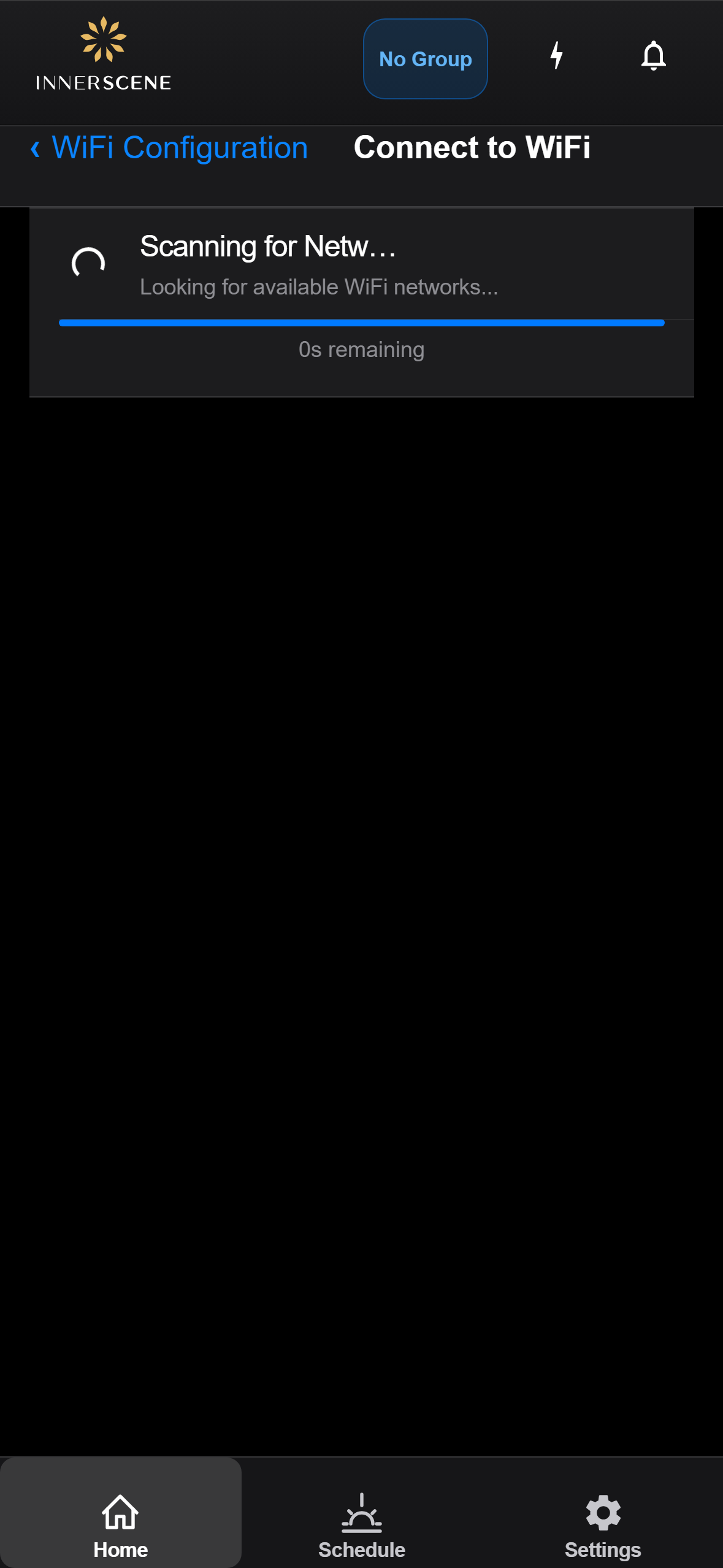
Scans for nearby WiFi networks and displays them sorted by signal strength. Tap a network to connect the device to it.
Controls on this screen
- Scan Status
Shows the current state of the WiFi scan — scanning, complete, or error. During scanning, a progress bar shows the estimated time remaining (typically 5 seconds).
- Scan Progress Bar
Visual progress indicator for the WiFi scan. The bar fills from left to right during the scan. After completion, it disappears and the network list is shown.
- Available Networks
List of discovered WiFi networks sorted by signal strength. Each entry shows the network name (SSID), signal strength indicator, and security type. Tap any network to connect to it. Networks you've previously connected to are marked.
- Scan Again
Starts a new WiFi scan to refresh the list of available networks. Useful if the network you're looking for didn't appear in the initial scan.
Open this screen in the interactive guide to explore it with clickable callouts, search, and a live simulator, or browse all screens.