Advanced screen
Device Password
Change the device password used to access the web interface and protect the device from unauthorized control.
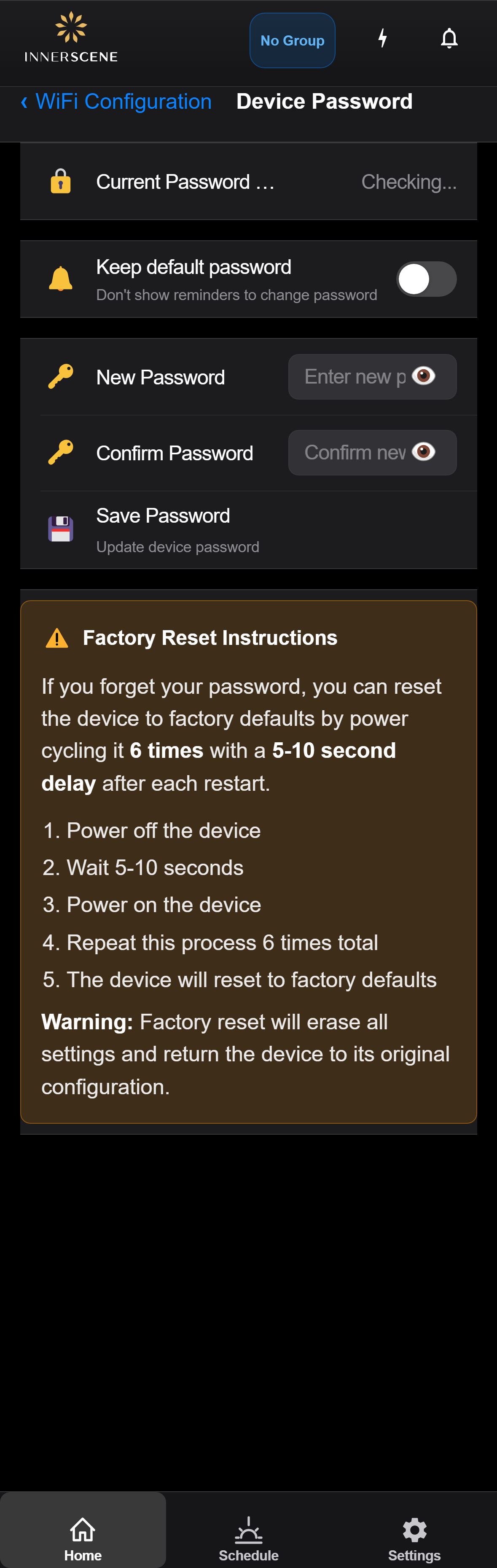
Controls on this screen
- Current Password Status
Shows whether the device is using the factory default password or a custom password. If using the default, a reminder banner appears on the Home screen.
- Keep Default Password
When enabled, suppresses the "change your password" reminder banner on the Home screen. Use this if you intentionally want to keep the default password (e.g., in a controlled environment).
- Keep Default (suppress reminders) The password reminder banner on the Home screen is suppressed. Use this when you intentionally want to keep the default password, such as in a controlled or private installation.
- Show Reminders (default) A banner appears on the Home screen reminding you to change the default password. Recommended for security, especially if the device is accessible on a shared network.
- New Password
Enter the new password for the device. This password will be required to access the device's web interface and control it remotely. Choose something memorable but secure.
- Confirm Password
Re-enter the new password to confirm. Both fields must match before the password can be saved.
- Save Password
Saves the new password to the device. The change takes effect immediately — you will need to use the new password the next time you connect.
Open this screen in the interactive guide to explore it with clickable callouts, search, and a live simulator, or browse all screens.