Advanced screen
Disable Wireless
Permanently disables one or more wireless interfaces on the device. This is a one-way operation — once disabled, the interface cannot be re-enabled from the device itself.
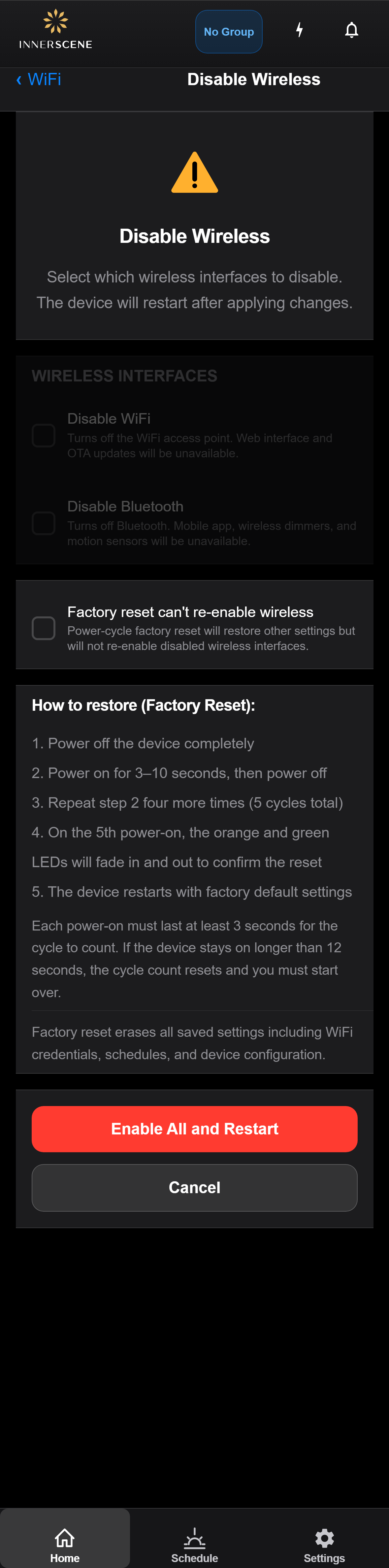
Controls on this screen
- Wireless Interfaces
Select which wireless interfaces to disable. Each checkbox represents a separate radio (WiFi AP, WiFi station, Bluetooth, mesh). Checking any option is permanent on this device.
- Impact Summary
Lists the capabilities you will lose when the selected interfaces are disabled — remote access, phone app, cloud features, sync groups, etc. Read this carefully before proceeding.
- Permanence Warning
Explains that a factory reset will NOT restore wireless. The disable is burned into non-volatile storage and survives reset, reboot, and firmware update.
- Restore Instructions
Details on the physical steps required to re-enable wireless (returning the unit to Innerscene). Keep these instructions handy if you ever need to reverse the disable.
- Disable and Restart
Commits the disable operation. The device reboots immediately and the selected interfaces come up disabled. This cannot be undone from the UI.
- Cancel
Closes this page without making any changes. Nothing is disabled and all wireless interfaces stay active.
Open this screen in the interactive guide to explore it with clickable callouts, search, and a live simulator, or browse all screens.