Advanced screen
System Configuration
Configure system-level device settings including the fixture role, status LED brightness, network address, mesh rebroadcast range (primary fixtures only), and factory reset.
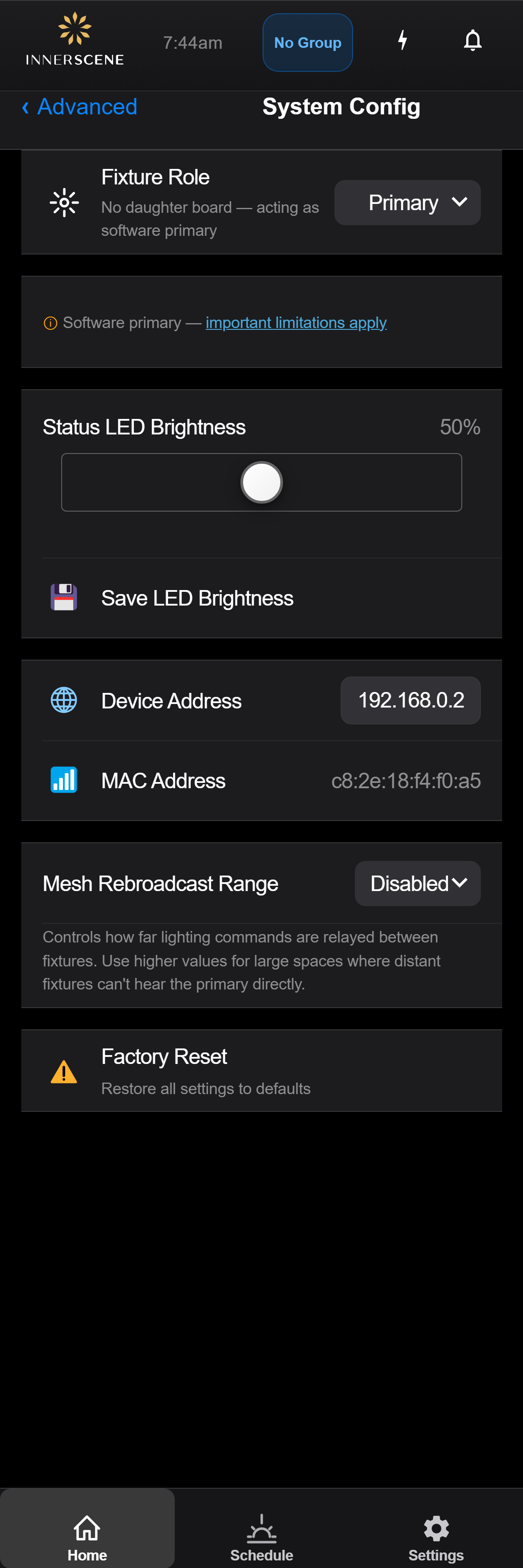
Controls on this screen
- Fixture Role
Sets the role this fixture plays in its wireless group. "Auto" decides automatically from the hardware: a fixture with a daughter board (0-10V, DALI, DMX, or Casambi) becomes a Primary, and one without a board stays a Secondary. "Primary" forces the fixture to run its own schedule and broadcast it to the group. "Secondary" forces it to follow another primary in the same group. Virtual Sun Controller and SkySync Hub are specialized roles used in those product configurations. See [[fixture_role_info|Fixture Roles]] for a full explanation of primary, secondary, and software-primary fixtures.
- Auto (default) The fixture chooses its role from the hardware present. With a daughter board (0-10V, DALI, DMX, or Casambi) it acts as a Primary; without one it acts as a Secondary. This is the default and suits most installations.
- Primary Forces the fixture to act as the group primary. It runs its own schedule and broadcasts CCT, brightness, and schedule state to the secondaries in its wireless group. A fixture with no daughter board set to Primary becomes a software primary and relies on internet time sync.
- Secondary Forces the fixture to follow a primary in the same wireless group. It has no schedule of its own and mirrors whatever the primary broadcasts over the radio link.
- Virtual Sun Controller Specialized primary role for Virtual Sun installations, where this fixture drives the group as the Virtual Sun controller.
- SkySync Hub Specialized role in which the fixture acts as the hub for a paired SkySync outdoor sensor, sharing its readings with the rest of the group.
- Current Role Detail
Describes how the current role was arrived at, for example "No daughter board, acting as software primary" when a board-less fixture has been set to run as primary.
- Software Primary Notice
Appears when a fixture without a daughter board is acting as a primary (a "software primary"). Software primaries run the schedule from internet time sync rather than a hardware clock, so they carry some limitations. Tap [[soft_primary_info|important limitations apply]] to read them.
- Status LED Brightness
Controls the brightness of the small colored status LEDs on the device (red, orange, green). Set to 0% to turn them off entirely for a cleaner look in visible installations, or increase for easier status identification during setup.
- LED Brightness Value
Displays the current status LED brightness as a percentage (0-100%).
- Save LED Brightness
Saves the current LED brightness setting to the device. The change is applied immediately and persists across reboots.
- Device Address
The IP address used to communicate with the device. This is automatically detected but can be manually overridden if needed (e.g., when accessing through a proxy or port forward).
- MAC Address
The device's WiFi MAC address. This is a unique hardware identifier that cannot be changed. Useful for identifying the device on your network or in router settings.
- Mesh Rebroadcast Range
Controls how far lighting commands are relayed (rebroadcast) between fixtures in the wireless sync group. The default, "Disabled", means each secondary must hear the primary's broadcast directly and no fixture relays to its peers. Switch to one of the hop options ("1 Hop", "2 Hops", or "3 Hops") only when some fixtures are out of direct radio range of the primary. Each additional hop allows one more peer-to-peer relay step in the chain at the cost of a small amount of extra latency before the command is applied. This setting only appears on primary fixtures.
- Factory Reset
Restores ALL settings to factory defaults. This erases the schedule, wireless group, WiFi credentials, calibration data, and all other configuration. The device will reboot and return to its initial setup state. This action cannot be undone.
Open this screen in the interactive guide to explore it with clickable callouts, search, and a live simulator, or browse all screens.