Advanced screen
Cloud Management
Connect this fixture to the Innerscene Cloud so Innerscene staff can support and configure it remotely. Once it is connected, staff can update its firmware, reconfigure its wireless grouping, adjust its schedule, and change other settings without a site visit. Use it when you want remote technical support or setup help from Innerscene. Requires firmware 2.0.464 or newer. The fixture checks in over its own WiFi connection, so it needs to be joined to a network under [[wifi|WiFi Configuration]].
Overview
Cloud Management connects the fixture to the Innerscene Cloud so Innerscene staff can provide technical support and configuration remotely. Once it is connected, staff can see how the fixture is running, update its firmware, reconfigure its wireless grouping, adjust its schedule, and change other settings without a site visit. Connect it when you would like Innerscene to help troubleshoot a problem or set up an installation for you.
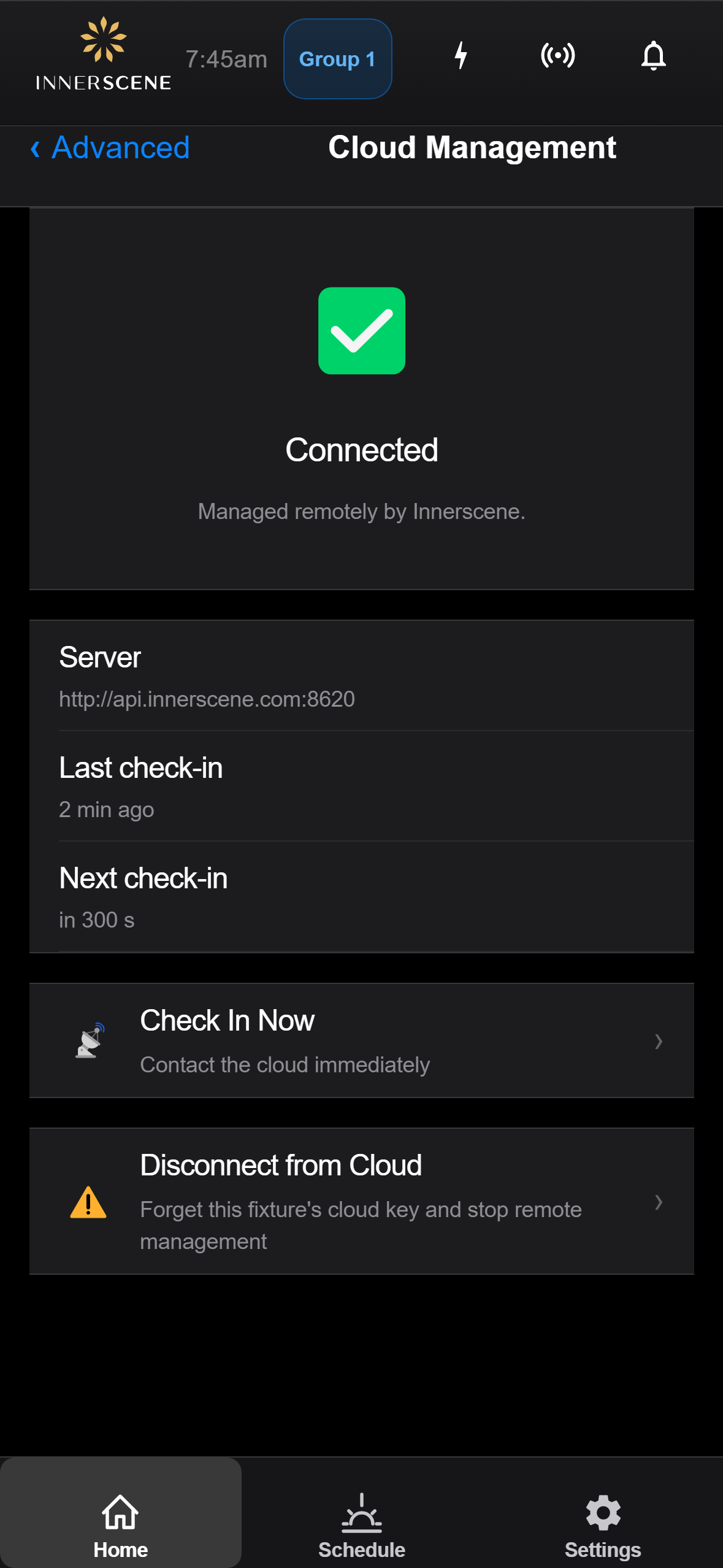
The card at the top shows the current state, with the server, the last successful check-in, and when the next one is due below it.
To connect, tap Connect to Innerscene Cloud. The app creates a key for this fixture, registers it with the Innerscene server using your phone or computer's internet connection, and writes it to the fixture. The fixture then checks in over its own WiFi connection, so join it to a network under WiFi Configuration first. Setup needs firmware 2.0.464 or newer.
Once connected, Check In Now contacts the cloud immediately, and Disconnect from Cloud erases the key and stops remote management (tap it twice to confirm). If the fixture still holds a key but check-ins were turned off, Turn Cloud Management back on resumes them without enrolling again.
Controls on this screen
- Connection State
Summary of the fixture's cloud status. Connected means it checked in recently. Not connected means it has never been enrolled. Waiting for WiFi means cloud management is on but the fixture has no network. Waiting for first check-in appears right after setup, until the server confirms the fixture. Not responding means the last successful check-in was over an hour ago. Cloud management off means the fixture holds a key but check-ins are paused.
- Server
The cloud server this fixture checks in with. Shows the Innerscene default unless a different server has been configured.
- Last Check-in
How long ago the fixture last reached the cloud successfully, or never if it has not checked in yet.
- Next Check-in
When the fixture will contact the cloud next. Shows checking in now while a check-in is in progress.
- Diagnostics
Conditional. Appears when check-ins are failing or being postponed, with counts of failed and deferred check-ins, the reason for the last deferral, and the last HTTP status. Useful when contacting Innerscene support.
- Turn Cloud Management Back On
Conditional. Appears when the fixture still holds a cloud key but check-ins were turned off. Resumes check-ins with the existing key, without enrolling again.
- Connect to Innerscene Cloud
Conditional. Appears whenever the fixture is not fully connected. Tap it when you want Innerscene staff to troubleshoot or configure the fixture remotely. Creates a key for this fixture, registers it with the Innerscene server using this phone or computer's internet connection, and writes it to the fixture. The fixture is connected once its first check-in reaches the server. If the fixture already has a key, this issues a new one and reconnects.
- Setup Progress
Conditional. Step-by-step log while connecting: registering the key, writing it to the fixture, and waiting for the fixture to reach the cloud. If a step fails, the reason is shown here. Most failures mean the phone or computer running the app has no internet access.
- Check In Now
Contacts the cloud immediately instead of waiting for the next scheduled check-in, then refreshes the status a few seconds later. Shown while cloud management is on.
- Disconnect from Cloud
Erases the fixture's cloud key and stops remote management, so Innerscene staff can no longer reach or change the fixture. Tap once, then tap again to confirm. To reconnect later, use Connect to Innerscene Cloud.
Open this screen in the interactive guide to explore it with clickable callouts, search, and a live simulator, or browse all screens.