Settings screen
Import Settings
Apply a settings profile that was previously exported, either from a saved profile or from a .json file on your device. Pick which of the saved settings to apply before importing.
Overview
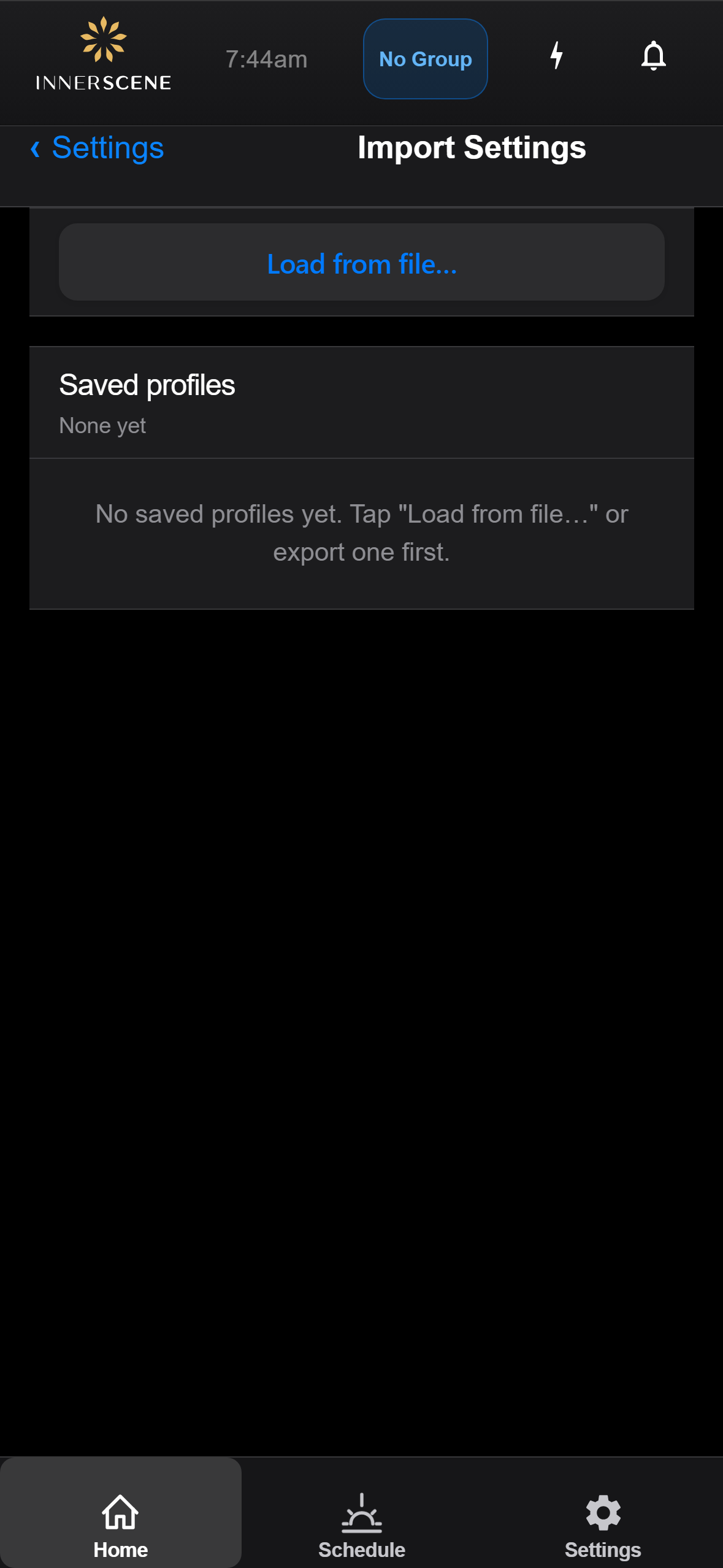
Import Settings applies a configuration profile that was previously exported. Load a profile from a .json file with Load from file, or pick one from the saved profiles list (saved profiles live in the Innerscene Studio app, so on the web interface you usually load from a file).
After a profile is selected, its contents are listed so you can review them and choose which settings to apply. Importing only the items you select leaves everything else on the fixture unchanged.
Applying WiFi settings disconnects the fixture from its current network, so you may need to reconnect through SoftAP or your home WiFi to verify. Changing the Wireless Group number requires a reboot to take effect, which is flagged on screen when it applies.
Controls on this screen
- Load from File
Opens a file picker to load a settings profile (.json) that was exported from another fixture or saved as a backup. The profile's contents then appear for review before applying.
- Saved Profiles
Shows how many settings profiles are saved in the app. Saved profiles live in the Innerscene Studio app; on the web interface this list is usually empty and you load from a file instead.
- Profile List
List of saved profiles available to import. Tap a profile to review which settings it contains and choose what to apply.
Open this screen in the interactive guide to explore it with clickable callouts, search, and a live simulator, or browse all screens.