Advanced screen
Device Values
Browse, edit, and manage all key-value configuration data stored on the device. Shows persistent and resettable storage locations with tools to bake, add, edit, delete individual or bulk-selected values. Reached from the [[load_values|Data Management]] hub.
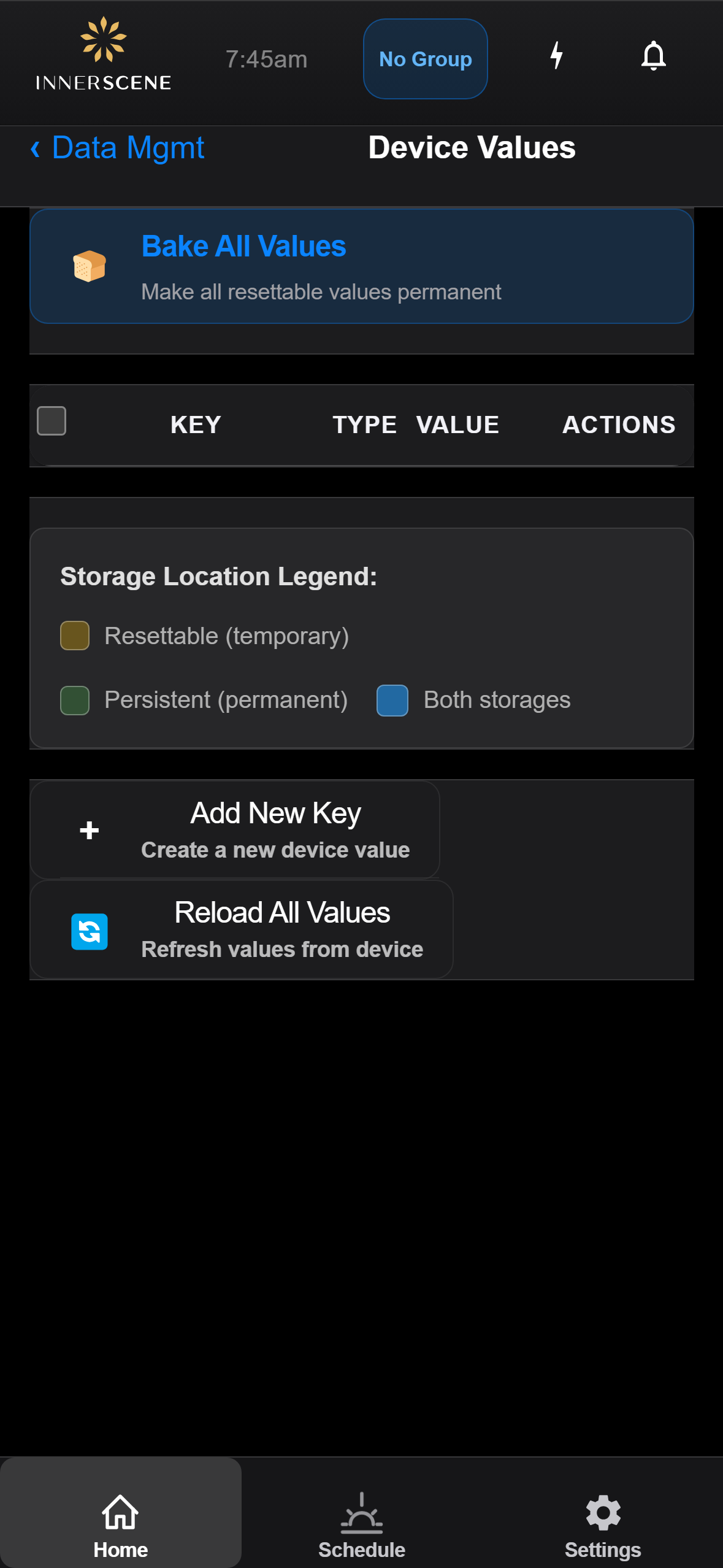
Controls on this screen
- Bake All Values
Copies all resettable (temporary) values to persistent storage so they survive a factory reset. Use this after configuring a fixture to make all current settings permanent.
- Select All Checkbox
Toggles selection for every row in the table. Selecting one or more rows reveals the Bulk Delete bar at the bottom of the page.
- Values Table
Displays every key-value pair stored on the device. Each row shows the key name, data type, current value, and per-row actions. Rows are color-coded by storage location — see the legend below the table — and individual rows can be checked to enable bulk delete.
- Bulk Delete Bar
Appears at the bottom of the page when one or more rows are checked. Shows how many values are selected and lets you delete them all in a single action. Hidden when nothing is selected.
- Selected Count
Number of rows currently checked for bulk deletion.
- Delete Selected
Deletes every row currently checked in the values table. Deleting a calibration-related key triggers the [[confirm_cal_delete|Confirm Calibration Delete]] dialog before proceeding.
- Storage Location Legend
Color key explaining how the table rows are tinted. Resettable values are wiped by a factory reset; persistent values survive; "both" means the key exists in both storages and the two copies may differ.
- Add New Key
Opens the [[add_new_key|Add New Key]] form so you can create a new key-value entry on the device. You'll be able to specify a key name (up to 16 characters), value, data type, and storage location.
- Reload All Values
Re-reads all values from the device. Use this to refresh the table after making changes through other interfaces, after a firmware update, or after baking values.
- Loading Status
Shows progress while values are being loaded from the device. Loading all keys may take several seconds on a fixture with many stored values.
Open this screen in the interactive guide to explore it with clickable callouts, search, and a live simulator, or browse all screens.