Four Ways to Get a Real Room into Circadian Lab
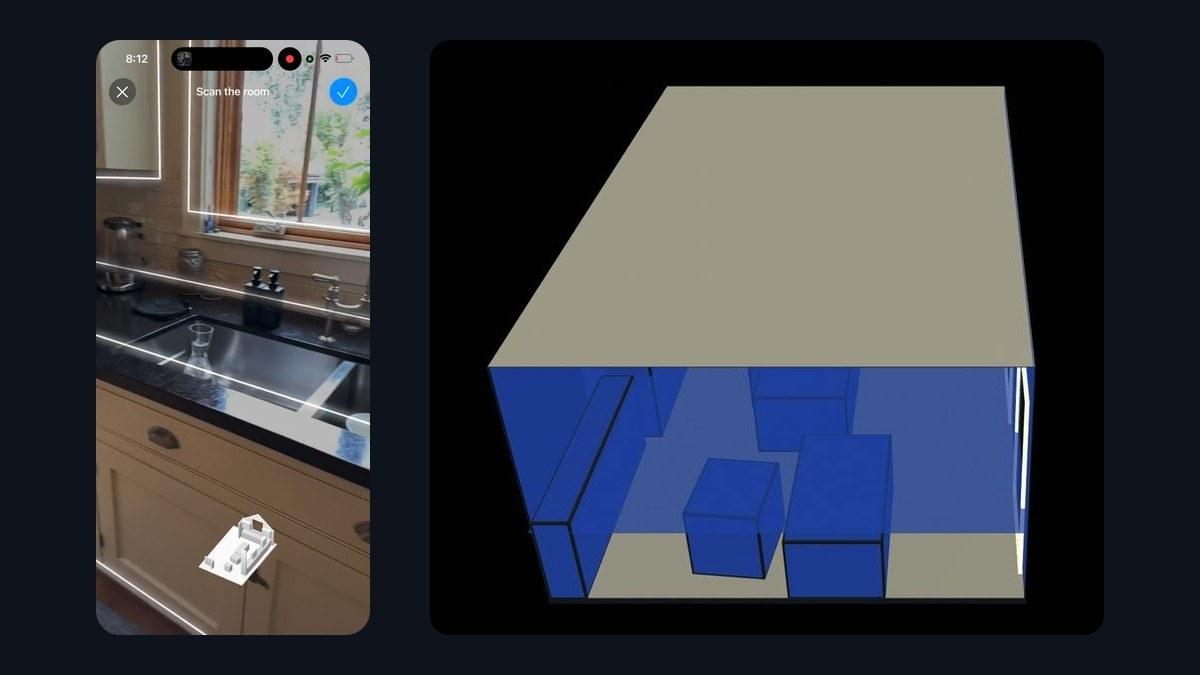
Every lighting calculation starts with a room, and typing one in is the slowest part of the job. A width, a depth, a ceiling height, then every window with its width, its height and its sill, then the furniture that blocks the light. For a space that already exists, all of that is measurable, so Circadian Lab now takes four kinds of input that bring the measurements with them.
- A phone scan. Point a LiDAR iPhone at the room and walk it. Walls, ceiling, windows, doorways and furniture arrive measured.
- A description handed to an AI. Words, a floor plan, a ceiling plan or a photograph go into a chat, and a built room comes back.
- A 3D model. Open any of the formats the 3D viewer reads, then send the room to Circadian Lab from the Tools menu.
- A 2D floor plan. A PDF, a CAD drawing, or a photograph of a printed plan, traced into walls.
All four are free, all four run in the browser, and all four land as a single undoable step, so one Ctrl+Z puts back the room you had before.
1. Scan the room with an iPhone
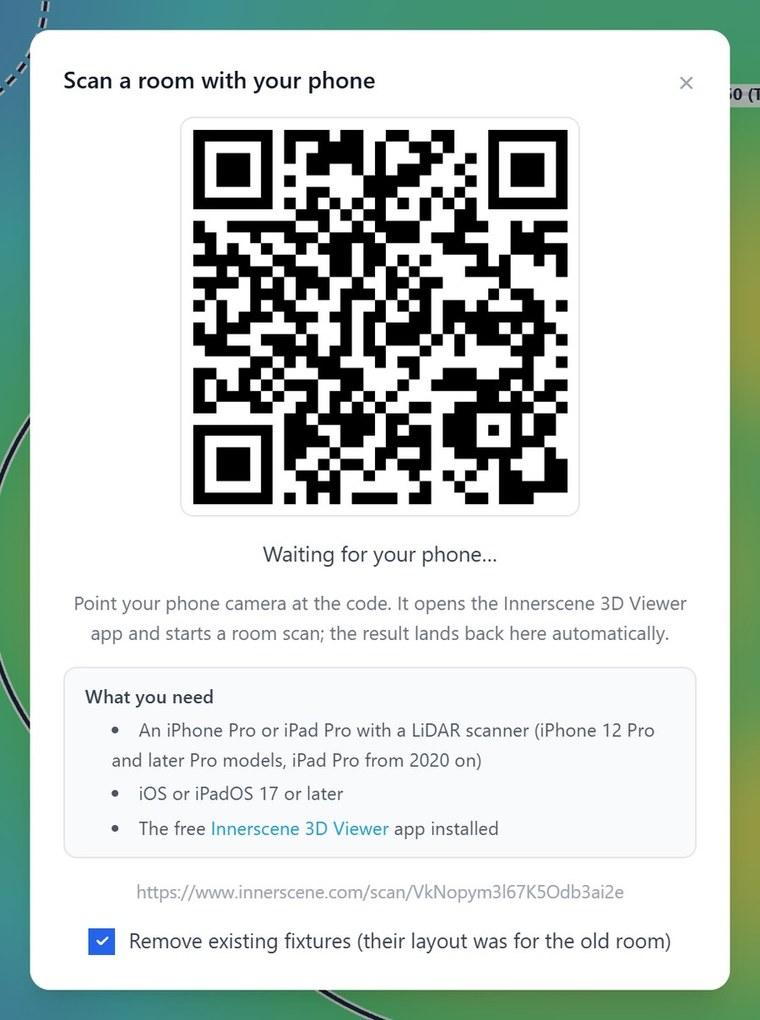
In Circadian Lab, press Scan Room in the toolbar. A dialog appears with a QR code in it. Point your phone camera at the code and the free Innerscene 3D Viewer app opens straight into a capture screen. Walk the room slowly, watching the white outlines appear on the surfaces the phone has found, then tap the check mark. The desktop dialog fills in by itself.

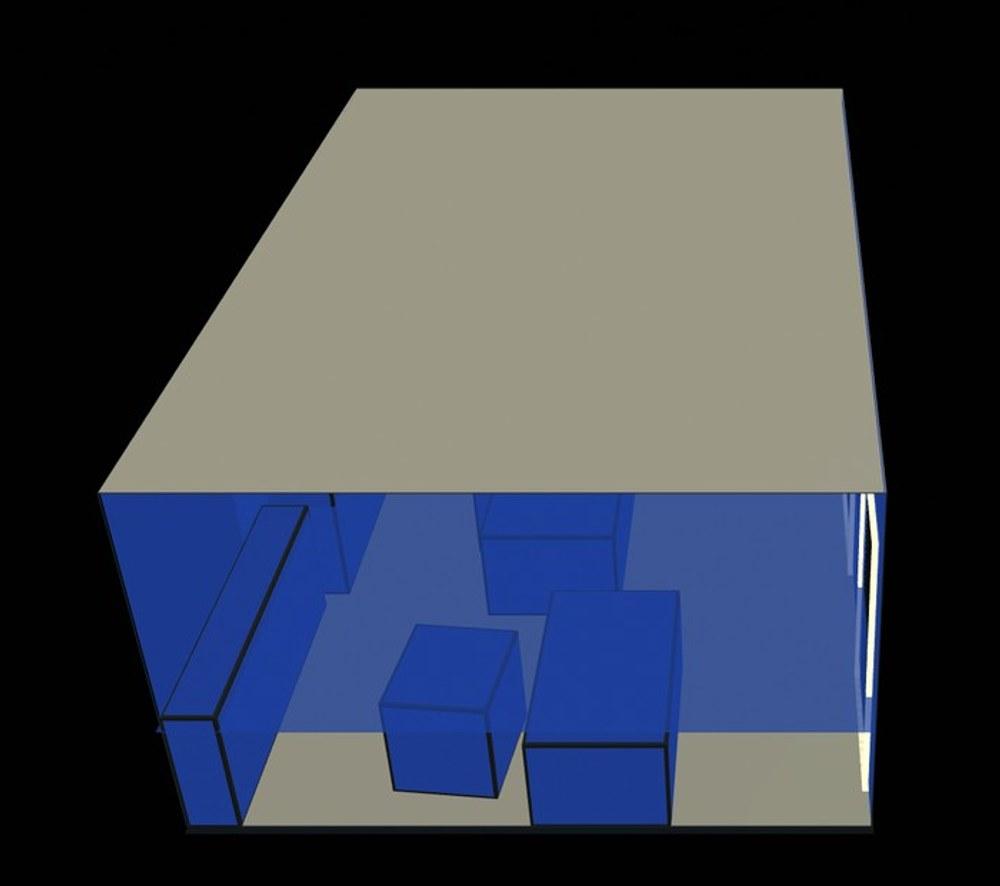
What the scan carries
The capture itself is Apple RoomPlan, which is the reason for the hardware requirement below. What reaches Circadian Lab is a room description built from it:
- Windows with real sills. Each one arrives with a width, a height and a sill height, on the wall it belongs to. This is the part that saves the most time, because a window schedule is otherwise typed in by hand from a tape measure.
- Doorways as openings that pass no light. Circadian Lab has no door type, so doors and open doorways come in as windows with zero transmittance: visible in the room and in the plan, and dark.
- Furniture as solid boxes. Beds, desks, cabinets and sofas come in at their measured footprint and height, and they occlude, so a desk lamp calculation over a bed sees the bed.
- The site. The phone sends its coarse location and time zone with the capture, so the daylight scene is placed where the room is. Sun angles, sunrise and sunset are then the real ones for that address and date.
A scan of a rectangular room comes back as a slightly crooked four-sided polygon, since no two walls a phone traces are exactly parallel. Where the shape is within a few percent of a rectangle it is squared up to a plain width and depth, which keeps the simple editing controls available: drag a wall, type a dimension, move a window along its wall. Rooms that are genuinely L-shaped keep their outline, and interior walls that are not part of the perimeter become partitions.
What you need: an iPhone Pro or iPad Pro with a LiDAR scanner (iPhone 12 Pro and later Pro models, iPad Pro from 2020 on), iOS or iPadOS 17 or later, and the free Innerscene 3D Viewer app. Phones without the LiDAR sensor cannot run the capture at all, which is why the requirement is printed beside the QR code.
Scanning without the desktop
The app also scans on its own. Open it, press Scan a room on the start screen, and the capture opens the finished room in the viewer as a 3D model, with named parts for the walls, floor, ceiling, windows and each piece of furniture. From there it exports like any other model, so a scan can leave as glTF, OBJ, STL, DXF, 3MF or any of the other write formats.
That covers the common case where the person holding the phone and the person doing the lighting are two different people. Whoever scanned the room sends you the share link or the .glb file, and File, then Import a room takes either one. The measured room rides inside the file, so what lands in your browser is the survey they walked, at full accuracy.
2. Describe the room to an AI
When nobody can get to the building with a phone, the next best measurements are usually the ones already written down: a floor plan, a ceiling plan, an email describing the space, a photograph with a door in it. An AI assistant is good at turning those into a model, and Circadian Lab publishes a guide written for assistants to read, at innerscene.com/api/eml-calc/ai/guide. It carries the room schema, the Circadian Sky presets, the fixture library and the compute endpoints, so the assistant learns the whole system from one URL.
Press the AI chip in the toolbar. The dialog gives you a starter prompt to copy, and below it, the current list of models worth using for this. Paste the prompt into Claude, ChatGPT or Gemini, edit the bracketed parts, and attach your drawing if you have one.

Working from a drawing or a photograph
Attach a floor plan or a reflected ceiling plan to the chat, as an image or a PDF, and ask the assistant to read the room size, the ceiling height, the fixture types and the position of each one, anchoring the scale on a dimension it can see. A marked-up plan with a fixture schedule is the strongest input, because the numbers are printed on it. Photographs work in the weaker sense: with a door, a ceiling tile or a desk in frame, a vision model can estimate proportions from something of known size, and it is estimating, so the dimensions it reports are the first thing to check.
The same prompt can go further than geometry. An assistant that reads the guide can search the fixture library, pull the real IES photometry for the downlights or troffers named in the schedule, and attach them to the model, which is what makes the illuminance and the glare numbers mean something. For clients that speak MCP, the Circadian Lab MCP server exposes the same abilities as native tools, so the assistant can score a layout, optimise it, and look at a rendered image of the result before it answers.
What comes back
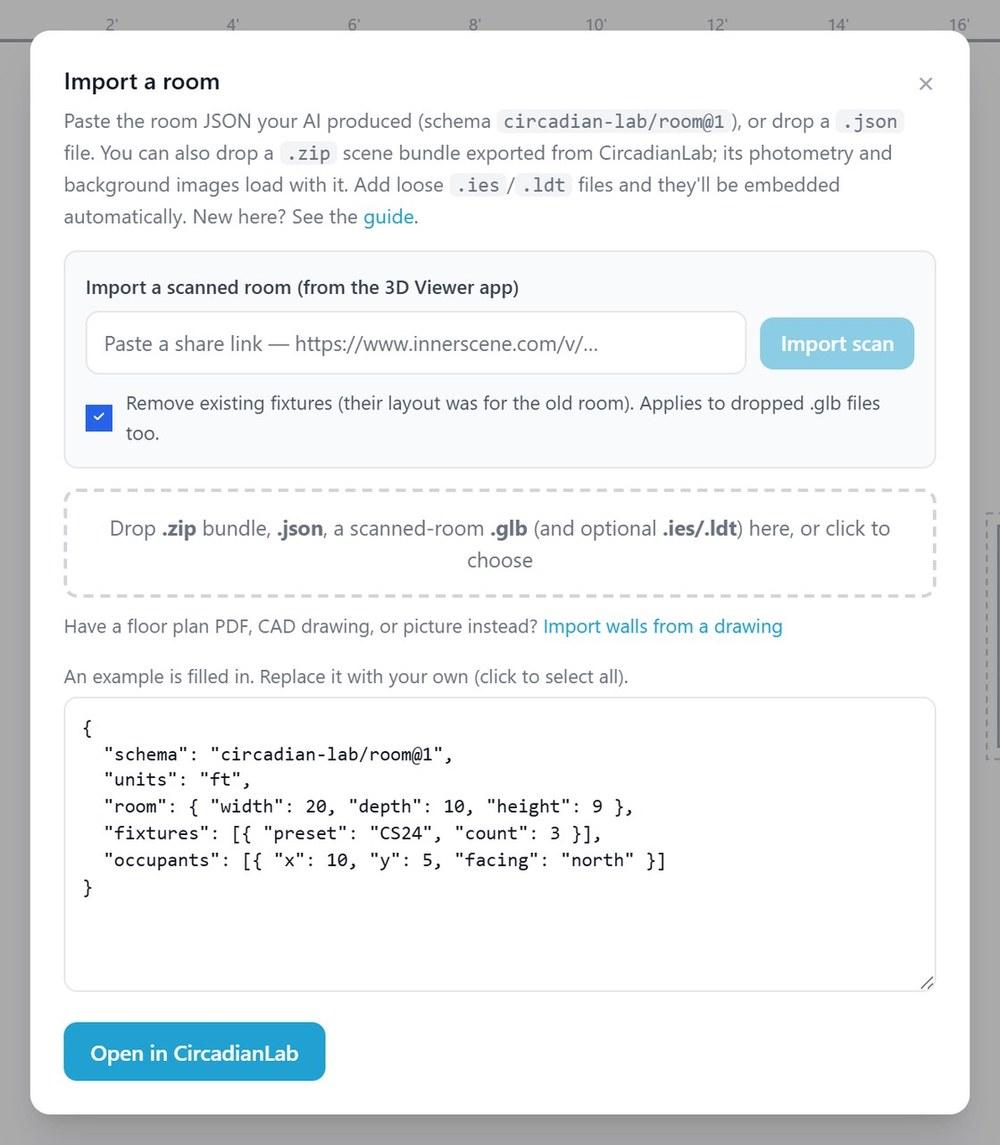
An agent that can make web requests hands you a link that opens the finished model. A chat-only assistant hands you a block of room JSON instead: open File, then Import a room, paste it into the box, and click Open in CircadianLab.
One caution worth carrying into any AI workflow: a number is only real if something computed it. The guide tells assistants to compute through the scoring endpoint, or to hand over the link and let your browser do it, and to say plainly when they could not. Ask for the list of assumptions alongside the model, and read it. There is a longer treatment of all of this in Designing Lighting with AI.
3. Open any 3D model as a room
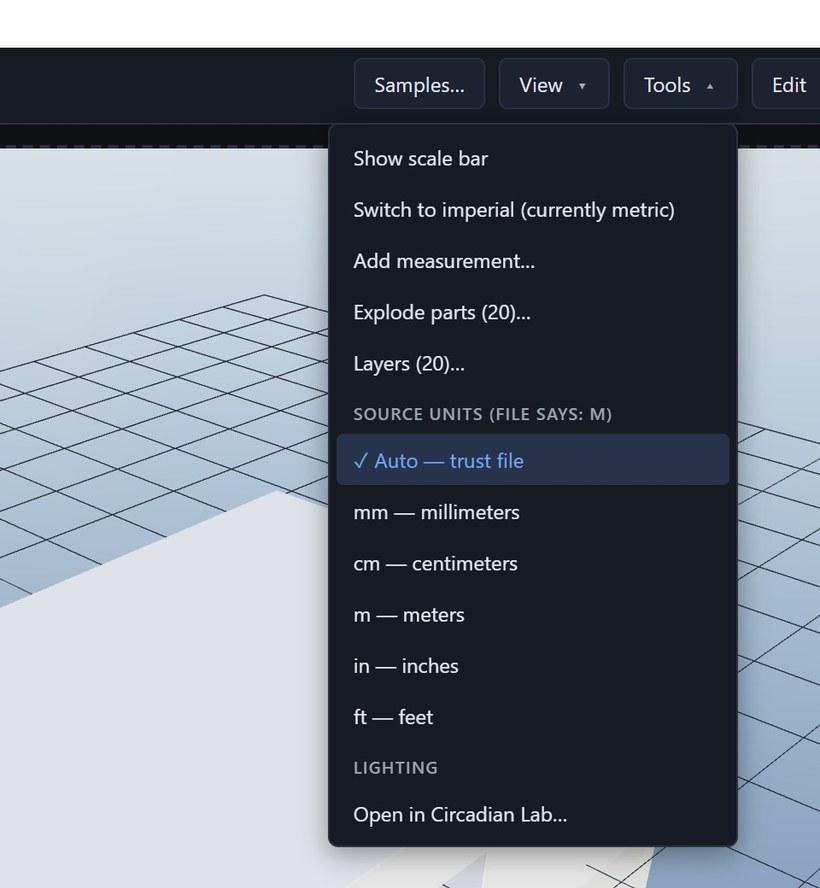
Most rooms that need lighting have a model somewhere already. Open it in the 3D viewer (it reads IFC, RVT, SKP, DWG, STEP, glTF and dozens of other formats), then choose Open in Circadian Lab from the Tools menu. The viewer measures the model, works out which surfaces are floor, ceiling and walls, and hands the result across.
When it declines
A model of a teapot is not a room, and neither is a whole house. The analyser says so in as many words, and names the reason, because a room-shaped object built from the wrong geometry quietly ruins every number that follows it. It declines when the footprint falls outside 1.8 m to 25 m on a side, when the ceiling works out below 2 m or above 6 m (atriums and multi-storey voids are out of scope), when no horizontal floor surface exists, and when the large surfaces are mostly tilted, which is the signature of a pitched roof.
Two of those cases come back with an answer attached. A model with several walkable floors offers a story picker, so you can take the ground floor of a house and leave the rest. A model whose units are ambiguous (an STL carries none at all) is auditioned against the sizes a room can be, and the interpretation that produces a plausible room wins. Sloped ceilings are flattened to a single height, taken at the area-weighted median of the ceiling.
4. Trace a 2D floor plan
The most common thing a customer actually sends is a floor plan: a PDF from the architect, a DXF or DWG, or a photograph of a printed sheet. Open the File menu (the folder button in the toolbar) and choose Import walls from a drawing. The same wizard is one click away inside the Import a room dialog, at the line that asks whether you have a floor plan instead.
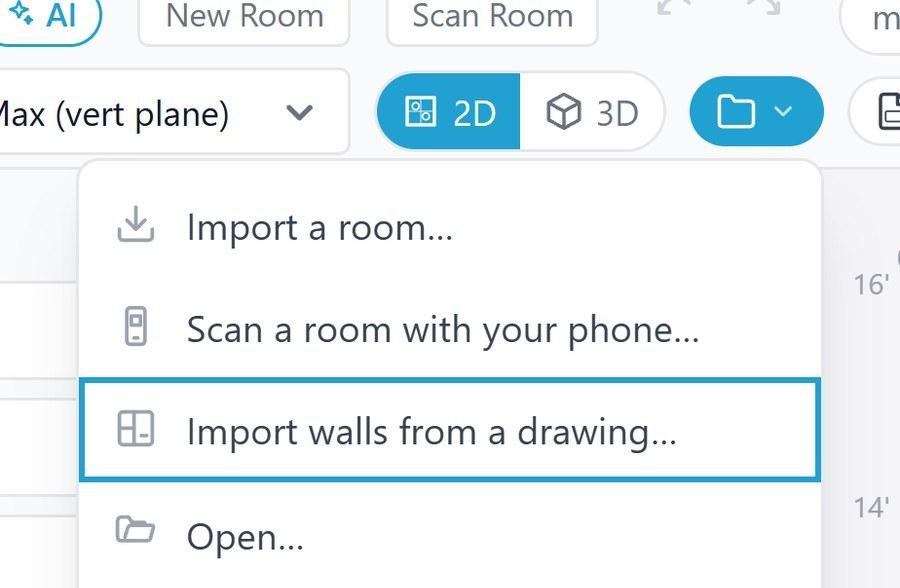
It is a six-step wizard, and it reads PDF, DXF, DWG and SVG, plus PNG, JPG, WebP, BMP and GIF for drawings that only exist as pictures.
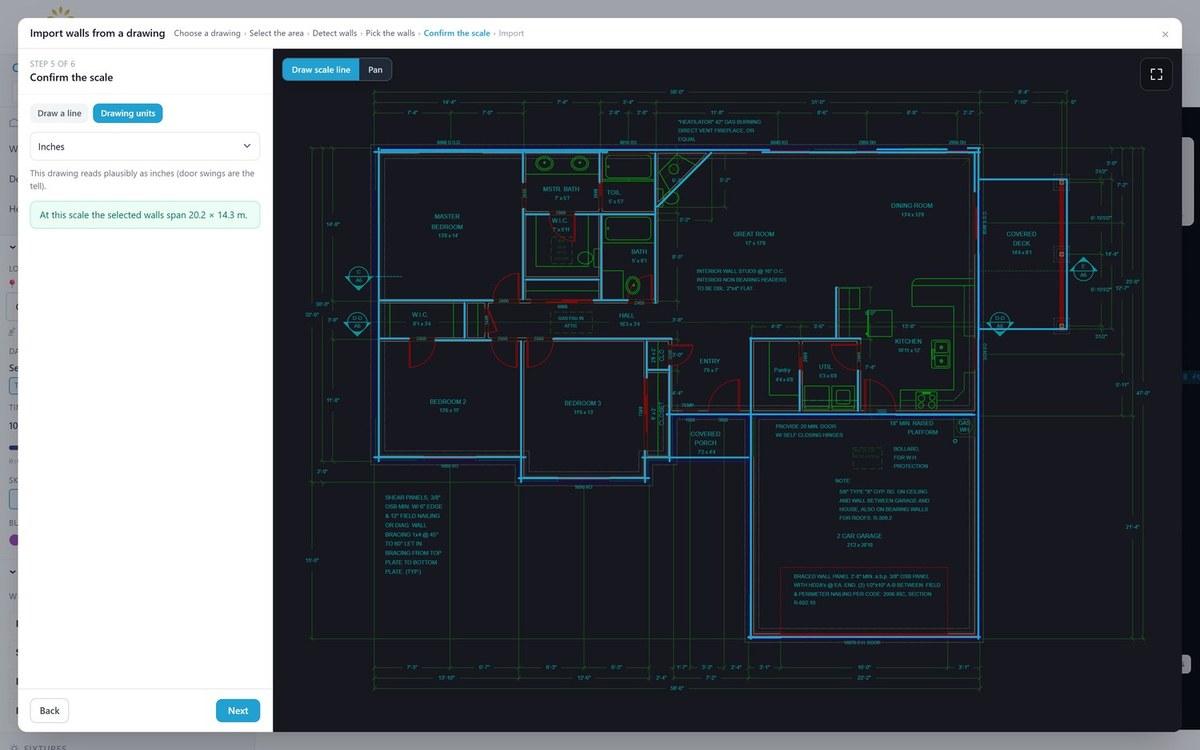
You crop to the room or suite you want (a sheet usually carries a title block, a legend and the neighbours), confirm which layers are walls, and confirm the scale. A CAD drawing of a wall is two parallel lines, which the wizard merges to a centreline so the room is measured wall face to wall face. Interior walls inside the outline become partitions. Since a plan carries no heights at all, the last step asks for the ceiling height.
The scale step is worth a word, because drawings lie about their units more often than you would expect. The sample sheet above declares millimetres in its header and is drawn in inches. The wizard measures the door swing arcs, which are close to 0.8 m across in any real building, and uses them to pick the unit the drawing is really in. The measured span is printed on screen so you can check it against something you know.
What each route gives you
| Route | Walls and ceiling | Windows and doors | Furniture | You need |
|---|---|---|---|---|
| Phone scan | Measured | Measured, with sill heights | Measured boxes | A LiDAR iPhone or iPad Pro, iOS 17 |
| AI | As good as the drawing or description | Read off the drawing, when it shows them | Only if you ask for it | A chat assistant, and a plan or a description |
| 3D model | From the geometry | Added by hand afterwards | Added by hand afterwards | A model in one of the viewer’s formats |
| 2D plan | Walls traced, ceiling typed in | Added by hand afterwards | Added by hand afterwards | A PDF, CAD file or picture of a plan |
A scan measures the things that are tedious to measure, which is why it is the route worth the walk for any daylight question: the windows are the answer there, and only the scan brings them in with their sills. The geometry routes give you the shell and leave the openings to you. The AI route sits between the two, since it reads whatever the drawing shows, including a window schedule, and it is the only one that also proposes a fixture layout while it is in there. For a space that exists today, scan it. For a space that is still a drawing, hand the drawing to an assistant, or trace it yourself in the wizard when you want to watch every wall land.
What happens next, and what to watch for
Once the room is in, the rest of Circadian Lab applies as usual: place Circadian Sky or any fixture from the library, run the melanopic calculation at seated, standing or desk height, set the date and time, and read the numbers off the plan. You can walk the scanned room in a VR headset from the same File menu.
Three things are worth knowing before you rely on a scan.
- A scan is a survey, so check it like one. Walk the room slowly and get all four walls in the capture. Dimensions land within a few centimetres when you do, and drift when you rush.
- Openings deep inside a complicated outline are dropped. Windows live on the four cardinal walls, so an interior opening far from any of them is left out, and the import tells you how many.
- Glass is glass to the calculation. Every scanned window arrives with the same default glazing. If the room has coated glass or a blind that matters, set the transmittance yourself before reading a daylight result.
Try it on a room you are sitting in. Open Circadian Lab, press Scan Room, and point your phone at the code. There is no account and no charge, and if you do not like what comes back, one undo puts your old room back exactly as it was.
Published by Innerscene on 2026-09-15