View in VR: Circadian Lab Rooms and 3D Models in a Headset
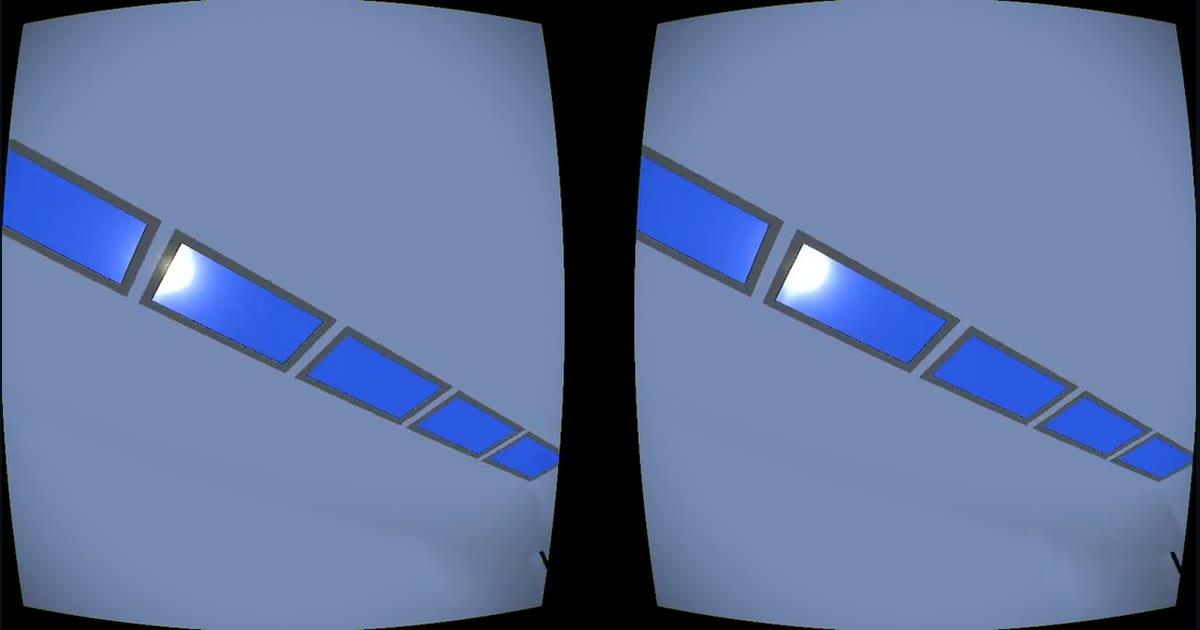
Two of our free tools now open in a VR headset. Circadian Lab can put you inside the room you have been designing, at full scale, with the light it calculated. The 3D viewer can put any model you have open on a stage in front of you, to pick up, turn over and scale until you are standing inside it.
Both run in the headset’s own web browser through WebXR. There is nothing to install, no app store account, no sideloading, and no cable. If you can open a web page in your headset, you can do this.
Headsets this works on
Standalone, in the headset’s own browser
- Meta Quest 2, Quest 3, Quest 3S, Quest Pro
- Pico 4 and Pico 4 Ultra
- Samsung Galaxy XR and other Android XR headsets
- Apple Vision Pro, on visionOS 2
Tethered to a PC, in Chrome or Edge
- Valve Index
- HTC Vive, Vive Pro, Vive Pro 2, Vive Cosmos
- Bigscreen Beyond, Pimax, Varjo, and anything else SteamVR sees
- Meta Quest over Link or Air Link
- Windows Mixed Reality (HP Reverb G2 and similar) on Windows 11 23H2
What will not work: a phone in a Cardboard or plastic holder, iPhone, iPad, Mac, Firefox on any platform, and the PS5 browser. PSVR2 works if you run it on a PC through the adapter. Those all still open the flat 3D view.
Circadian Lab: opening a room in a headset
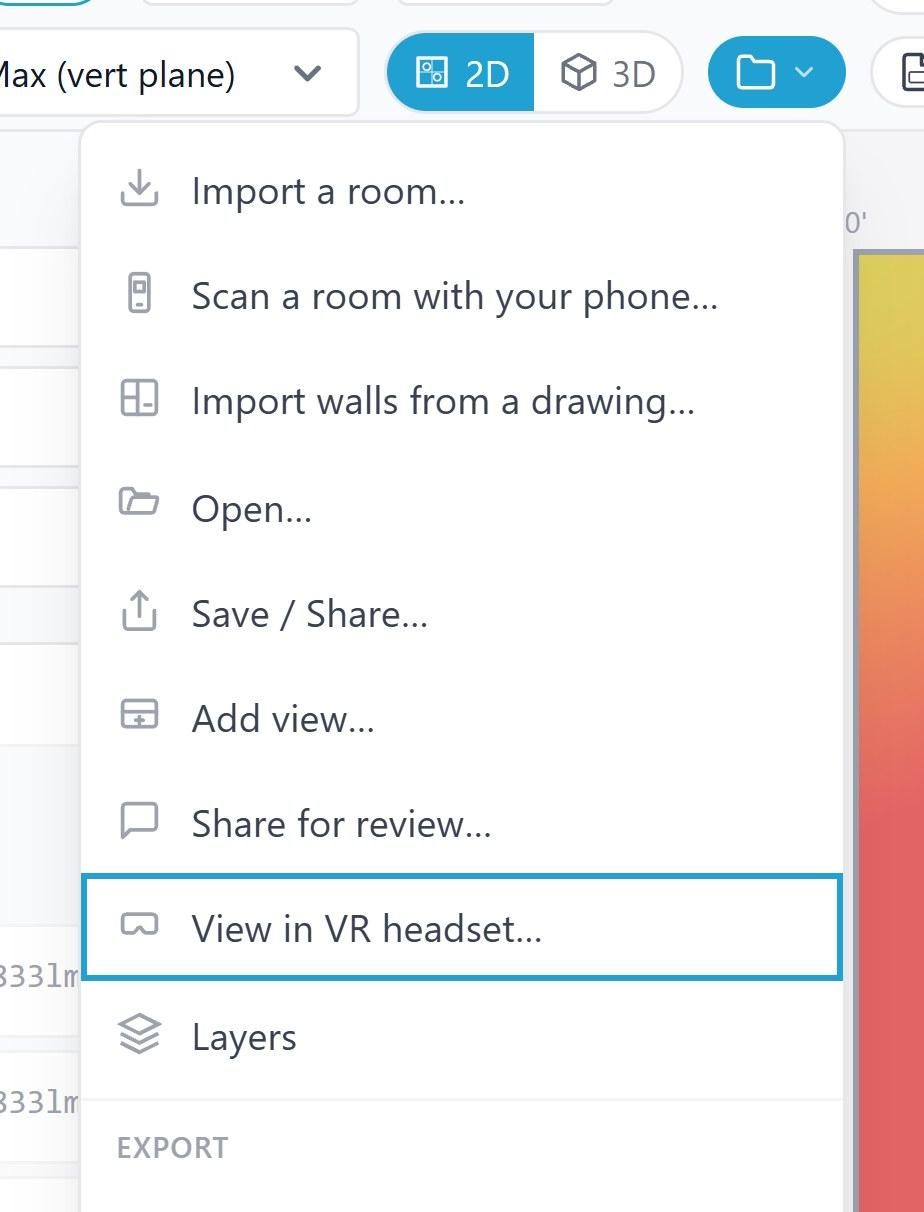
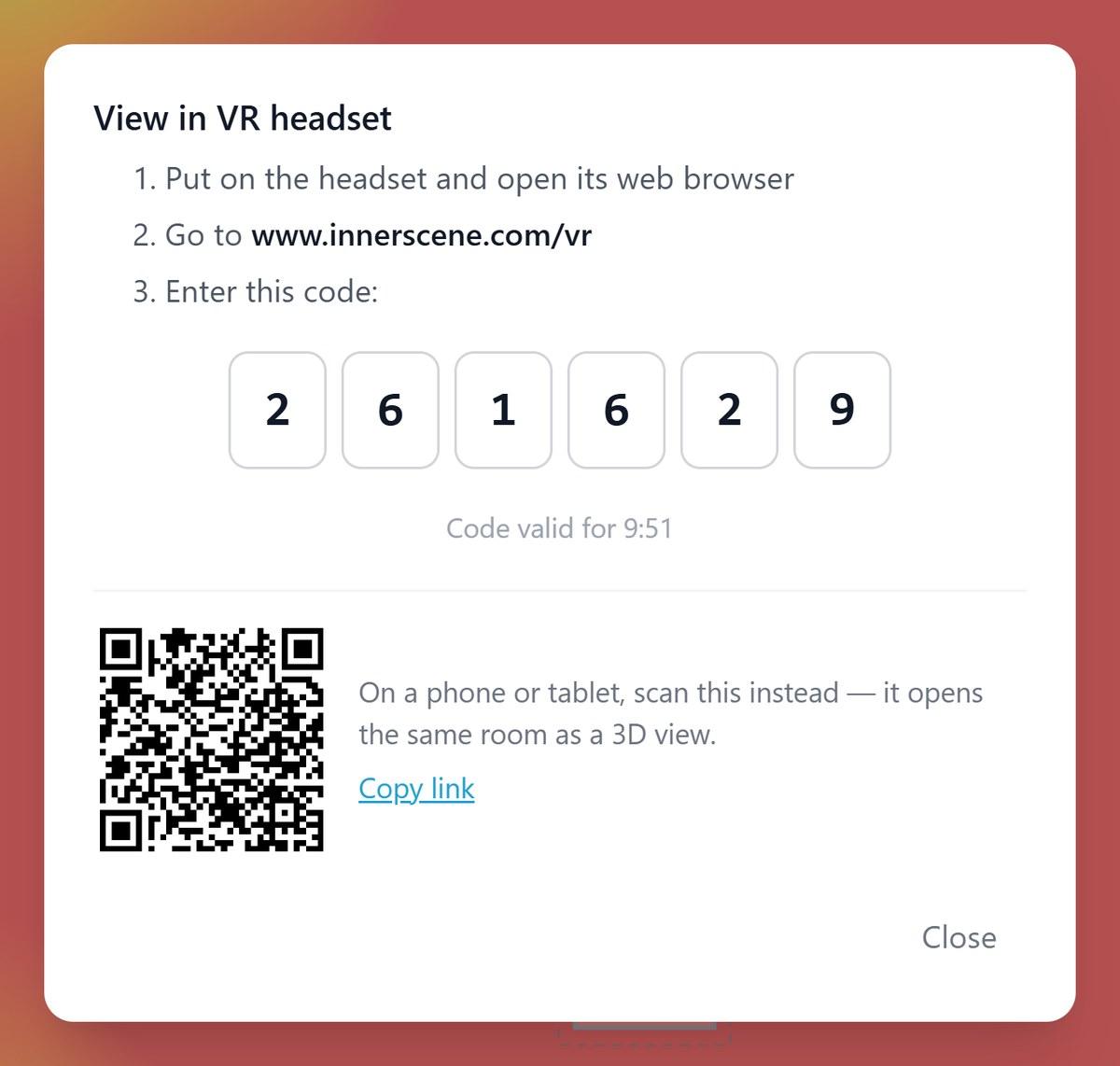
In Circadian Lab, open the File menu and choose View in VR headset. The dialog that appears mints a share of the current room and gives you a six-digit code that is good for ten minutes. In the headset, open the browser, go to innerscene.com/vr, and type the code on the number pad. The room loads.
Why the code is typed in
A headset cannot scan a QR code. Pages running in the Quest browser get no camera access, and the headset operating system has no link scanner of its own, so pointing a Quest at a QR code does nothing. Six digits typed with the laser pointer is the shortest path that actually works. The QR code shown beside it is for a phone or a tablet, and it opens the same room as an ordinary 3D view for anyone following along without a headset.
To skip the pad, the links innerscene.com/vr?code=123456 and innerscene.com/vr?share=<id> both open directly. Bookmark the first page in the headset browser once and the whole thing becomes one click plus six digits.
Controls inside the room
- Move: pull the trigger or push the thumbstick forward to aim a teleport arc, release to go there.
- Turn: flick the thumbstick left or right for a 45 degree snap turn, which is the comfortable way to turn around in a small play space.
- A or X: turns the calculated light overlay on and off, so you can compare the lit room against the bare geometry.
The 3D viewer: a model on a stage
Open any of the 46 formats the viewer reads in a headset browser and a VR button appears in the toolbar. The button only shows up when the headset actually reports VR support and a 3D scene is loaded, so it stays out of the way on a desktop and on 2D formats such as drawings.
Inside, the model sits on a grid floor at arm’s length, scaled so its longest dimension is about a metre and a half. Small parts hover at chest height and room-scale models sit on the floor. The viewer never moves you, which is deliberate: the model is what moves, so there is nothing to make anyone motion sick and no comfort settings to tune.
- Grip: hold to grab. The model follows your hand, so you turn it over the way you would turn over a physical part.
- Right thumbstick: left and right snap-rotates 30 degrees at a time, up and down scales between a twentieth and eighty times the fitted size.
- Left thumbstick: up and down pushes the model away and pulls it closer, left and right raises and lowers it.
Scaling up past about eight times turns arm’s-length inspection into a walk-in model, using whatever real floor space you have. Leaving VR puts the model, the camera and every control back exactly where they were.
Starting it on each platform
Everything below is the same web page. What changes is which browser you open it in, and whether that browser can hand the page a headset. The technical name for that capability is an immersive-vr session, and support for it is what separates the platforms. Two addresses are worth writing down before you put a headset on:
innerscene.com/vrfor a Circadian Lab roominnerscene.com/tools/3d-viewerfor a model
Meta Quest 2, Quest 3, Quest 3S and Quest Pro
This is the platform we developed against, and the one most people have. Quest Browser has supported WebXR since it shipped, so there is nothing to enable.
- On the desktop, open your room in Circadian Lab and choose File, then View in VR headset. Leave the dialog open: the code is live for ten minutes and the countdown is on screen.
- Put the headset on and let it finish drawing your boundary. A room-scale boundary is worth setting properly here, because you will be walking around inside the model.
- Open Browser from the taskbar at the bottom of your view. If it is not pinned there, open the app library (the grid icon) and find Browser under Meta’s own apps.
- Point at the address bar and pull the trigger, then type
innerscene.com/vron the virtual keyboard. Pointing at each letter and pulling the trigger is fine; so is the microphone icon if you would rather say it. - The number pad appears. Point at each digit of your six-digit code and pull the trigger. The room starts loading as soon as the sixth digit lands.
- Press Enter VR. The first time, Quest Browser asks whether the site may start an immersive session; allow it. The flat window disappears and you are standing in the room.
- To leave, press the Meta button on the right controller, or use the exit control in the headset menu. The browser window comes back where it was.
For a model: go to innerscene.com/tools/3d-viewer instead, open your file (a share link from a colleague is the easiest way to get one into the headset), and press the VR button in the toolbar.
Worth doing once: bookmark innerscene.com/vr in Quest Browser (the star in the address bar). After that the whole routine is one click and six digits, which matters when you are demonstrating to someone and do not want to spend a minute typing.
Pico 4 and Pico 4 Ultra
The Pico Browser is Chromium underneath, so the routine is the same shape.
- Mint the code on the desktop as above.
- In the headset, open the library and launch Browser.
- Type
innerscene.com/vrin the address bar, enter the six digits, and press Enter VR. - Press the Pico home button to leave the session.
We have tested less on Pico than on Quest. If the room loads flat and the Enter VR button does nothing, check for a Pico system update first, since WebXR support tracks the browser version.
Samsung Galaxy XR and other Android XR headsets
- Mint the code on the desktop.
- Open Chrome in the headset and go to
innerscene.com/vr. - Enter the six digits, then press Enter VR and accept the permission prompt.
Android XR is the newest platform of the set and the one most likely to change under us. If something looks wrong there, tell us what headset and what Chrome version and we will look at it.
Apple Vision Pro
Safari on visionOS 2 supports WebXR by default, so a Vision Pro on a current release needs no configuration.
- Mint the code on the desktop.
- Open Safari and go to
innerscene.com/vr. Look at each digit and pinch to enter the code, or use the virtual keyboard. - Press Enter VR and allow the immersive session when Safari asks.
On visionOS 1, WebXR sits behind feature flags and the button will never appear until you turn them on: Settings, Apps, Safari, scroll to Advanced, then Feature Flags. Under Experimental XR Features enable WebXR Device API, and under WebKit Feature Flags enable the WebXR GamePads Module. Reload the page afterwards. Upgrading to visionOS 2 is the simpler route if it is available to you.
Vision Pro has no controllers in the Quest sense, so teleporting uses the gaze-and-pinch equivalent of the trigger. Hand tracking in this page is basic: it is good enough to move around a room, and a paired game controller gives you the thumbstick actions.
Valve Index, HTC Vive, Windows Mixed Reality and Quest over Link
A tethered headset runs the page from the PC, so the order of operations matters: the runtime has to be awake before the browser asks for a headset.
- Plug the headset in and start its runtime. For Index and Vive that is SteamVR. For a Quest on a cable or Air Link it is the Meta Quest Link desktop app. For Windows Mixed Reality it is the Mixed Reality Portal.
- Put the headset on once and confirm you can see the runtime’s home environment. That proves the runtime owns the headset.
- On the same PC, open Chrome or Edge and go to the page you want. Mint the Circadian Lab code in another tab and type it in with the keyboard, which is faster than any headset method.
- Press Enter VR or the VR button, allow the prompt, and put the headset on.
Windows Mixed Reality is a special case. Microsoft removed WMR in Windows 11 version 24H2, and that takes the HP Reverb G2 and every other WMR headset with it: on 24H2 no browser will find the headset at all. They still work on Windows 11 23H2, and Microsoft’s support for that runs to November 2026. An unofficial SteamVR driver is in development, so this may change.
If the button is missing or the session refuses to start, it is almost always the OpenXR runtime. Windows lets exactly one application be the active OpenXR runtime, and whichever app you installed last may have claimed it. In SteamVR: Settings, Developer, then set SteamVR as the OpenXR runtime. In the Meta Quest Link app: Settings, General, then set Meta as the active OpenXR runtime. Restart the browser after changing it.
Phones, Google Cardboard and phone holders
Phone VR is worth being blunt about: it is over. Google discontinued Cardboard, Daydream is gone, and Chrome on Android no longer offers an immersive-vr session to a phone in a plastic or cardboard holder. There is no headset for the browser to render to, so the VR button will not appear and the code pad will tell you the headset cannot enter VR.
What a phone does get is the ordinary 3D view, which is the reason the pairing dialog also shows a QR code. Point the phone camera at it and the same room opens as a normal interactive page: drag to orbit, pinch to zoom, tap a saved view. For a customer on a call who wants to see the layout while you talk, that is usually the right answer anyway.
Browsers that will not work
Firefox has no WebXR implementation on any platform. Safari on iOS and macOS has none either, so an iPhone, an iPad or a Mac will give you the flat 3D view and no VR button. Vision Pro is the exception in Apple’s lineup because visionOS Safari is a different build.
When nothing happens, work down this list.
- No VR button at all: the browser is telling us it has no headset. Check the table below, and on a PC check the OpenXR runtime.
- The code is rejected: codes last ten minutes. Mint a fresh one from the desktop and leave the dialog open while you type.
- The room loads with no light on the surfaces: that is a
/vr?share=link opened without a code. Use the code and the calculated light comes with it. - Everything is very dark: check the daylight time on the desktop before you mint the code. A room set to 2 a.m. looks exactly like a broken renderer.
- It runs, but it stutters: very large scanned or imported rooms are the usual cause. Hide layers you do not need on the desktop before minting the code.
| Device | Browser to use | Works in VR |
|---|---|---|
| Meta Quest 2 / 3 / 3S / Pro | Quest Browser | Yes |
| Pico 4 / 4 Ultra | Pico Browser | Yes |
| Samsung Galaxy XR, Android XR | Chrome | Yes |
| Apple Vision Pro | Safari on visionOS 2 | Yes |
| Valve Index, HTC Vive, Bigscreen Beyond, Pimax, Varjo, Quest over Link | Chrome or Edge on Windows, runtime running | Yes |
| Windows Mixed Reality (HP Reverb G2 and similar) | Chrome or Edge on Windows 11 23H2 | Yes on 23H2, no on 24H2 |
| Android phone, with or without a Cardboard holder | Chrome | Flat 3D view only |
| iPhone, iPad, Mac | Safari or Chrome | Flat 3D view only |
| Any device running Firefox | Firefox | Flat 3D view only |
What the headset is actually rendering
The headset does not run the lighting calculation. Circadian Lab’s radiosity solve is heavy enough that asking a standalone headset to carry it would cost frame rate, and frame rate is the one thing a headset cannot give up. The desktop that minted the code does the work: it exports the room through the same path our GLB export uses and bakes the calculated light into image layers that ride along with the pairing record. The headset draws that, in a single pass, in a purpose-built engine.
One consequence worth knowing: a bare /vr?share= link opened without a pairing code shows the room and its geometry, but not the calculated light, because that image only exists on the pairing record. Use the code when you want the light.
Why we built it for the Virtual Sun
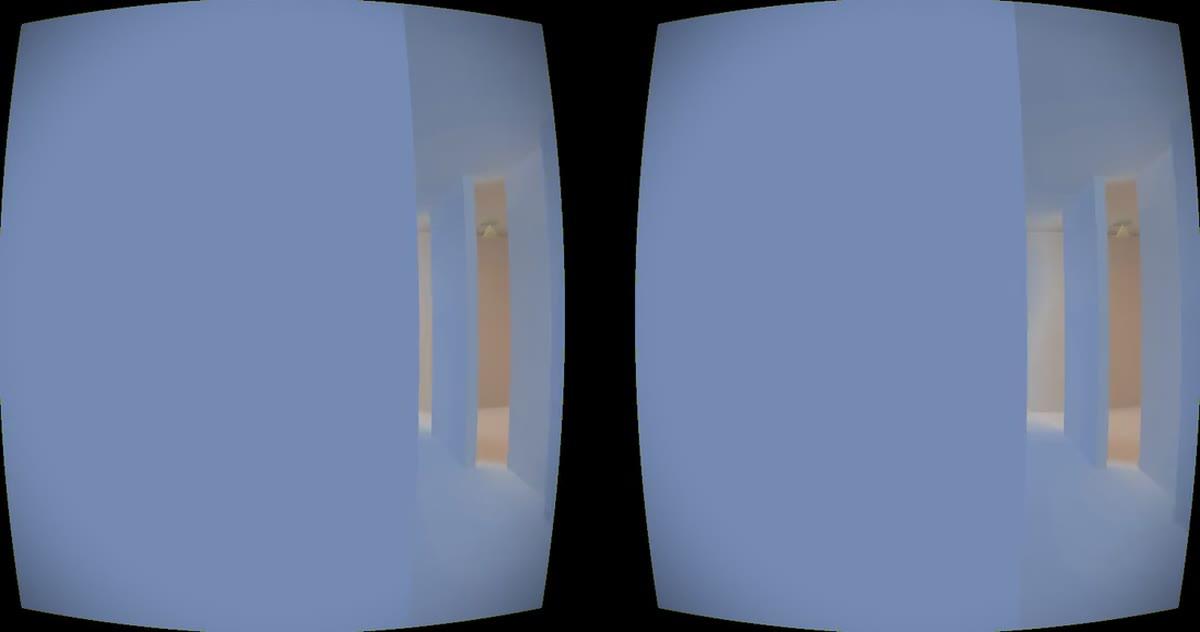
A Virtual Sun is difficult to photograph and almost impossible to describe. What it does is put a collimated sun disc at its real apparent size behind an aperture, so the beam has direction, the shadows have edges, and the disc stays the same size however far away you stand. Every one of those properties is about scale and viewing position, and every one of them is flattened by a photograph or a monitor.
At 1:1 with your own head as the camera, standing in the beam and looking up at the aperture is the demonstration. The same goes for a ceiling of Circadian Sky at 20,000 K: how much light that actually is only reads properly at full size. If you are specifying either product, a headset is the closest you can get to the installed room without installing it.
Try it with a room you already have. Open Circadian Lab, build or load a space, then File, View in VR headset. It is free, there is no account, and nothing about the room leaves your browser except the share you choose to mint.
Published by Innerscene on 2026-09-14