Circadian Sky Support
Secondary Fixtures Not Responding
One or more Secondary fixtures have stopped following the Primary. Start with the four checks below; they resolve most cases in a few minutes.
Try this first
Work down the list. Each step is independent, so if one does not help, move to the next.
- Power-cycle the affected fixtures. Switch them off, wait a few seconds, switch them back on, then allow up to 60 seconds to settle.2 minDetails
- Check every fixture is in the same wireless group. Connect to each one over WiFi and compare the group number.5 minDetails
- Check there is only one Primary in the group. Connect to the Primary and look at its messages.5 minDetails
- Check the signal strength in the peer list if fixtures respond intermittently rather than not at all.5 minDetails
What exactly is it doing?
Cause 1: The fixtures are on different radio channels
A Secondary looks for its Primary only during a short window just after power-up. If it does not find one, it stays on its last known channel until it is restarted. This is why a fixture installed while the Primary was switched off, or one left running when the Primary's channel changed, can sit unresponsive indefinitely with every setting correct.
You do not need to keep the Primary running while you do this, so there is no need to isolate the fixtures from it. Cycling a whole circuit, or an entire group on one breaker, is fine.
Why a restart is what fixes this
For roughly the first 15 seconds after power-up a Secondary sweeps the radio channels, announcing itself and listening for a Primary in its own wireless group. If it finds one it locks onto that channel; if it does not, it stops sweeping and stays put. Nothing later in the day makes it search again, which is why a restart is the only way to trigger a fresh search.
Fixtures that come back up together still find each other. A Primary broadcasts from the moment it powers up and answers a searching Secondary directly, and the Secondary does not begin its sweep until about three seconds after boot. If one fixture still does not follow after a full-group restart, cycle that fixture on its own while the rest of the group is up, which rules out the two having restarted too far apart.
To confirm which channel a fixture is on, connect to it and open Wireless Group. The Radio Channel line shows it directly, and comparing that number between the Primary and the Secondary is usually all you need.
Cause 2: The fixtures are in different groups
A fixture only follows a Primary in the same group. One in the wrong group still appears in the peer list and still looks healthy, but it ignores every command the Primary sends.
Fixtures arrive pre-configured for your order, and every carton is marked with the group inside it and whether that fixture is the Primary or a Secondary. The marking is easy to miss, and easy to lose: it is on the box, not the fixture. Once a delivery has been unpacked and the fixtures are staged together, nothing on the fixture itself says which one was meant for which area.
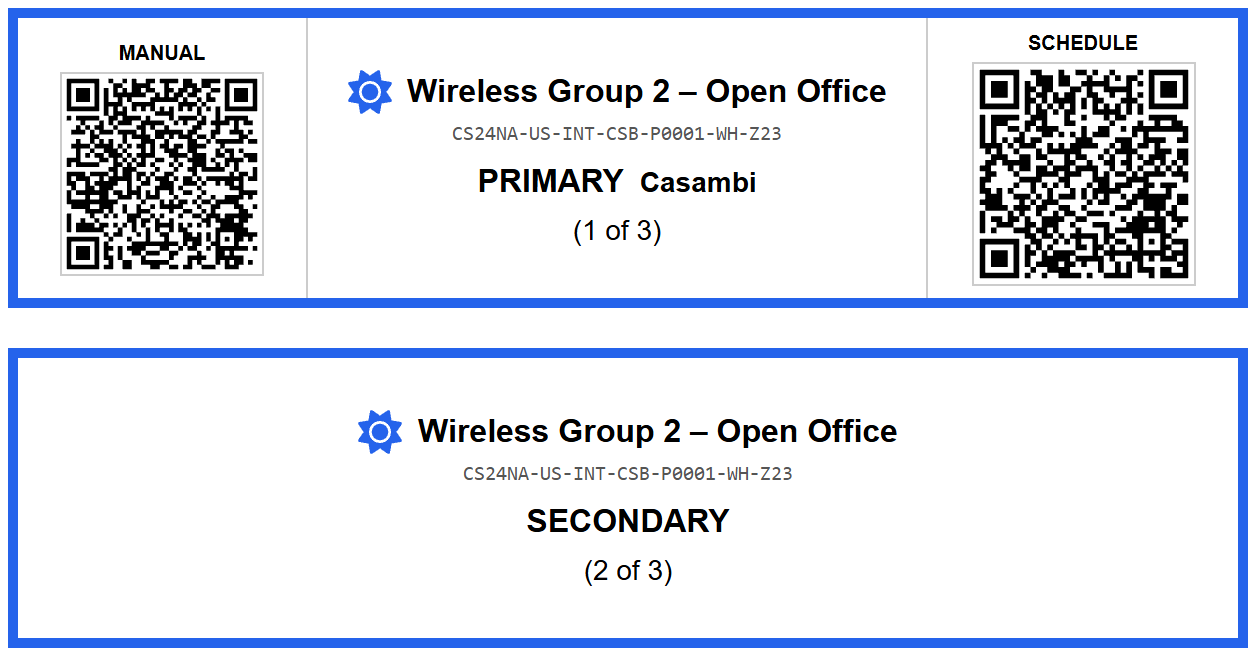
Once the boxes have gone, the group a fixture is really in can only be read from the fixture.
Innerscene-sub-XXXX WiFi network instead, as described in Connecting over WiFi.Why Bluetooth will not reach a Secondary
Fixtures share one radio between Bluetooth and the synchronization link, so by default a Primary tells its Secondaries to suspend Bluetooth and keep the radio free for sync. Two exceptions are worth knowing: the Primary itself always keeps Bluetooth available, so the app is the quickest way to reach it, and a fixture that has never found a Primary turns its own Bluetooth on about 30 seconds after power-up. A fixture that found a Primary and later lost it stays off Bluetooth until it is restarted.
- Connect to the fixture, then open Wireless Group (tap the group badge at the top of the screen, or go to Settings, Device Info, Wireless Group).
- Read the Wireless Group selector. Every fixture that should move together needs the same number.
- Check the status line underneath. On a healthy Secondary it reads Connected to primary fixture in group N.
- Repeat for every fixture in the group, including the Primary.
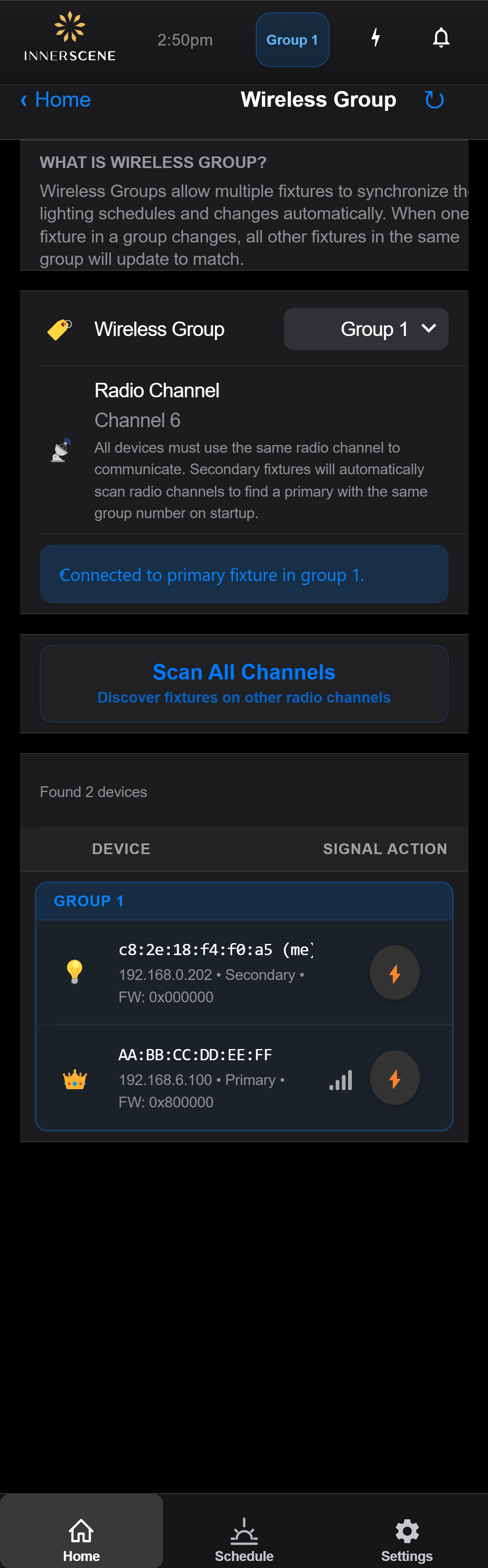
If the selector reads Disable Sync, the fixture is not in any group and will never follow a Primary. Changing the group requires a restart, and the interface will prompt for one.
Cause 3: There is more than one Primary in the group
Each group must contain exactly one Primary. With two, both broadcast and Secondaries apply whichever update arrived most recently, so the group appears to fight itself: levels jump, fixtures disagree, and changes are partly overwritten moments after they are made.
Connect to the Primary and open Messages. A duplicate Primary raises an error-level message, and the bell in the top bar carries a red badge.
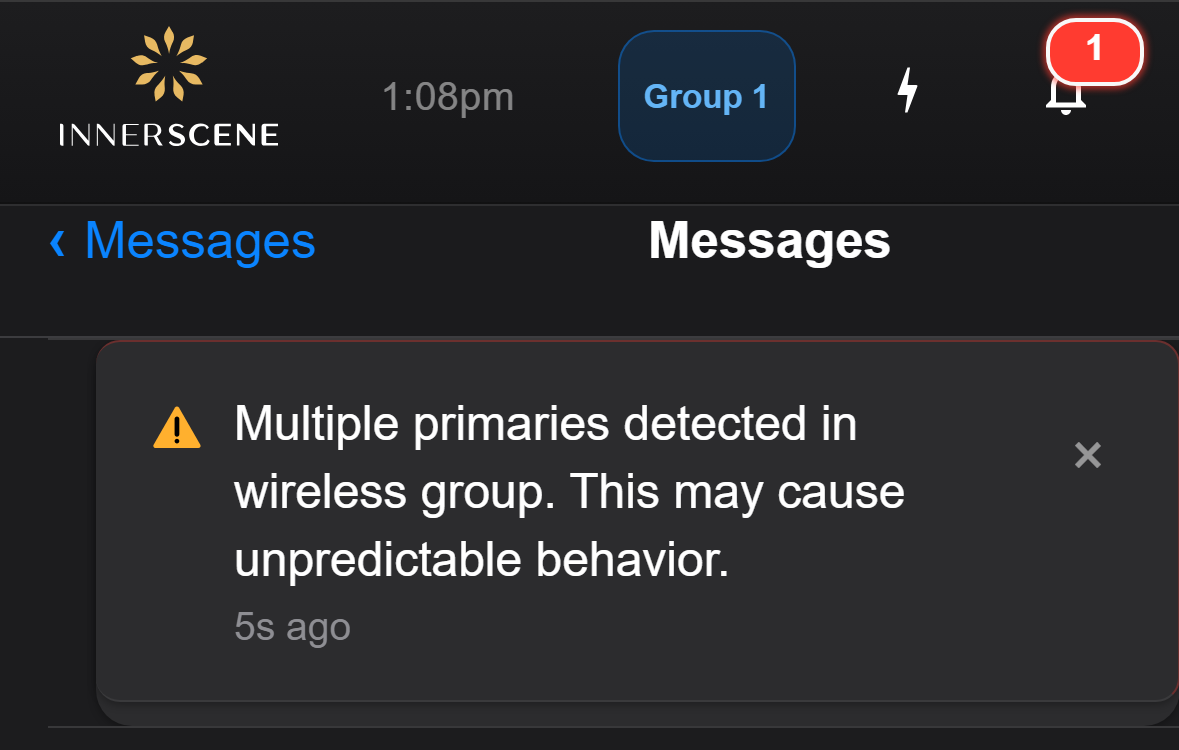
The Wireless Group screen flags the same condition, and marks every Primary in its peer list with a crown, so you can see how many are present and which group they are in.
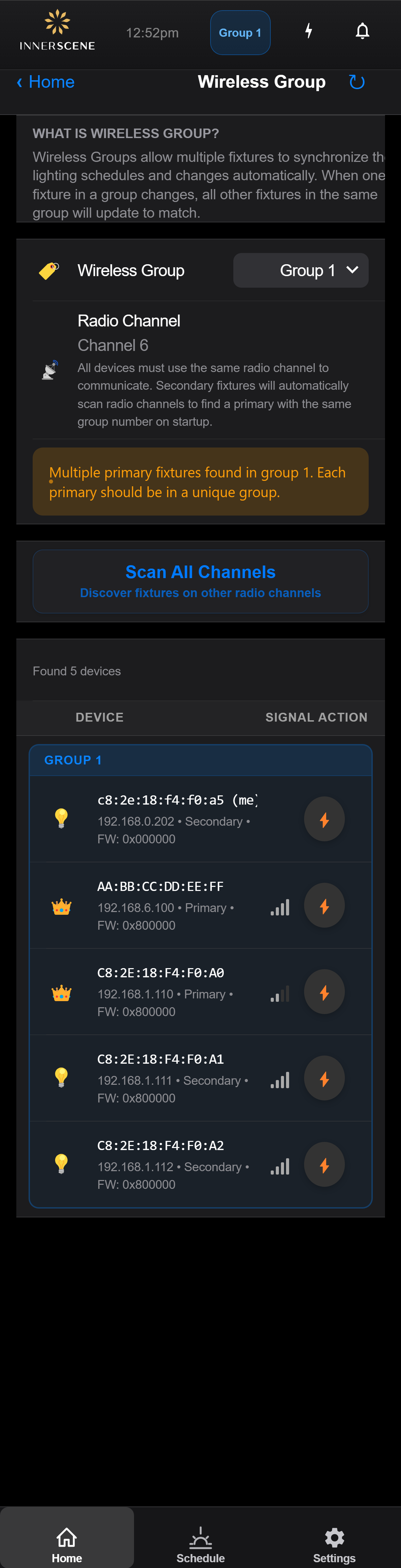
The usual cause is fixture role. When the role is set to Auto, any fixture fitted with a daughterboard (0-10V, DALI, DMX, or Casambi) becomes a Primary automatically, so two boarded fixtures in one group means two Primaries without anyone having configured it.
- Decide which fixture should be the Primary. This should be the one your control wiring or control device is connected to.
- Connect to the other Primary and open Settings, Advanced, System Configuration.
- Set Fixture Role to Secondary and confirm the restart prompt. This also disables that fixture's daughterboard, so make sure it is not the one receiving external control.
- Alternatively, move it to a group of its own if it genuinely needs to run independently.
For a fuller explanation of the roles, see Fixture Roles and Software Primary.
Cause 4: The radio link is too weak
If fixtures respond sporadically rather than not at all, suspect signal strength. Typical signs are a fixture that follows large changes but misses small ones, one that catches up several seconds late, or one that behaves well most of the day and poorly at certain times.
Plan for about 30 m (100 ft) between a Secondary and its Primary with clear line of sight. Plasterboard, plenum decking, metal ductwork, concrete, and lift shafts all reduce that substantially, so the usable distance in a fitted-out building is often much shorter.
Check the signal strength between fixtures
Connect to a fixture and open Wireless Group. The peer list at the bottom shows every fixture this one can hear, with a signal meter in the SIGNAL column. Because the reading is taken by the fixture you are connected to, connecting to a Secondary shows exactly how well it hears its Primary. Hover over or long-press a meter to see the value in dBm.
- Four or five bars (better than -70 dBm). A healthy link with margin to spare.
- Three bars. Workable, but worth improving if the fixture is also behaving intermittently.
- One or two bars (-70 to -85 dBm). Marginal, and what mesh rebroadcast is meant for.
- No bars, or missing from the list. The two cannot hear each other at all. Check channel and group first, since that looks the same as being out of range.
Take the reading with the fixtures in their final installed position, with ceiling tiles, trims, and any metalwork in place. A link measured on a bench, or before the ceiling is closed up, can read far better than the same link in a finished building.
Turn on mesh rebroadcast
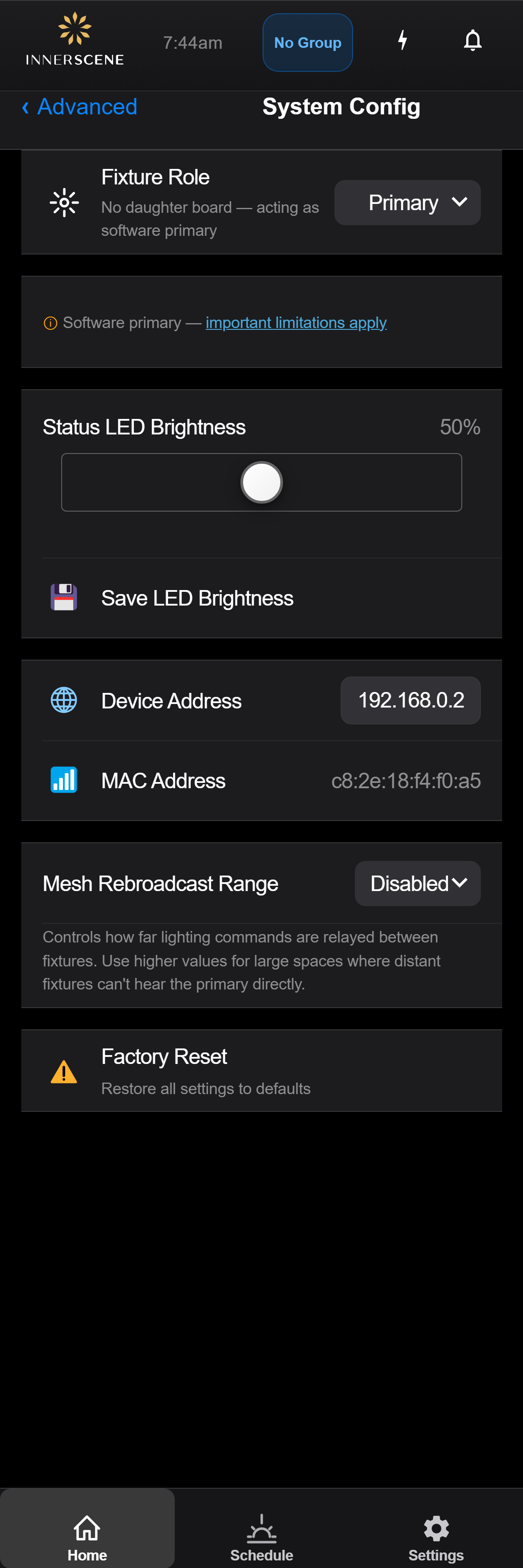
Where fixtures are too far apart to hear the Primary directly, Mesh Rebroadcast Range lets them relay commands onward, so a distant Secondary can receive an update by way of a nearer fixture. It is a Primary-side setting and only appears on Primary fixtures, so if you cannot find it you are connected to a Secondary.
- Connect to the Primary fixture. Nothing needs to change on the Secondaries.
- Open Settings, Advanced, System Configuration.
- Set Mesh Rebroadcast Range to 1 Hop.
- Make a change at the Primary and check whether the distant fixtures follow. If some still do not, raise it to 2 Hops, then 3 Hops.
Use the lowest setting that works. Every hop adds relay traffic and a little delay before a change is applied, so raising it further than necessary makes the group slower and busier without making it more reliable.
Why a weak link causes lag rather than outright failure
Synchronization messages are broadcast without acknowledgement, so nothing is retransmitted on failure. Reliability comes from repetition instead: each change is sent several times in quick succession, and the Primary re-broadcasts its full state every 10 seconds regardless. A fixture on a marginal link therefore tends to catch up within about 10 seconds rather than failing outright, which is why intermittent behavior and total silence point at different causes.
On a busy site, Disable BLE on Secondary Fixtures (on the Primary's WiFi configuration screen) also helps, because fixtures share one radio between Bluetooth and sync. It is enabled by default. Note that it also stops Secondaries receiving EnOcean dimmer and motion sensor signals.
Or join the fixtures to the building WiFi
Where the building has WiFi, connecting the fixtures to it removes the distance limit rather than stretching it. A fixture on the network receives the same lighting commands over the local network as well as over the direct radio link, so a Secondary that cannot hear its Primary through a masonry wall or across a floor still follows every change. The radio link never switches off, so this stacks with mesh rebroadcast instead of replacing it: on a difficult site, use both.
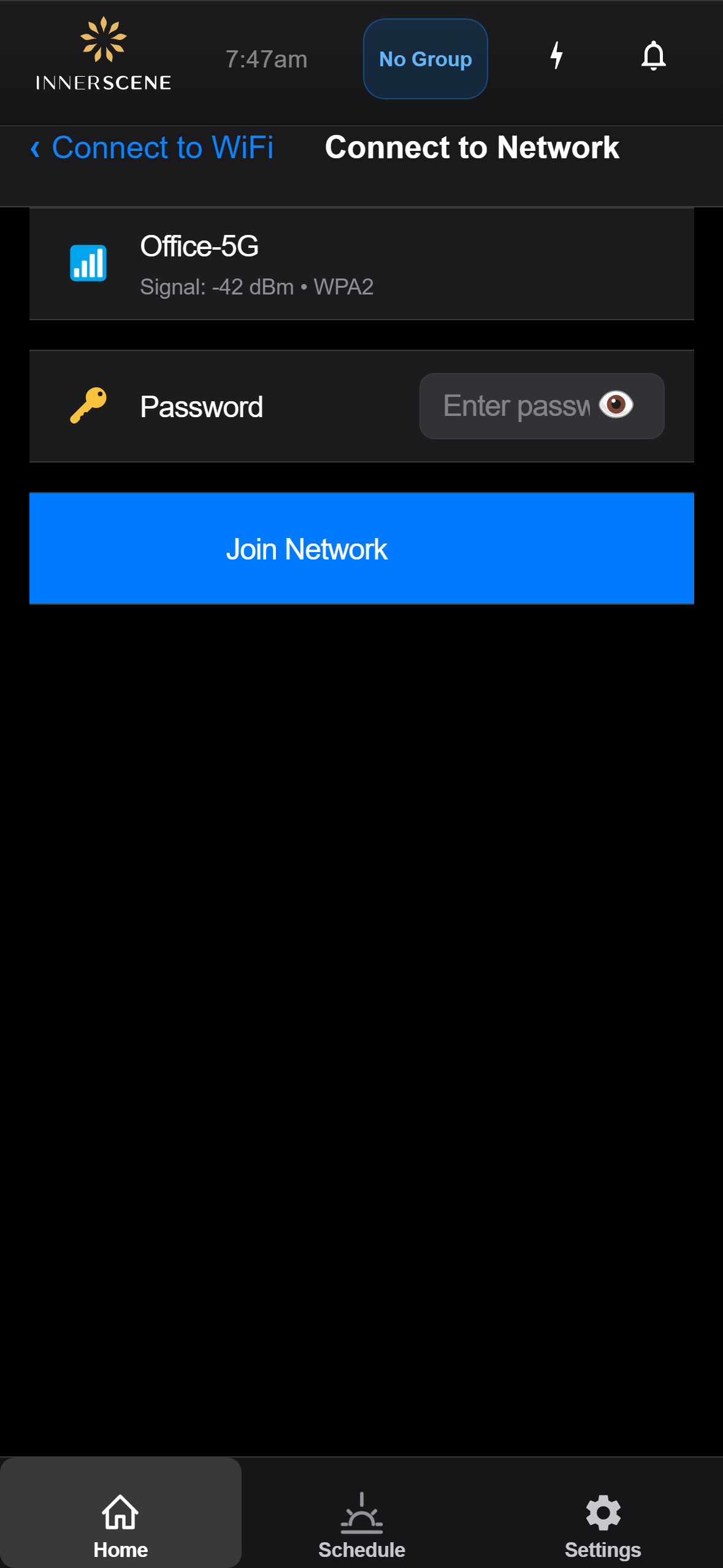
- Connect to the fixture and open Settings, Advanced, WiFi.
- Start a scan and pick the building network from the list.
- Enter the network password and tap Join Network.
- Repeat for the Primary and every Secondary in the group. A fixture that is not joined still works over the radio link, but gets no benefit from the network path.
- Make a change at the Primary and check that the distant fixtures follow.
Cause 5: The control input is on a Secondary
Only the Primary broadcasts to the group. If the thing driving the light is attached to a Secondary, that one fixture changes on its own and nothing else follows. From the floor this looks exactly like every other fixture having stopped responding.
It arises in two ways instead. The first is wiring: a 0-10V, DALI, DMX, or Casambi control line landed on a fixture that is a Secondary. Control wiring belongs on the Primary, which is the fixture carrying the daughterboard.
The second is a fixture that changed role after setup. A fixture that was the Primary when a SkySync sensor, switch, or motion sensor was paired to it keeps that pairing. If it later becomes a Secondary, because its role was forced, its daughterboard was removed or failed, or another Primary took over the group, the pairing is left stranded on the wrong fixture. The firmware detects this: connect to the fixture and open Messages, and you will see ... is paired but this fixture is not a primary.
To fix it, re-pair the control device to the group's current Primary, or move the control wiring to it. If the fixture became a Secondary unintentionally, correcting its role or reseating its daughterboard restores the original arrangement.
If it still does not respond
- Test by making a change, not by reading the banner. A fixture that has already found its Primary keeps reporting Controlled by primary even after that Primary goes offline, until it is restarted. Adjust the Primary and watch the fixture instead.
- Compare firmware versions. The peer list on the Wireless Group screen shows the firmware version of every fixture it can hear. Fixtures on very different versions may not communicate.
- Check the fixture's own diagnosis. The No Primary Found screen states what the fixture believes is wrong, and Secondary, No Primary and Secondary, No Group show how each condition appears on the home screen.
- Confirm the fixture is powered. An unpowered Secondary is indistinguishable from one ignoring the Primary, because an out-of-sync fixture may sit at a similar level by coincidence. Use the identify function to flash it.
If none of that resolves it, contact Innerscene support with the fixture MAC addresses, their group numbers, the radio channel, and the firmware versions shown in the peer list. That is enough for us to reproduce the group's configuration.