Advanced screen
Disable Wireless
Permanently disables one or more wireless interfaces on the device. This is a one-way operation — once disabled, the interface cannot be re-enabled from the device itself.
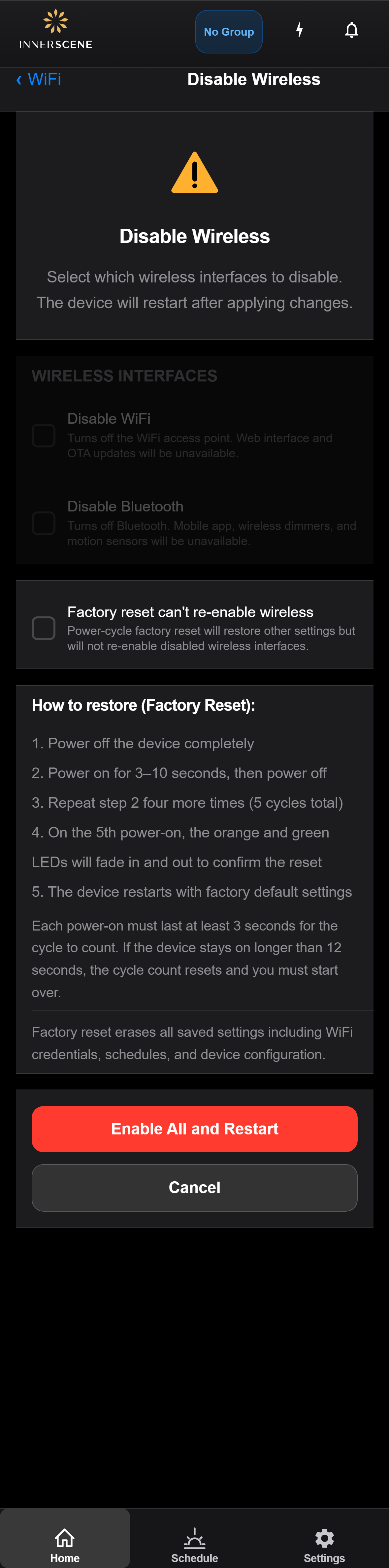
Controls on this screen
- Wireless Interfaces
Select which wireless interfaces to disable. Each checkbox represents a separate radio (WiFi AP, WiFi station, Bluetooth, mesh). A disabled radio stays off until it is re-enabled here or the fixture is factory-reset from its wall switch.
- Impact Summary
Lists the capabilities you will lose when the selected interfaces are disabled — remote access, phone app, cloud features, sync groups, etc. Read this carefully before proceeding.
- Permanence Warning
On current firmware this option has no effect: a power-cycle factory reset turns WiFi and Bluetooth back on, unless they were turned off before the fixture shipped. On older firmware it could keep wireless off after a reset; if a fixture stays unreachable, contact Innerscene support at [email protected].
- Restore Instructions
How to turn wireless back on with a power-cycle factory reset from the wall switch. Each power-on must last 15 to 30 seconds. Fixtures on firmware older than 2.0.389 use a different sequence; if the reset does not work, contact Innerscene support at [email protected].
- Disable and Restart
Commits the disable operation. The device reboots immediately and the selected interfaces come up disabled. This cannot be undone from the UI.
- Cancel
Closes this page without making any changes. Nothing is disabled and all wireless interfaces stay active.
Open this screen in the interactive guide to explore it with clickable callouts, search, and a live simulator, or browse all screens.