Voice Control Comes to Innerscene Studio
Innerscene Studio 3.108 adds voice control. On iPhone you can ask Siri to set your lights. On Android and iPhone you can add a home-screen widget that sets a room with one tap, and on Android the widget has a microphone button for spoken commands. You don't need to open the app, and there is no account to create.
What you can do
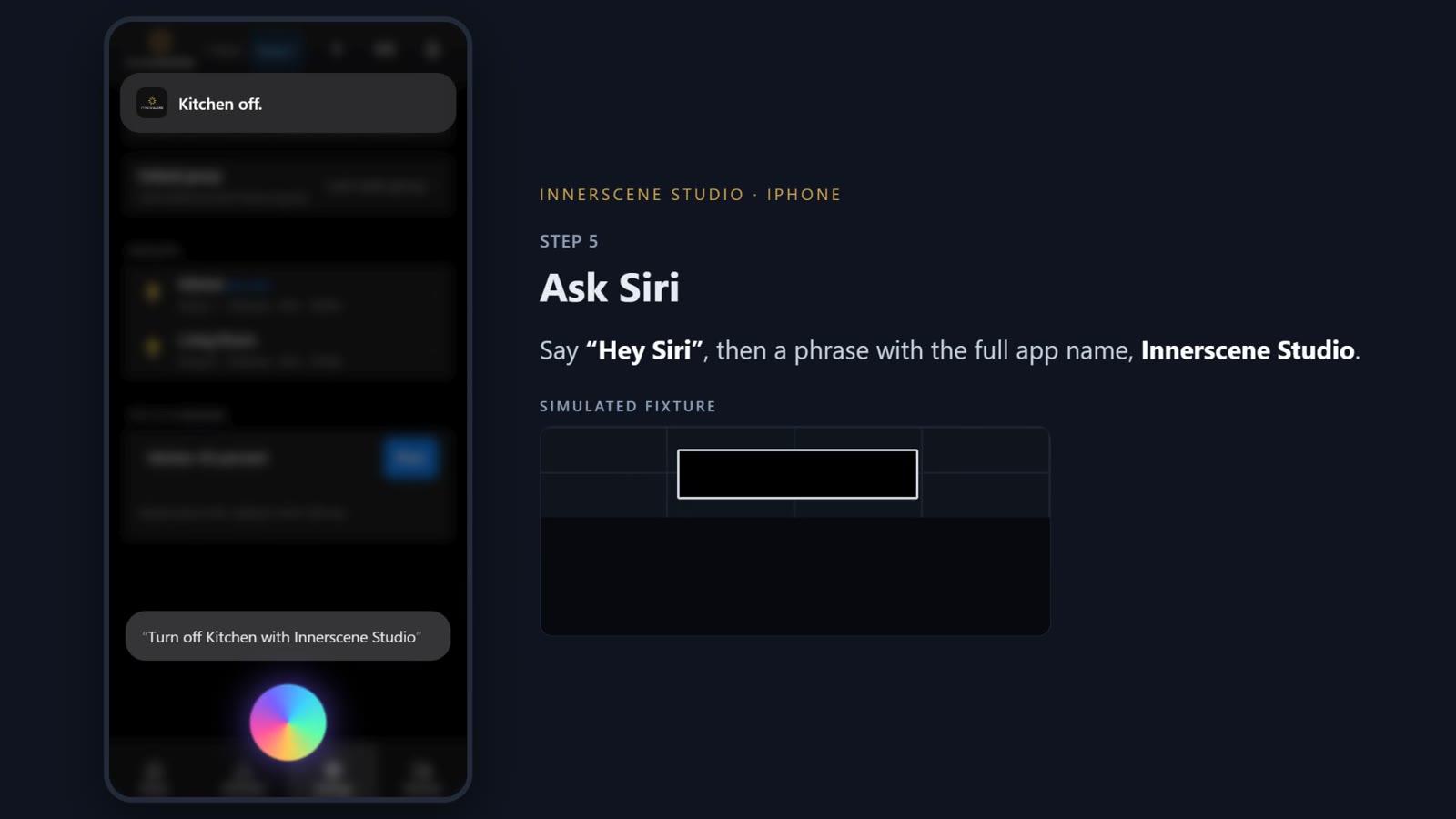
- Talk to Siri on iPhone. Say “Hey Siri” and a phrase with the full app name, Innerscene Studio. Siri answers out loud, for example “Kitchen set to 40%.”
- “Hey Siri, turn on Kitchen with Innerscene Studio.”
- “Hey Siri, turn off Kitchen with Innerscene Studio.”
- “Hey Siri, set Kitchen with Innerscene Studio.” Siri asks what to set; answer “40 percent” or “warmer”.
- “Hey Siri, resume Kitchen schedule with Innerscene Studio.”
- “Hey Siri, what is Kitchen set to in Innerscene Studio?”
- Without a room name, a command goes to the room you used last: “Hey Siri, set Innerscene Studio to 40 percent,” “Hey Siri, make Innerscene Studio warm,” “Hey Siri, Innerscene Studio status.”
- Speak to the Android widget. Tap the widget's microphone and say the command itself, such as “kitchen 40 percent” or “living room warmer”. No wake word or app name needed.
- One-tap widgets. Put four buttons for a room on your home screen (off, a brightness, a color temperature or a scene) and choose which room each widget controls. A second widget shows every room with an on/off switch. On iOS 18 you can also add buttons to Control Center and the Lock Screen.
- Rooms, not fixtures. Commands control a whole wireless group at once, the way you think about the space: Kitchen, Living Room, Front Office. Leave the room out and the command goes to the room you used last; say “all” to control every room.
- The same numbers as the app. “40 percent” by voice lands exactly where 40% sits on the brightness slider, and Siri's status reply reads back the same number the home screen shows.
Things to say
On iPhone, start with “Hey Siri”:
With the Android widget microphone, just say the command:
Anything not in Siri's list works too: say “Hey Siri, Innerscene Studio lights”, and when Siri asks what to set, answer with any of the Android-style commands.
Set it up in two minutes
- Update Innerscene Studio to version 3.108 or later from the App Store or Google Play.
- Open the app and connect to one fixture in each room you want to control. The app remembers every group it connects to.
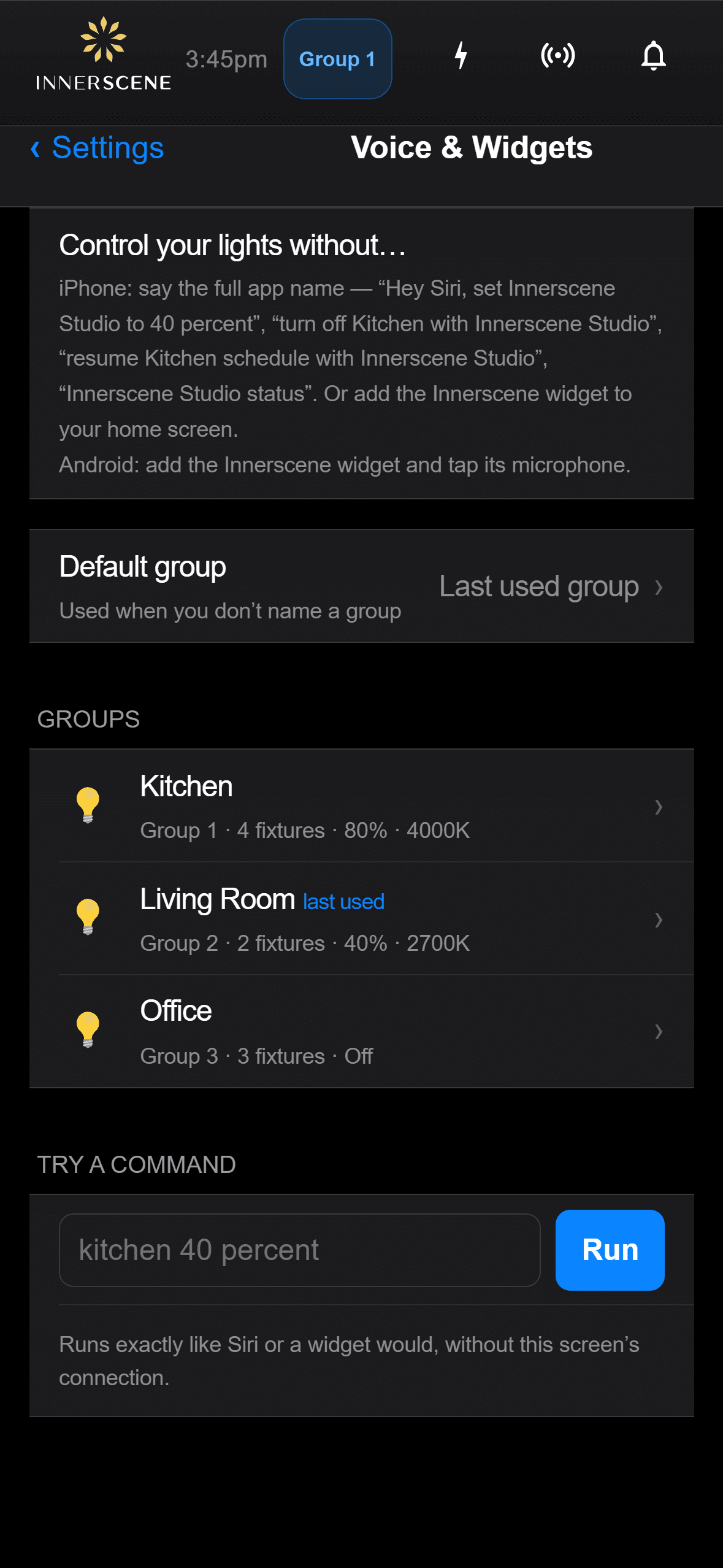
- Go to Settings › Voice & Widgets and give each group the name you'll say, like “Kitchen”. Type a command under Try a command to check it works.
- Ask Siri, or add the Innerscene widget to your home screen.
The user guide's Voice Control section walks through each step with screenshots.
For the fastest response, and to control rooms from anywhere in the building rather than only within Bluetooth range, join each group's primary fixture to your Wi-Fi. Only the primary needs it. The Wi-Fi tutorial shows how.
Watch the tutorials
Two short videos walk through the whole setup, one for each platform.
Fast, local and private
Your phone talks to the lights directly.
Commands go from your phone to the fixtures over your Wi-Fi network, or over Bluetooth when you are in the same room, using the same signed, password-protected connection as the app. They don't pass through an Innerscene server, so they keep working when your internet is down. Speech is turned into text by your phone (Siri on iPhone, the phone's speech recognition on Android), and the app only receives the text.
If something doesn't work
- Siri doesn't understand. Say the full name, “Innerscene Studio”, clearly. If Siri hands your command to Apple's Home app, the room name is also a room in Home; give the group a different name.
- “Couldn't reach Kitchen.” Be on the same Wi-Fi as the lights, or close enough for Bluetooth. Rooms in other parts of the building are reached over Wi-Fi.
- The Android microphone does nothing. Allow microphone access for Innerscene Studio in the phone's Settings.
The Voice Control section of the user guide has the complete command list and more troubleshooting.
Get the update
Voice control is free and works with every Circadian Sky and Virtual Sun fixture. Update Innerscene Studio to 3.108 or later; if your fixtures need newer firmware, the app offers to install it.
Have feedback on voice control? Email [email protected]. We read everything.