Introducing the Innerscene Image Editor
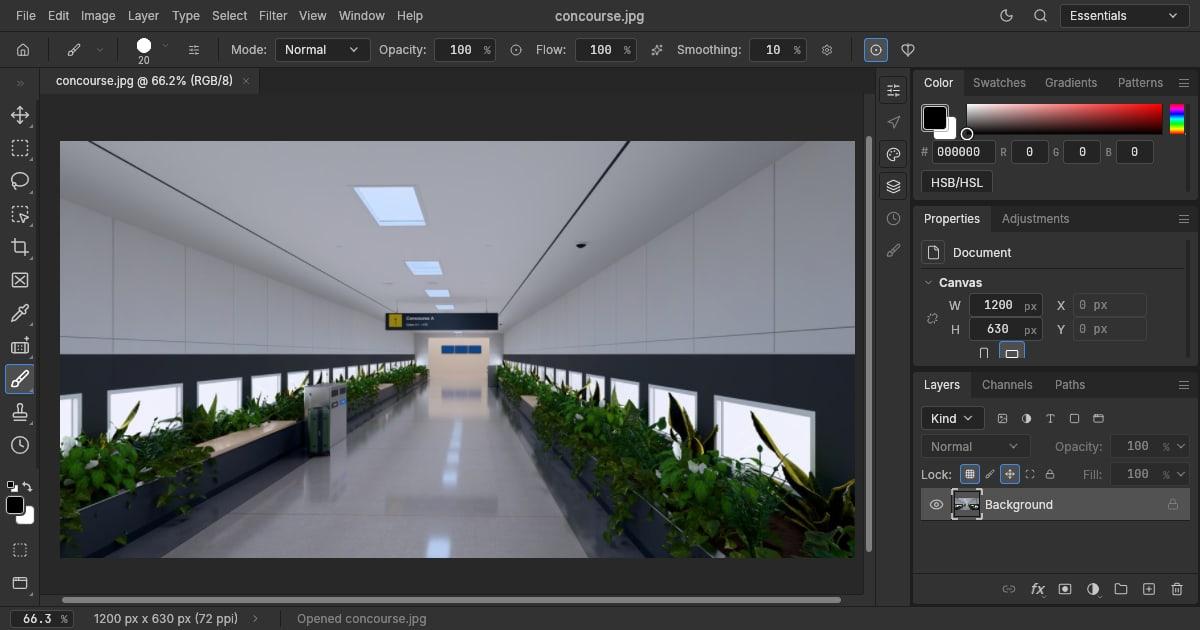
The Innerscene Image Editor is a free image editor that runs in your browser. It works with layers, masks and adjustment layers, opens and saves Photoshop files, and follows Photoshop's menus, panels and keyboard shortcuts. Its address is innerscene.com/tools/image-editor. There is no account to create and nothing to install.
The editor started as the Edit image button in our Universal 3D Viewer, for touching up a texture or a photo without leaving the page. It has grown into a tool worth using on its own, so it now has a page of its own.
Innerscene Image Editor
Free, in your browser. Drop a picture, a drawing or a PDF on it, or paste a screenshot to start.
What the editor does
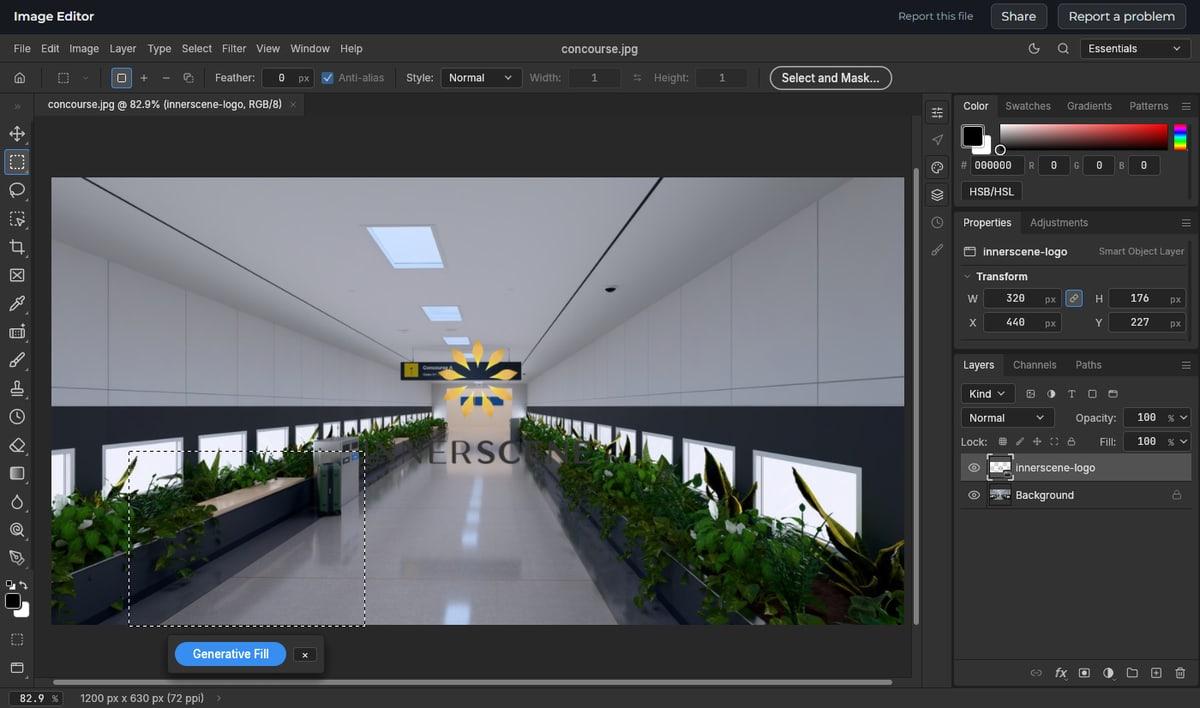
A picture is a stack of layers: pixel layers, type, vector shapes, groups, and adjustment and fill layers that change the layers below them without touching their pixels. Each layer can carry a layer mask, a vector mask, a blend mode and layer styles such as drop shadows and strokes. The usual selection, painting, retouching, crop and transform tools are on the left, and the filters and adjustments are in the menus where Photoshop puts them. If you already know Photoshop, Ctrl+J, Ctrl+T and the rest do what you expect (Cmd on a Mac). The History panel steps back through every edit.
Opening pictures
There are three ways to bring a picture in:
- Drag and drop. Drop a file anywhere on the editor and it opens in a new tab. Drop it on a picture that is already open and it is placed on that picture as a new layer, in Free Transform so you can size it before pressing Enter.
- Paste. Press Ctrl+V (Cmd+V) with a screenshot or a copied image on the clipboard. It is pasted as a new layer, or becomes a new picture when nothing is open.
- File > Open, which takes several files at once.
Drawings and PDFs come in the same three ways. They are covered in Opening drawings and PDFs below.
The editor reads Photoshop PSD and PSB with their layers, masks, adjustment layers, layer styles and type, along with GIMP XCF, Krita, OpenRaster and Affinity files. Flat pictures it opens include JPEG, PNG, WebP, TIFF, GIF, BMP, HEIC, SVG, OpenEXR, HDR and camera RAW files from Canon, Nikon, Sony, Fujifilm, Olympus, Panasonic, Pentax and DNG.
Opening drawings and PDFs
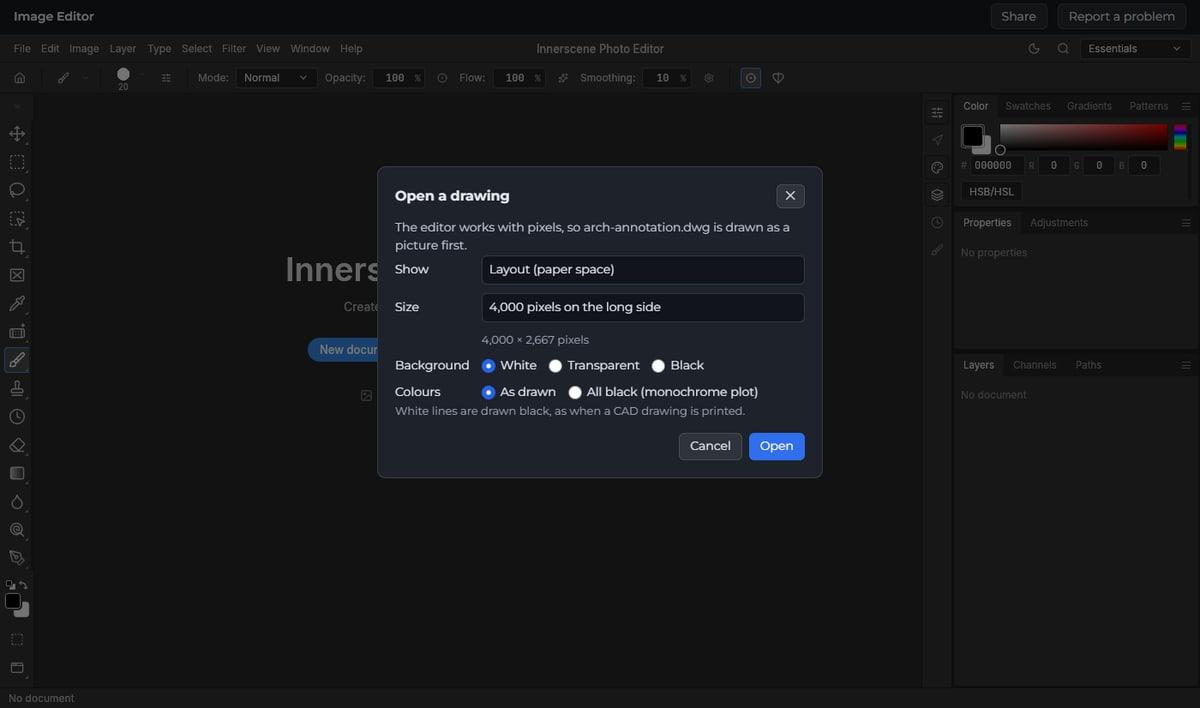
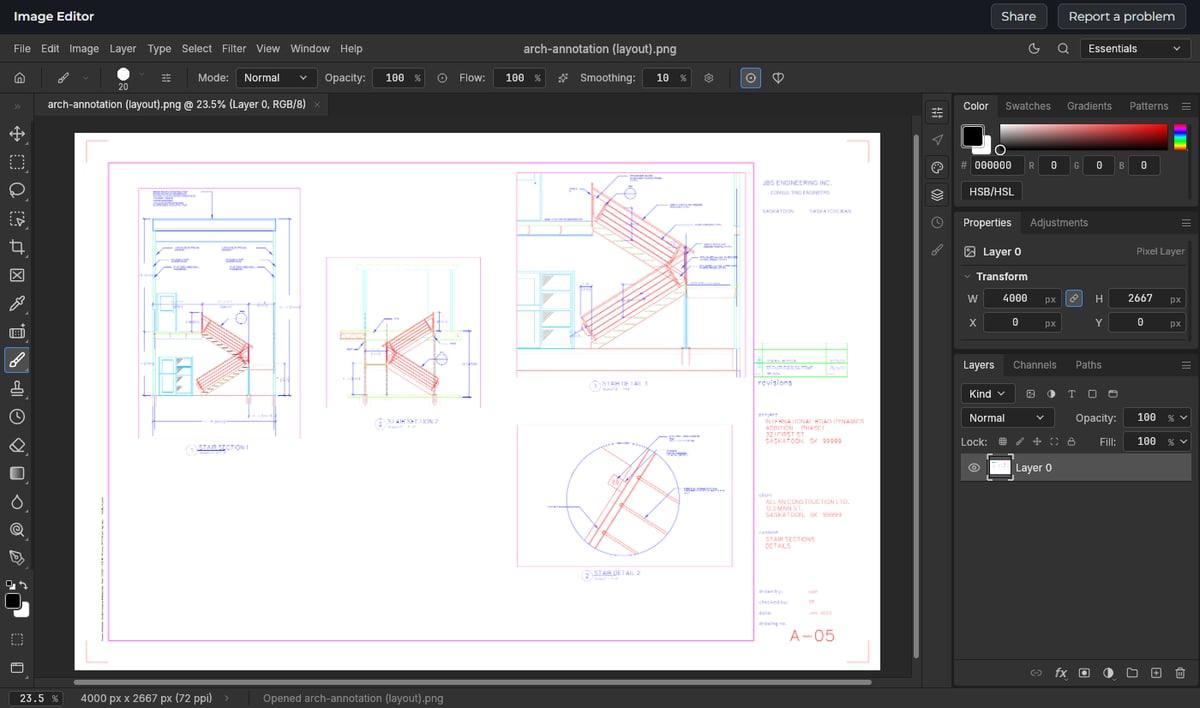
The editor also opens the 2D files our Universal 3D Viewer reads: AutoCAD DWG and DXF, PDF, DWF, Windows EMF and WMF, EPS and Illustrator, Visio, CorelDRAW, Gerber and others. A drawing is lines and text, and the editor works with pixels, so it is drawn as a picture first. Drop the file on the editor or pick it in File > Open, and a dialog asks how:
- Page or layout. Any page of a PDF, or all of them, each as its own picture. A DWG can be drawn from model space or from its layout.
- Size. A PDF page or a drawing sheet is sized in DPI, with 300 DPI as the default for print quality. A CAD drawing with no paper size is sized in pixels on its long side, 4,000 by default.
- Background. White, transparent or black. On white, CAD lines that are white on screen are drawn black, as they are when the drawing is printed.
- Colours. As drawn, or every line in black (a monochrome plot), which keeps pale layer colours readable on white.
Dropped on a picture that is already open, the drawing can become a layer of that picture, which is a quick way to lay a plan or a logo over a photo. Each picture is drawn in your browser, by the same code the 3D viewer uses to show the file.
Copy and paste with other apps
Copy and Cut put the selection on your computer's clipboard as a PNG, so it pastes straight into a document, an email or another image editor. Paste works the other way: a screenshot, an image copied in another app, or a picture copied from a web page comes in with Ctrl+V.
Browsers hand a web page the clipboard's image only at the moment you press the paste shortcut, which is why pasting from another app is done with Ctrl+V. Edit > Paste in the menu pastes the last image copied in the editor or pasted into it.
Saving your work
File > Save keeps everything editable: layers, masks, type and adjustment layers. It writes Photoshop PSD (or PSB for very large pictures), OpenRaster for Krita and GIMP, or the editor's own format. File > Export writes a flat picture, such as a JPEG for the web or a PNG with transparency, and can also write a PDF. Saved files download to your computer.
Sharing a picture
Share, at the top of the editor, uploads the picture and gives you a link. Whoever opens the link gets the editor with the picture as you have it: every layer, mask and adjustment layer, the selection, the zoom and the part of the picture in view, the tool you were using, your colours, and the way your panels and toolbar are laid out. They can carry on editing, save it, or share it again.
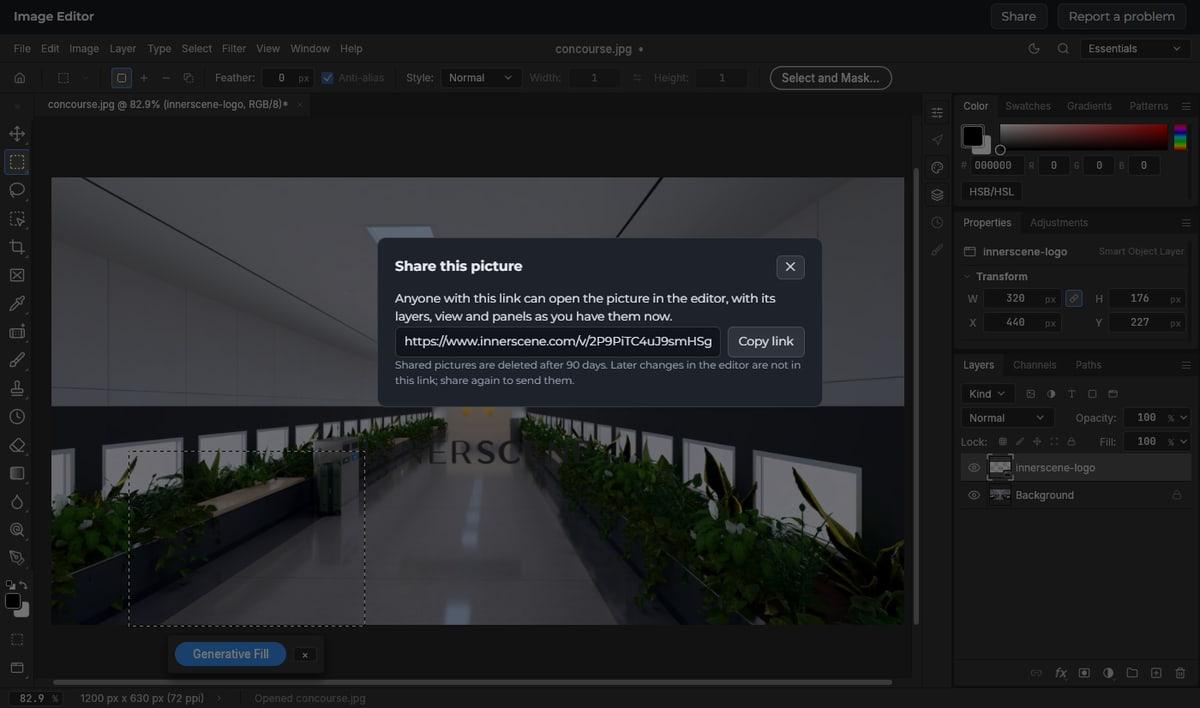
A link holds up to 100 MB. When a picture with its layers is larger than that, the editor says so before uploading and offers to compress the shared copy: its pixel layers are stored as JPEG at the highest quality that still fits. Masks, the selection, type and the view are kept exactly, and the picture on your own screen is not changed. Shared pictures are deleted after 90 days, and a link shows the picture as it was when you shared it; to send later changes, share again.
Generative Fill
Select an area, type what should go there (or leave the prompt empty to fill it from its surroundings), and an image model paints it in. The result arrives as a new layer inside the selection, blended into the edges, and you can step through several results before keeping one.
Generative Fill uses your own account with OpenAI, Stability AI, Google Gemini or fal.ai: add a key under Edit > AI Providers. The key is kept in your browser, and only for this session unless you ask the editor to remember it. When you run a fill, the area around your selection is sent to the provider you picked, and that provider bills you for the image.
Editing a picture from the 3D viewer
Open a picture in the Universal 3D Viewer and click Edit image. The editor opens over the viewer with the picture loaded, and the address bar changes to /tools/image-editor. The browser's Back button closes the editor and returns to the viewer, asking first if there are changes you have not saved. After you save or export, the View button at the top shows the result in the viewer.
How it runs
The editor is a program compiled to WebAssembly that runs inside your browser tab. It draws with WebGPU where the browser supports it and with WebGL2 elsewhere, so it works in current versions of Chrome, Edge, Firefox and Safari. The first visit downloads about 11 MB; later visits load it from the browser cache. Pictures are opened, edited and saved in the tab. A picture reaches our servers only when you share it, and part of one goes to an image service only when you run Generative Fill.
Not every Photoshop feature is there yet, and a very large picture is limited by the memory your browser gives a tab.
Reporting a problem
If a picture does not open, or the editor does something you did not expect, click Report a problem above the editor. The form sends your description and any screenshots you add, together with a copy of the last picture you opened, so we can reproduce it. The same form takes feature requests. Leave your email address if you would like to hear when the fix is live.
Photoshop is a trademark of Adobe Inc. Innerscene is not affiliated with Adobe.