
Circadian Sky
Casambi Controls Guide
Setup, Configuration & Circadian Profile Management
Setup, Configuration & Circadian Profile Management
The Casambi app is available for free on both iOS and Android devices. Search for "Casambi" in the App Store or Google Play Store.
Once connected to a network, the app will automatically discover nearby Casambi-enabled fixtures. You will see one "luminaire" appear for each Primary fixture you purchased and powered on. Secondary fixtures automatically synchronize with their Primary and do not appear separately in the app.
Each Innerscene installation uses Primary and Secondary fixtures:
Innerscene fixtures with Casambi work with most Casambi-certified controls. The table below lists controls that have been verified by Innerscene; other Casambi devices that follow the standard mesh protocols are expected to work but have not been formally tested.
| Brand | Model | Part # |
|---|---|---|
| Casambi | Xpress™ | CBU-XPRESS |
| Magtech | ATOM™ In-wall Switch (battery) | WS-NC04-N2-0A4 |
| mwConnect | Line Voltage Wireless Switch | MWS-CAS |
| Wireless Switch with PIR Sensor | MWS-CAS-PIR |
™ trademarks are the property of their respective owners.
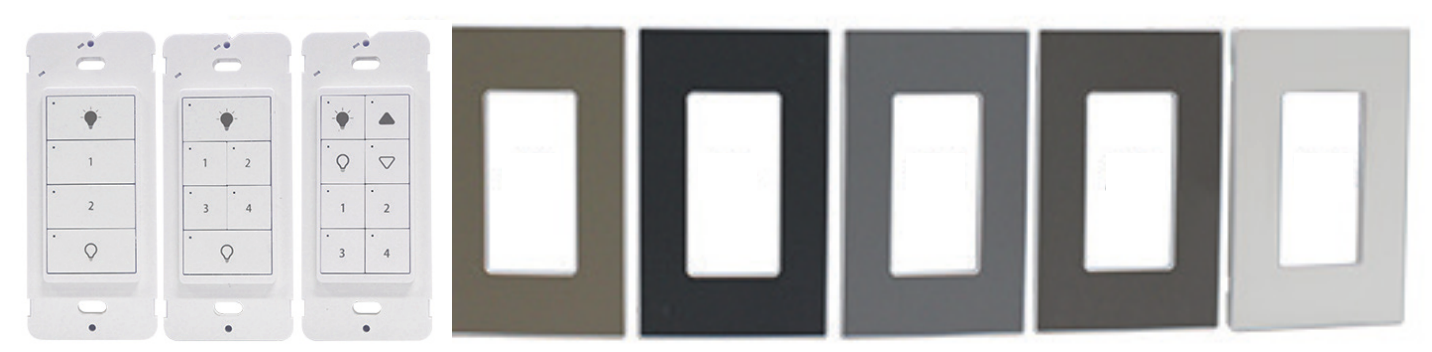
Casambi offers a comprehensive ecosystem of wired and wireless controls that work with Innerscene fixtures. For North America, wall switches are available in either hard-wired or battery-powered versions with different face plates and button configurations as shown below, available from Magtech Industries Corp.
There are two ways to control and configure your Innerscene fixture:
Long press (tap and hold) on any luminaire to open its control panel. This reveals sliders for brightness (0-100%) and color temperature.
Innerscene Circadian Sky fixtures support an extended CCT range from 2,200K to 200,000K. Use the color temperature slider in the Casambi app to adjust warmth. The app displays its standard range, but Innerscene maps these values to the fixture's full extended range for optimal circadian effect.
| Casambi | Innerscene | Casambi | Innerscene |
|---|---|---|---|
| 2,200K | 2,200K | 6,500K | 6,500K |
| 3,000K | 3,000K | 7,000K | 8,649K |
| 4,000K | 4,000K | 7,500K | 18,811K |
| 5,000K | 5,000K | 8,000K | 200,000K |
Values above 6,500K map to Innerscene's extended range for natural sky simulation.
Quick tap on any luminaire icon to toggle it on or off.
Only needed if you have multiple Primary fixtures (multiple Innerscene wireless groups). Go to "Groups" tab → tap "+" → select fixtures → name the group.
Scenes save lighting configurations that can be recalled instantly. Set brightness/CCT → "Scenes" tab → "+" → name and save.
Built-in scheduling via WiFi interface. Connect to fixture's WiFi → access web interface → configure schedules.
Create automated schedules in the app: "Timers" tab → "+" → select scene → set time (fixed/sunrise/sunset) → choose days → enable.
Casambi wall dimmers can trigger specific scenes with a button press, allowing users to quickly switch between lighting presets or enable automated scheduling.
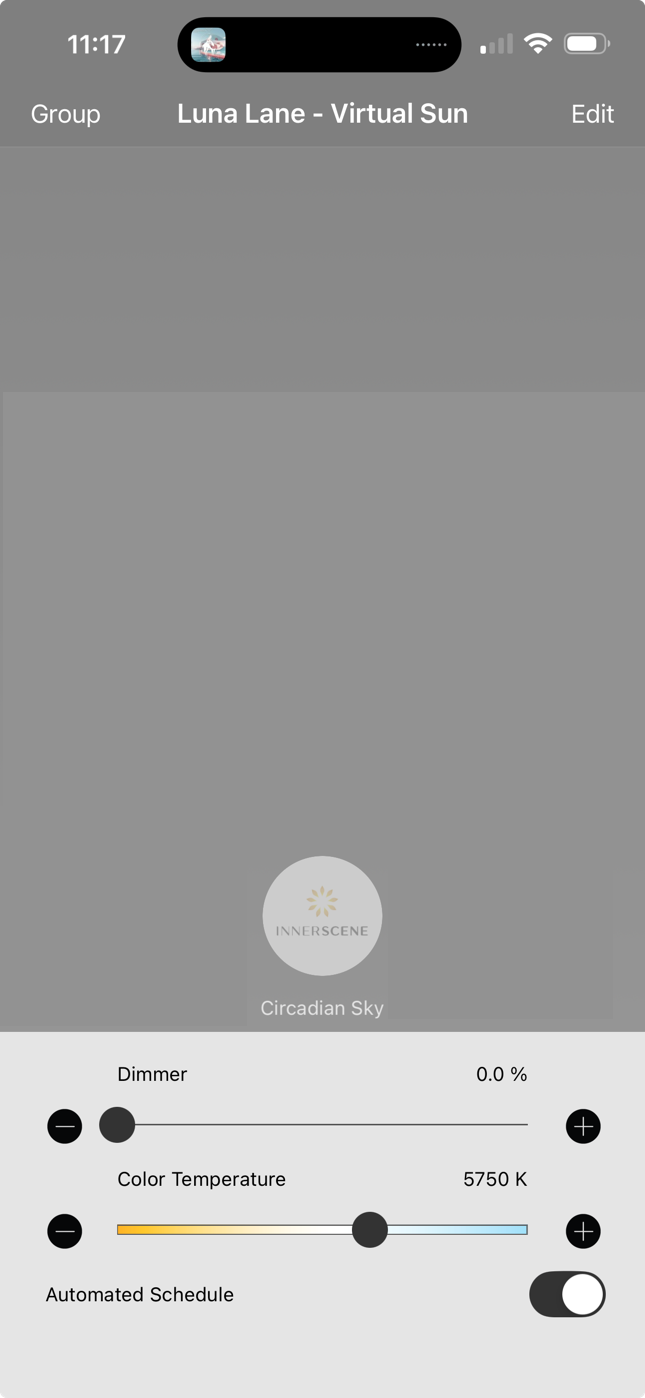
Circadian lighting mimics natural daylight progression, supporting your body's rhythms. Cool, bright light promotes alertness; warm, dim light helps prepare for sleep.
Fixtures with factory commissioning (P0001, P0002) include pre-configured circadian profiles. Customize via the fixture's WiFi interface or replace with Casambi profiles.