Quick Start Guide
What's in the Box
| 1 | SkySync sensor (battery pre-installed) |
| 2 | Innerscene Mini Hub |
| 3 | USB-C cable & wall adapter (for Mini Hub) |
| 4 | Mounting tape (Gorilla Tough & Clear) |
| 5 | Quick Start card (this document) |
Before You Begin
- You need a Circadian Sky or Virtual Sun fixture with firmware v2.0.61+
- Choose a window with a clear view of the sky
- Avoid frosted or heavily patterned glass
- Best results: set up on a clear sky day
- Update fixture firmware to unlock higher CCTs (see Firmware Update, p.3)
Step 1 — Mount SkySync to a Window
1Clean the window glass where you'll mount the sensor.
2Peel the adhesive backing off the flat back of the SkySync base.
3Press firmly onto the inside of the window.
4Press the button on the side of SkySync. A red LED flash confirms the sensor is active and transmitting.
5Tilt the swivel head upward to aim the sensor toward the open sky.
Indoor Mounting Tips
Fit the included
hood over the top of SkySync to block reflected room light. If CCT reads low on a clear day, angle more steeply upward.
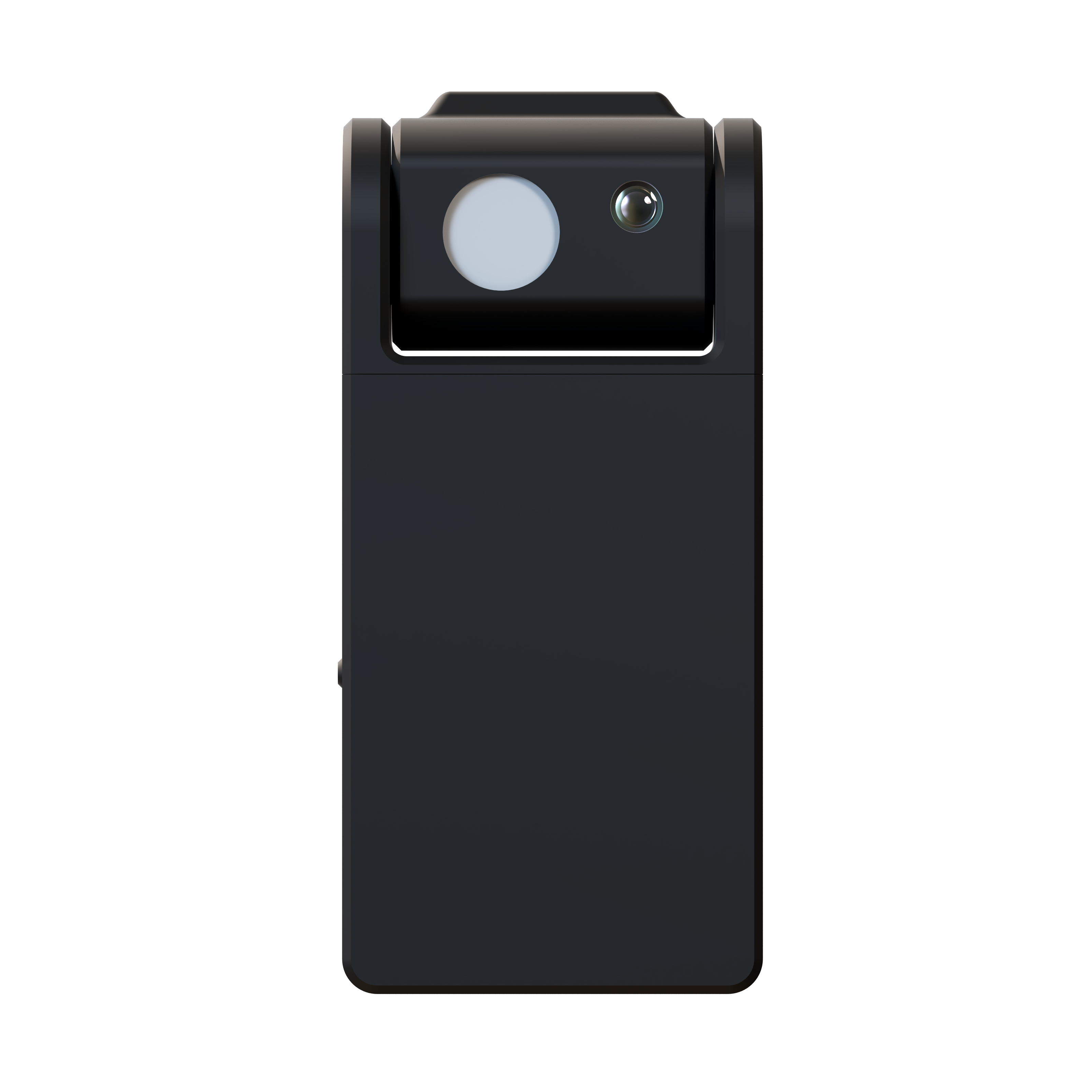
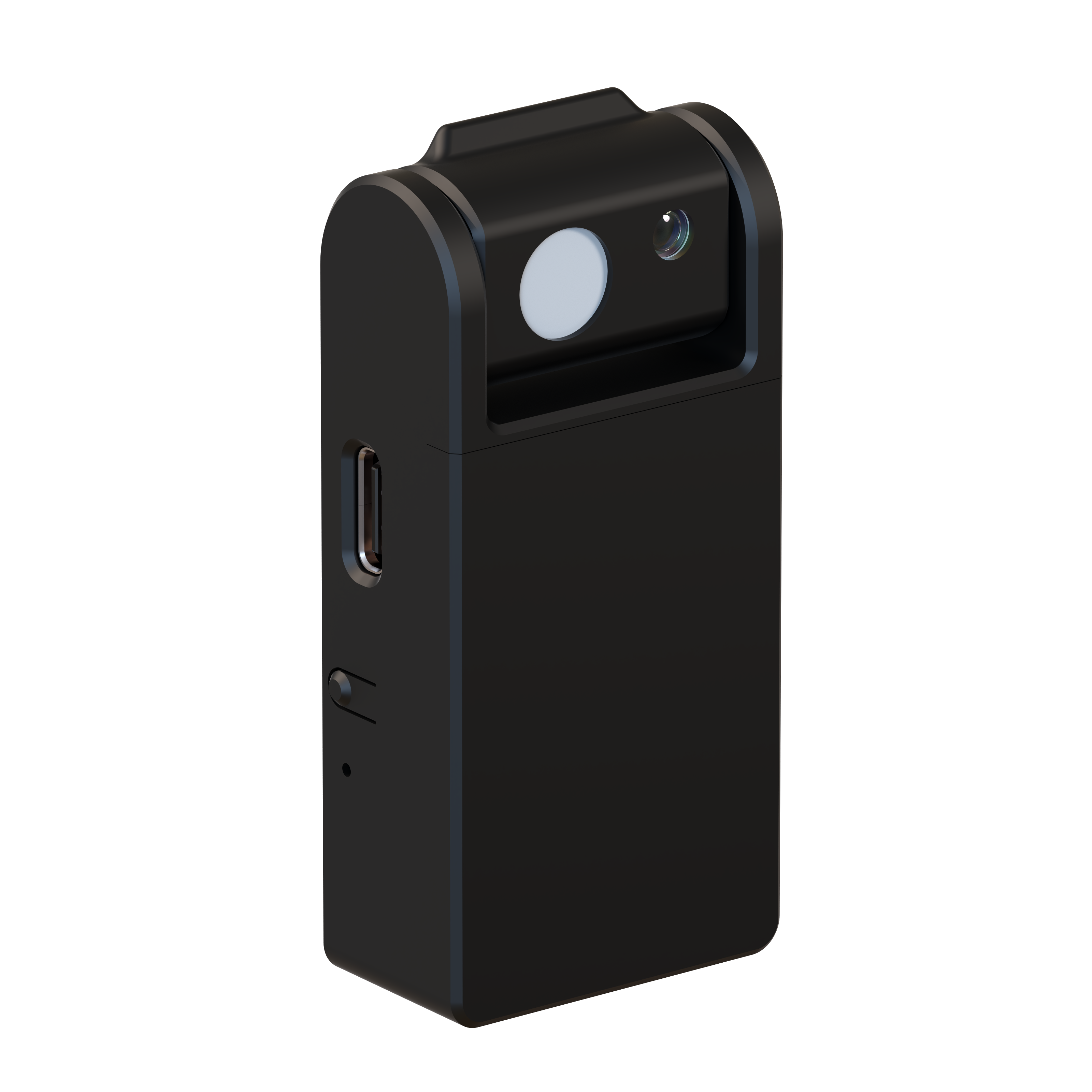
SkySync mounts to glass with built-in adhesive. The swivel head tilts to aim at the sky. The hood blocks reflected room light.
Step 2 — Aim the Sensor
1Press the button on SkySync. The red LED flashes to confirm it is active.
2Connect to your fixture and monitor the CCT reading on the home screen.
3Tilt the SkySync head to achieve the highest possible CCT. On a clear day, target 200,000K+.
Understanding the Home Screen
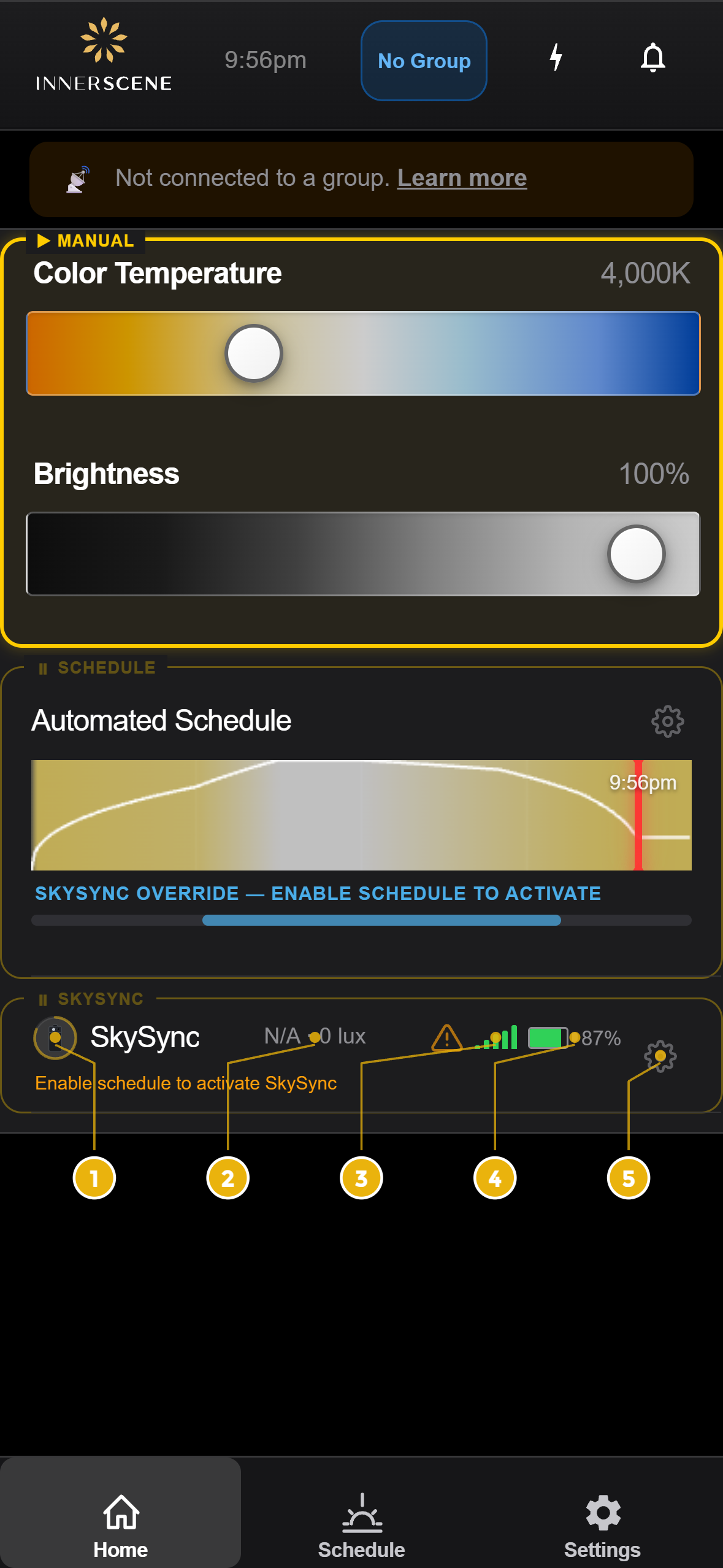
Once paired, the home screen shows a SkySync status row with live data:
| # | Element | Description |
|---|
| 1 | Ring indicator | Countdown to next sensor update |
| 2 | Live readings | Sky CCT, ambient CCT, and lux |
| 3 | Signal bars | Bluetooth signal strength |
| 4 | Battery | Battery % (replace CR2477 below 10%) |
| 5 | Gear icon | Quick access to SkySync settings |
Home screen SkySync status row
Step 3 — Pair SkySync to Your Fixture
1Connect to your fixture via WiFi or the Innerscene Studio app.
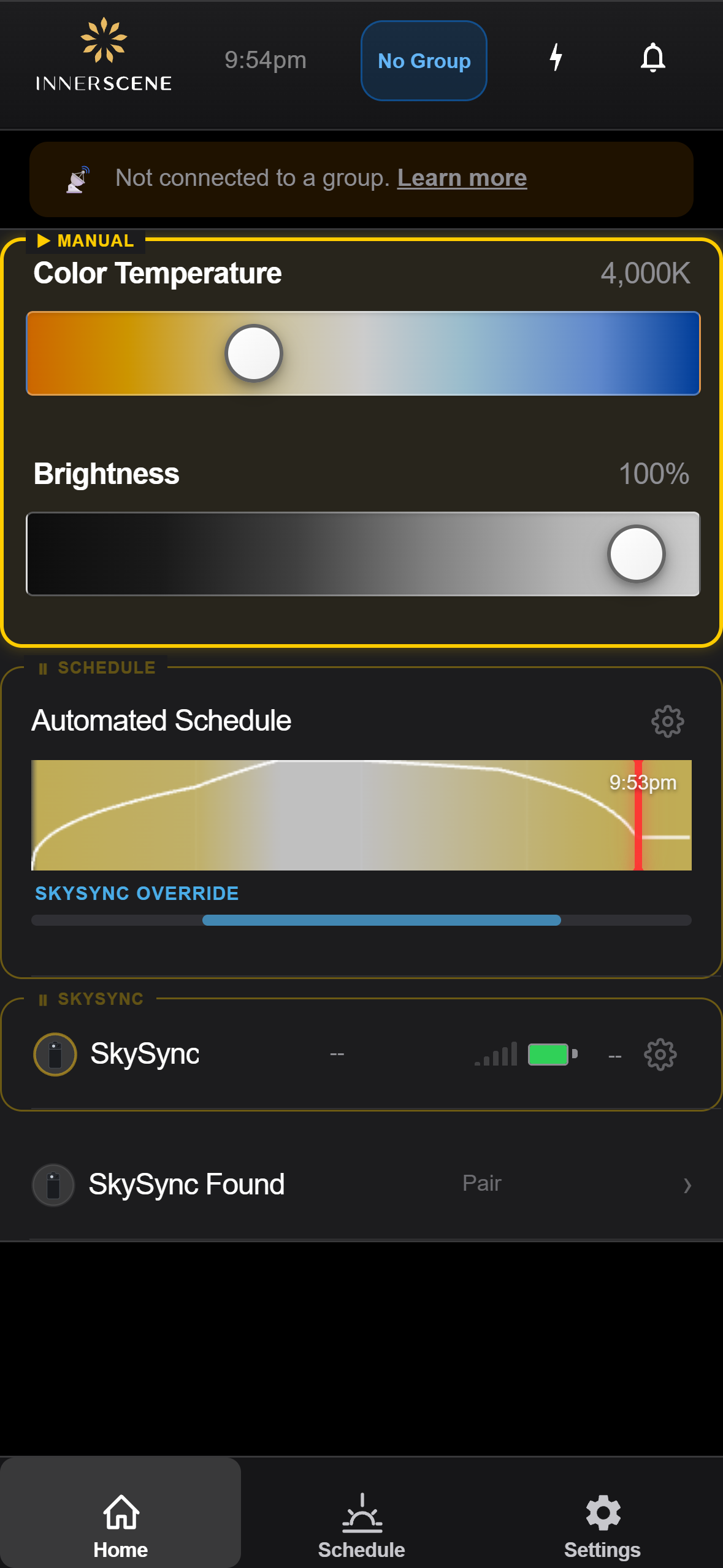
2The home screen shows "SkySync Found" with a Pair button.
3Tap "SkySync Found" to open the SkySync page.
4Tap the detected sensor, then confirm "Pair".
5The home screen now shows live SkySync data: sky CCT, ambient CCT, and lux.
Connecting to your fixture
- On your phone, join WiFi network
Innerscene-...
- Default password:
innerscene
- Open
172.30.0.1 in your browser
- Or use the Innerscene Studio app
"SkySync Found" appears when a sensor is nearby
Step 4 — Set Up Mini Hub
The Mini Hub extends SkySync range from 30ft direct to 100ft+ over your network.
1Power: Connect the included USB-C cable to the Mini Hub, or use Power over Ethernet (PoE).
2Network: Plug an Ethernet cable into your router (recommended). Or connect via WiFi (see p.6).
3Done: Mini Hub automatically detects SkySync via Bluetooth and relays data in two ways:
Wireless Relay (No Network Required)
Mini Hub rebroadcasts SkySync at
higher power (+21 dBm) plus
Innerscene Wireless mesh — no router needed.
Place
within 20ft of SkySync and
within 50ft of fixtures.
Network Relay (For Longer Distances)
For fixtures beyond 50ft, connect Mini Hub to your
local network (Ethernet or WiFi).
Data relayed via
AES-encrypted UDP broadcast (port 65003). Fixtures also rebroadcast via mesh.
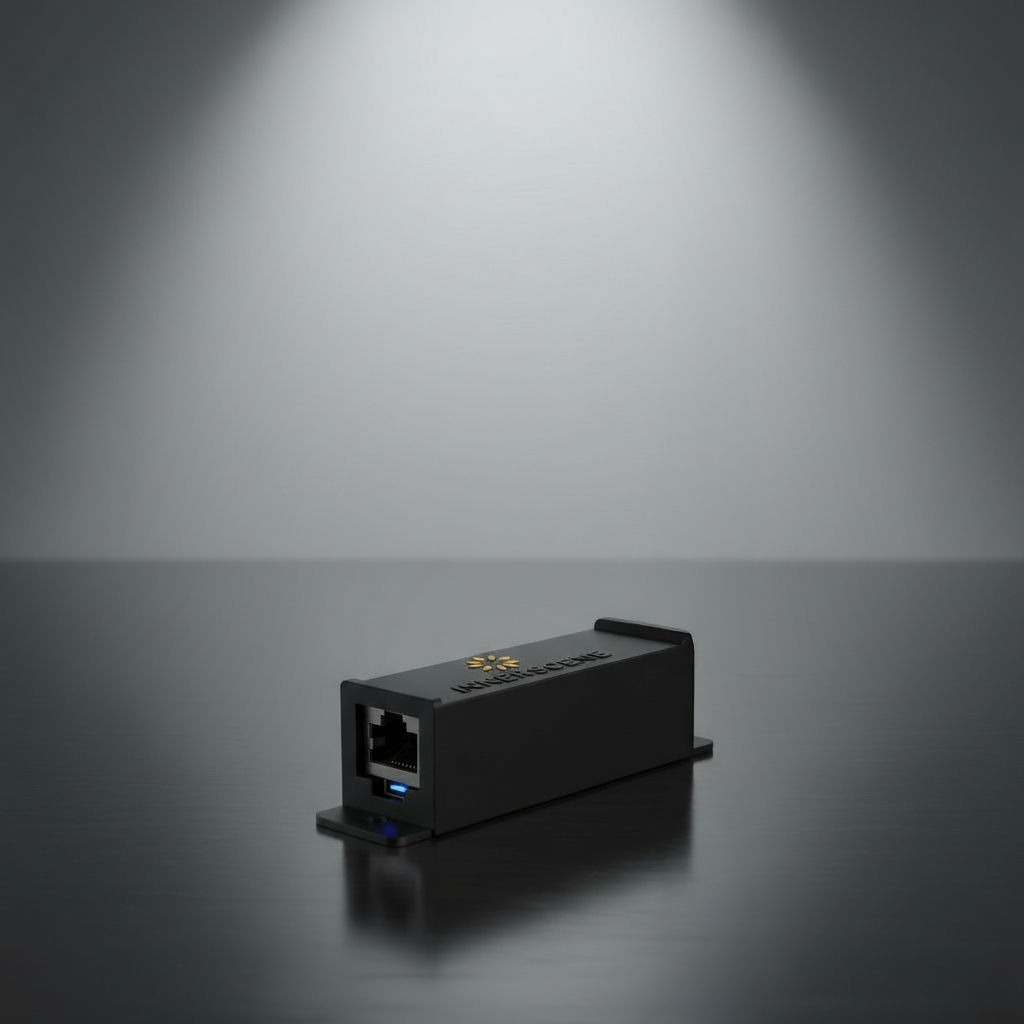
Innerscene Mini Hub — compact gateway with Ethernet, WiFi, and BLE
Firmware Update (If Needed)
If your fixture firmware is older than v2.0.61, update before pairing. Updating also unlocks higher CCT support.
1Download Innerscene Studio from the iOS App Store or Google Play.
2Connect to your fixture via WiFi (Innerscene-..., password: innerscene).
3Go to Settings → Advanced → Firmware Updates, select the file, and tap Update.
4Wait ~60s. The fixture flashes its lights when complete. Do not disconnect power during update.
Activating Schedule + SkySync Mode
Schedule + SkySync mode combines your programmed schedule with real-time sky tracking. There are three ways to activate it:
Method 1: Set Power-On Default to “Use Schedule”
Settings → Power-On Default → Use Schedule.
Fixture automatically starts in Schedule + SkySync mode on power-up. Recommended for permanent installations.
Method 2: Enable Idle Resume
Settings → Idle Resume → choose a timeout (15 min, 30 min, or 1 hr).
After inactivity, the fixture automatically returns to Schedule + SkySync mode.
Method 3: Tap the Schedule Card
On the Home screen, tap the Schedule + SkySync card to activate immediately.
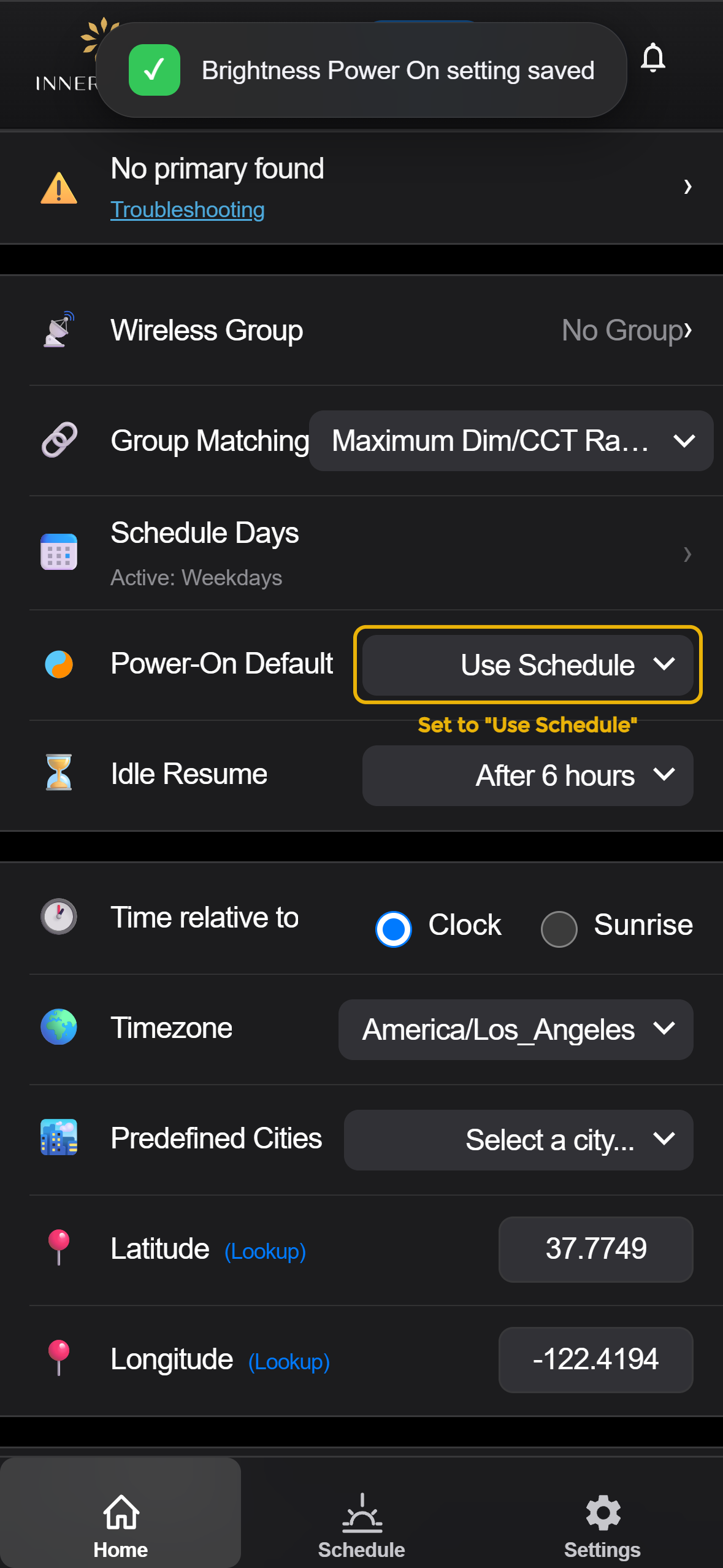
Set Power-On Default to “Use Schedule”
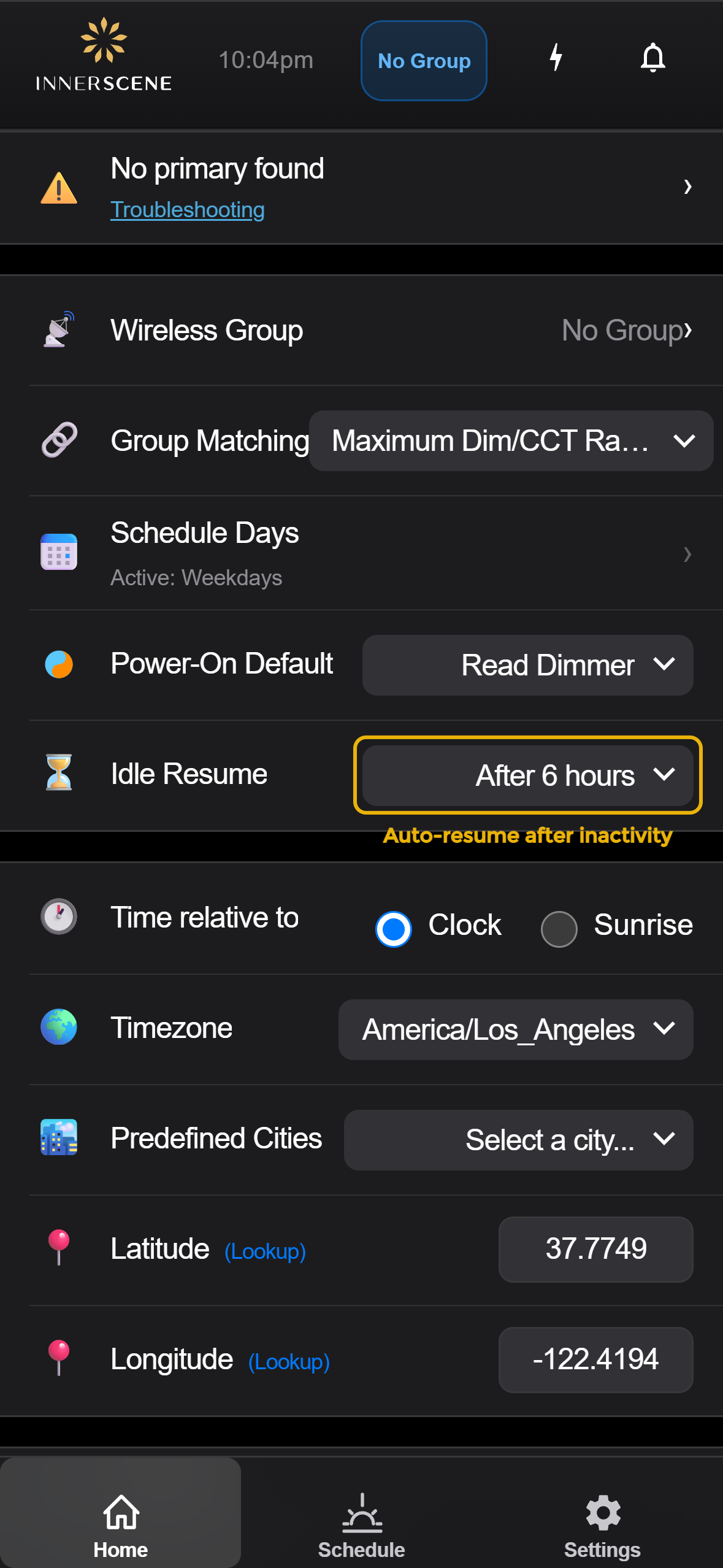
Enable Idle Resume for automatic return
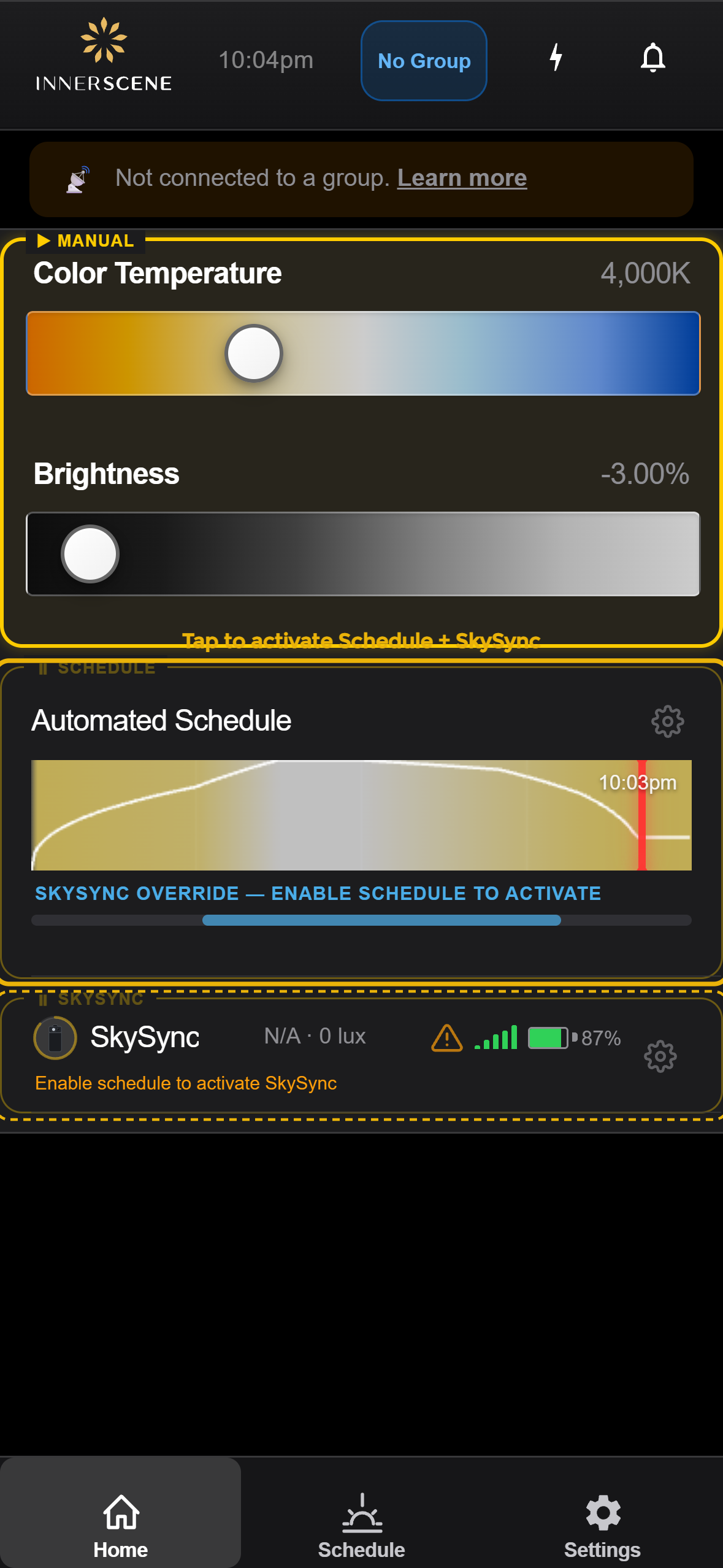
Tap the Schedule + SkySync card on Home
External Controls Deactivate Schedule Mode
External controls (
0-10V,
DALI,
DMX,
Casambi) will
exit Schedule mode.
To resume, wait for Idle Resume or tap the Schedule card again.
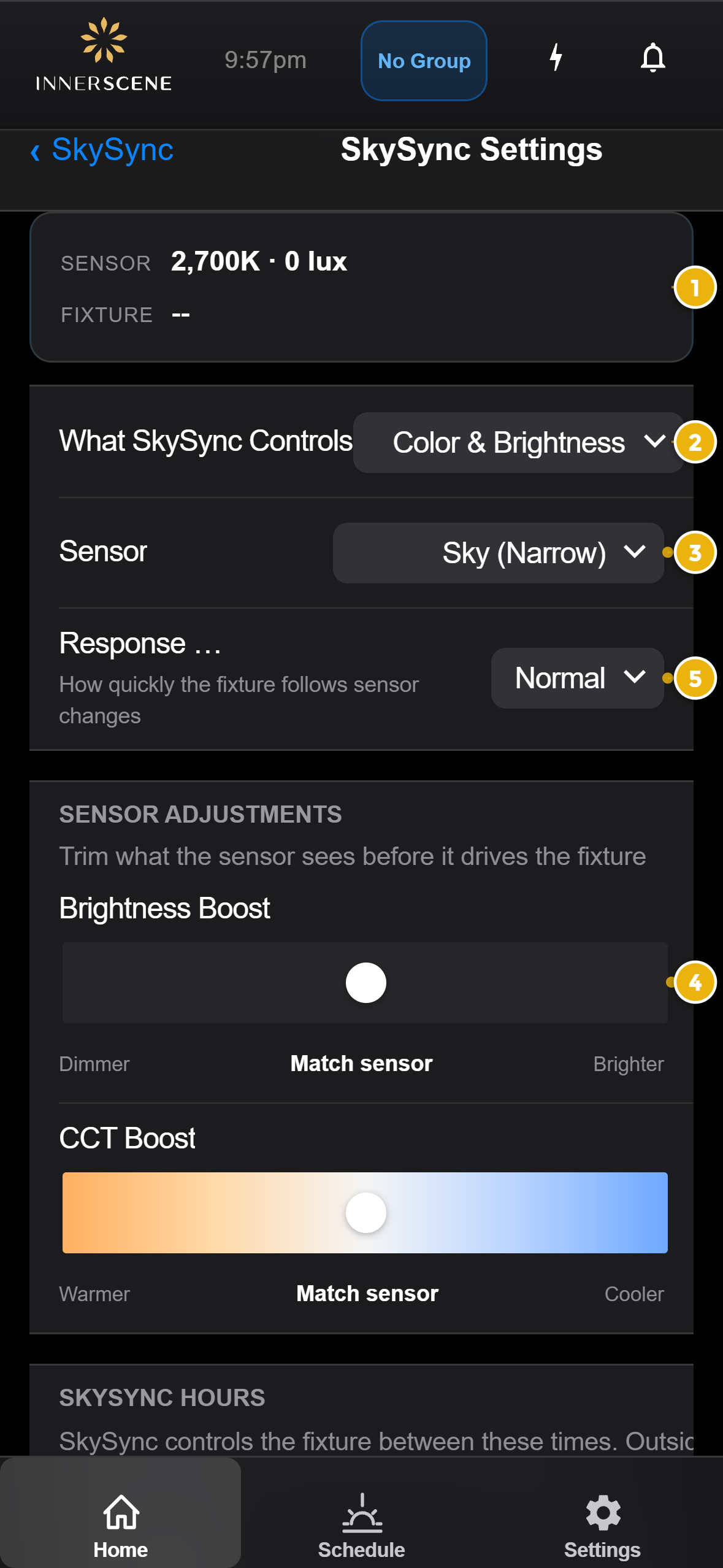
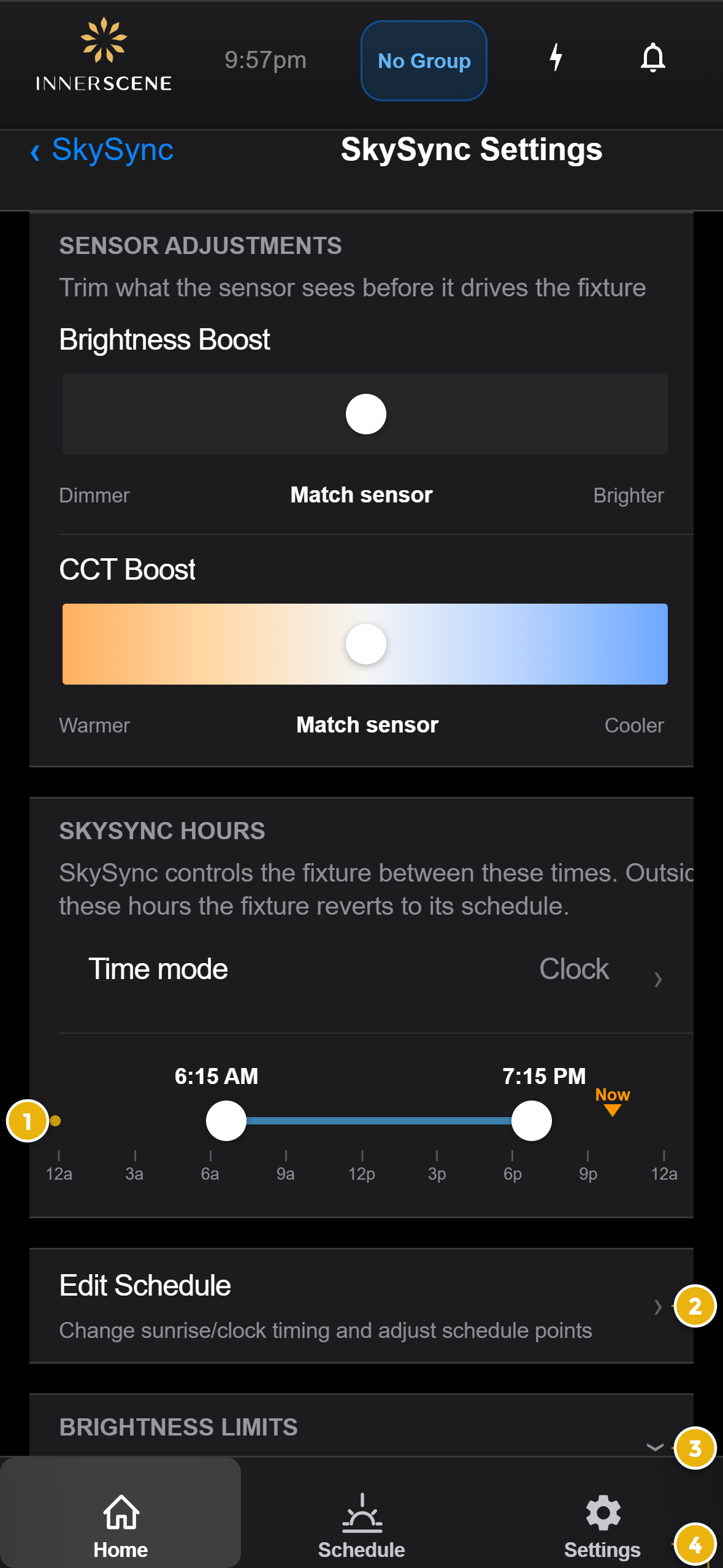
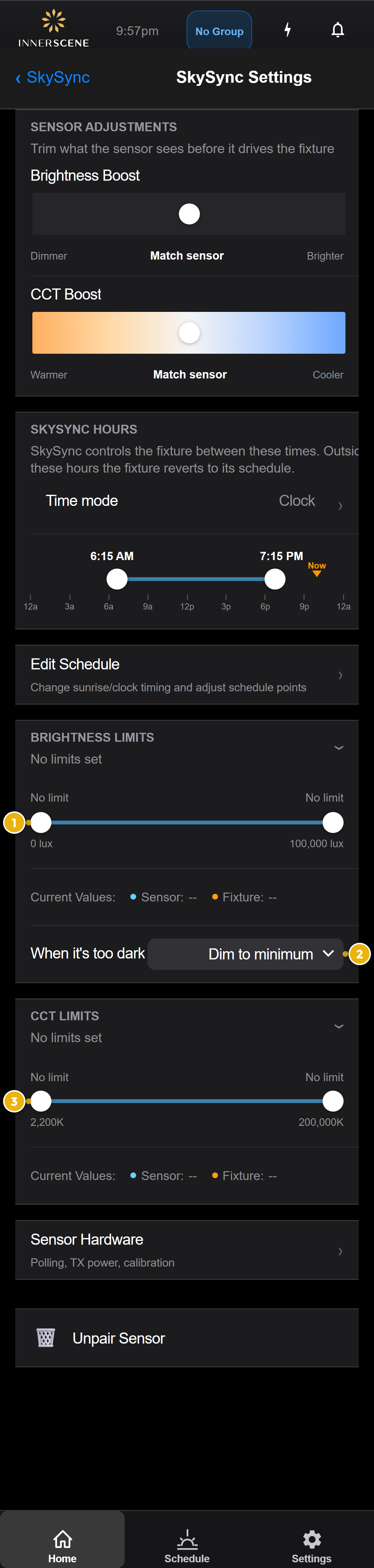
SkySync Settings
Access SkySync settings from Home → SkySync row (gear icon) or Settings → SkySync → SkySync Settings.
1 Live Preview Strip
Shows real-time sensor reading and current fixture output at the top of the settings page.
2 What SkySync Controls
| Option | Description |
|---|
| Color & Brightness Default | SkySync drives both CCT and brightness — fixture fully follows the sky |
| Color Only | SkySync sets CCT only; brightness stays at schedule/manual level |
| Brightness Only | SkySync sets brightness only; CCT follows the schedule |
3 Sensor Selection
SkySync has two sensor windows:
| Sensor | FOV | Best For |
|---|
| Sky (Narrow) Default | 10° | Capturing blue sky color directly |
| Ambient (Wide) | 180° | Overall room-level light including reflections |
| Average Both | — | Blended reading of both sensors |
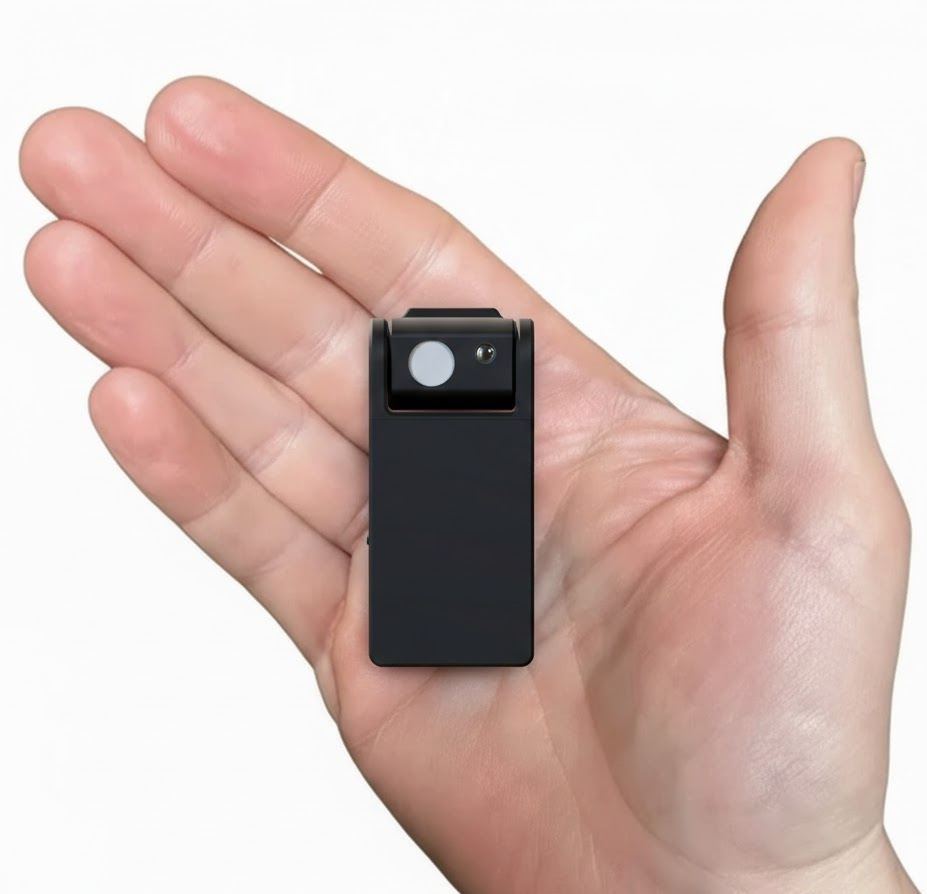
The narrow sky sensor (black cylinder) captures the true color of the sky. The wide ambient sensor (white diffuser) measures surrounding light.
4 Response Speed
| Speed | Transition Time | Effect |
|---|
| Fast | ~3 seconds | Fixture closely tracks rapid sky changes (clouds passing) |
| Normal Default | ~10 seconds | Smooth, natural transitions |
| Slow | ~45 seconds | Very gradual changes; barely noticeable to occupants |
Sensor Adjustments
Trim what the sensor sees before it drives the fixture.
Brightness Boost
Adjusts fixture brightness relative to sensor readings.
| Dimmer | ← — slider — → | Brighter |
Default: center (match sensor). Useful for compensating for tinted windows that reduce perceived brightness.
CCT Boost
Shifts the color temperature warmer or cooler relative to sensor readings.
| Warmer | ← — slider — → | Cooler |
Default: center (match sensor). Useful for fine-tuning color appearance to your preference.
SkySync Settings — primary controls
Innerscene Mini Hub
The Mini Hub is a compact gateway that receives SkySync data via Bluetooth and relays it to your fixtures over the local network.
When You Need the Mini Hub
Range Extension
Fixtures are beyond SkySync's direct 30ft BLE range. Mini Hub rebroadcasts at higher power for up to 50ft reach.
Multi-Room
Multiple rooms need sky data — use the network relay for building-wide coverage
No Config Needed
Wireless relay works with power only. Network relay uses UDP broadcast (no DHCP required).
Power Options
| Method | What You Need | Best For |
|---|
| USB-C | Included cable & wall adapter | Quick setup, flexible placement |
| Power over Ethernet (PoE) | PoE switch or injector (IEEE 802.3af) | Clean single-cable install — power + data in one |
Power consumption: 0.5W. Any standard USB-C phone charger works.
Network Connection
Option A: Ethernet (Recommended)
- Plug an Ethernet cable from your router/switch into the Mini Hub
- That's it — fixtures on the same network receive SkySync data via UDP broadcast
No DHCP Required
Mini Hub uses UDP broadcast which works without DHCP or IP configuration.
Ethernet provides the most reliable connection. If using PoE, you get power + network in a single cable.
Option B: WiFi
- Power on the Mini Hub (USB-C, no Ethernet)
- On your phone, join:
Innerscene-hub-XXXX
- Password:
innerscene
- Open
172.30.0.1 in your browser
- Go to WiFi settings → Connect to WiFi
- Select your network, enter password, tap Join
Note
If your WiFi network name or password changes, you'll need to reconnect to the Mini Hub's AP and reconfigure.
LED Indicators
| LED | State | Meaning |
|---|
| Power | Solid on | Hub is powered and running |
| Ethernet | Blinking | Active network traffic (data relay in progress) |
| Ethernet | Off | No Ethernet cable connected (using WiFi or not connected) |
Mounting & Placement
- Mount using a single screw through the hole in the enclosure
- Place within 20ft of SkySync for reliable BLE reception
- Place within 50ft of fixtures for wireless relay, or connect to your network for longer distances
- Ideal location: near a window with SkySync, close to a network drop
Mesh Rebroadcast
All Circadian Sky and Virtual Sun fixtures relay SkySync data via Innerscene Wireless mesh and UDP broadcast.
Each relay hop decrements a TTL counter (default: 2 hops) with sequence deduplication to prevent loops.
The primary fixture doesn't need to be closest to every secondary — the mesh extends coverage automatically.
Multi-Fixture Setup
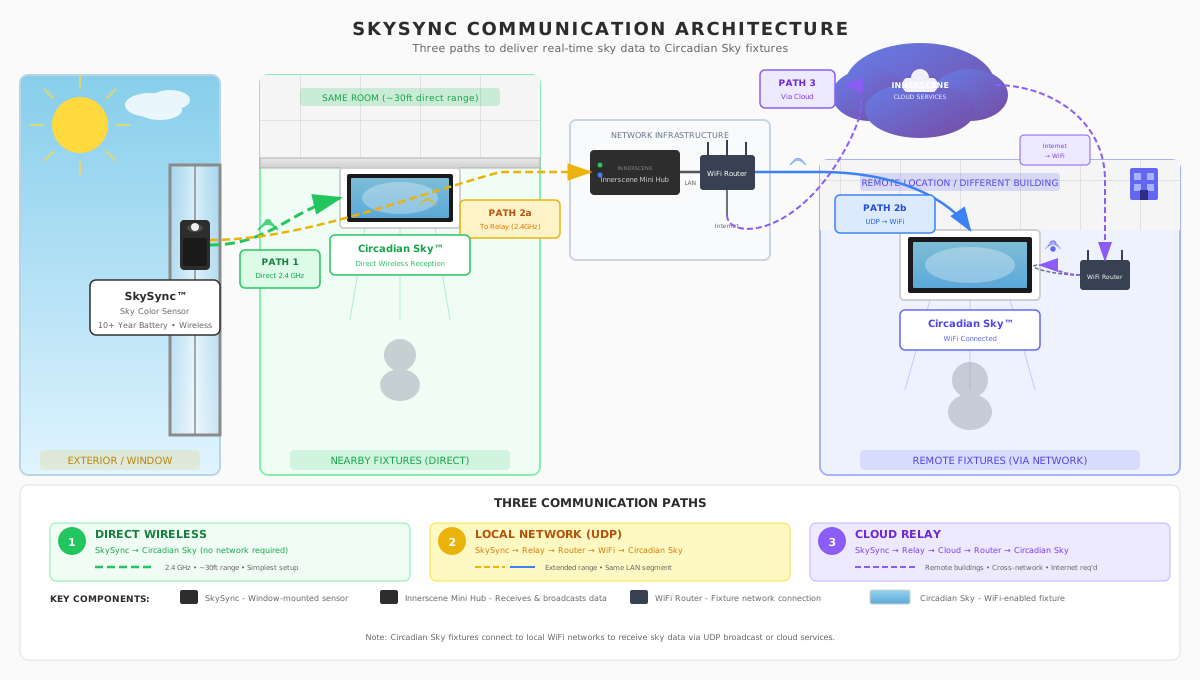
SkySync communication architecture — direct wireless, local network, and cloud relay
Primary & Secondary Fixtures
Innerscene fixtures use a wireless group system where one Primary fixture coordinates with Secondary fixtures.
| Role | SkySync Behavior |
|---|
| Primary | Pairs with SkySync directly. Receives and distributes sky data. |
| Secondary | Receives SkySync data automatically via mesh. No setup needed — pre-provisioned by Innerscene. |
Key Points
- Only the Primary fixture needs to pair with SkySync
- Multiple Primaries (e.g., in different rooms) can all pair to the same SkySync sensor
- Secondaries receive SkySync data through the mesh — no action required
- All fixtures relay SkySync data via Innerscene Wireless mesh (TTL-based, up to 2 hops by default) and UDP broadcast if on WiFi
- Fixtures also relay Mini Hub broadcasts, extending coverage further
Communication Modes
1. Direct Wireless
Range: ~30ft
SkySync → Fixture via BLE. No network or hub needed. Best for single-room setups within range.
2. Mini Hub Wireless Relay
Range: 20ft + 50ft
SkySync → Mini Hub → Fixtures via higher-power BLE rebroadcast. No network needed — just power. For fixtures beyond 50ft, add network relay.
3. Network Relay (UDP)
Range: Unlimited (LAN)
SkySync → Mini Hub → LAN → Fixtures via AES-encrypted UDP broadcast (port 65003). Best for multi-room, large buildings. Cloud relay coming soon.
SkySync Sensor Specifications
| Sensors |
|---|
| Sky Sensor | 10° narrow FOV (black cylinder with lens) |
| Ambient Sensor | 180° wide FOV (white round diffuser) |
| CCT Range | 2,200K – 1,000,000K |
| Lux Range | 0 – 100,000+ lux |
SkySync senses up to 1,000,000K. Fixture output depends on model/firmware — up to 200,000K with latest firmware.
| Communication |
|---|
| Protocol | Bluetooth Low Energy (BLE) |
| Frequency | 2.4 GHz ISM band |
| Direct Range | 30ft to fixture |
| With Mini Hub (BLE) | 20ft sensor → hub, 50ft hub → fixture |
| With Mini Hub (Network) | Unlimited (via UDP broadcast on LAN) |
| Update Interval | 15 seconds (default, configurable 5–3600s) |
| Power |
|---|
| Battery | CR2477 coin cell (pre-installed) |
| Battery Life | 10+ years |
| USB-C | Sealed port for hard-power installations |
| Operating Hours | Dawn to dusk (auto night suspend) |
| Physical |
|---|
| Dimensions | 1.2″ × 4″ (32mm × 104mm) |
| Mounting | Built-in adhesive on swivel cylinder base |
| Swivel | Up/down tilt for sky aiming |
| IP Rating | IP20 (indoor use) |
| Outdoor | Waterproof enclosure available separately |
| Compatibility |
|---|
| Fixtures | Circadian Sky, Virtual Sun |
| Min. Firmware | v2.0.61 |
| App | Innerscene Studio (iOS and Android) |
| Safety & Warranty |
|---|
| Battery Safety | UL 1642 Listed |
| Warranty | 5 years |
SkySync sensor — compact form factor
Innerscene Mini Hub Specifications
| Connectivity |
|---|
| SkySync Reception | BLE, 20ft range from SkySync |
| BLE TX Power | +21 dBm (ESP32-S3 built-in antenna) |
| Wireless Relay | Innerscene Wireless proprietary mesh (no router needed) + BLE rebroadcast |
| Network Output | UDP broadcast (port 65003, AES encrypted) |
| Ethernet | 10/100 Mbps |
| WiFi | 2.4 GHz, WPA2-PSK, via web UI |
| Cloud Mode | TCP to Innerscene Cloud (SSL, outbound only) — coming soon |
| Physical & Electrical |
|---|
| Power | PoE (IEEE 802.3af) or USB-C (5V) |
| Consumption | 0.5W |
| Enclosure | 78mm × 27mm × 20mm |
| Antenna | Built-in (internal PCB antenna) |
| Mounting | Single screw to any surface |
| Operating Temp | 0°C to 40°C (32°F to 104°F) |
| LEDs | Power (solid) & Ethernet (activity) |
| Warranty | 5 years |
Further Resources