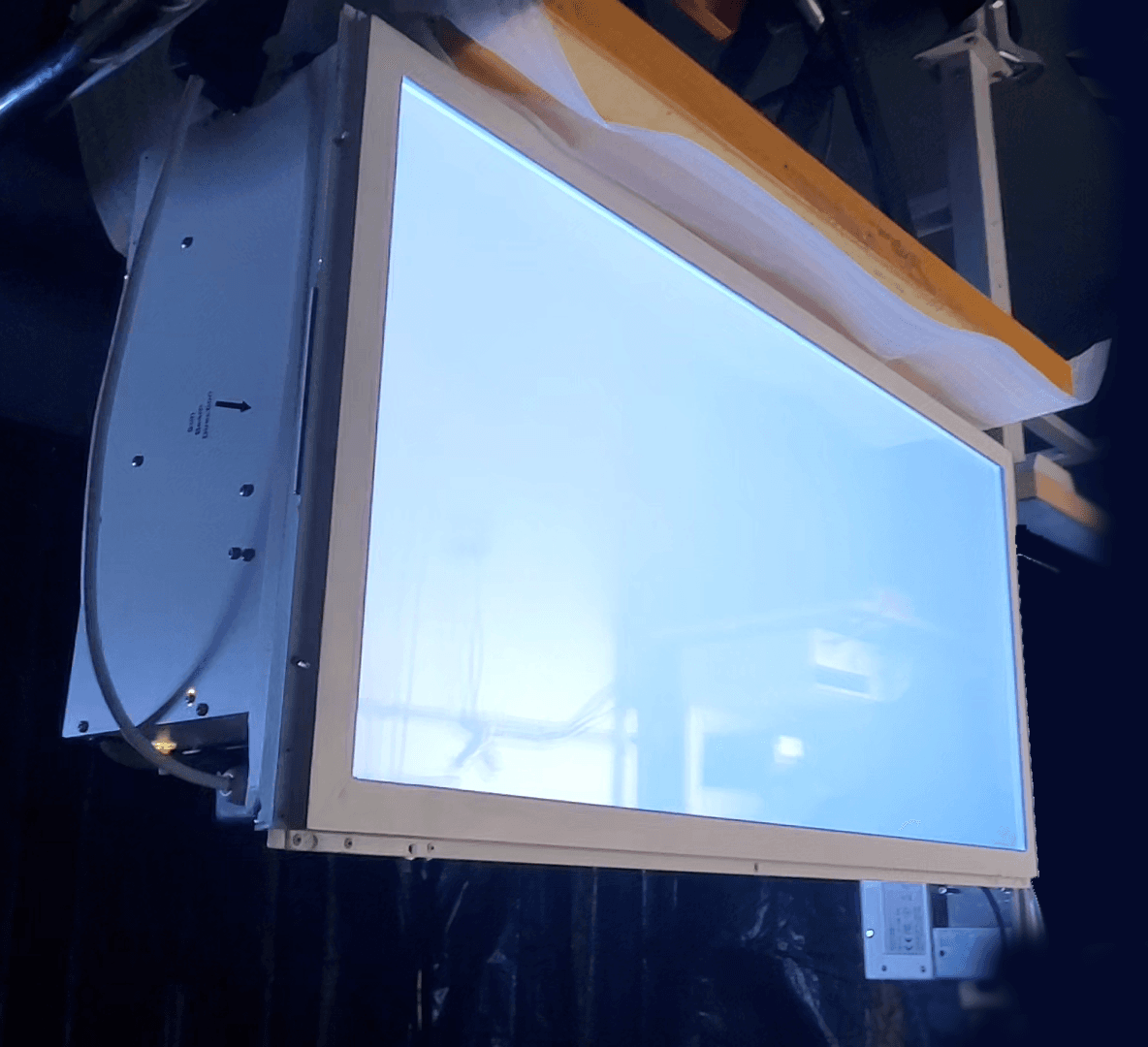
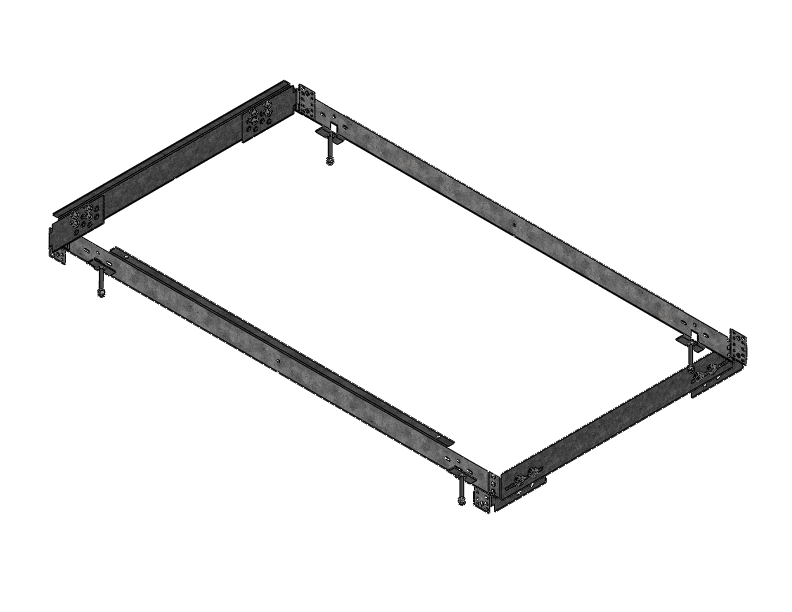
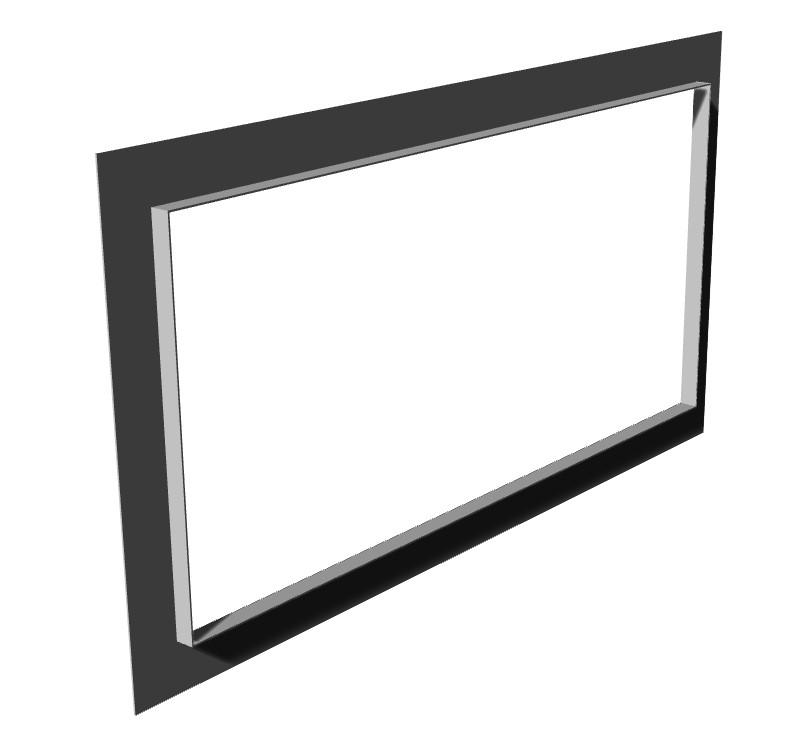
Virtual Sun

Installation Manual

North American Variants

Table of Contents

Wiring instructions2
Quick test power cord3
0-10V controls4
DALI-2 DT8 controls6
DMX controls7
Wireless group installation8
Clearance9
Installation instructions10
Drywall hoist setup11
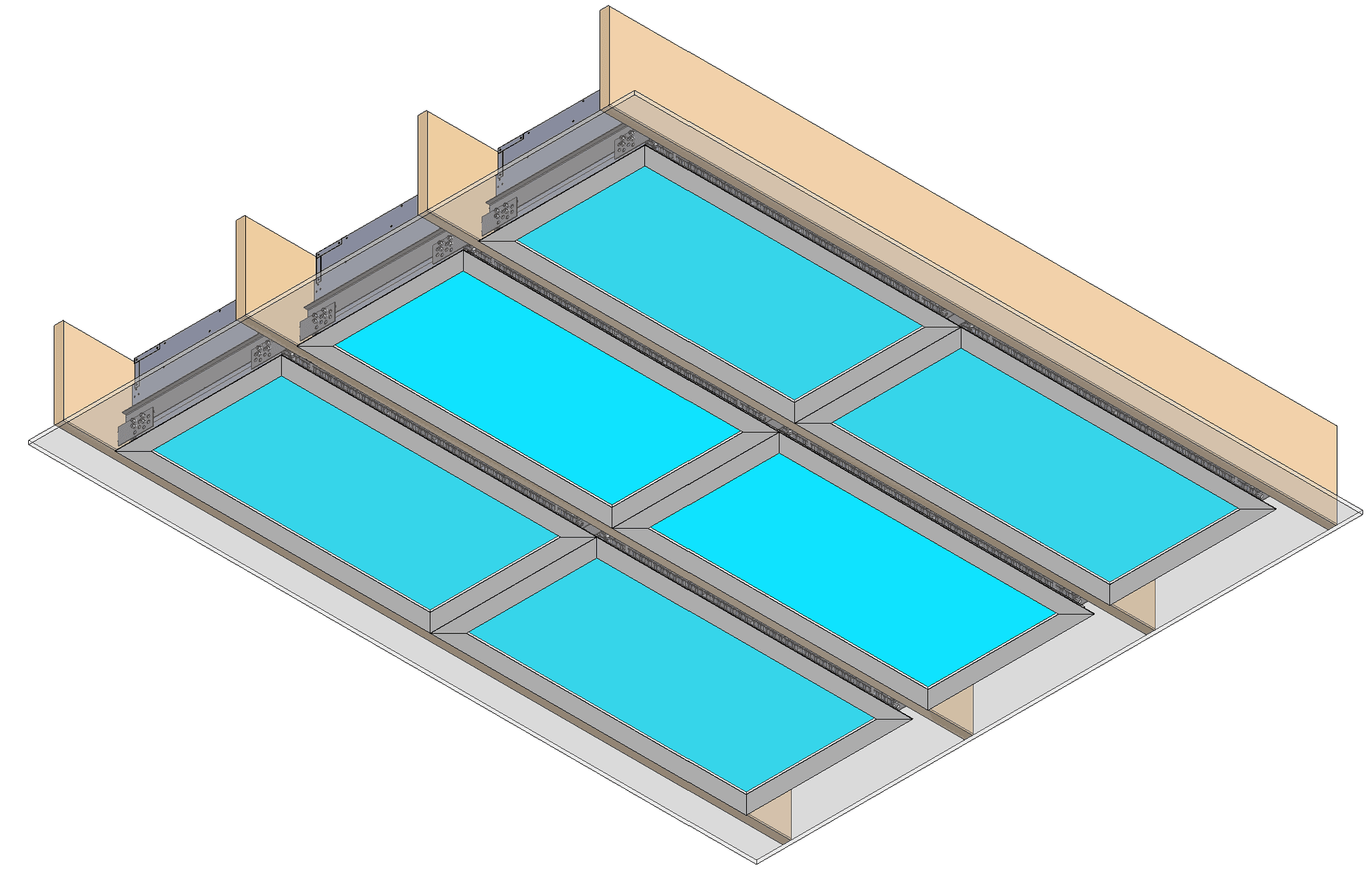
NC Housing prep12
NC Housing — Timber Joists13
NC Housing — Hat Channels / Furring18
NC Housing — Grid Ceilings23
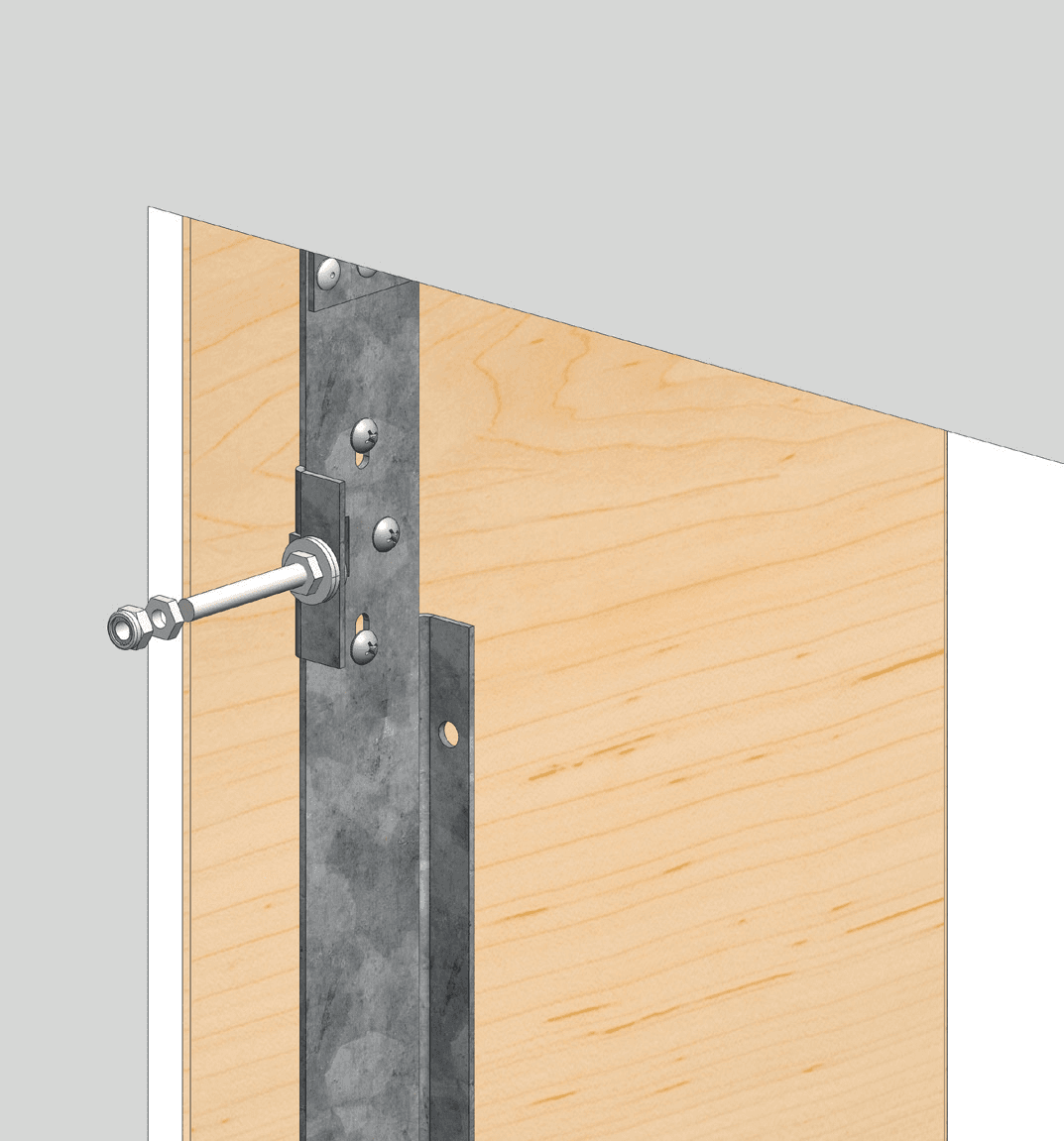
NC Housing — Stud Wall (Wall Mount)31
Cleaning37
Commissioning & Programming38
Controller & Studio App39

Wiring Instructions

Note
Check the luminaire immediately upon receipt for any physical damage. The manufacturer is not responsible for late reporting of any physical damage and replacement may be charged. Innerscene optionally supplies a quick-test power cord (KIT-QTPC-NA) to verify all fixtures power on — depending on local codes this can normally be used at ground level without an electrician.
Warning
Install in accordance with local and national electrical codes, using a qualified electrician. Failure to follow these instructions may result in serious injury or death. Read all safety instructions included with the luminaire prior to installation.
Note
This is an electronic device — store in a clean, cool, dry location and avoid static discharge while handling. The fixture also contains a temporary internal power source for time-keeping, so it must be installed within 2 years of receipt; delays may require reprogramming the internal clock.
Warning
The manufacturer is not responsible for the structural integrity of the building. Additional backing may be required to support the luminaire.

Control System Overview

Virtual Sun fixtures include an integrated control box mounted inside the enclosure alongside the power supply unit (PSU). The PSU provides low-voltage DC power to the control box.

Primary and Secondary Fixtures

  • Primary fixture — identified by a "PRIMARY" label on the control box. Connect all external control cabling (0-10V, DALI, DMX, or Casambi) to the primary only.
  • Secondary fixtures — require no control cabling. They receive brightness and color temperature from the primary over Ethernet and follow automatically.

Ethernet Synchronization

  • Connect all fixtures in a group to a single dedicated unmanaged Ethernet switch (supplied by Innerscene for groups of 3 or more fixtures) using standard Cat5e/Cat6 cables.
  • Use one switch per independent group. The switch must not be connected to the internet or to any network serving a different fixture group.
Fixture 1(Primary)Fixture 2(Secondary)Fixture 3(Secondary)Cat5e/Cat6Unmanaged Ethernet switch(dedicated — no internet connection)

WiFi Programming

Virtual Sun supports the SkySync hub and mini-hub for WiFi-based scheduling, circadian animations, and scene control — the same system used by Circadian Sky.

Quick Test Power Cord

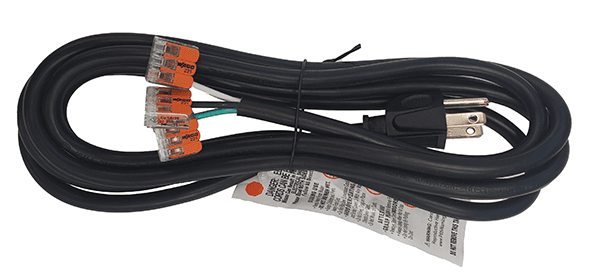
A power cord may be optionally supplied with your shipment to faciliate the testing of your light fixtures. You may wish to test the fixtures at ground level before hard wiring into ceilings. This power cord is normally packed in the Primary fixture box.

⚠️

WARNING

In some areas, homeowners can perform this test without a licensed electrician. Consult your local codes.

Components

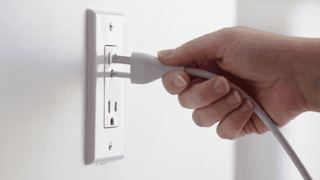
Building Power Socket

Socket

Quick Test Power Cord

Power Cord

Approximately 1m / 3’ long

Innerscene light fixture

VS Light Fixture

Process

Step 1
Step 1

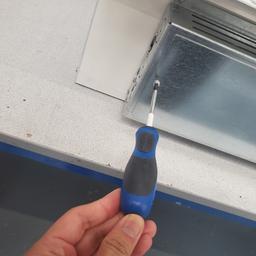
Open driver box access panel with Phillips PH2 screw driver.

Step 2
Step 2Step 2

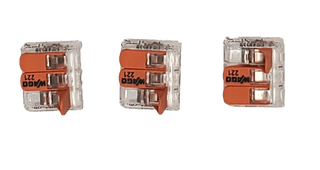
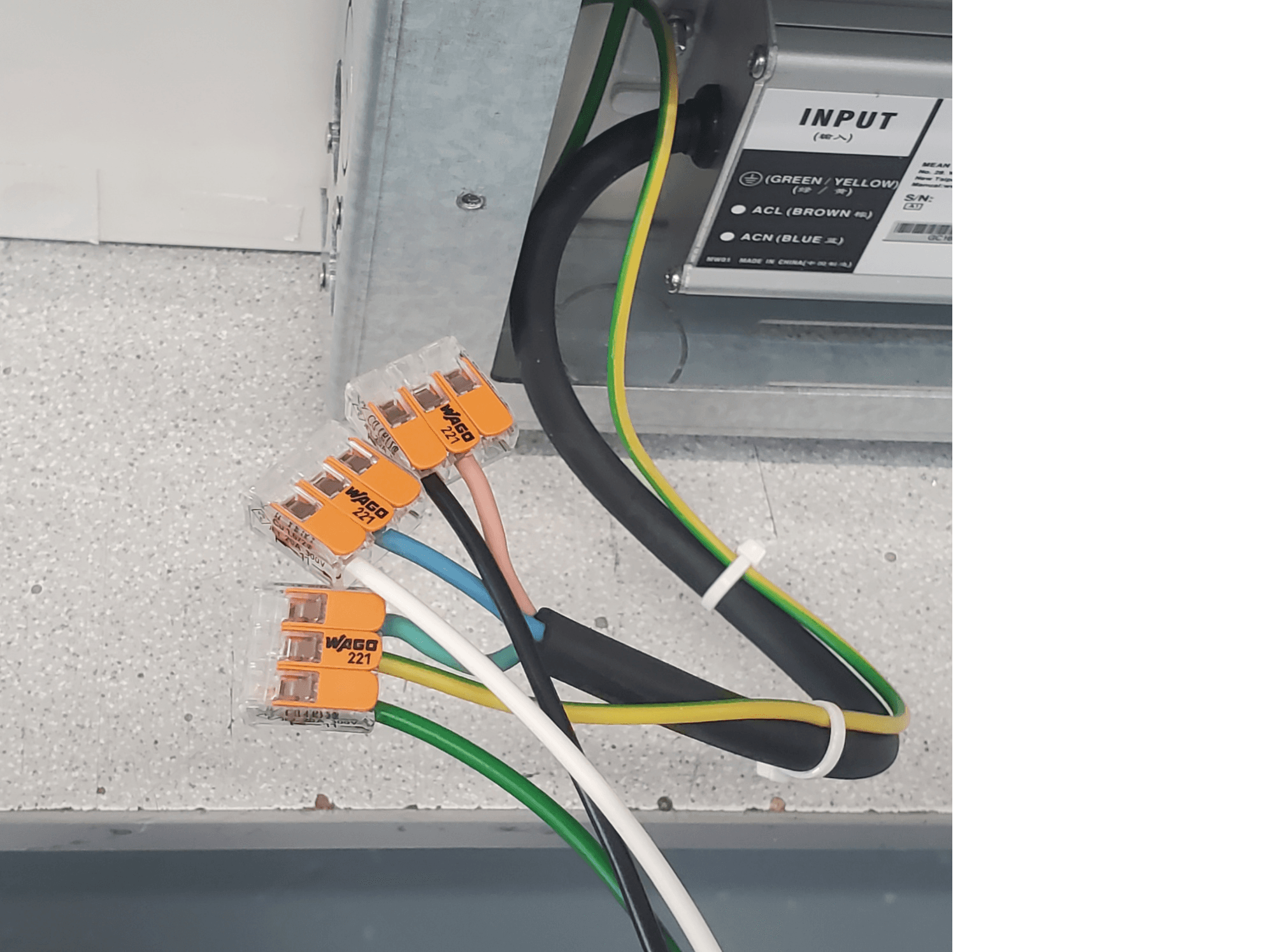
Remove 3x Wago wire clamps pre-attached to quick test power cord to expose copper conductors and set to one side.

Step 3
Wires

Insert pigtail wires into Wago clamp on light fixture as shown below (3-way or 5-way connectors may be provided).
Brown to Black. Blue to White. Green/Yellow to Green. Do not connect dimming wires (Grey & Purple).

Step 4
Step 2Step 2

Plug the power cord into a building mains power socket to test each fixture power on properly.
Some dimming and control features may be available whilst powered from a socket.

⚠️

WARNING

Unplug from mains power socket, then re-attach wago connectors to make safe.

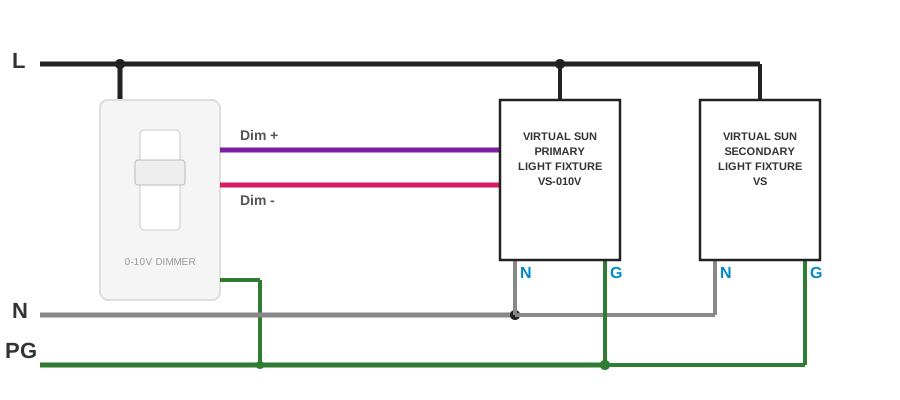
Dual channel 0-10/1-10V Controls

Compatible 0-10V Dimmers

Tested by Innerscene. Most 0-10V/1-10V dimmers are expected to work.

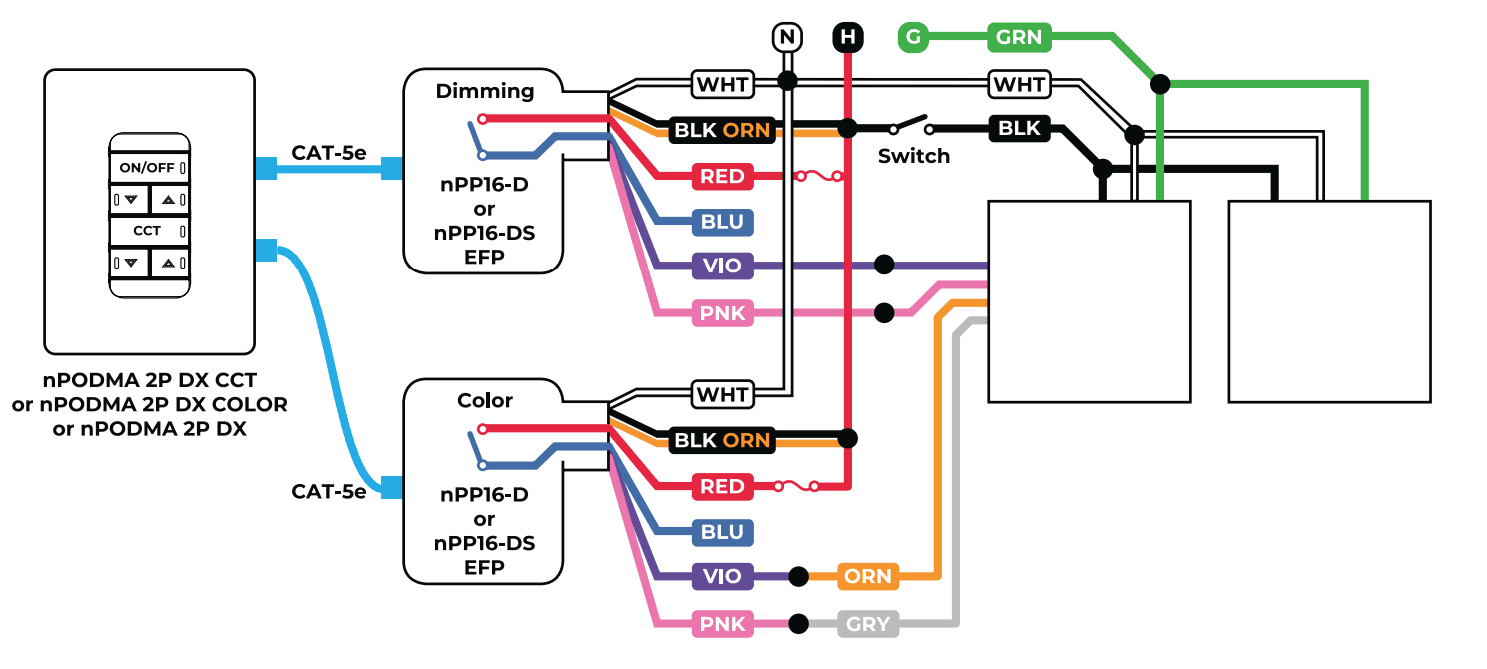
EnoLED ZEROX2-NSW • LuxDrive K020-W • Leviton Decora • Lutron Diva, Nova T, GRAFIK Eye, HomeWorks, Quantum • nLight nPODMA 2P + nPP16, nIO

Alternatively, any two single-channel 0-10V wall dimmers installed in a 2-gang box will work.

Innerscene fixtures support sink and source current with auto-detect. Innerscene also supports log/linear options and digital trim controls using its built-in WiFi interface.

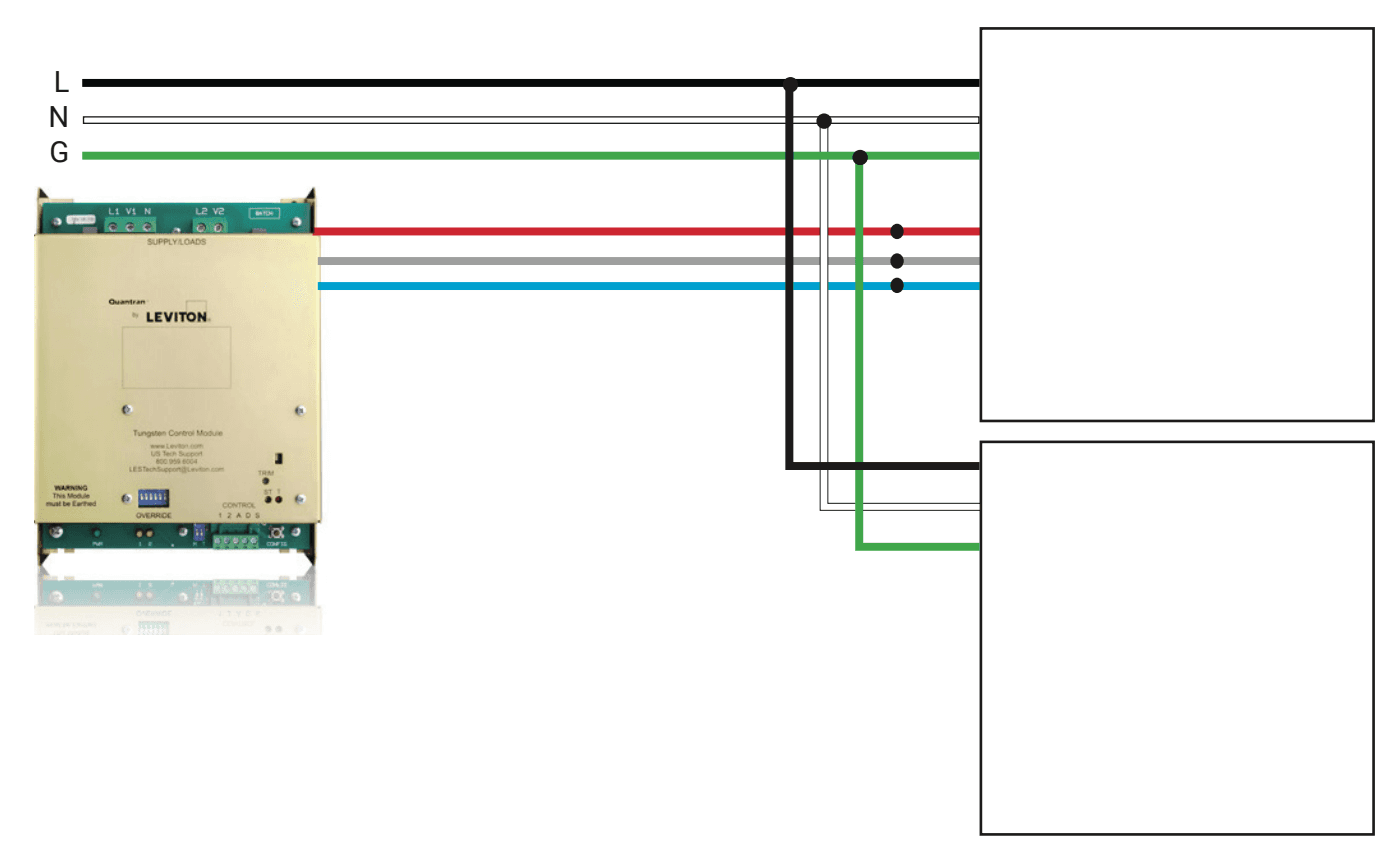
Acuity Brands' nLight™ wired system

Dual Channel Wiring

Two 0-10V dimmer switches (example: Lutron Diva™ or Nova T™)

Two 0-10V Wiring

Single channel 0-10/1-10V Controls

Innerscene fixtures support sink and source current with auto-detect. Innerscene also supports log/linear options and digital trim controls using its built-in WiFi interface.

Single channel 0-10V dimmer switch (example: Lutron DVSTV-WH, NTSTV-DV-WH, or Leviton IP710-DLZ)

Single Channel 0-10V Wiring (Virtual Sun)

Diva and Nova T are trademarks of Lutron Electronics Company.

DALI Controls

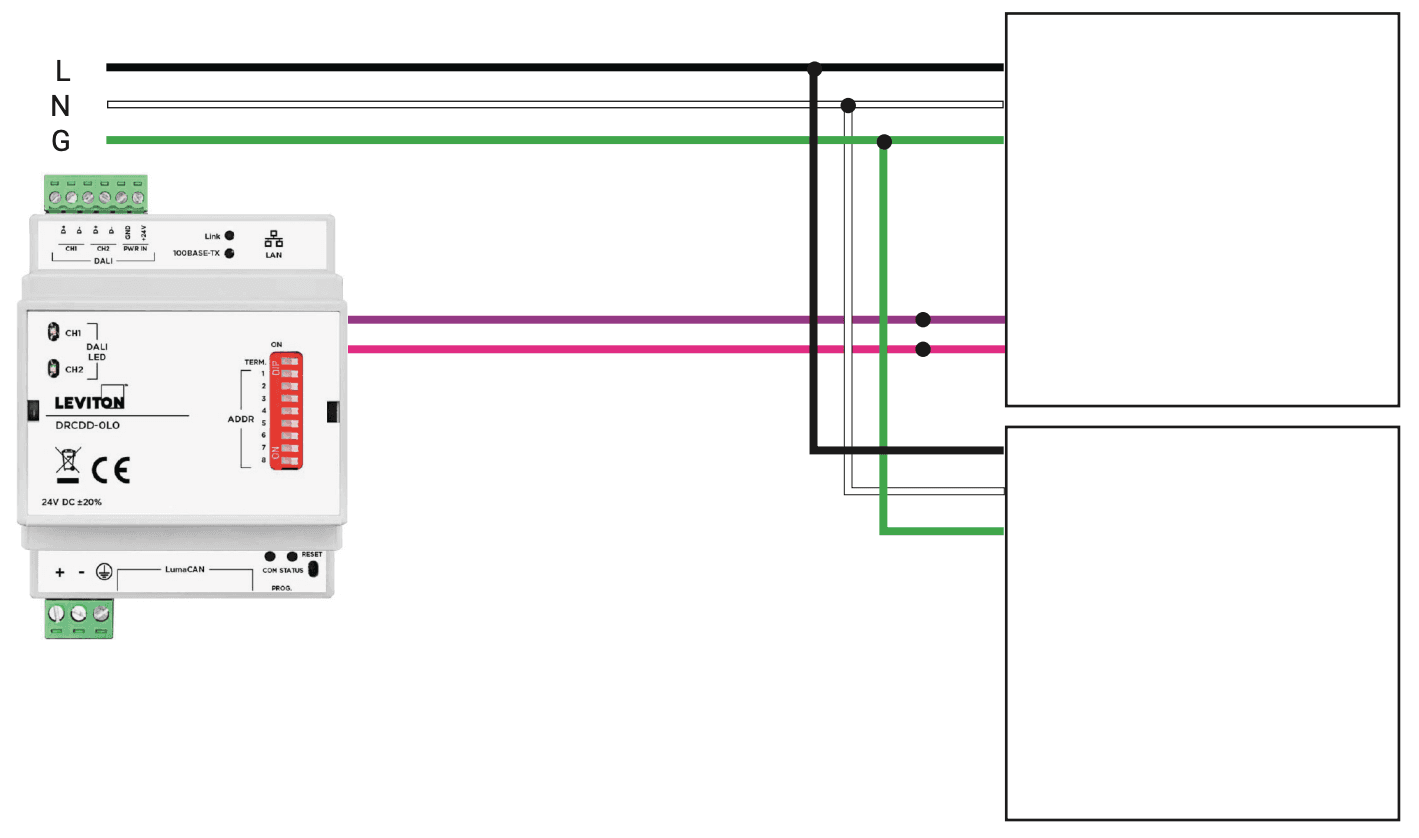
Compatible DALI-2 Controllers

Tested by Innerscene. Most DALI-2 DT8 Tc controllers are expected to work.

BrandModel
Helvar950 Router
LutronAthena™, HomeWorks™
OsramDALI MCU TW
PharosExpert Control™

™ trademarks are the property of their respective owners.

Caution: only DALI-2 DT8 Tc tunable white profile is supported. For dual address DALI-1 please contact Innerscene support line.

DALI-2 DT8 Tc System Wiring

DALI Wiring

DMX Controls

Compatible DMX Controllers

Tested by Innerscene. Most DMX controllers are expected to work.

BrandModel
LevitonVarious
LutronHomeWorks™, Quantum™
PharosExpert Control™

™ trademarks are the property of their respective owners.

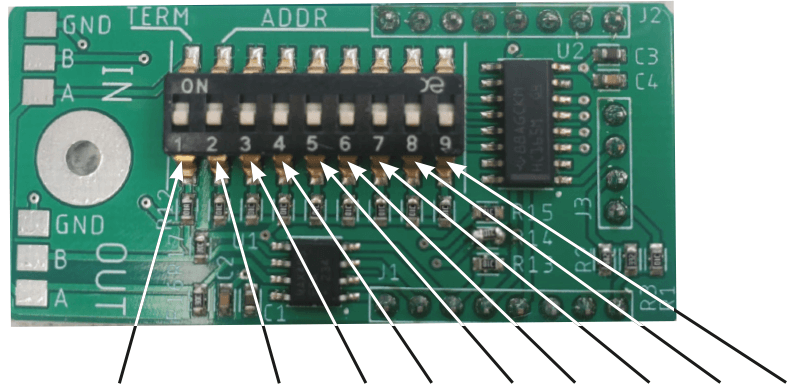
DMX Wiring and Setup

DMX Wiring

for Installers

  1. If the fixture is at the end of the signal run then fixture to Termination. DIP switch on Daugterboard postition 1 to ON/UP.
  2. Set the same starting channel on the fixture as the DMX controller/console using the DIP switch. The DIP switch use Binary encoding, for example, channel 17 is 0000010000.
  3. By default the switches at all set to OFF and will not respond to DMX signals.
  4. First channel is Intensity/Dimming. Second channel is Color/Tuning. For example, if starting channel is set to 17, channel 17 is Dimming control (Intensity), channel 18 is Color control (CT).

VIRTUAL SUN DMX DAUGHTERBOARD

DMX Daugherboard

⚠ Wireless Group Installation

Innerscene Virtual Sun fixtures are organized into wireless groups. Each group has one Primary fixture that receives the external control signal (0-10V, DMX, DALI, or Casambi) and synchronizes brightness and color temperature to its Secondary fixtures over a dedicated Ethernet connection.

Z0 / Z1 — Single fixture

No Ethernet, no secondaries. The fixture receives control directly.

Z2 — Direct Ethernet

Two-fixture group: connect primary ↔ secondary directly with one Cat5e/Cat6 cable.

3+ Fixtures — Switch

Innerscene supplies an Ethernet switch. Connect all fixtures in the group to that switch only.

Installation Steps

1
Sort by Group:Group all boxes with the same wireless group number
2
Wire Primary Only:Connect external control (0-10V/DMX/DALI/Casambi) to the Primary; Secondaries need power only
3
Run Ethernet:Direct cable for Z2 groups; switch for groups of 3+ fixtures
4
Isolate Networks:Each group on its own switch — never share with internet or another group
5
Test:Verify all fixtures in a group dim and change color together

⚠ Avoid These Mistakes

  • Connecting the Ethernet switch to the building network or internet
  • Mixing fixtures from different groups on the same switch
  • Wiring control inputs to a Secondary instead of the Primary
  • Skipping Ethernet for a Z2 group — they will not sync without it

Specify the distance between fixtures when ordering so Innerscene can supply Ethernet cables of the appropriate length.

Clearance

See below for recommended clearance between the fixture or fixtures and surrounding structure or insulation.

Clearance

Innerscene A7 light fixtures have internal smart thermal protection.

When any fixture within a group become too hot it will automatically reduce the brightness of the group. When the temperature becomes excessively high, power will be cut-off from the fixture until it sufficiently cool down.

If this persist, please lower the ceiling temperature or obstruction to allow the ceiling void to cool down and consult the factory.

A7V2 Clearance

Before thermal throttling 100% brightness

A7V2 Clearance

After thermal throttling Reduced brightness

Installation Instructions

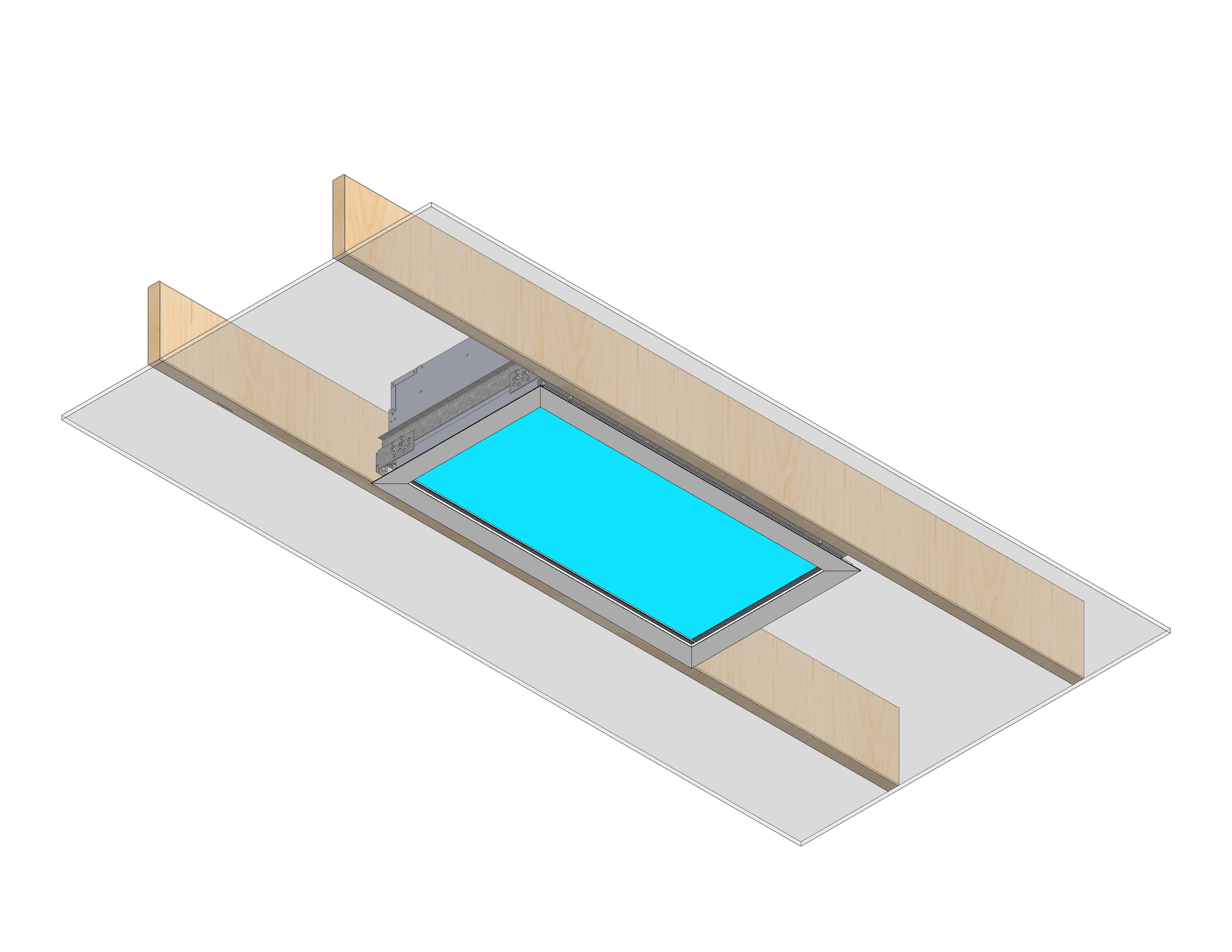
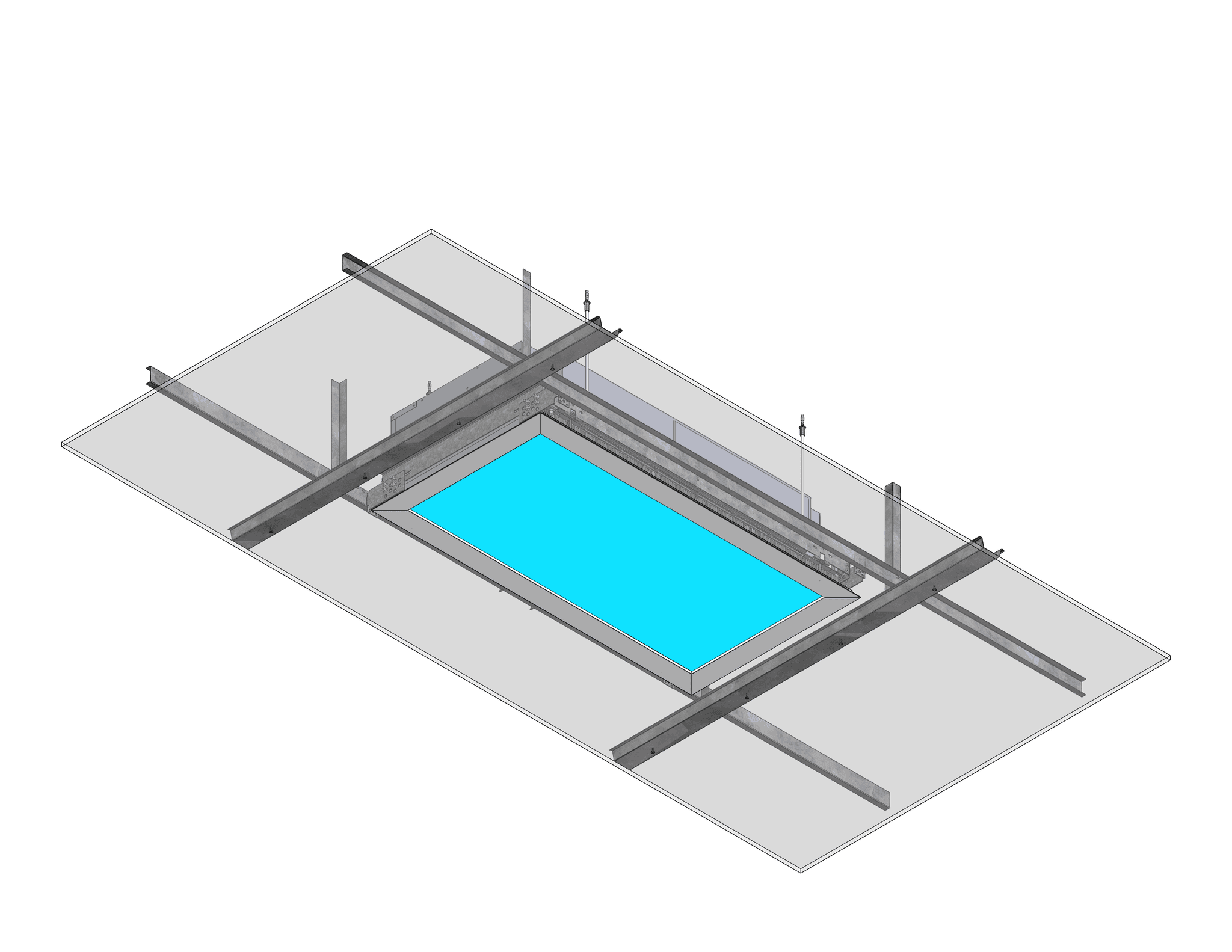
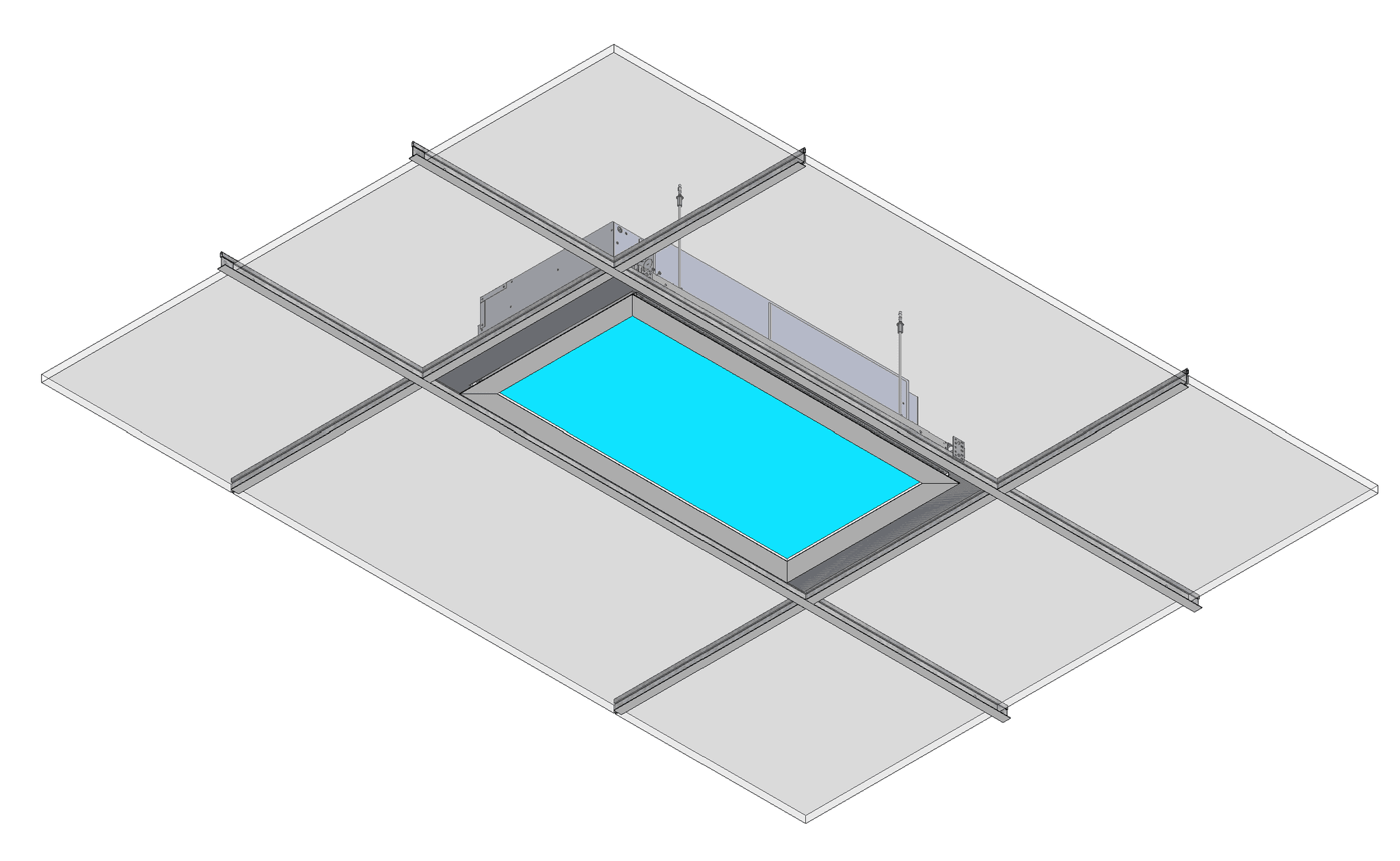
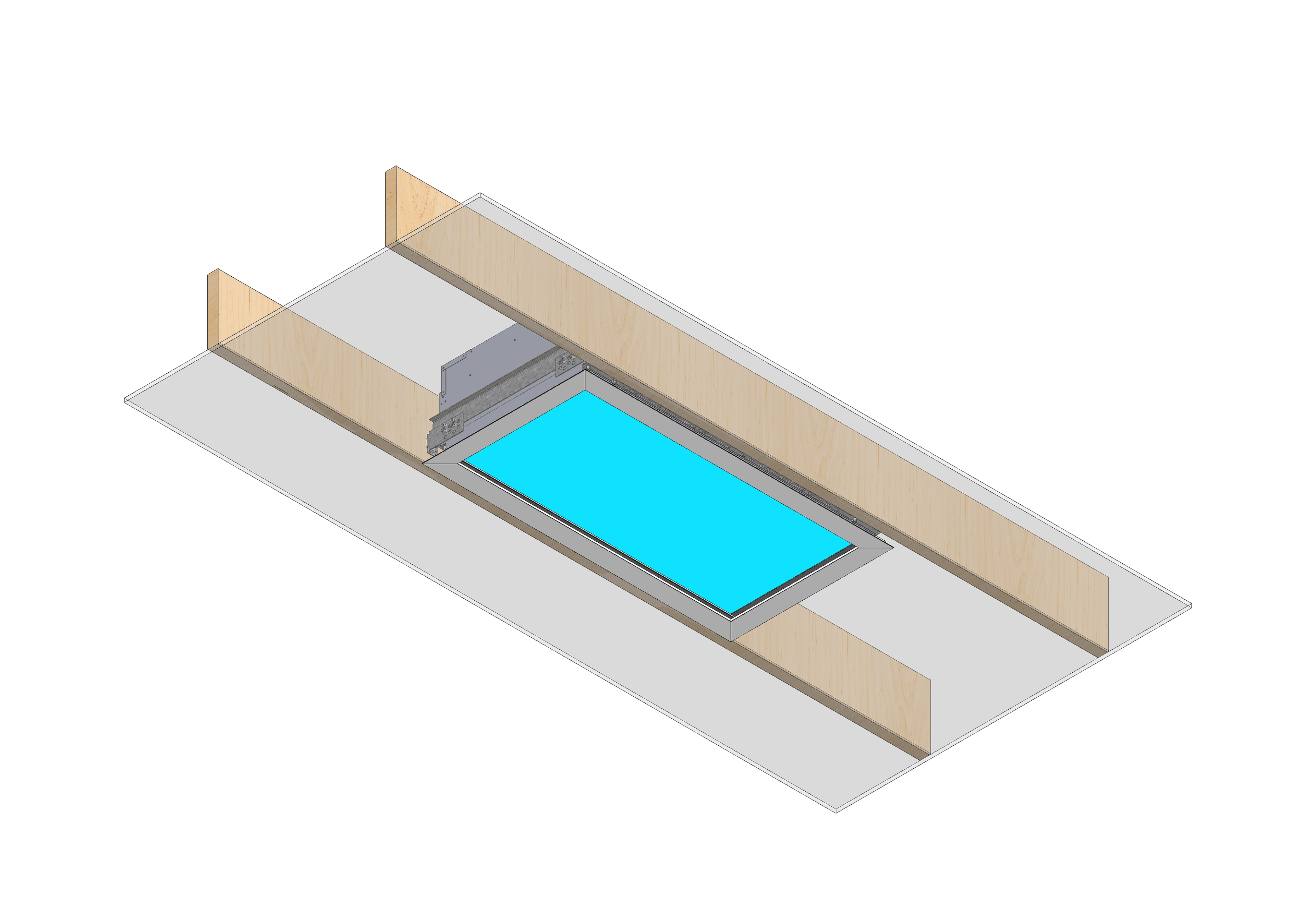
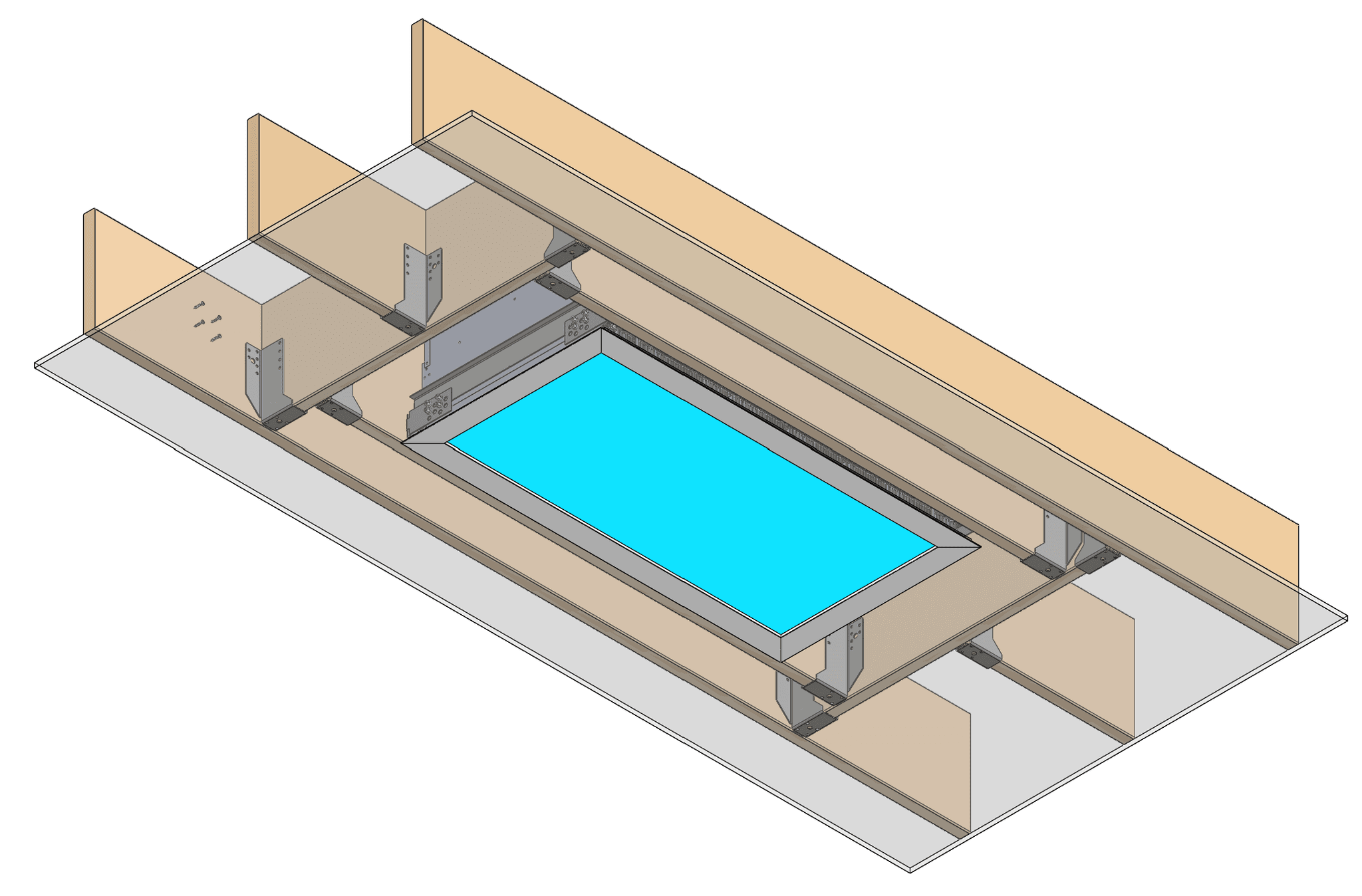
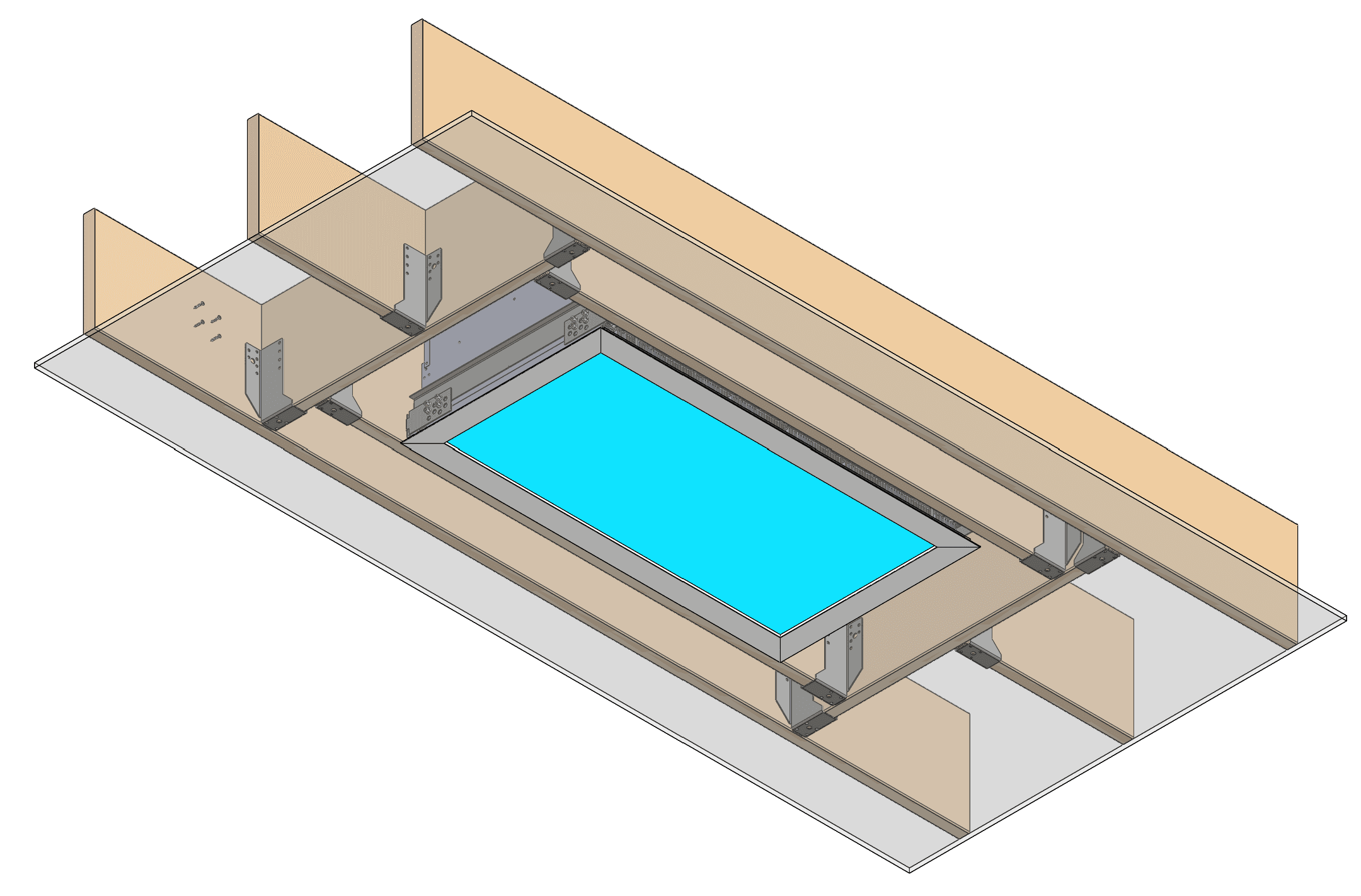
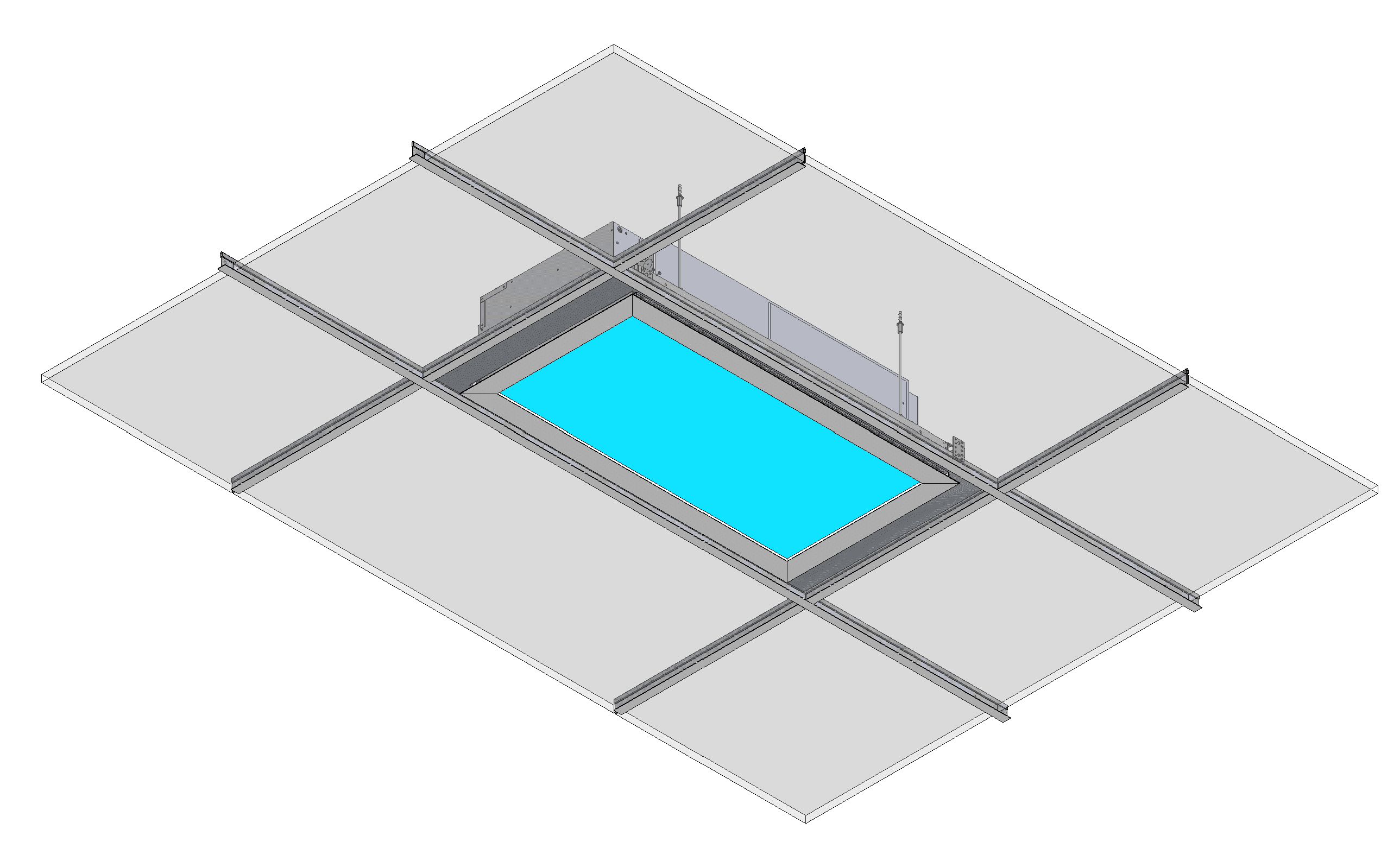
Model A7V2 can be installed in a variety of ceiling types. As standard, we recommend opting for our New Construction (NC) Housing. This will help facilitate installation into ceilings or roofs with wood joists, grid ceilings or metal furring ceilings.

Joist 4

Ceiling Joist System

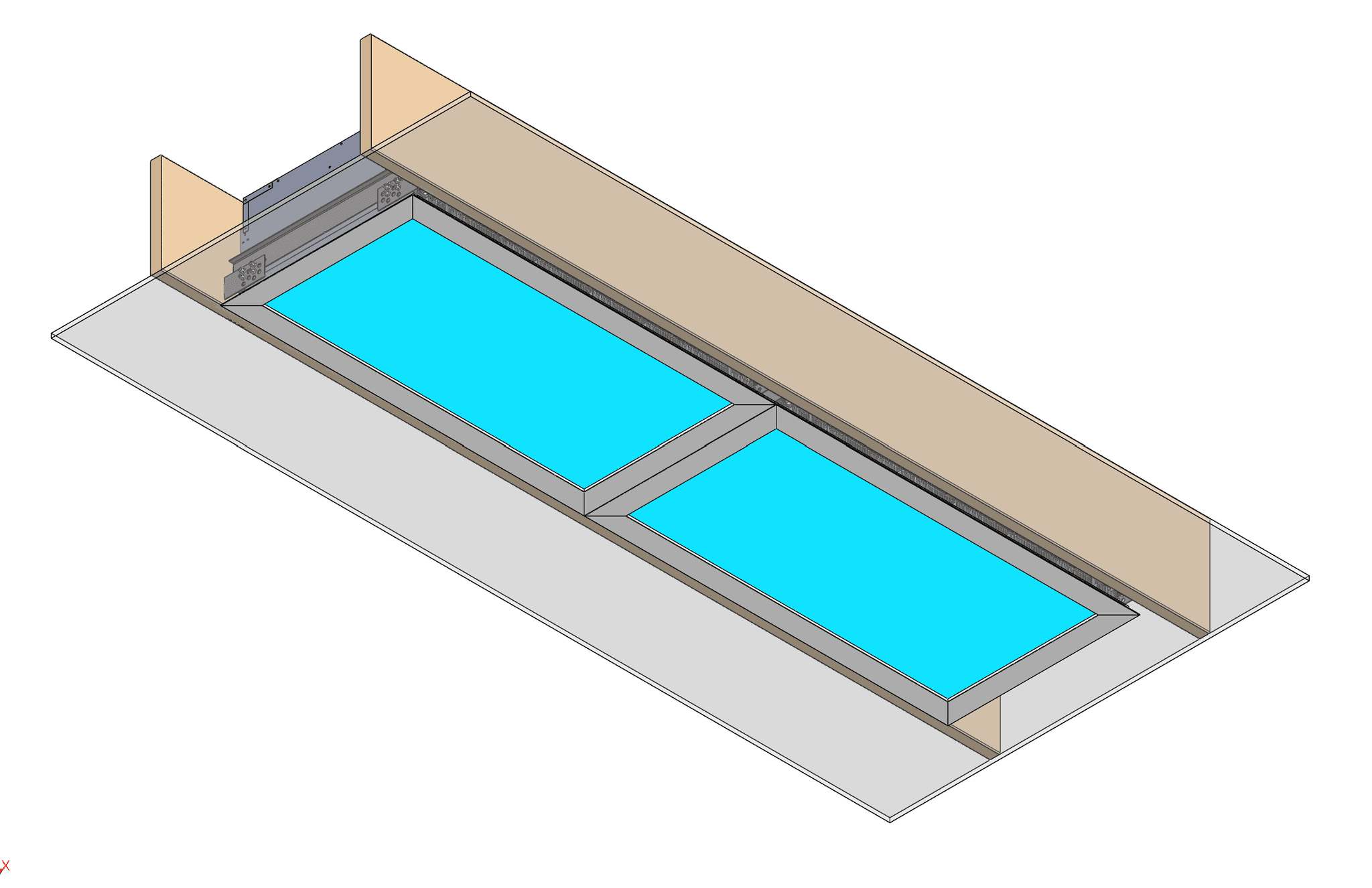
Array Installation

Furring Channel System

Array Ceiling

Ceiling Grid System with backing plate

Ceiling Grid System

Ceiling Grid System with 4” bevelled regress kit

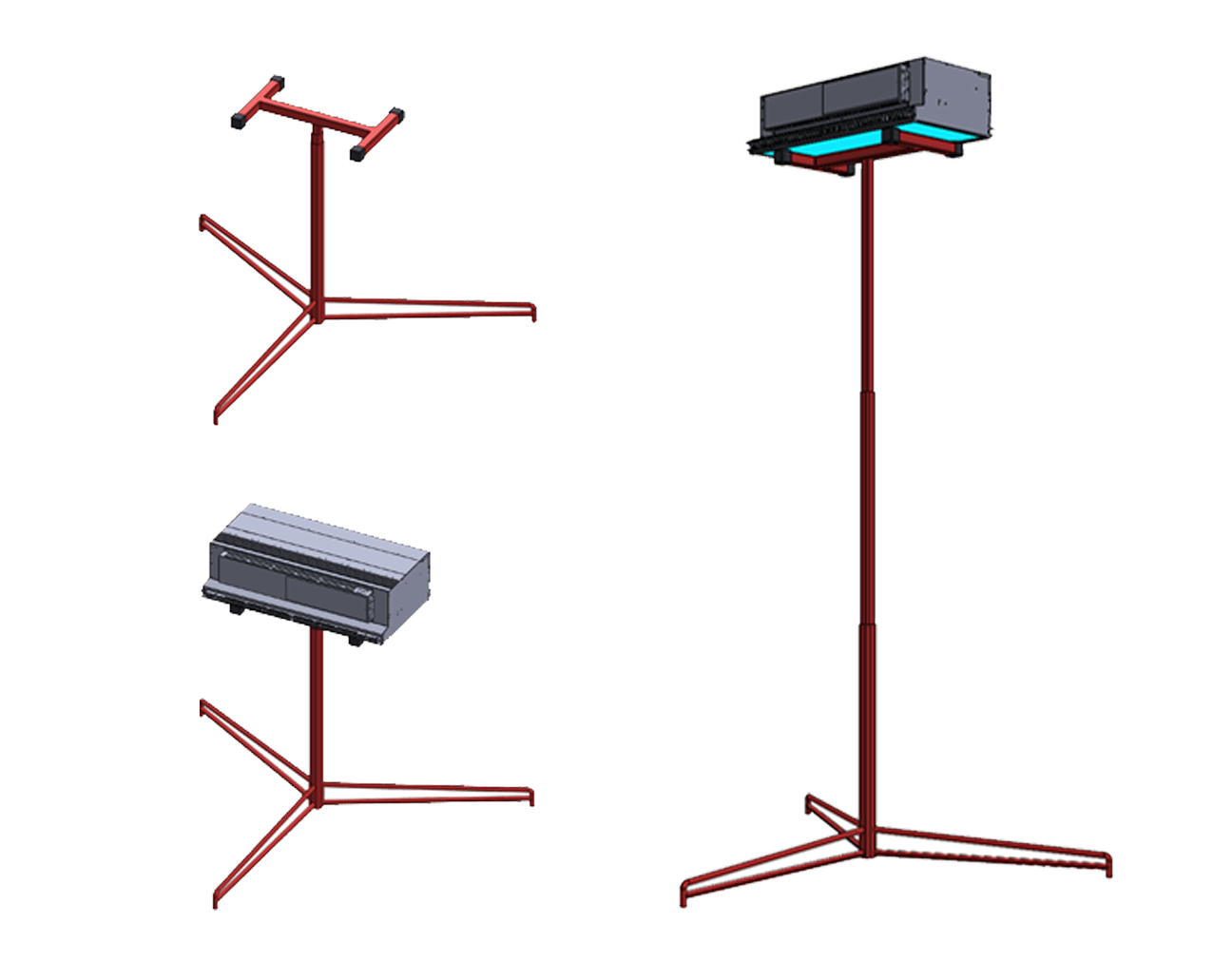
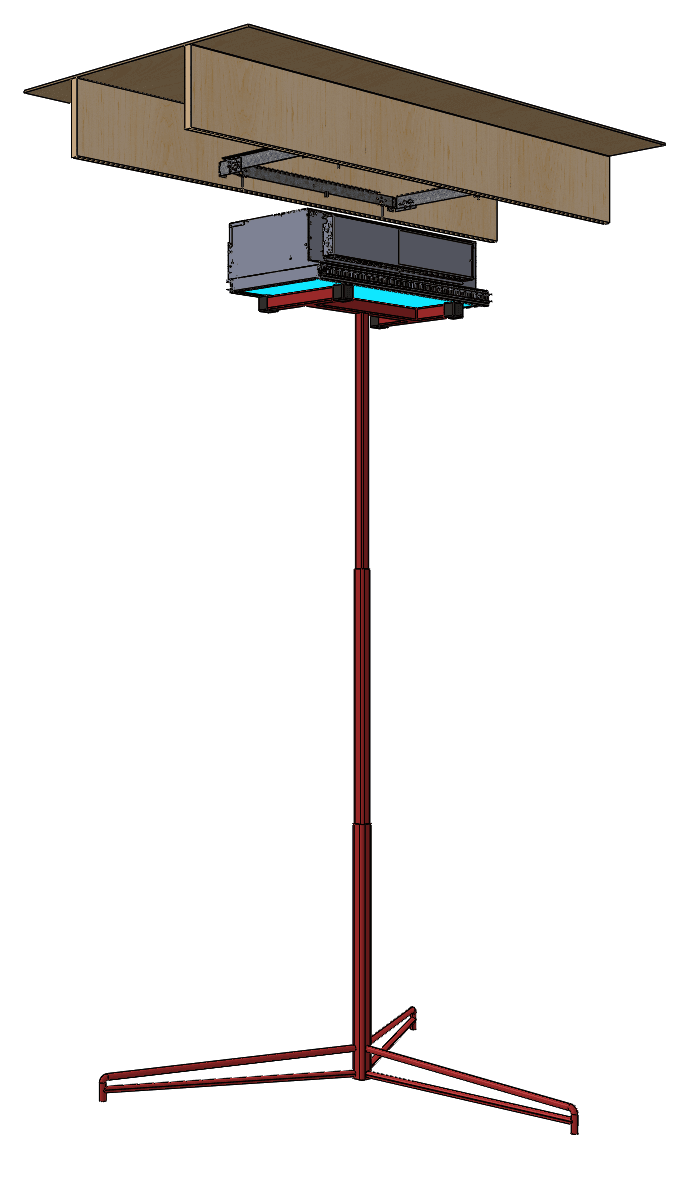
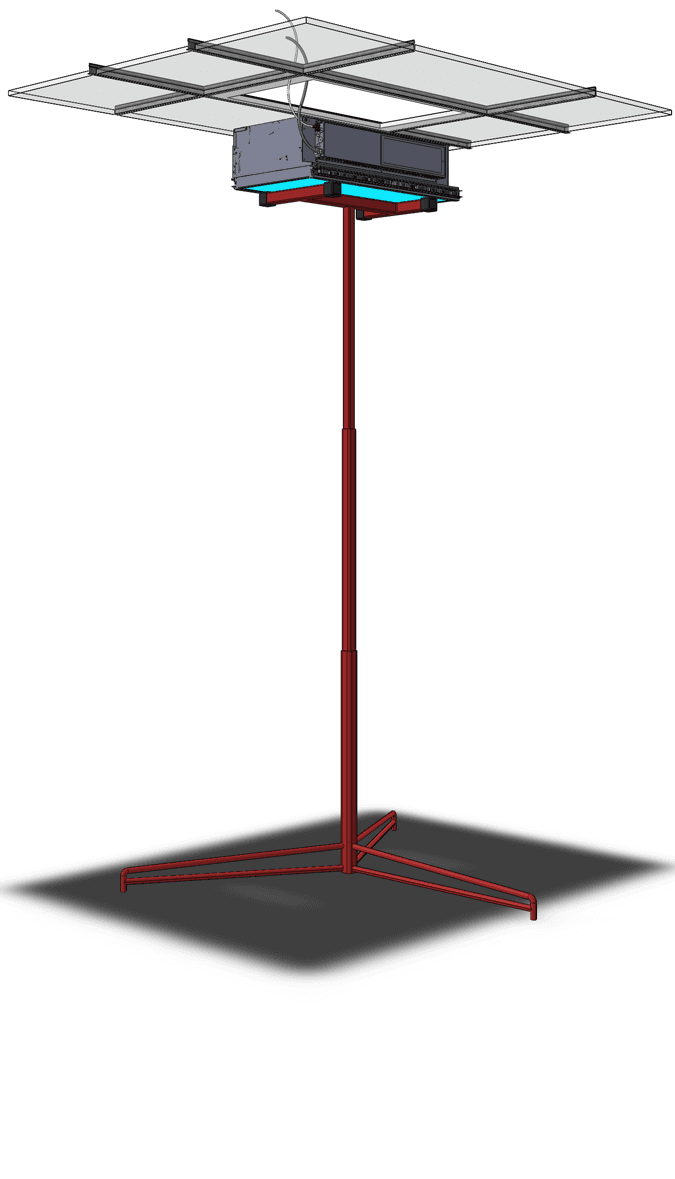
Carefully place lighting fixture on a Drywall hoist

Installation Step 1

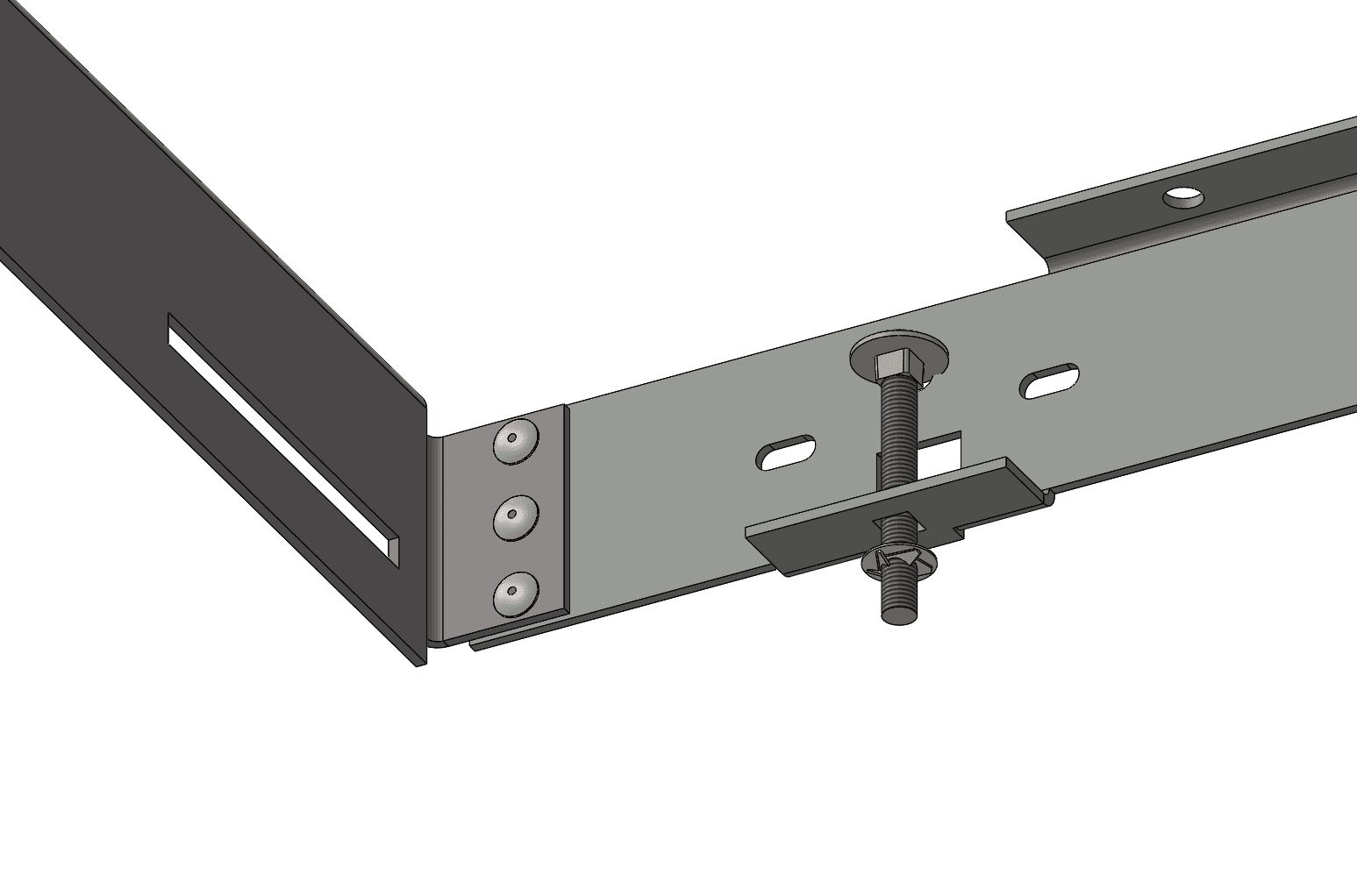
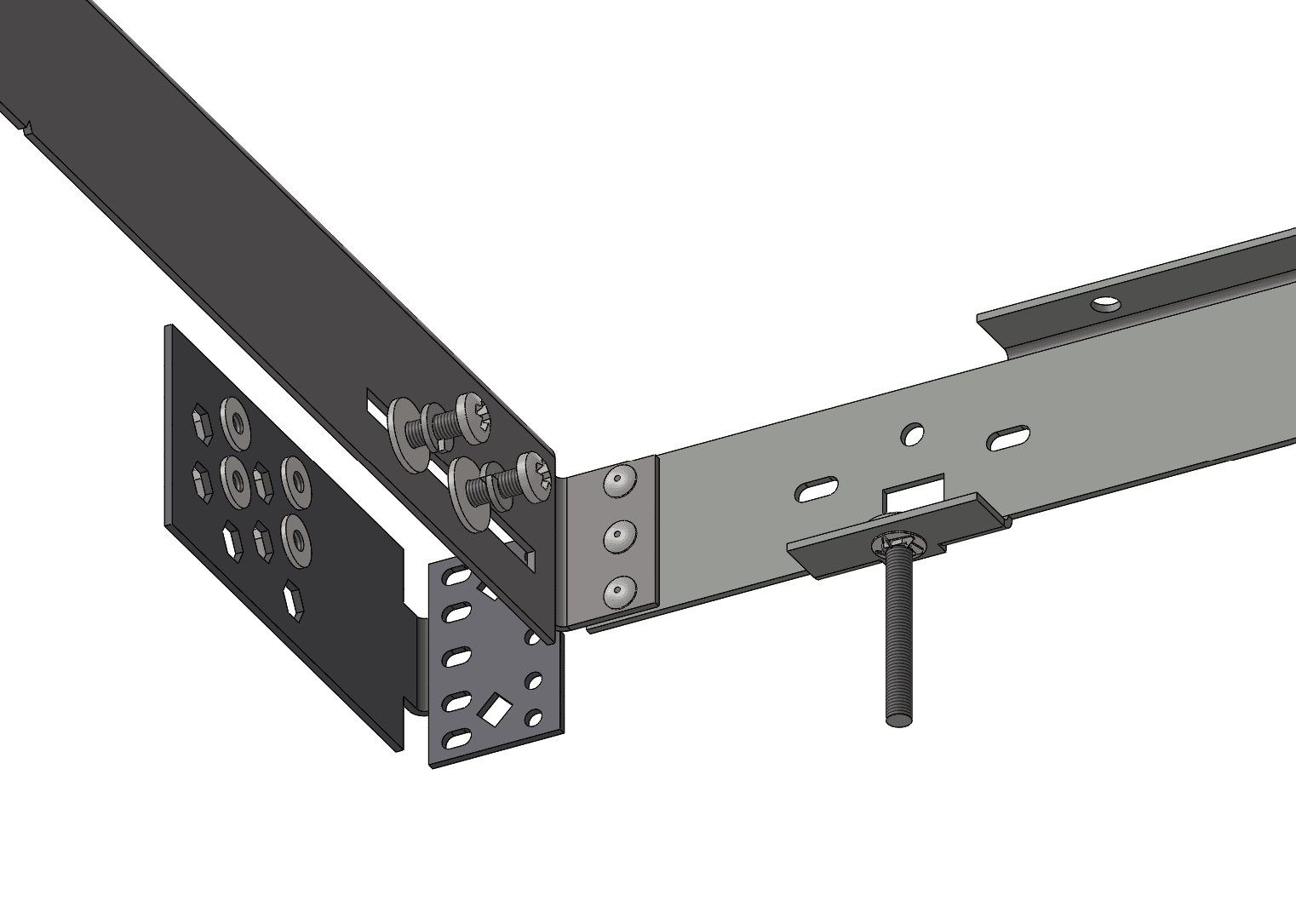
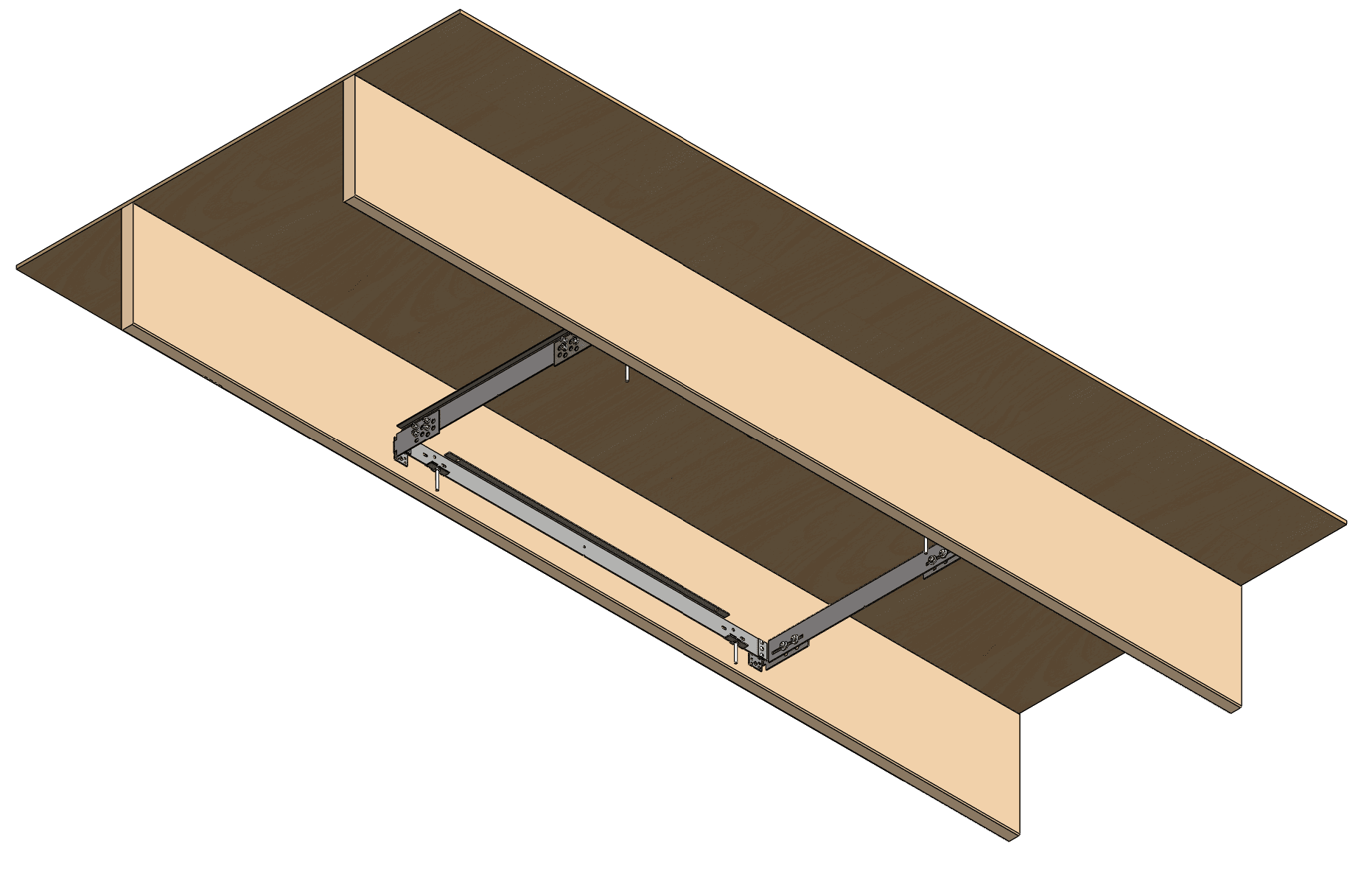
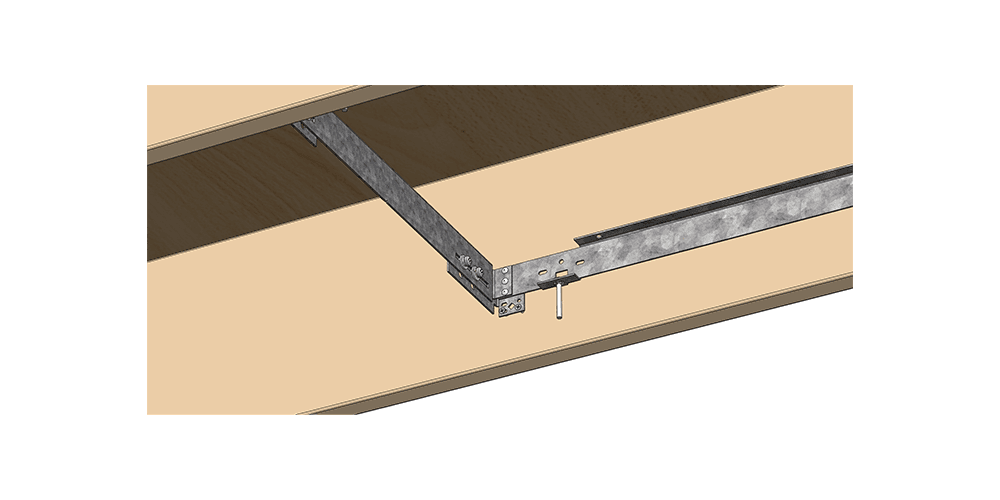
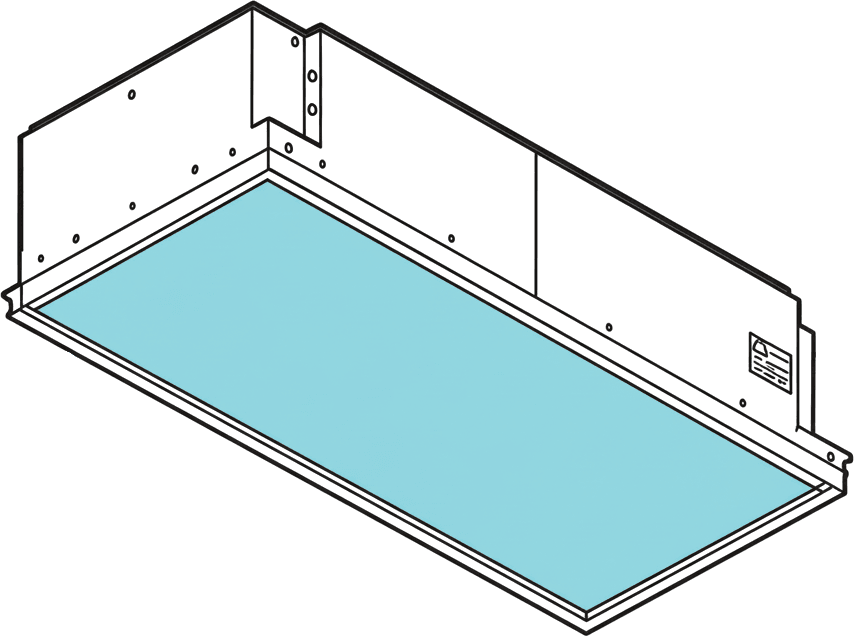
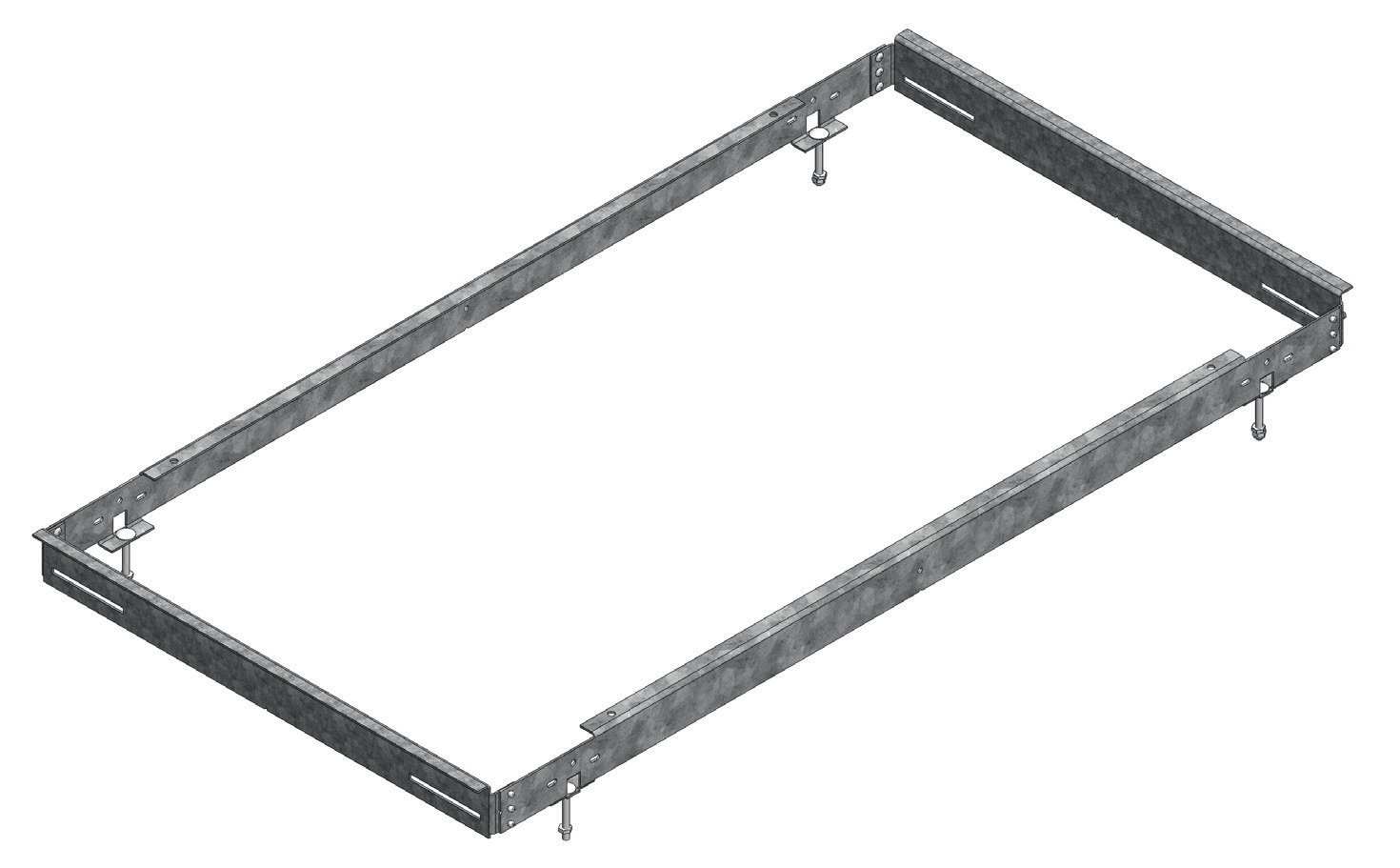
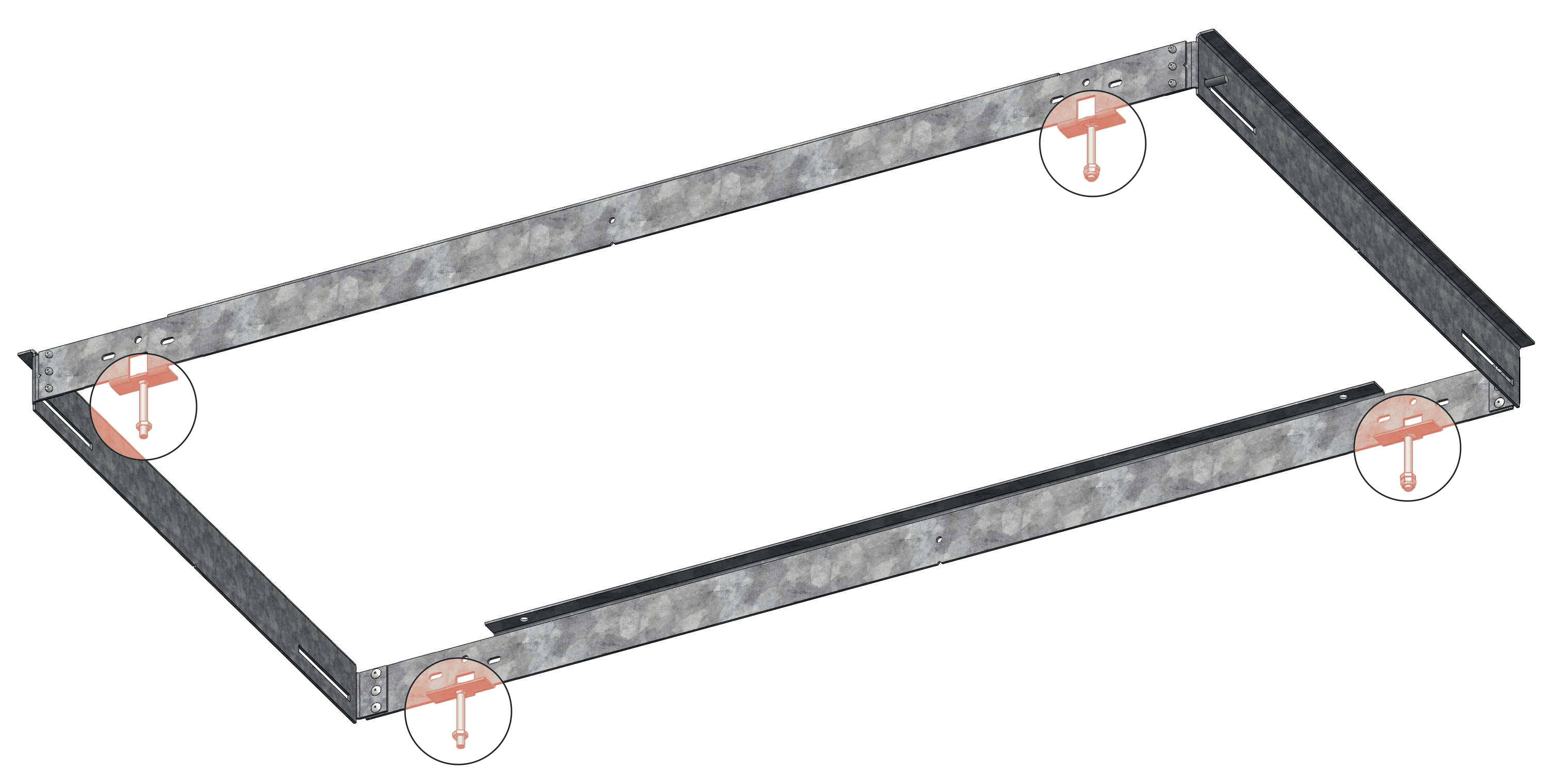
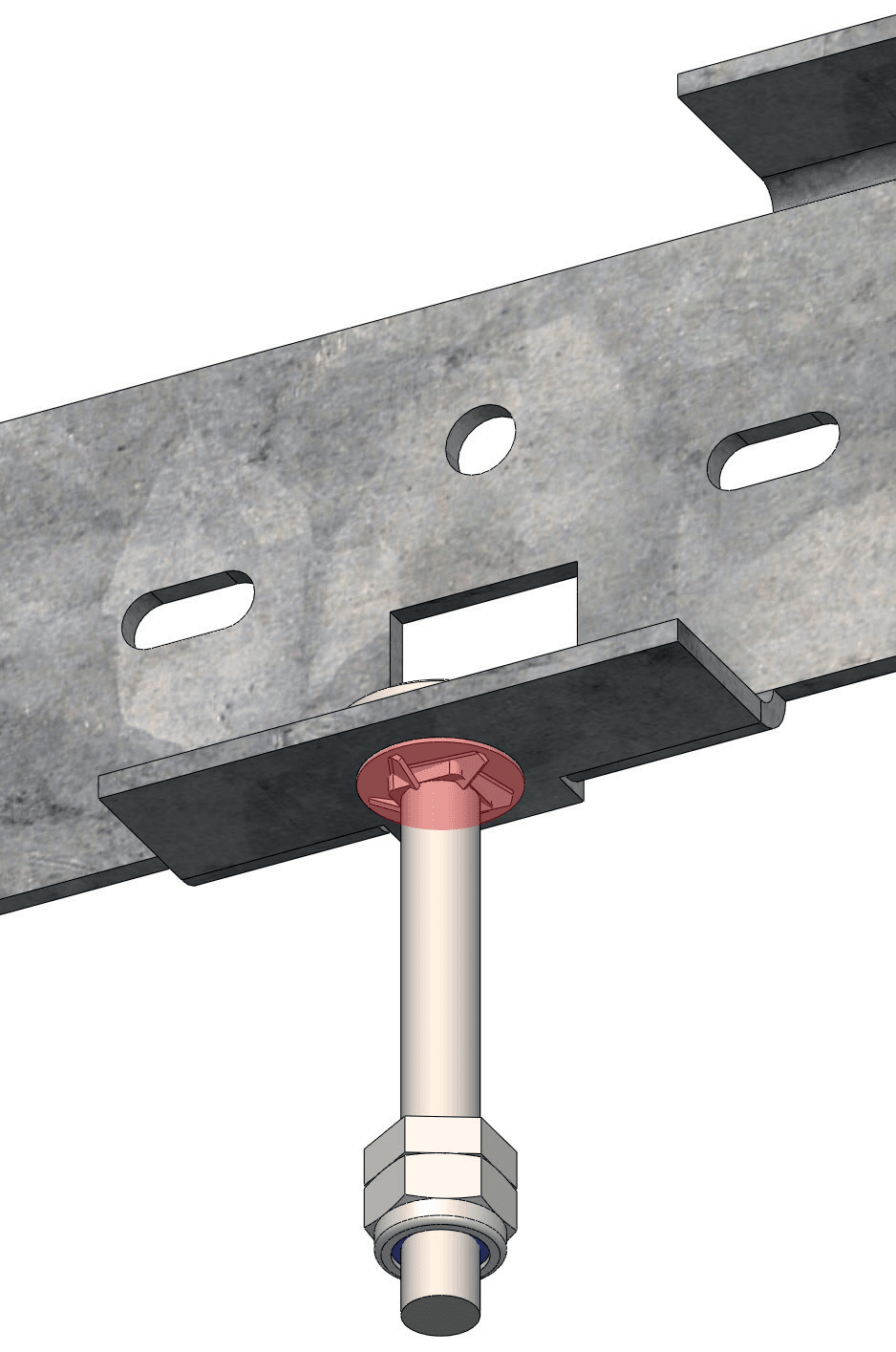
Prepare the New Construction (NC) Housing at ground level. Secure the four coach bolts with the retaining washers (Step #1).
Then loosely screwing in the four hanger clips (Step #2).

Construction Housing

New Construction (NC) Housing

Construction Housing 2
Construction Housing 3
Construction Housing 4

New Construction (NC) Housing with Timber Joists

ℹ️

NOTE

Universal mounting option suitable for remodellling or retrofit on wood joists with typical spacings of 24” or 600mm.
The NC housing would also be suitable for use in 2’ x 4’ or 1200x600mm grid ceilings.

Joist 4 2

Suitable Joists

  • 2” x 14” + any drywall
  • 2” x 12” + any drywall
  • 2” x 10” + double 5/8” drywall
  • 12” x 2” (50mm x 300mm or 46mm x 295mm or 48mm x 305mm actual)
  • 300mm I-Joist + any plasterboards
  • 253mm Posi-Joist + 12.5mm plasterboard
  • 240mm I-Joist + 2x15mm plasterboards

Ceiling with lower total depth (joist + drywall/plasterboard) will need to be lowered to accommodate the total depth 11” or 270mm. Alternatively, a raft could be constructed to accomodate the light fixture.

Recommended equipment for ceilings below 15 feet or 4.5m

(For taller ceilings, temporary support structures or lifts may be required)

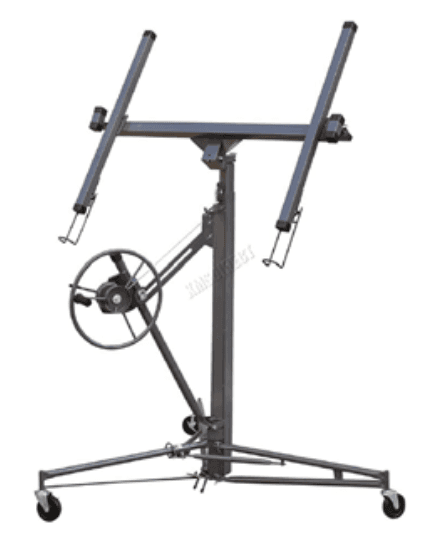
Panel Hoist

Drywall panel hoist

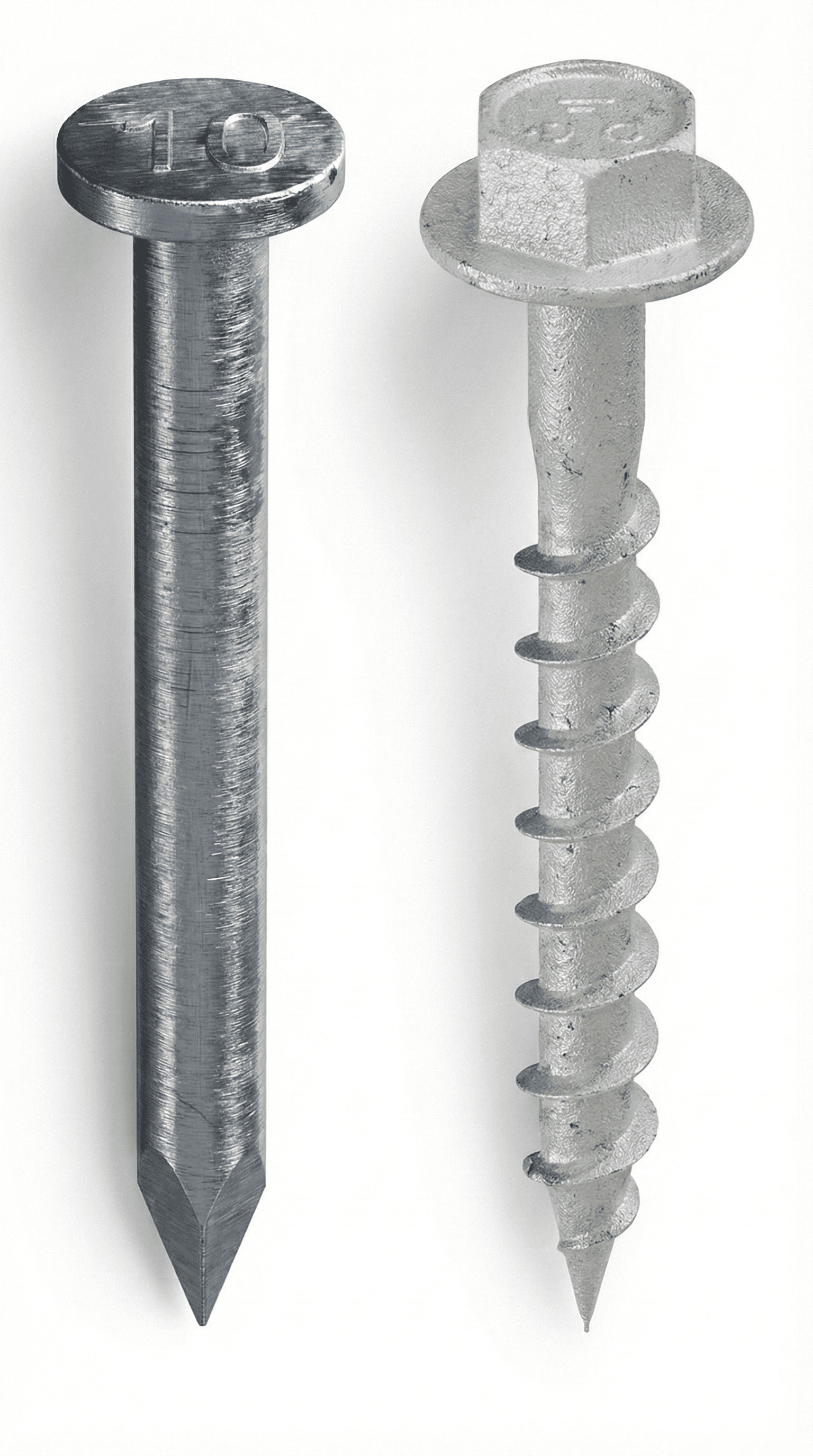
Screws

Joist hanger nails or screws

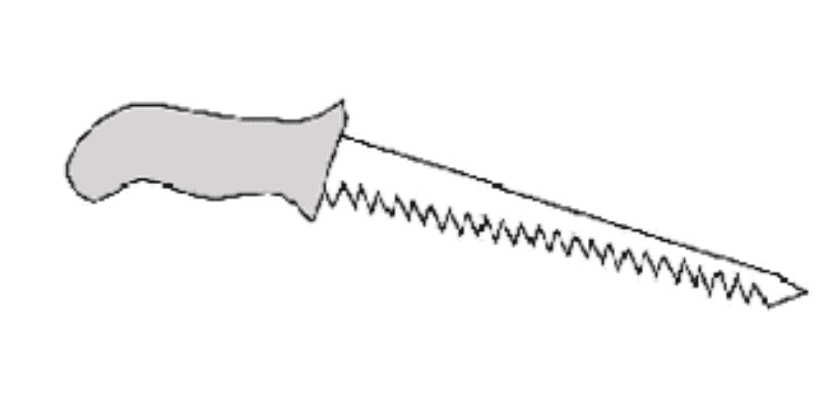
Drywall Saw

Drywall saw

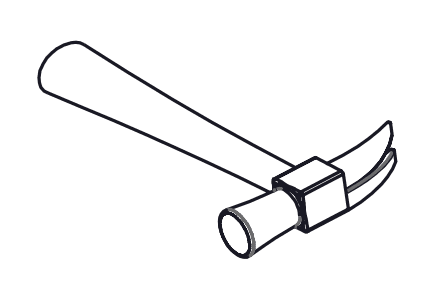
Hammer

Hammer

Wire Stripper

Wire Stripper / Cutter

Hex Nut Snipper

Hex Nut Spinner

New Construction (NC) Housing with Timber Joists

Alternative Configurations

Joist 1

16” or 450mm Joist Ceilings

Joist 3

Line

Joist 2

Array

Identify installation location.

Between existing 24” OC joists (600mm centre-to-centre spacing). Some ceiling with narrower joist spacings such as 16” or 450mm may have to be modified with headers to accomodate the fixture. Consult local building codes on structural modifications.

Joist 4

24” OC joists (600mm centre-to-centre spacing) ceilings.

Joist 1

16” OC joists (450mm centre-to-centre spacing) ceilings.

New Construction (NC) Housing with Timber Joists

Secure NC Housing to joist ceiling using either joist-rated wood nails or screws or bolts.

Install Housing
Install Housing 2
Install Housing 3
Install Housing 4

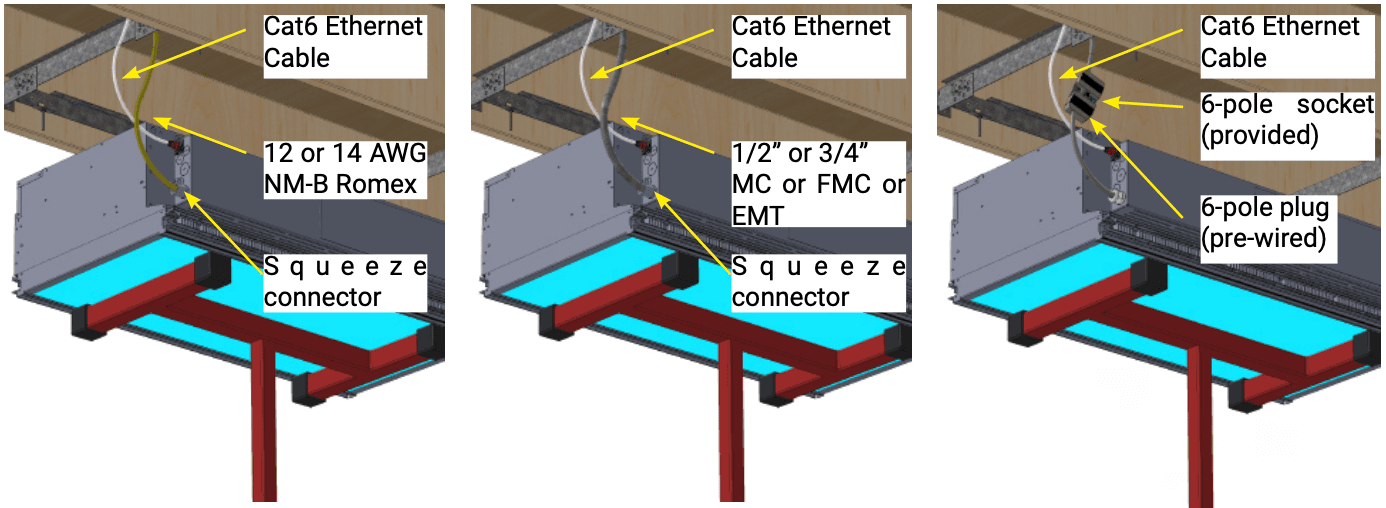
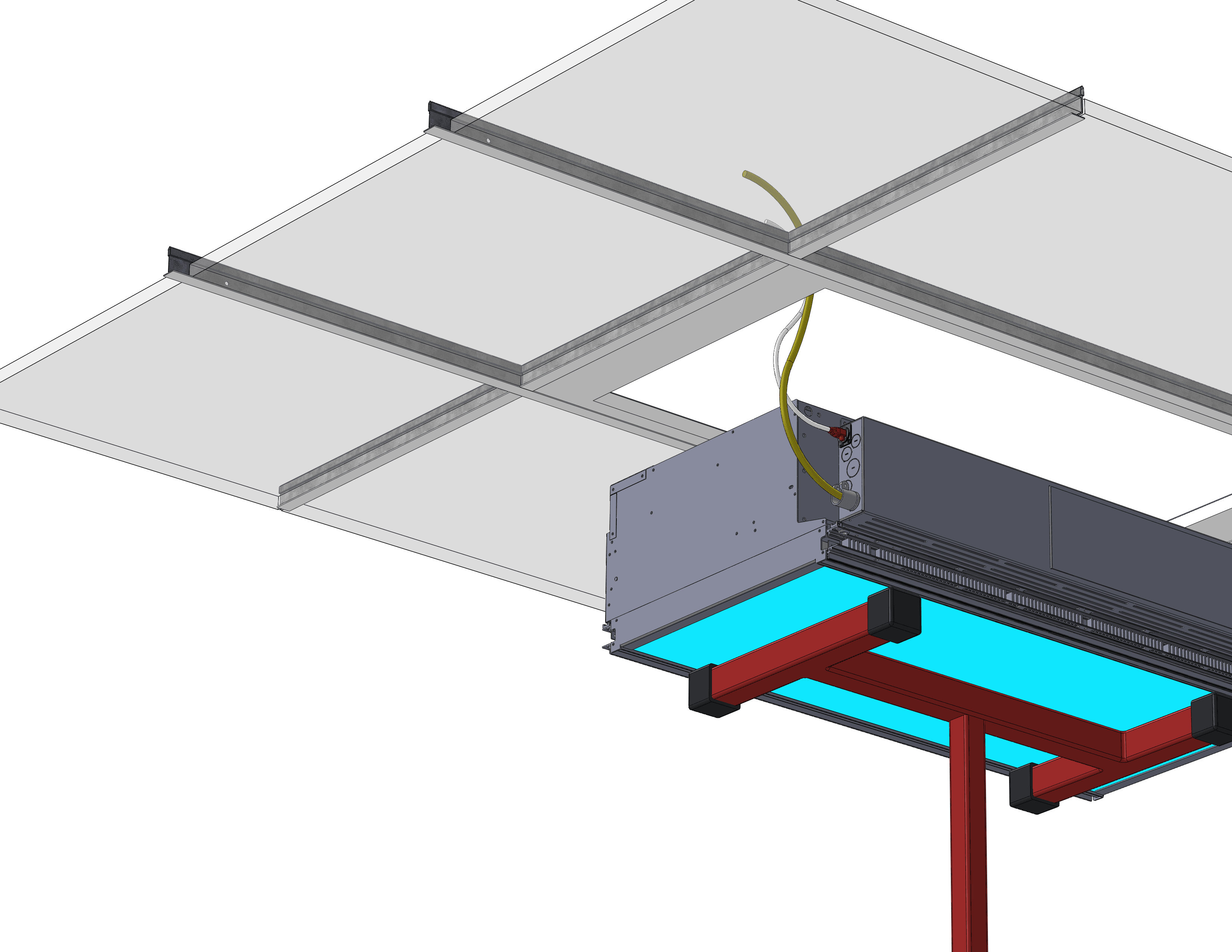
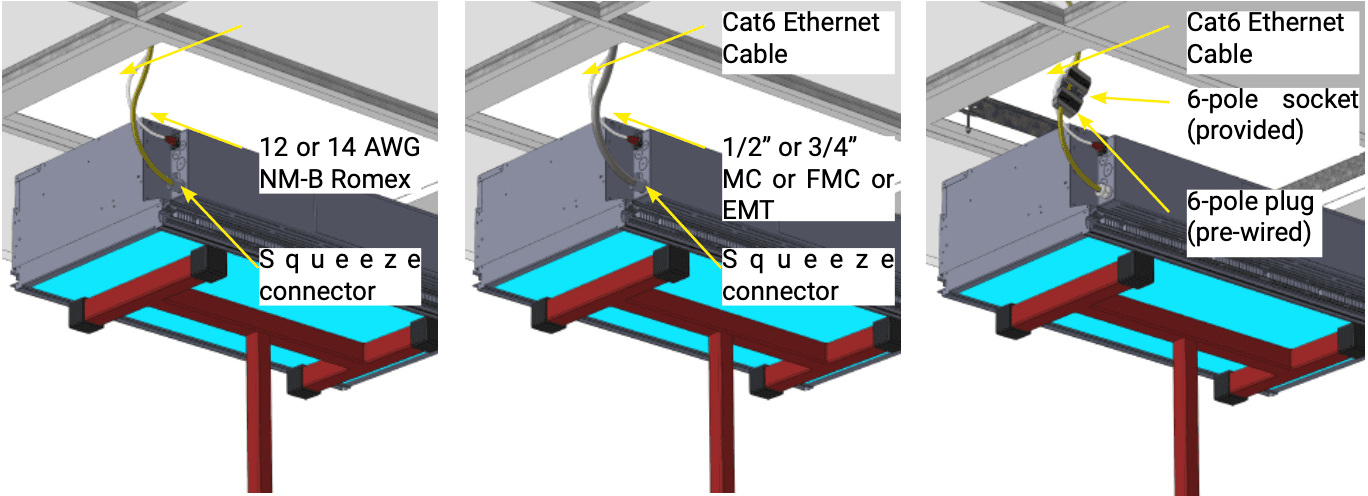
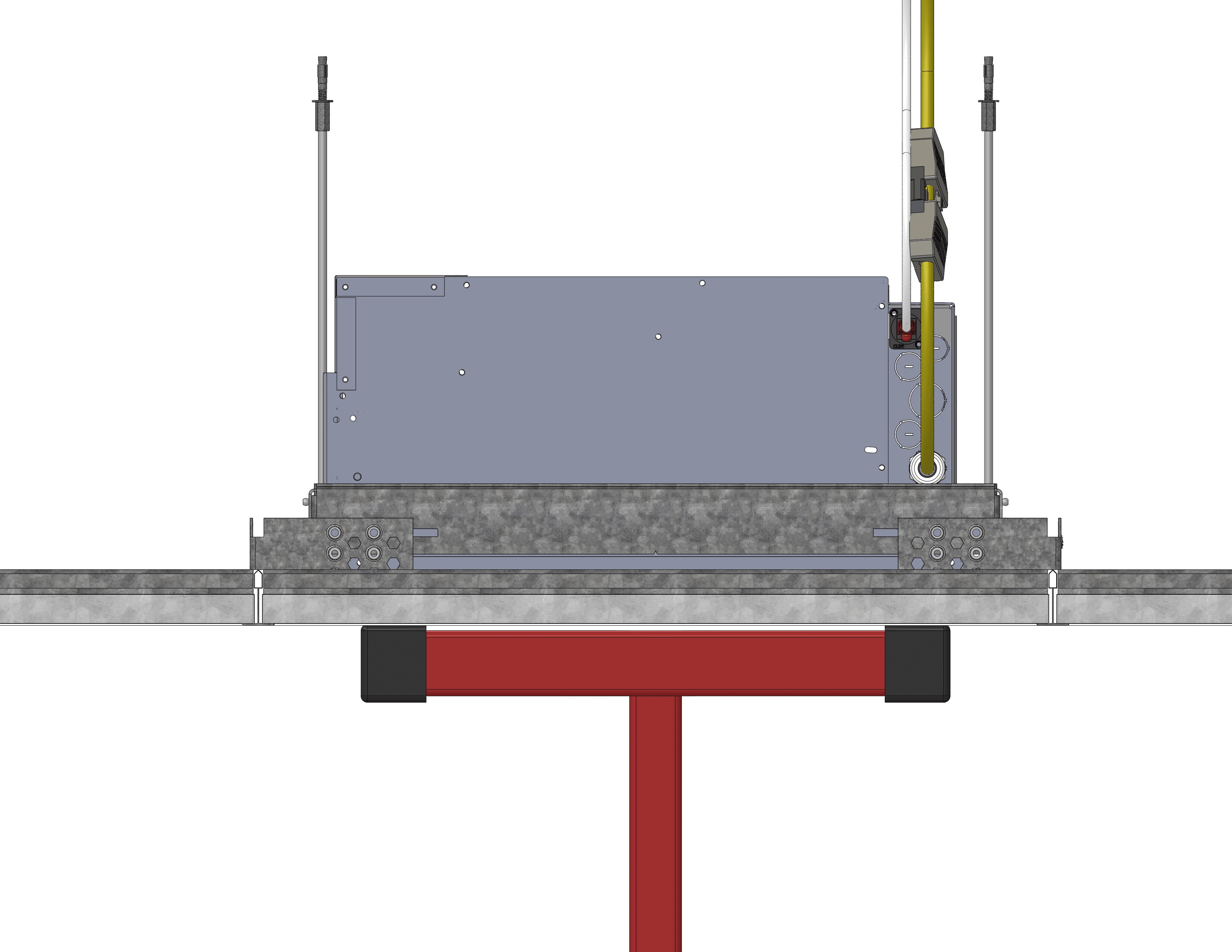
Make electrical and data connections before raising into the ceiling void.

Installation Hoist Joists
Installation Hoist Joists 3

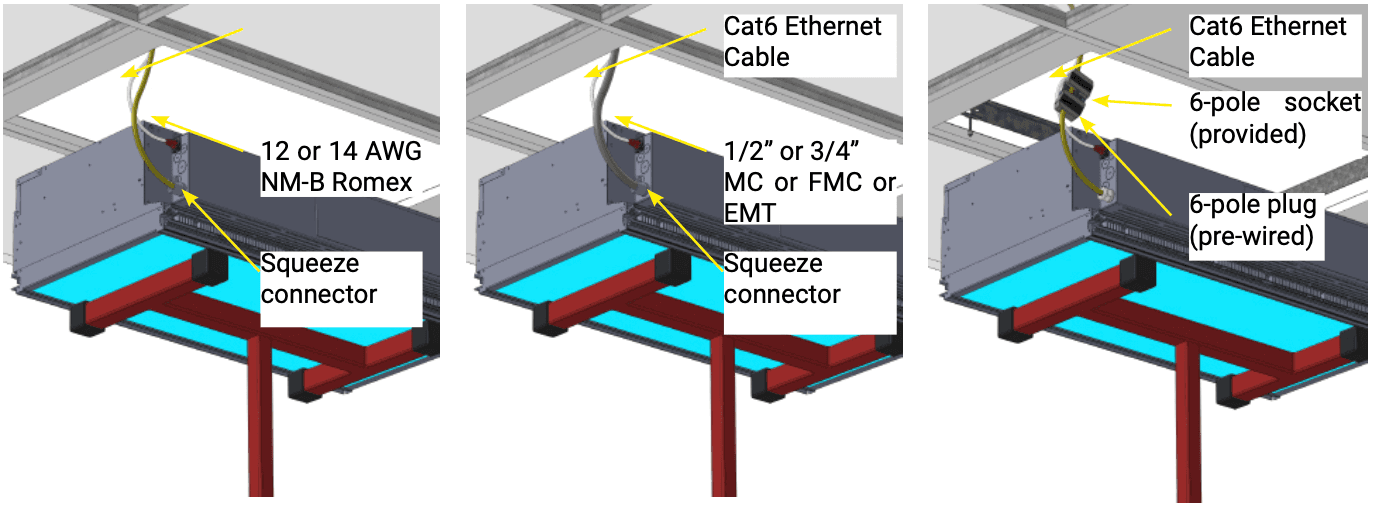
North American model: 12/2 or 12/4 or
14/2 or 14/4 WG NM-B Romex with 1/2” or 3/4” KO. Cat6 Ethernet cable

North American model: 12/2 or 12/4 or
14/4 or 14/4 WG MC or FMC or EMT with 1/2” or 3/4” KO. Cat6 Ethernet cable

International model: 3-core 2.5mm2 LSZH
or CPR-rated, cable OD 6.5-8.6mm, 6-pole socket. Cat6 Ethernet cable

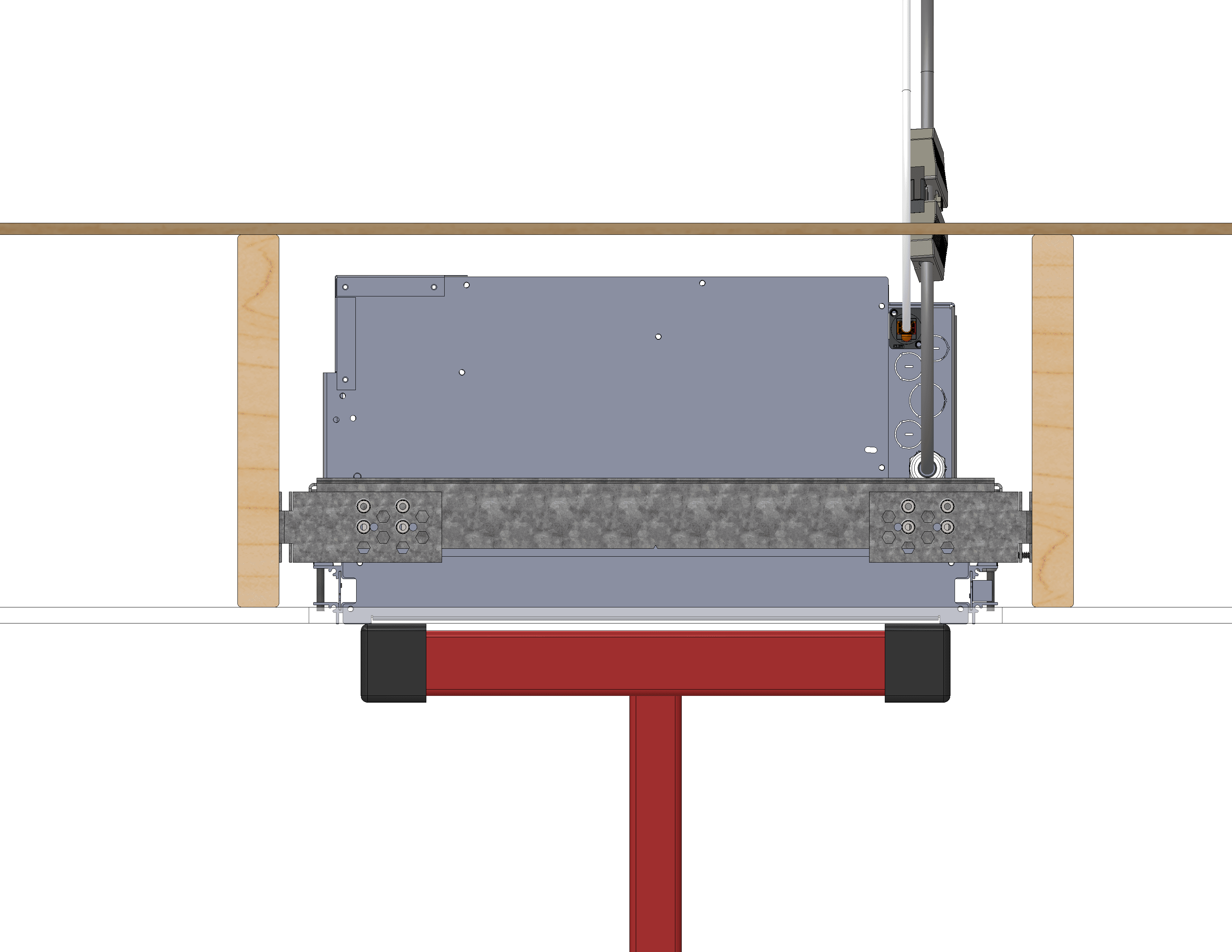
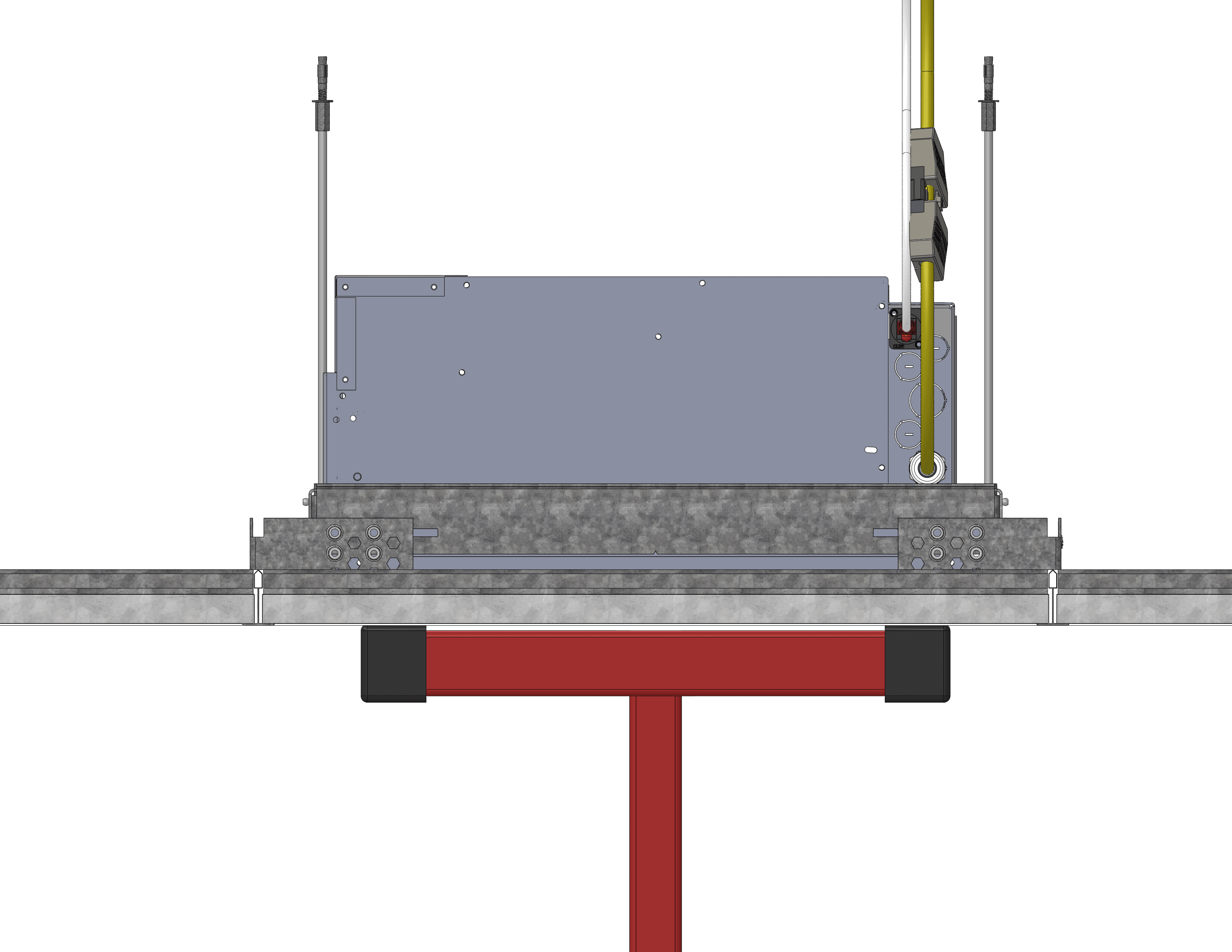
Raise fixture until the bottom of the fixture is level with the finished ceiling surface

Fully Raised Joist
Fully Raised Joist 2

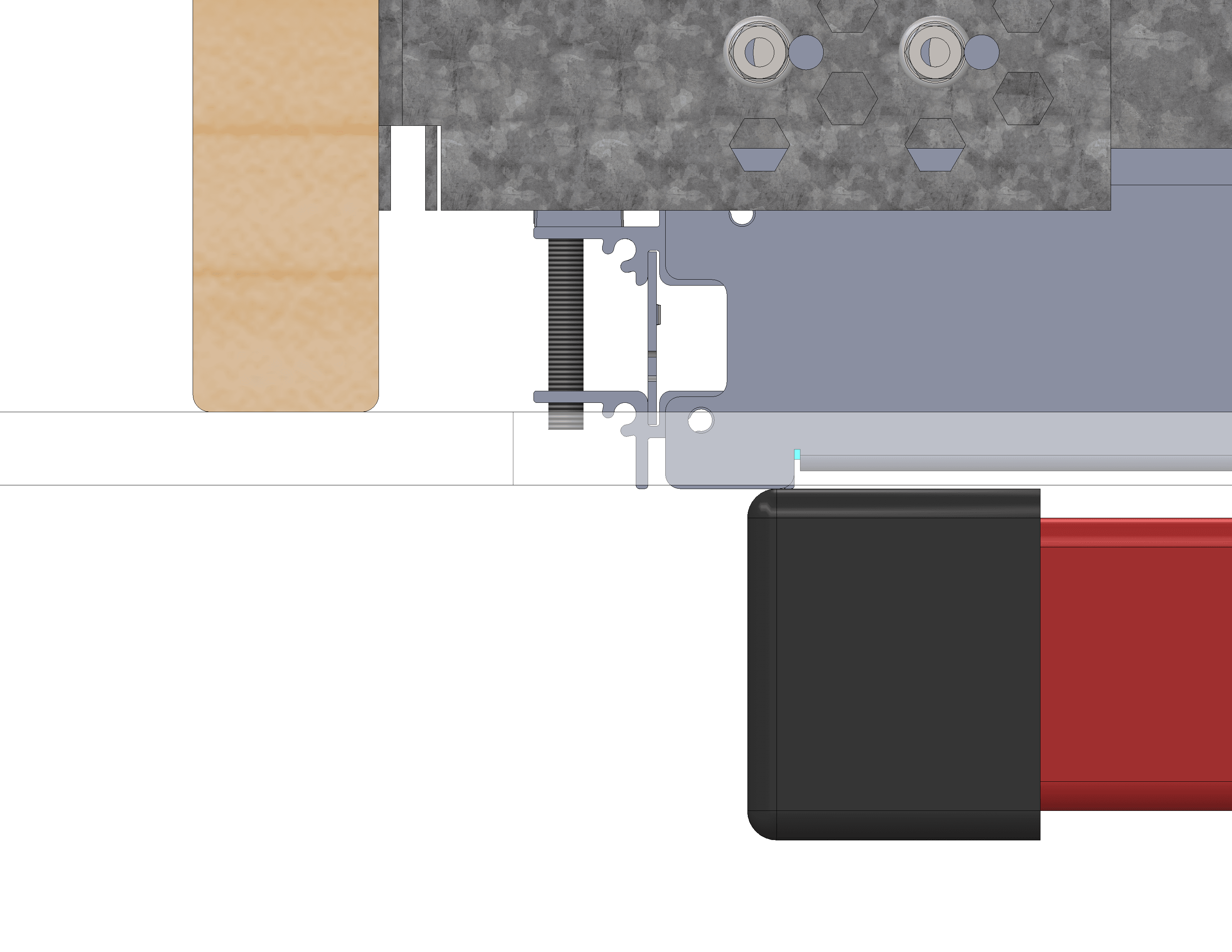
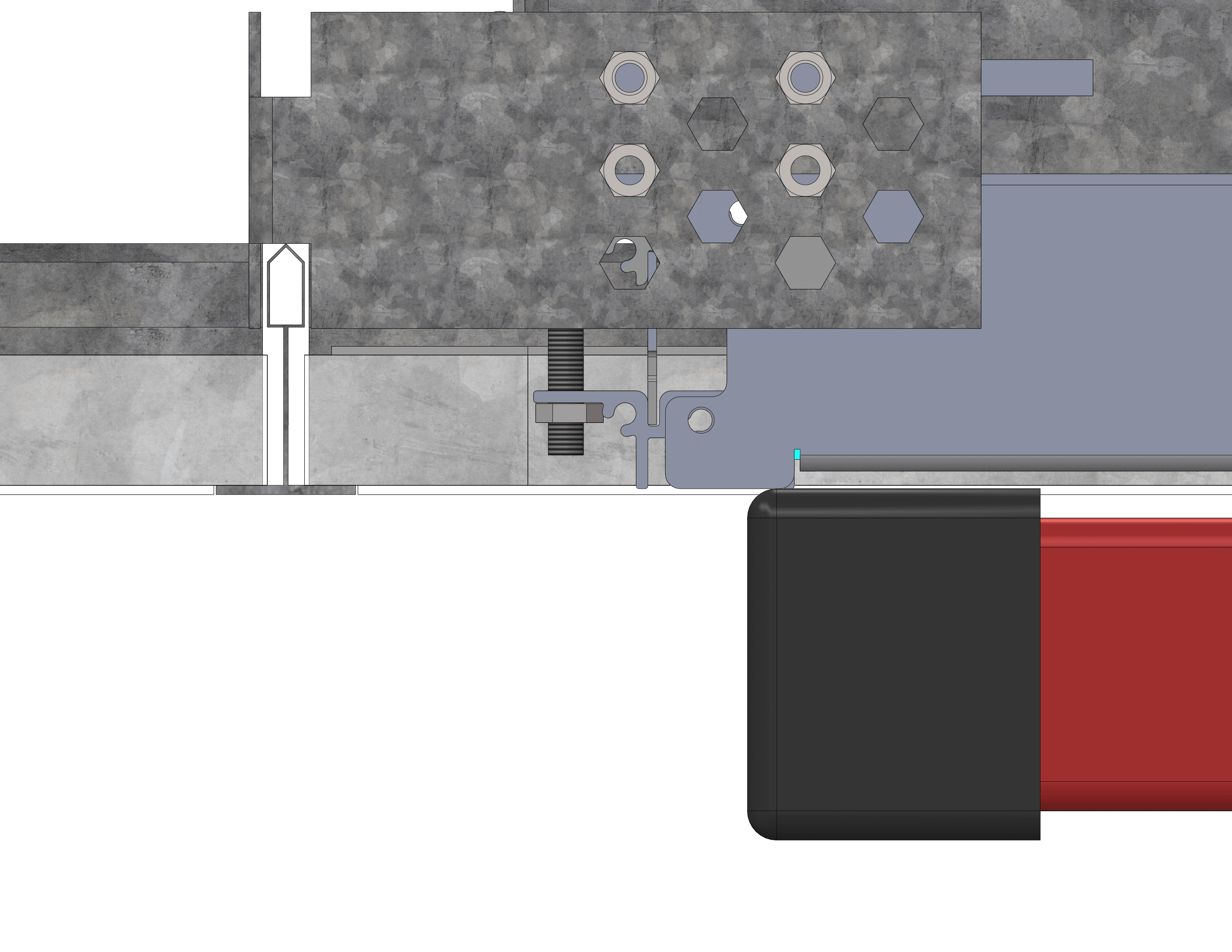
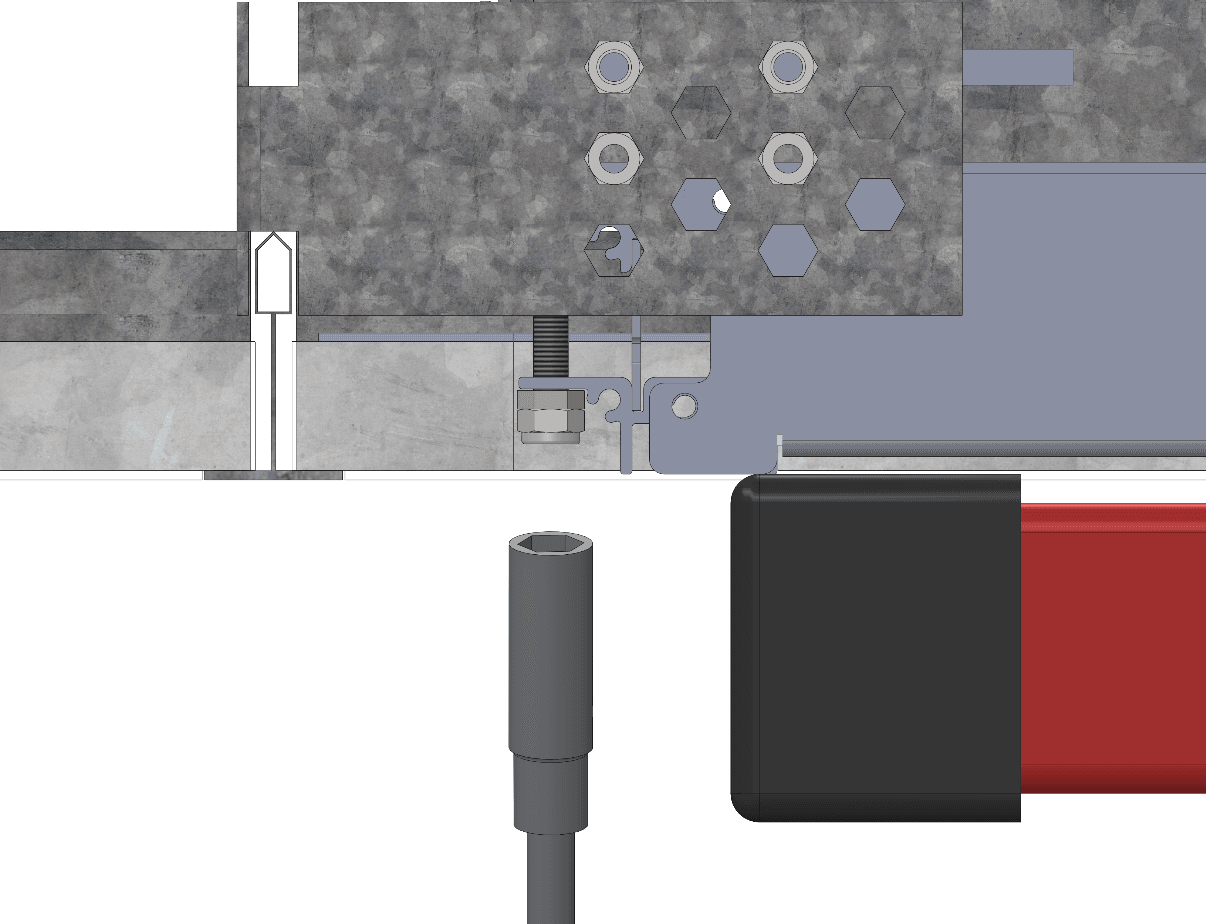
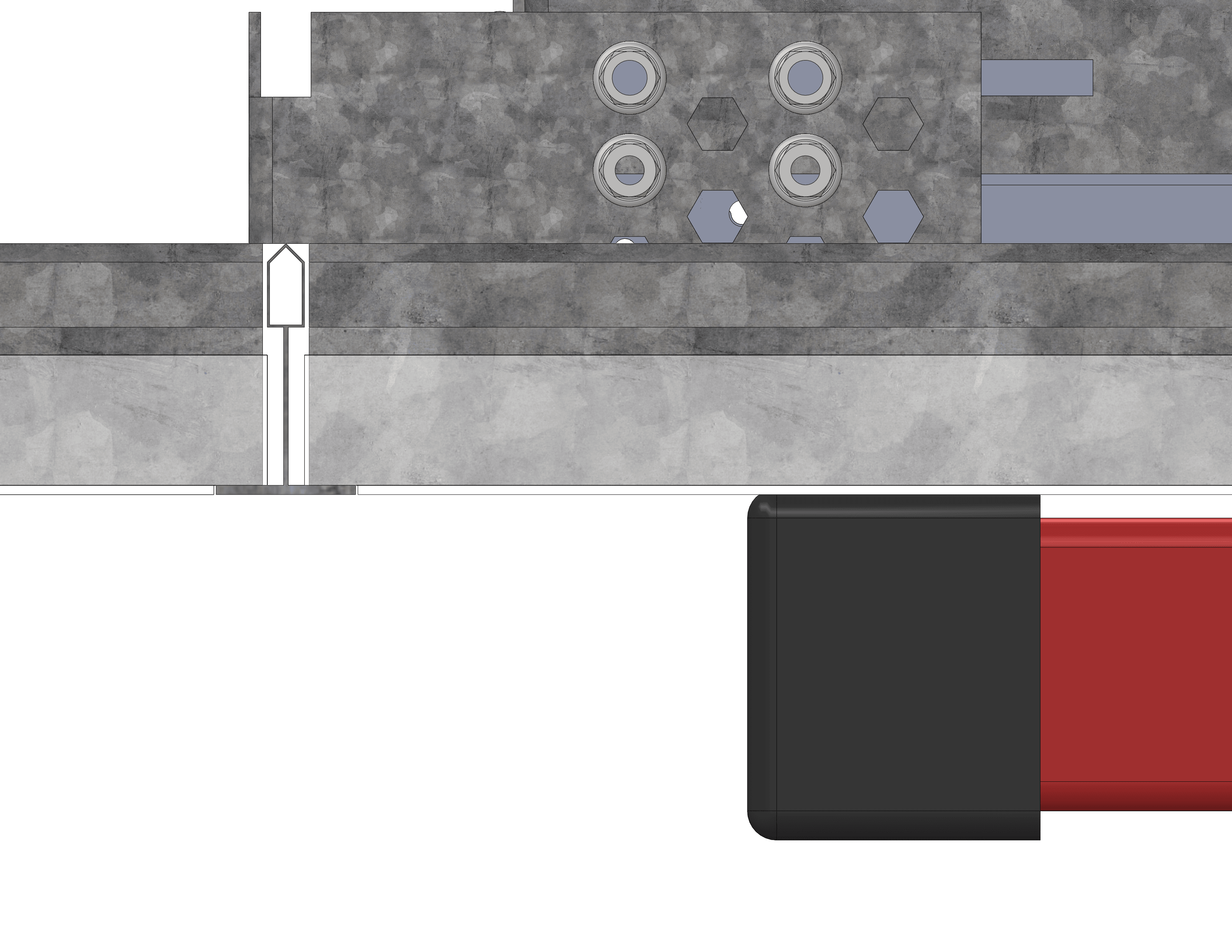
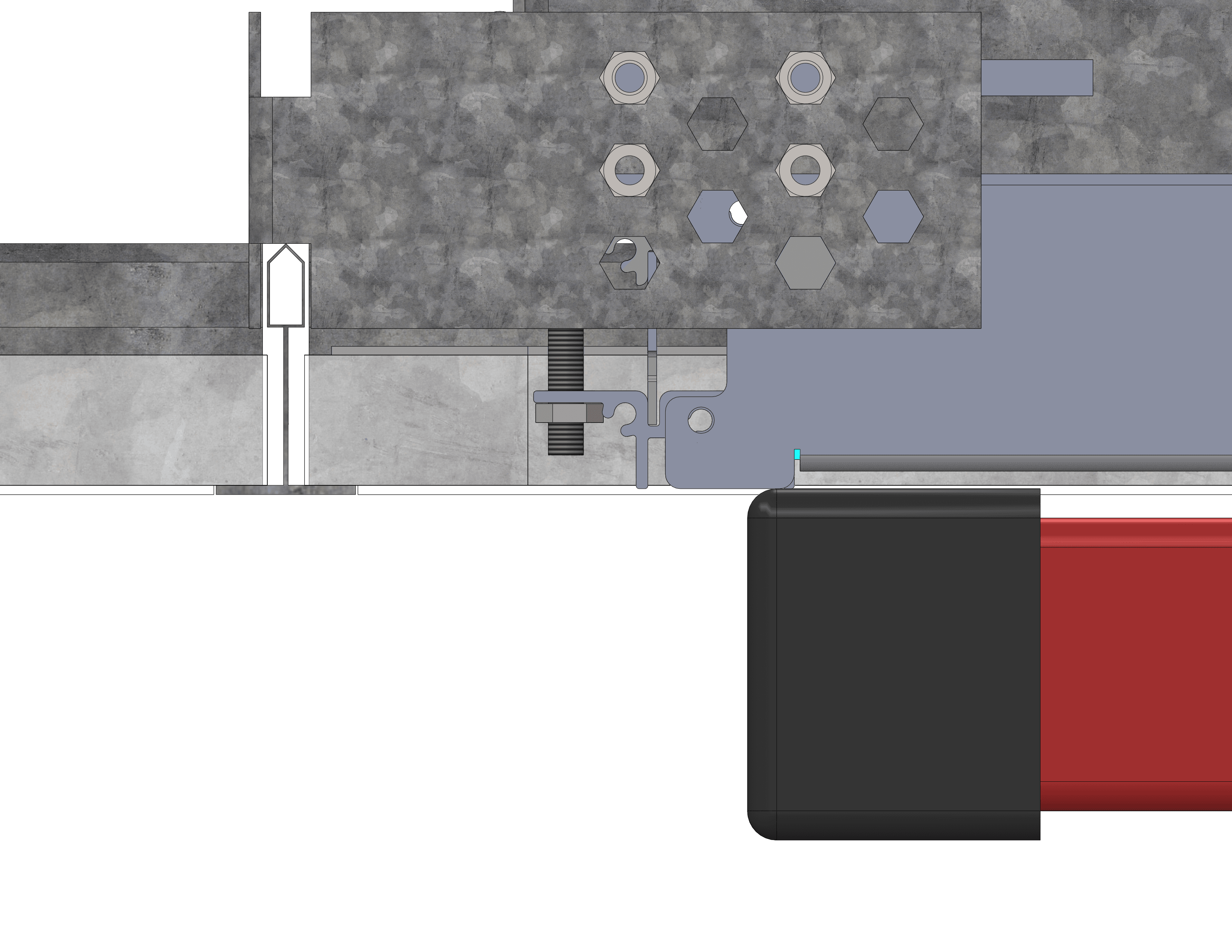
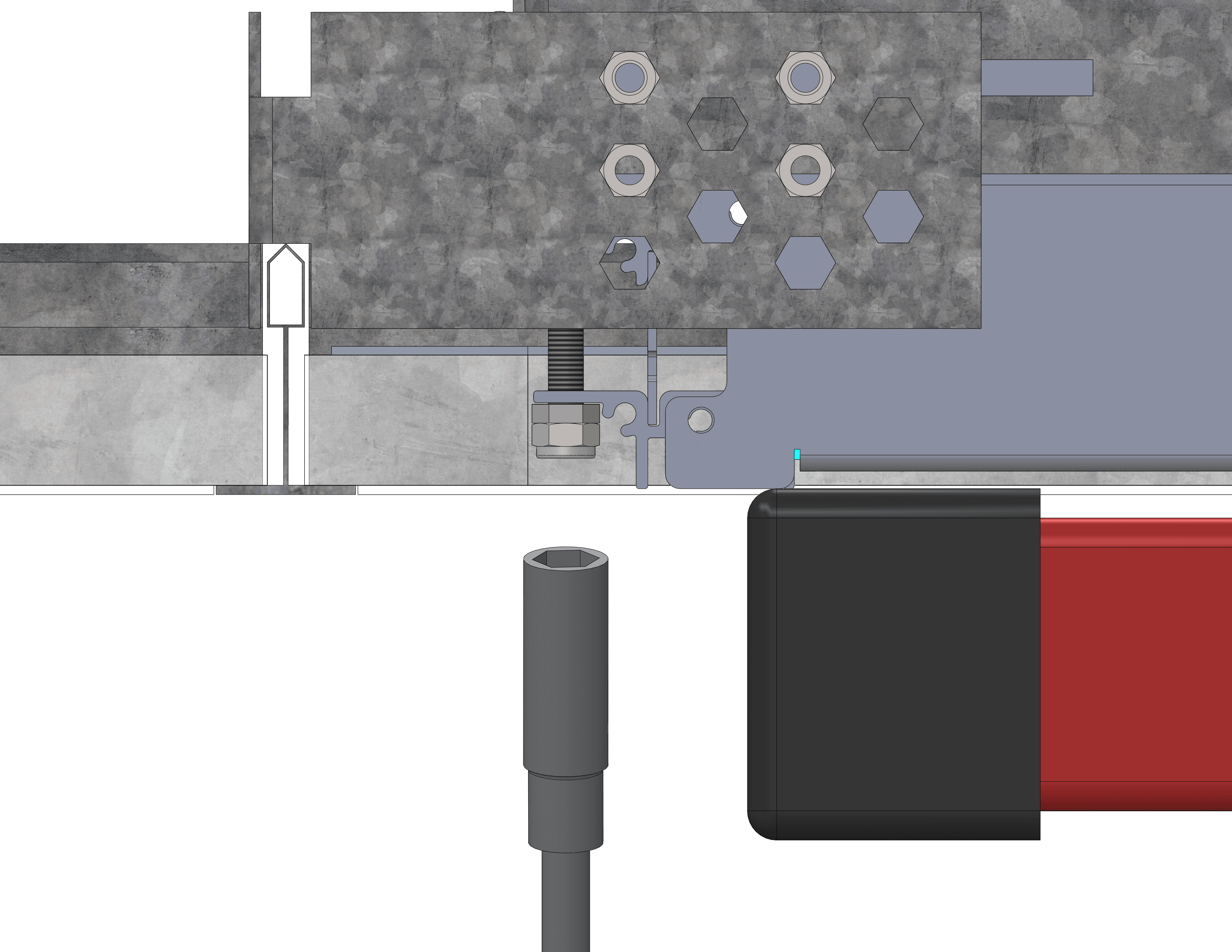
Use M6 thin hex nuts (provided) to adjust the level of
the fixture to the NC (New Construction) Housing.

Gradually lower the drywall hoist to load the fixture on the hex nuts.

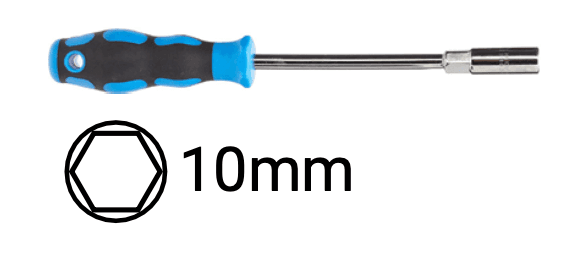
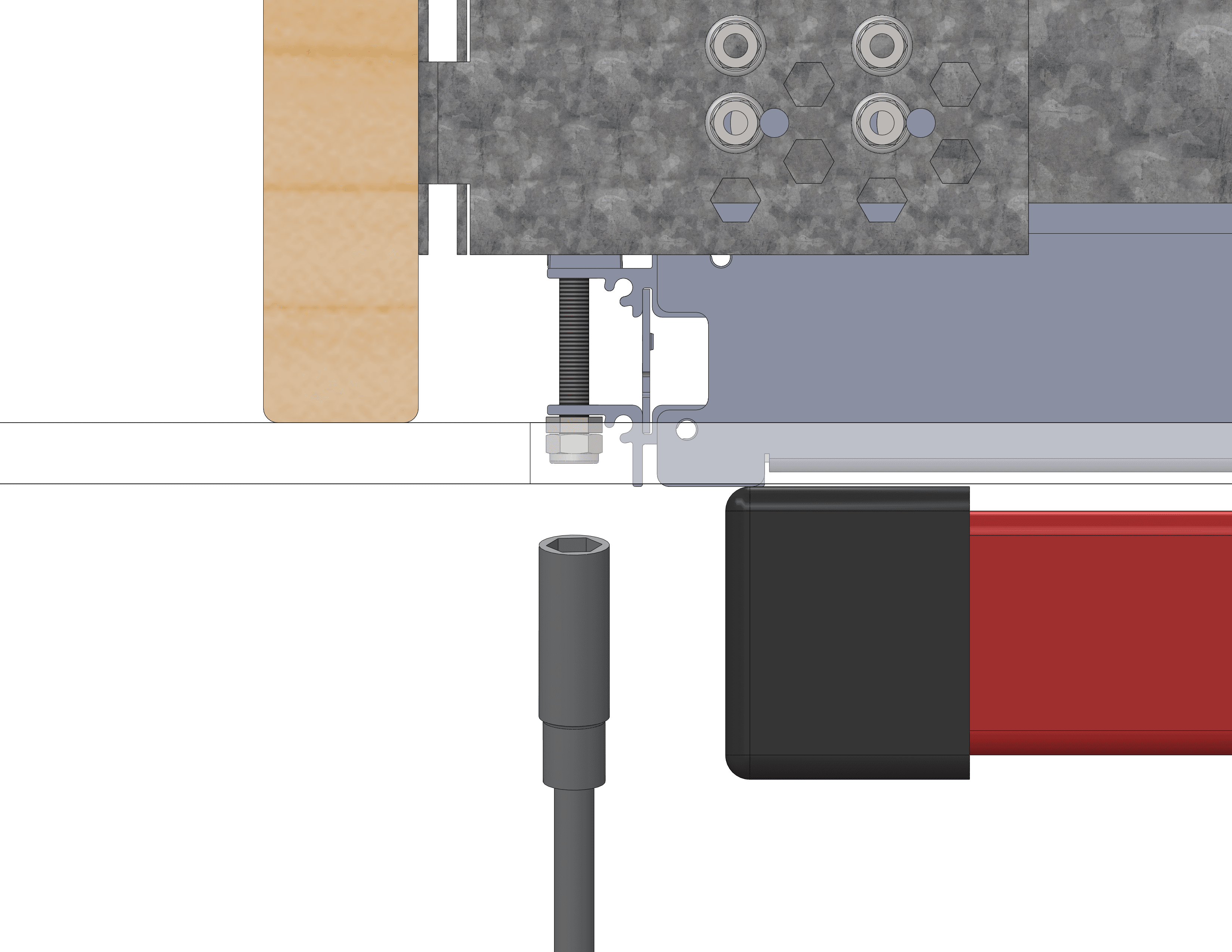
Use the optional 10mm hex nut spinner (nut driver /
Alternative Configurations 16” or 450mm
Joist Ceilings Identify installation location. nut driver / nut screwdriver)

Fully Raised Joist Hex Nut

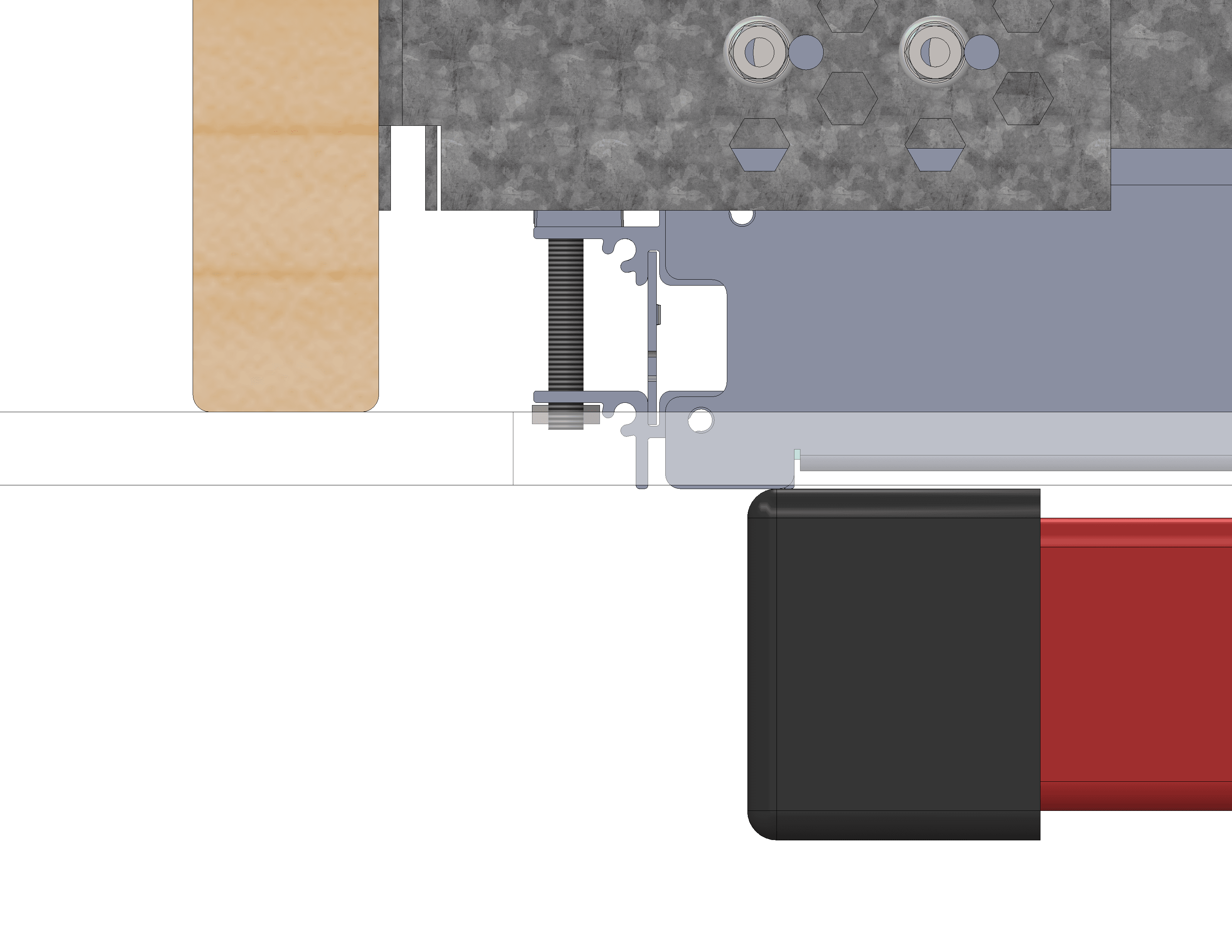
Use M6 nylon hex lock nuts (provided) to secure the fixture
to the NC Housing. Ensure the fixture is secured on the ceiling before
removing the drywall hoist.


Install drywall with correct cut-out 20”-15/16 by 38”-5/8 532mm by 981mm

Fully Raised Joist Lock Nut

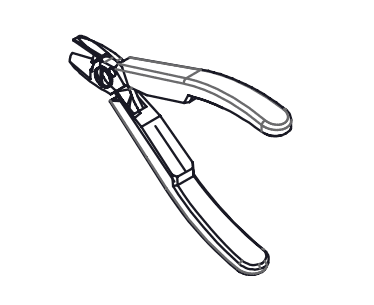
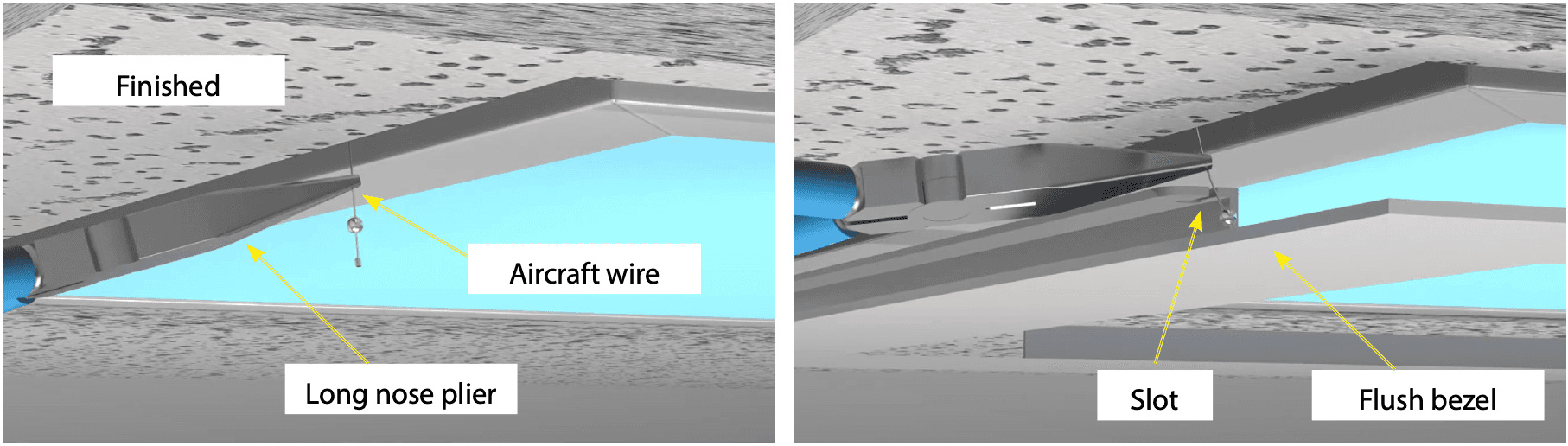
Once the ceiling has been finished. Using a long nose (needle nose) plier. Grab one of the four aircraft wires hanging from the fixture and pull it down and slot into the slots on the Bezel Trim. The wires are spring loaded and will pull up the trim.

Aircraft Plier

Repeat on all four aircraft wires to complete

Universal mounting option suitable for remodelling/retrofit or new construction using metal ceiling lined

Array Installation Remodel

Suitable constructions

  • Steel hat channels or Metal furring channels
  • Recommended total depth at least 11” or 270mm.
  • Depending on local building codes, additional threaded rods may be required to support the fixture.

Recommended equipment for ceilings below 15 feet or 4.5m

(For taller ceilings, temporary support structures or lifts may be required)

Panel Hoist

Drywall panel hoist
11feet or 15feet

Metal Furring

Metal furring or self drilling
screws and power drill

Drywall Saw

Drywall saw

Hammer

Hammer

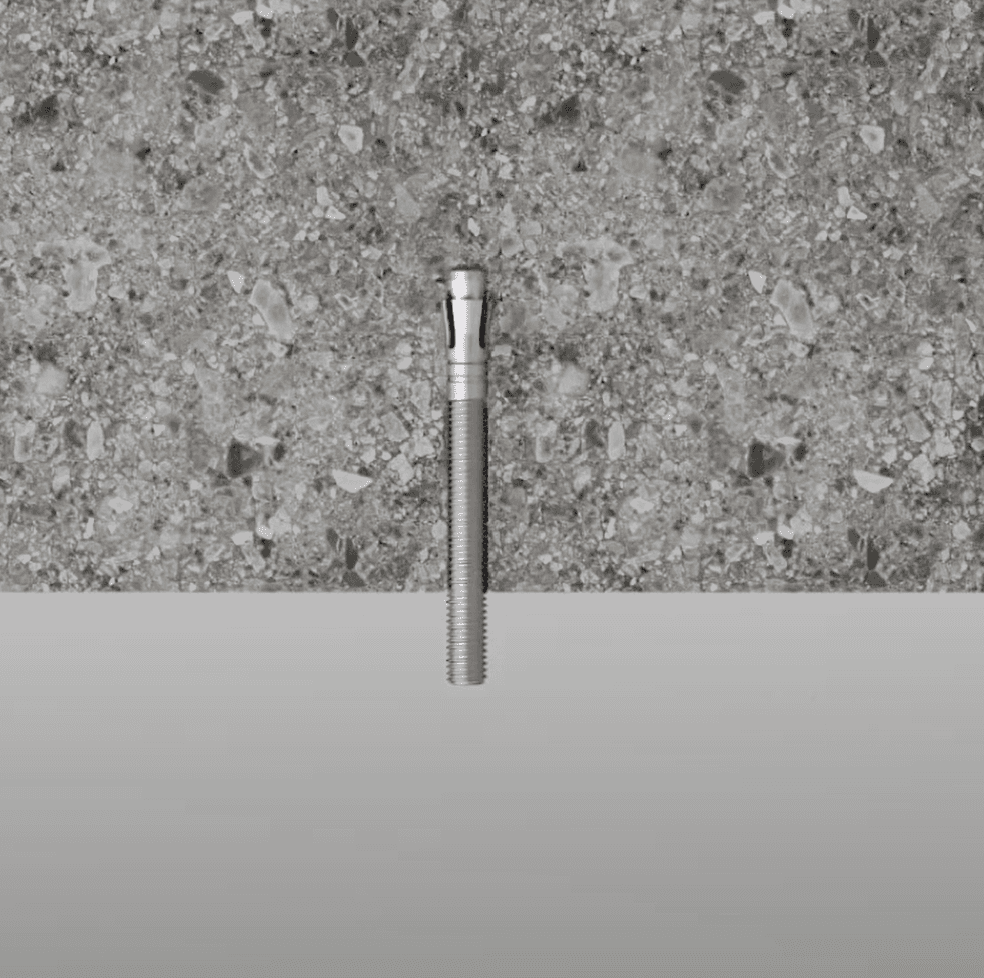
Achnor

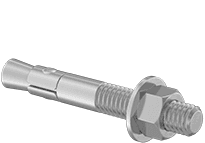
M6 Masonry anchors or
threaded rods 1/4”-20 steel stud
anchors 95475A550

Wire Stripper

Wire Stripper / Cutter

Hex Nut Snipper

Hex Nut Spinner

Thin Nut

8x M6 or 1/4”-20 thin nuts
e.g. McPrimary-Carr 91078A029

Thin Nut 2

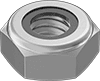
4x M6 or 1/4”-20 nylon locknuts
e.g. McPrimary-Carr 90566A029

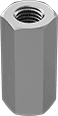
Steel Coupling

4x M6 or 1/4”-20 coupler spinner
e.g. McPrimary-Carr 90566A029

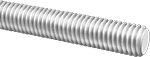
Threaded Rod

4x M6 or 1/4”-20
e.g. McPrimary-Carr

Construction Housing
Transparent VS

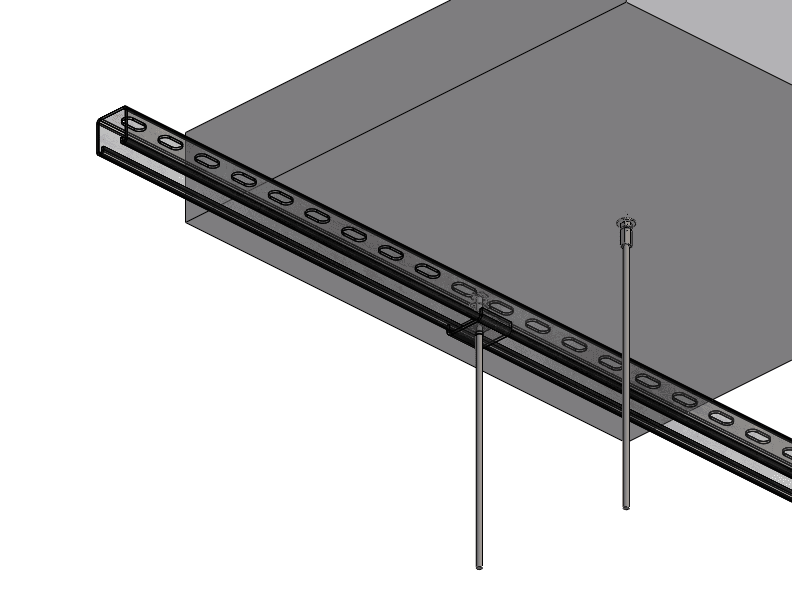
Fixing Locations on Hard
Ceiling with NC Housing

Transparent VS

Fixing Locations on Hard
Ceiling without NC Housing

Wall
Mansory Anchor
Anchor
Unistrut Anchor

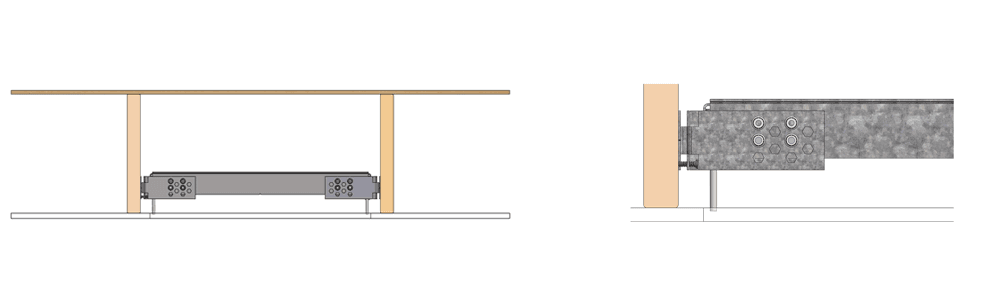
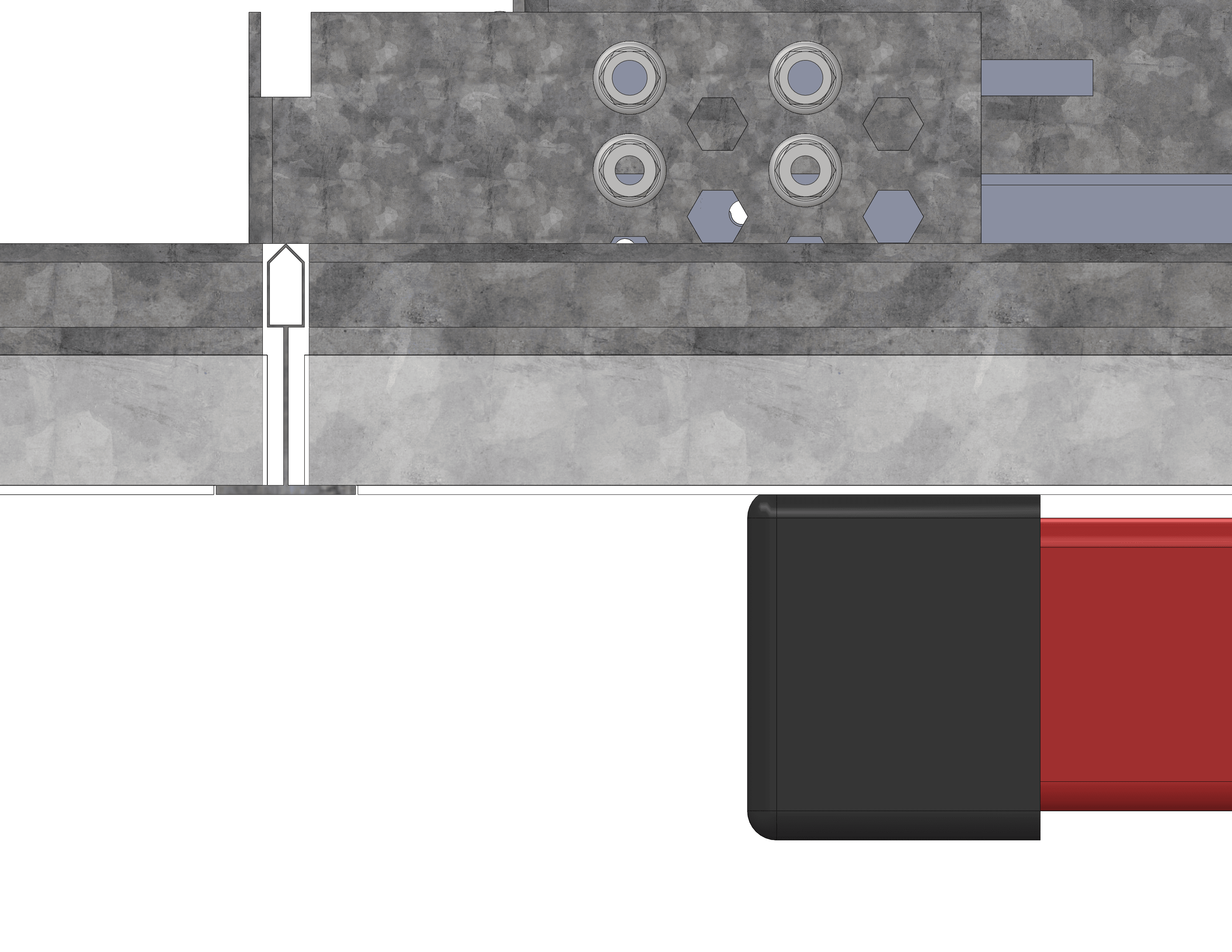
Align NC Housing so bottom of M6 coach bolts are between 1/32" and 3/8" from bottom of finished ceiling face.
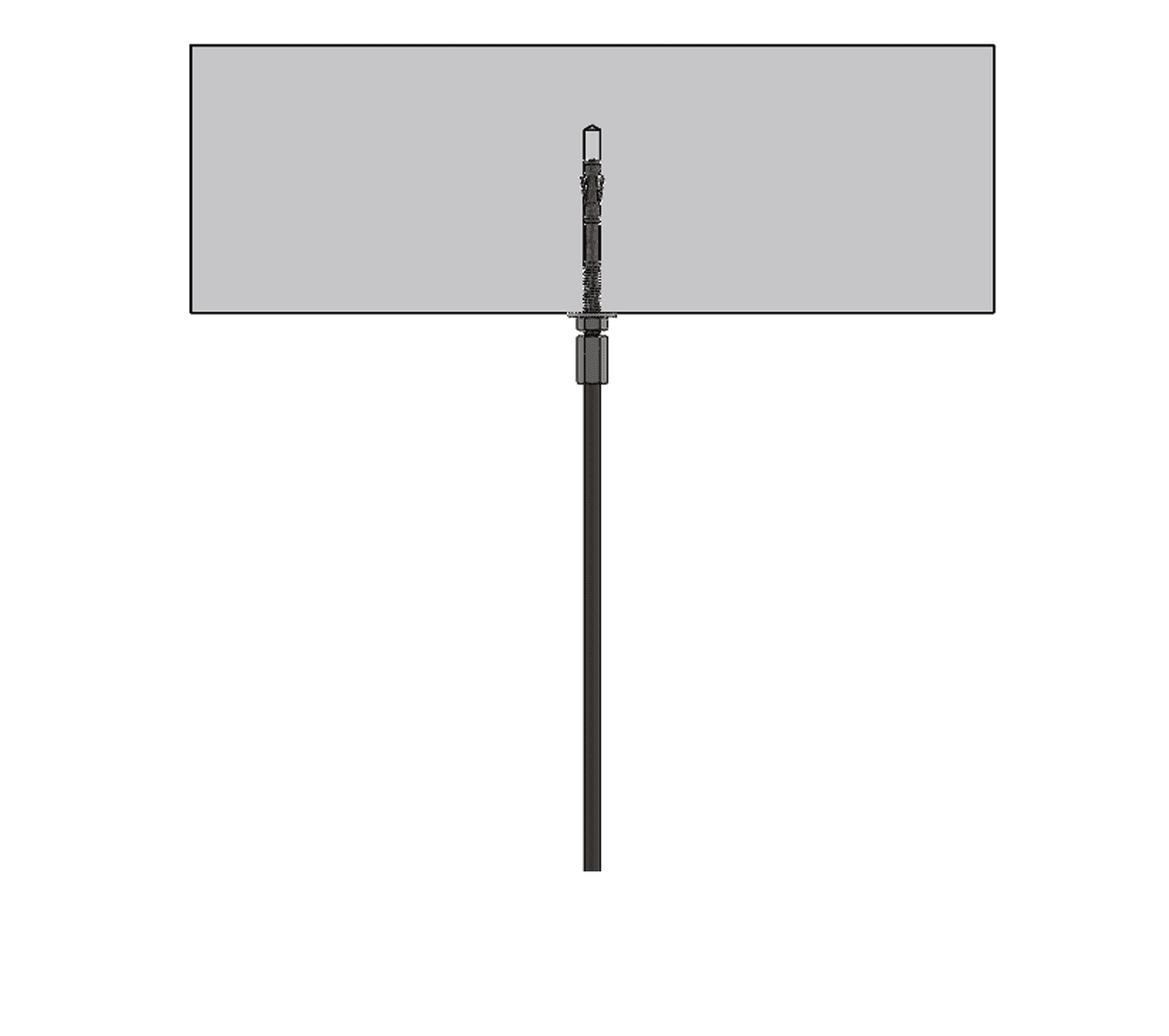
Hang NC Housing from 1/4” Threaded Rods, then secure NC Housing to Hat Channels (MF Metal Furring) using either Self- Drilling or Metal-Furring screws.
Tighten M6 pan head screws to secure hanger bars.

Array Installation 6
Align Housing

Make electrical and data connections before raising into the ceiling void.

Installation Hoist Joists 2
Installation Hoist Joists 4

North American model: 12/2 or 12/4
or 14/2 or 14/4 WG NM-B Romex with 1/2” or 3/4” KO. Cat6 Ethernet cable

North American model: 12/2 or 12/4
or 14/4 or 14/4 WG MC or FMC or EMT with 1/2” or 3/4” KO. Cat6 Ethernet cable

International model: 3-core 2.5mm2
LSZH or CPR-rated, cable OD 6.5-8.6mm, 6-pole socket. Cat6 Ethernet cable

Raise fixture until the bottom of the fixture is level with the finished ceiling surface

Fully Raised Joist 4
Fully Raised Joist Finished Ceiling

Use M6 thin hex nuts (provided) to adjust the level of
the fixture to the NC (New Construction) Housing.

Gradually lower the drywall hoist to load the fixture on the hex nuts.

Use the optional 10mm hex nut spinner (nut driver / nut driver / nut screwdriver)

Fully Raised Joist Finished Ceiling 2

Use M6 nylon hex lock nuts (provided) to secure the fixture to the NC Housing.
Ensure the fixture is secured on the ceiling before removing the drywall hoist.

Fully Raised Joist Finished Ceiling 3

Once the ceiling has been finished. Using a long nose (needle nose) plier. Grab one of the four aircraft wires hanging from the fixture and pull it down and slot into the slots on the Bezel Trim. The wires are spring loaded and will pull up the trim.

Aircraft Plier

Repeat on all four aircraft wires to complete

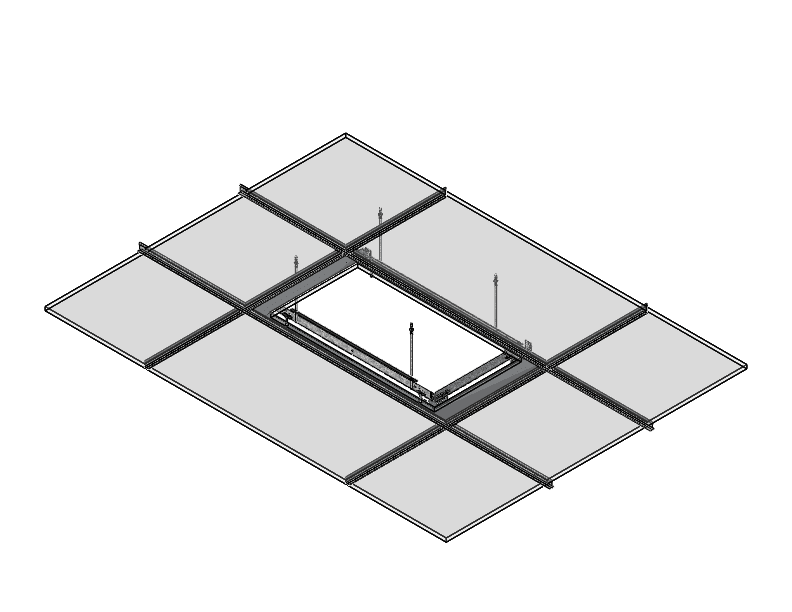
Universal mounting option suitable for remodellling/retrofit or new construction using grid ceilings with mineral tiles

Array Installation Remodel 2

Suitable constructions

  • Steel hat channels or Metal furring channels
  • Recommended total depth at least 11” or 270mm.
  • Depending on local building codes, additional threaded rods may be required to support the fixture.

Recommended equipment for ceilings below 15 feet or 4.5m

(For taller ceilings, temporary support structures or lifts may be required)

Panel Hoist

Drywall panel hoist
11feet or 15feet

Metal Furring

Metal furring or self drilling
screws and power drill

Drywall Saw

Drywall saw

Hammer

Hammer

Achnor

M6 Masonry anchors or
threaded rods 1/4”-20 steel stud
anchors 95475A550

Wire Stripper

Wire Stripper / Cutter

Hex Nut Snipper

Hex Nut Spinner

Thin Nut

8x M6 or 1/4”-20 thin nuts
e.g. McPrimary-Carr 91078A029

Thin Nut 2

4x M6 or 1/4”-20 nylon locknuts
e.g. McPrimary-Carr 90566A029

Steel Coupling

4x M6 or 1/4”-20 coupler spinner
e.g. McPrimary-Carr 90566A029

Threaded Rod

4x M6 or 1/4”-20
e.g. McPrimary-Carr

Contact Adhesive

4x M6 or 1/4”-20
e.g. McPrimary-Carr

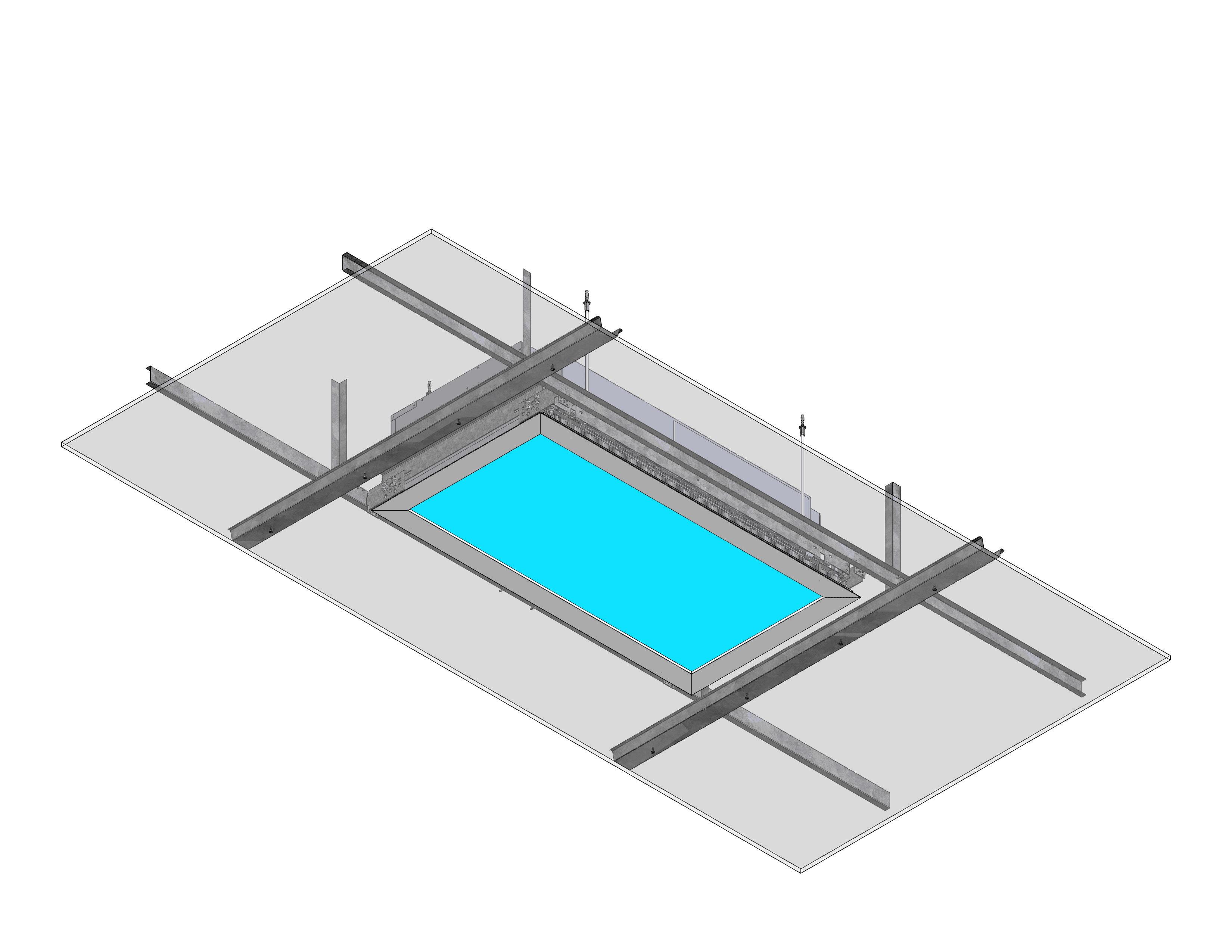
Install anchors at set locations or supporting channels

Construction Housing
Transparent VS

Fixing Locations on Hard
Ceiling with NC Housing

Transparent VS

Fixing Locations on Hard
Ceiling without NC Housing

Wall
Mansory Anchor
Anchor
Unistrut Anchor

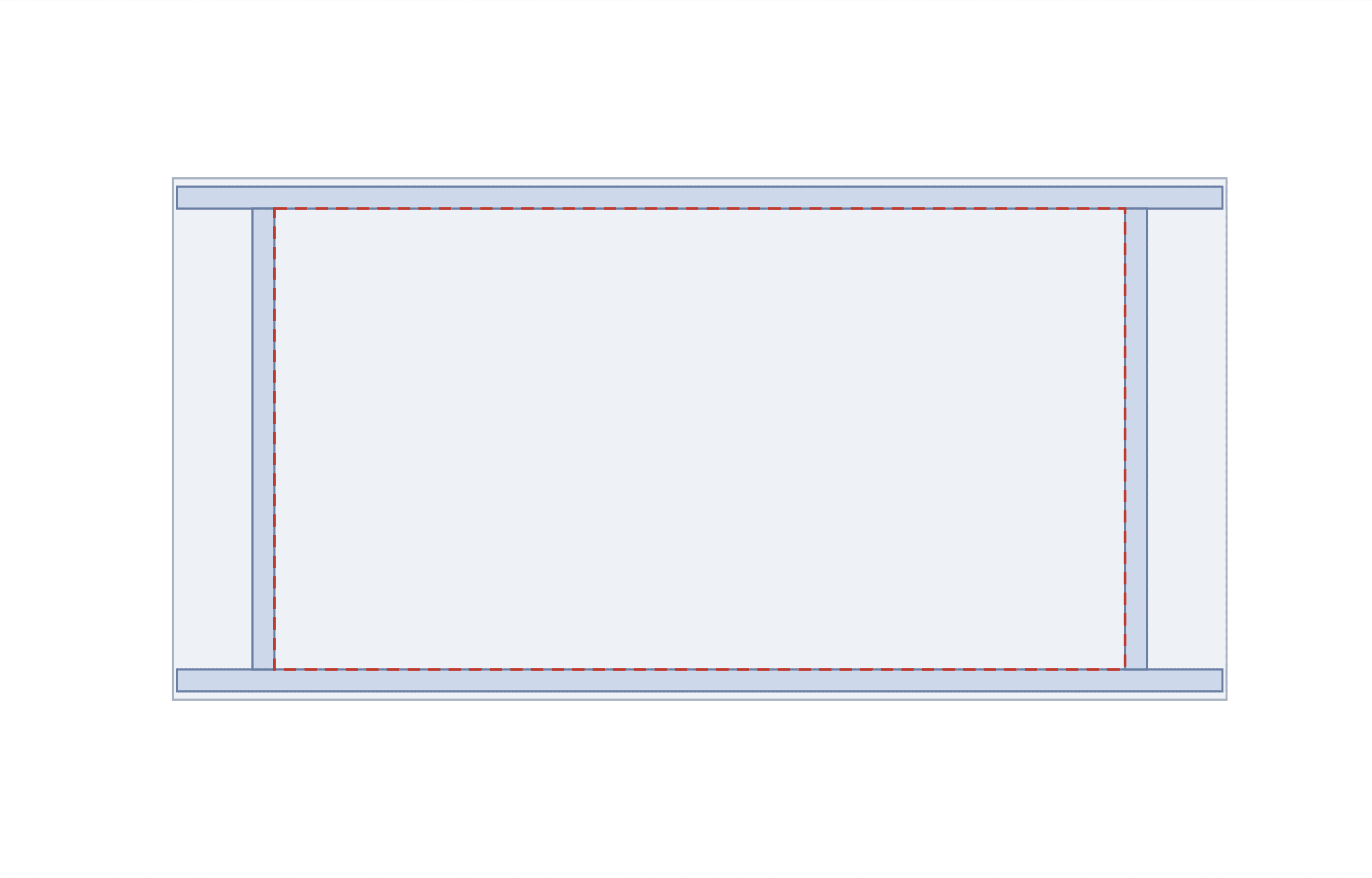
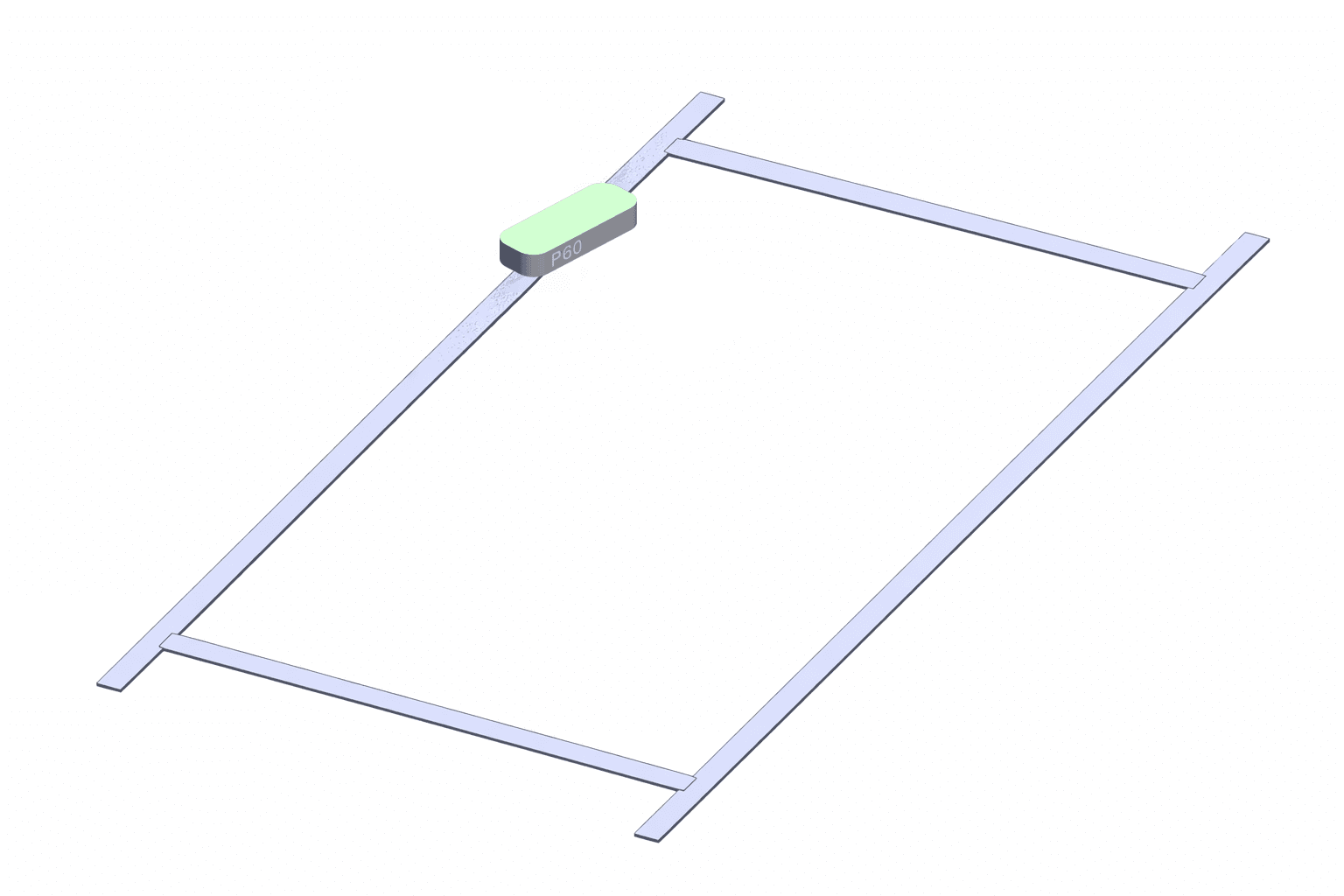
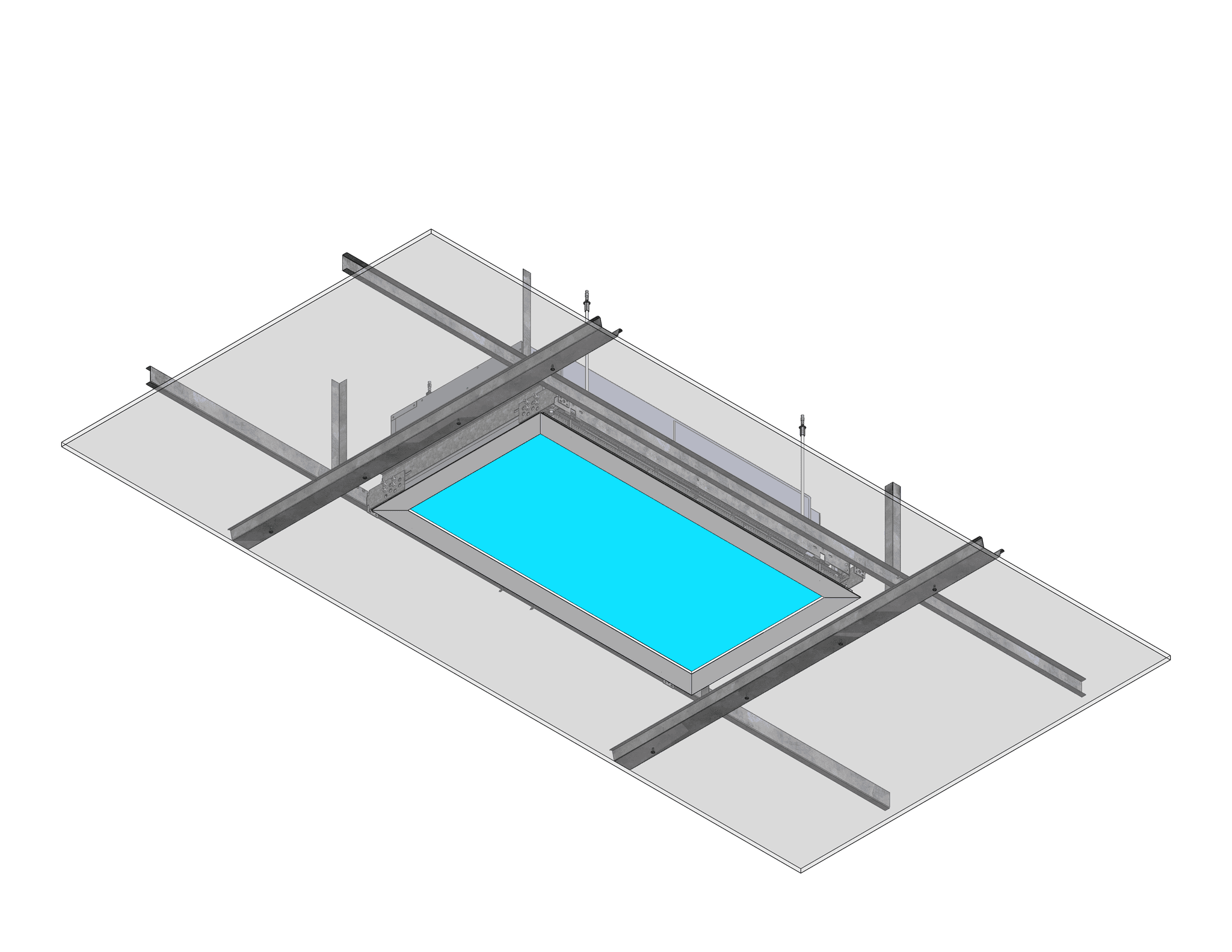
For mineral tile grid ceilings, or ceilings with relatively weak or thin constructions, an optional backing strip may be supplied by Innerscene to support the ceiling panel or tile material to allow for field cutting. This is highly recommended when using 2’ x 4’ mineral tiles. One backing strip set is required per fixture. The backing strip stiffens the ceiling tile so it does not crack or crumble during cutting and handling.

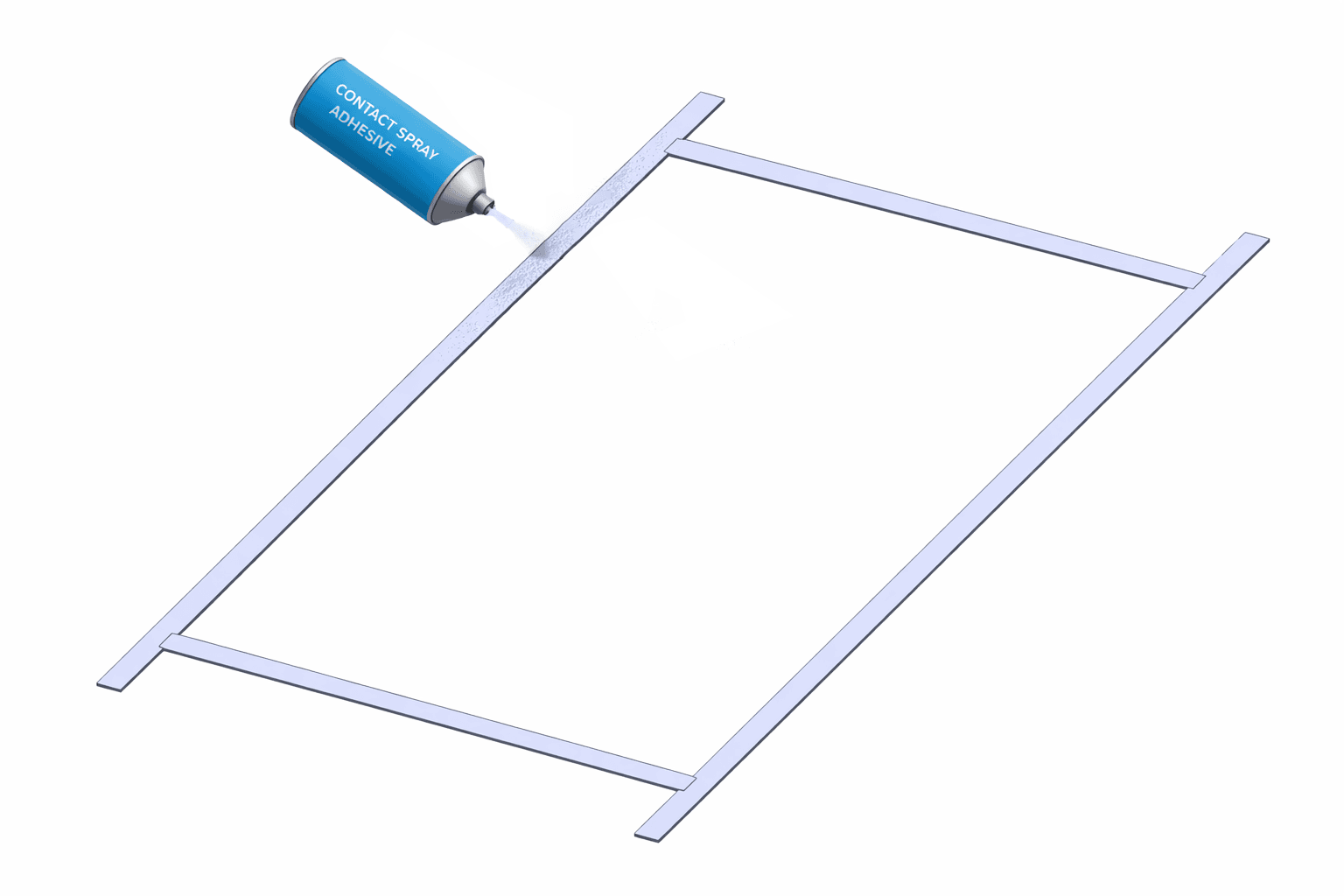
If one side of the strip isn’t already roughened, use a coarse sanding block, wire wool, or abrasive sander. Apply a rough texture along an entire one side of the aluminum backing strips — this gives the contact adhesive something to grip onto, since it will not bond reliably to a smooth, polished aluminum surface. Align the strips to form a cut-out with the aid of the notches as a guide. Main runner Cross tee Field cut mineral tile Mineral tile Light Innerscene) Masonry/Concrete anchor Coupling nut / Coupler Threaded Rod New Construction Housing (by Innerscene) Backing strips (by Innerscene) 20”-1/8 511mm

Mineral Tile

Clean the back surface of the mineral tile (or similar ceiling medium that requires support) of debris.

Wear a mask, gloves and ventilation masks when working with adhesives. Follow the recommended instruction of your spray-on contact adhesives.

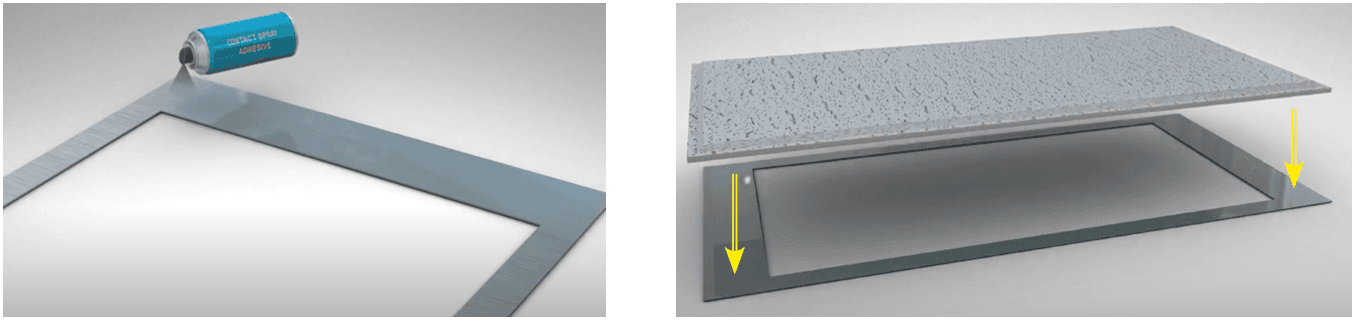
Spray contact adhesives to the coarse face of the backing plate as well as the back of the mineral tile. Wait several minutes (depending on contact adhesive’s manufacturer’s recommendations) for the contact adhesives to dry slightly.

Mineral Tile 2

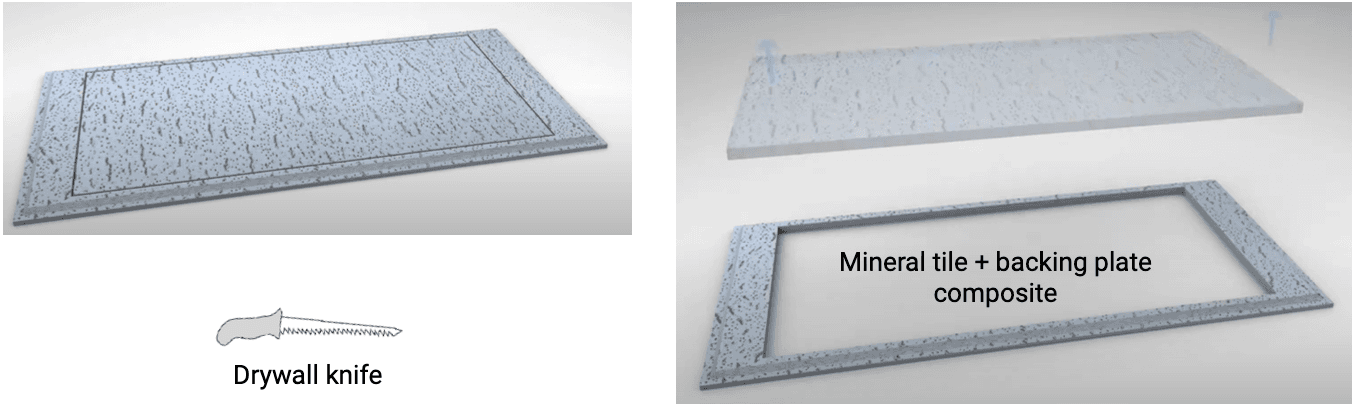
Align the mineral tile with the backing plate. Apply uniform pressure on the two surfaces to adhere them. Start at the centre and work outwards. Allow time for the contact adhesive to cure. Using a drywall knife, cut the inside.

Mineral Tile 3

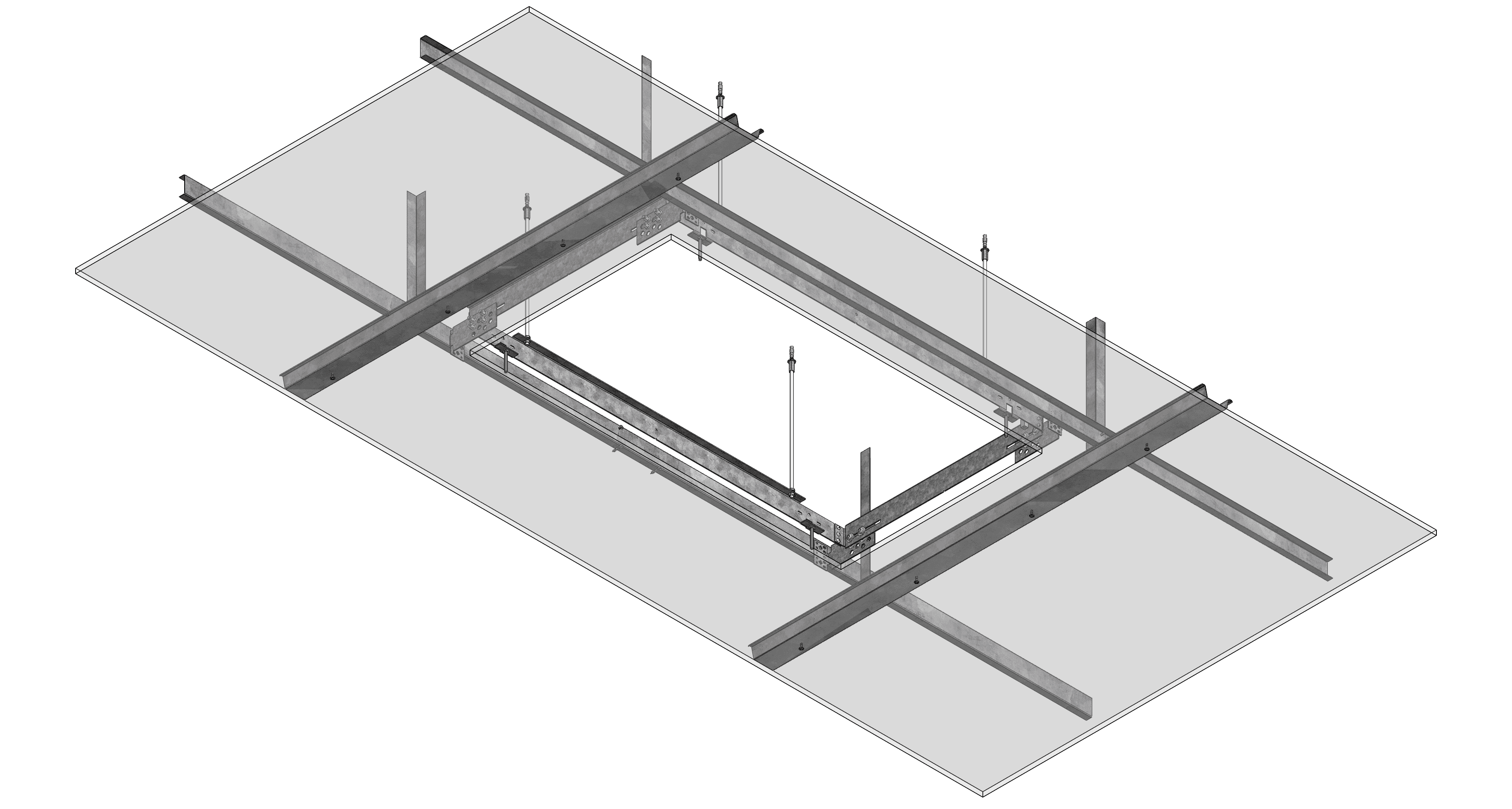
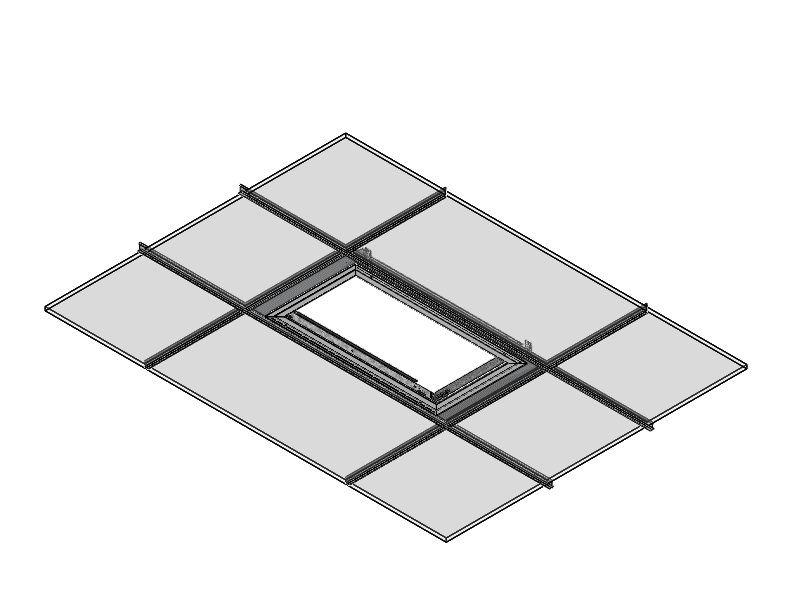
Lay in composite tile and NC Housing on Ceiling Grid

Ceiling Grid Composite

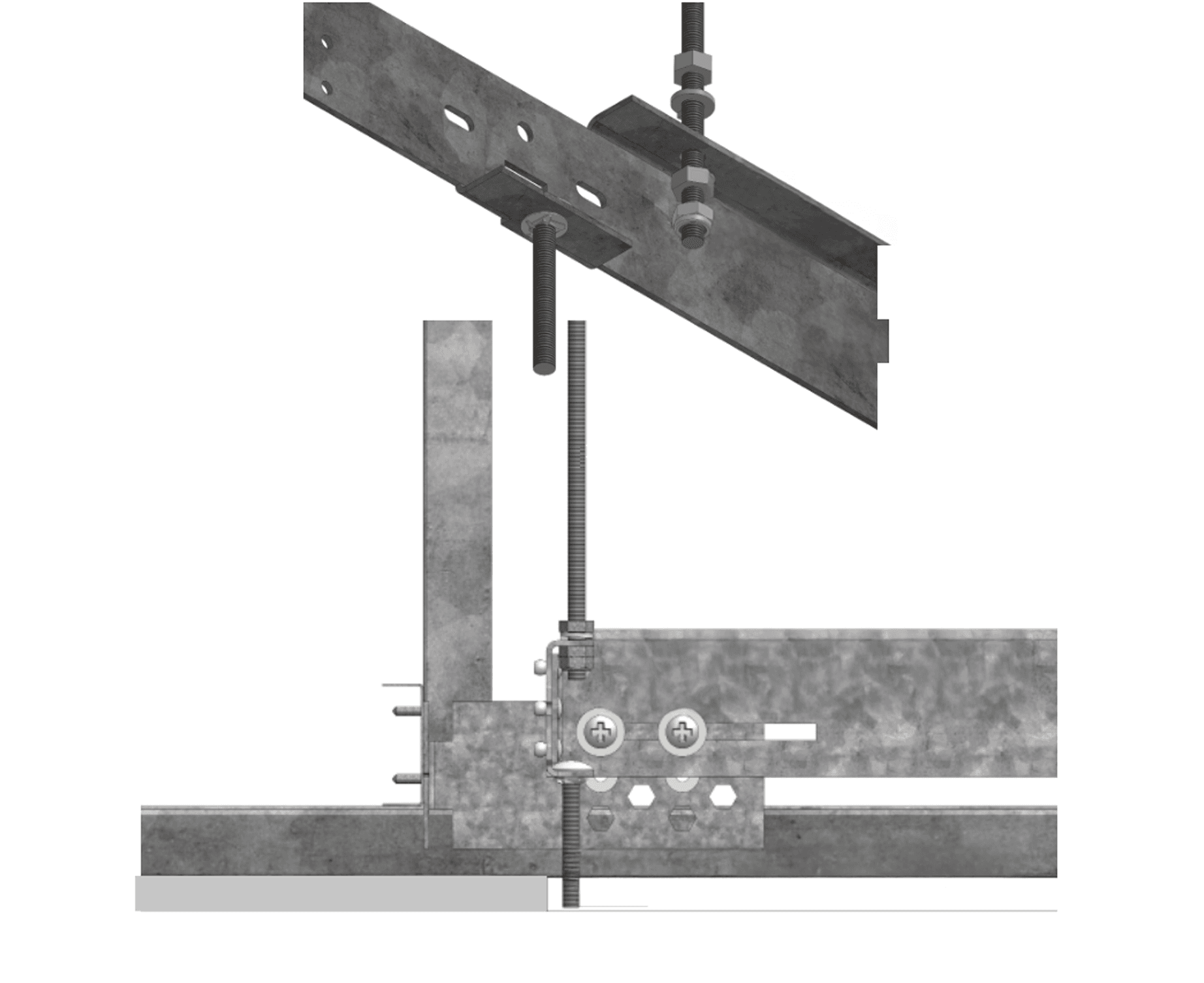
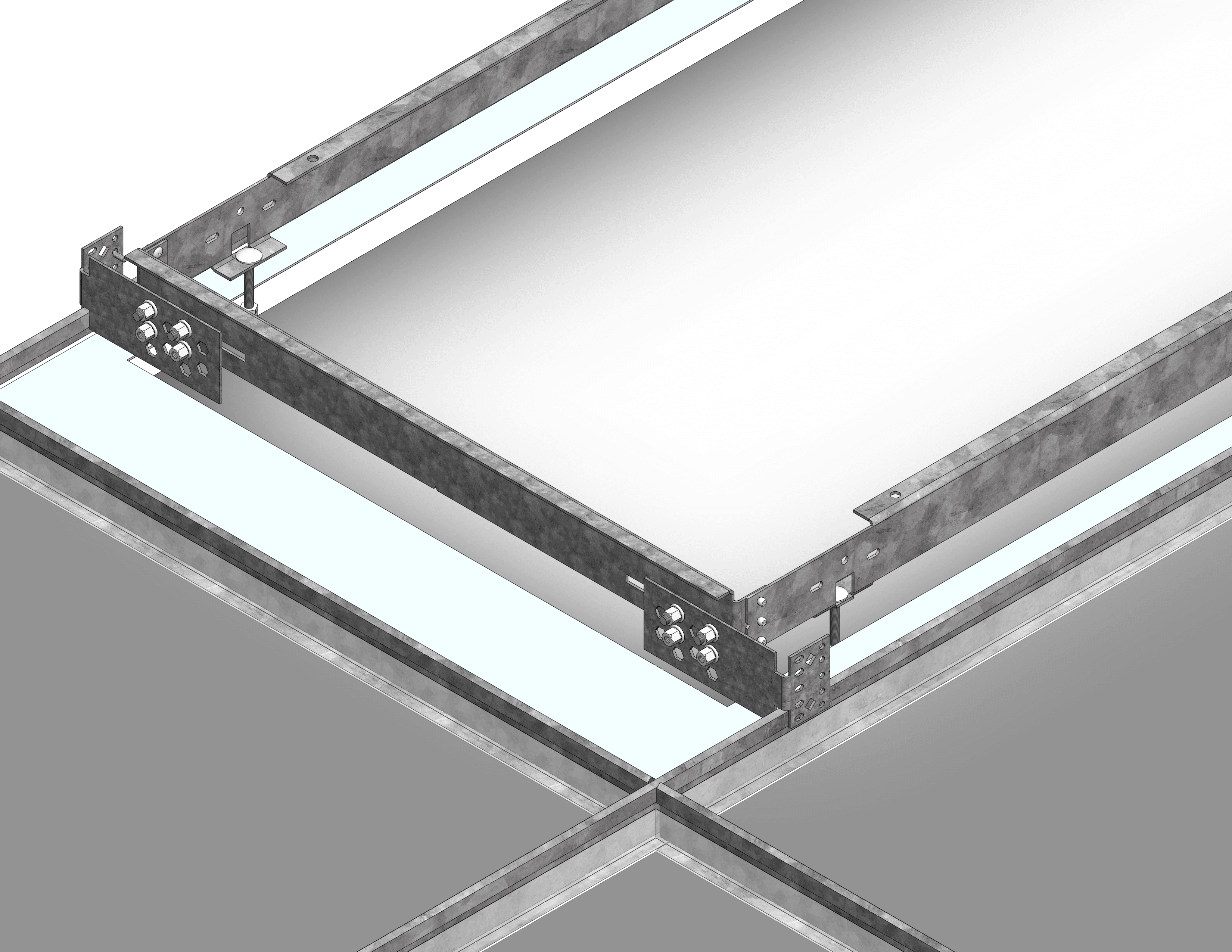
Extend the hanger bars over the bulb on the main beams

Hanger Bars

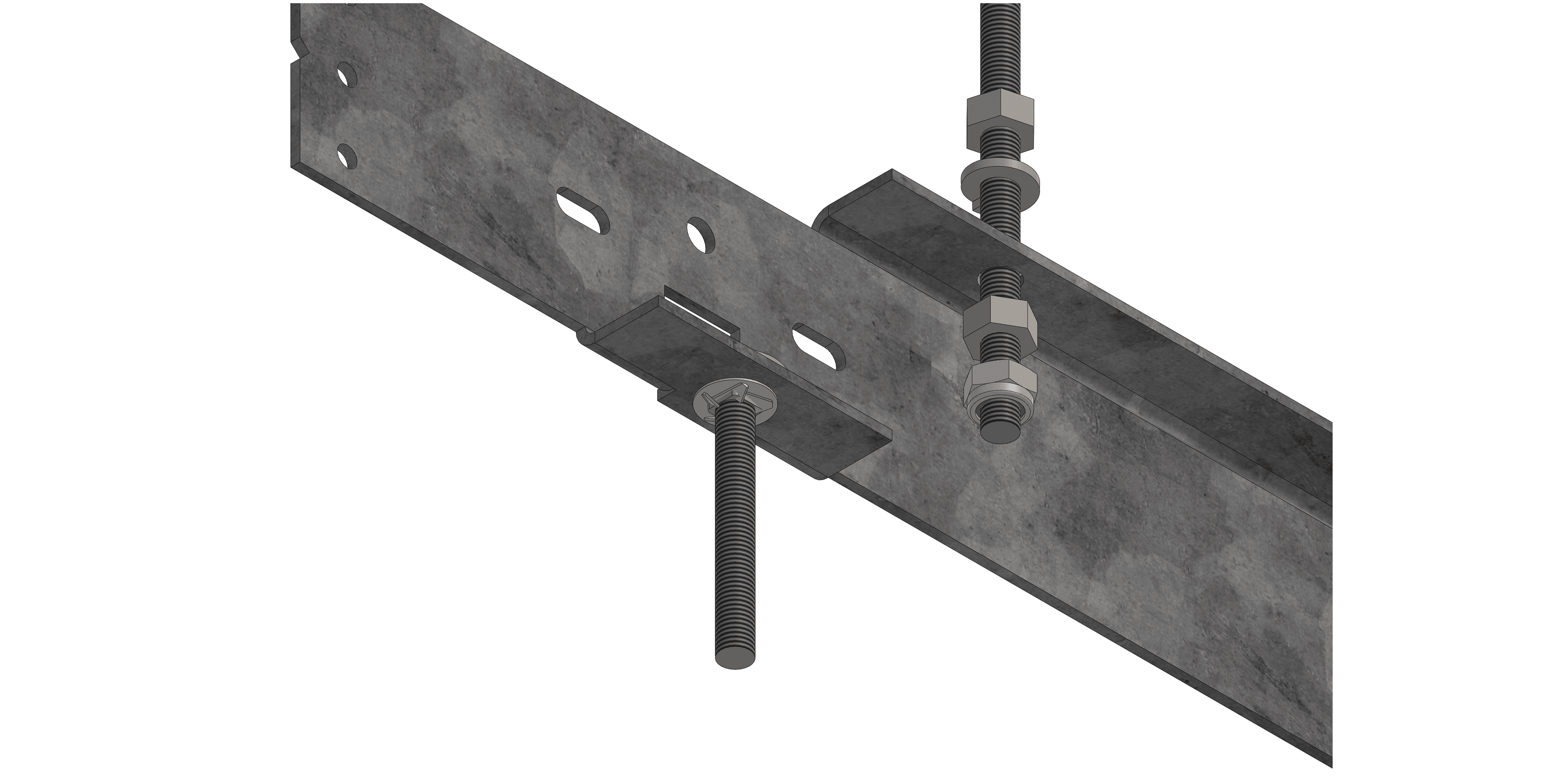
Secure threaded rods to New Construction (NC) Housing

Ceiling Grid Composite 2
NC Housing

Adjust drop of NC housing so the bottom of M6 coach bolts are between 1/16” and 1/4” from face of finished ceiling. Shorten or lengthen threaded rods as required.

Tighten M6 pan head screws to secure hanger bars.

Array Hanger

Make electrical and data connections before raising into the ceiling void.

A7 Hoist
Wiring Process

North American model: 12/2 or 12/4 or
14/2 or 14/4 WG NM-B Romex with 1/2” or 3/4” KO. Cat6 Ethernet cable

North American model: 12/2 or 12/4 or 14/4
or 14/4 WG MC or FMC or EMT with 1/2” or 3/4” KO. Cat6 Ethernet cable

International model: 3-core 2.5mm2 LSZH or CPR-rated,
cable OD 6.5-8.6mm, 6-pole socket. Cat6 Ethernet cable

Raise fixture until the bottom of the fixture is level with the finished ceiling surface

Fully Raised Joists 2
Fully Raised Joist 3

Use M6 thin hex nuts (provided) to adjust the level of
the fixture to the NC (New Construction) Housing.

Gradually lower the drywall hoist to load the fixture on the hex nuts.

Use the optional 10mm hex nut spinner (nut driver /
nut driver / nut screwdriver)

Fully Raised Joist Hex Nut 2

Use M6 nylon hex lock nuts (provided) to secure the fixture
to the NC Housing. Ensure the fixture is secured on the ceiling before
removing the drywall hoist.

Fully Raised Joist Lock Nut 2

Once the ceiling has been finished. Using a long nose (needle nose) plier. Grab one of the four aircraft wires hanging from the fixture and pull it down and slot into the slots on the Bezel Trim. The wires are spring loaded and will pull up the trim.

Aircraft Plier

Repeat on all four aircraft wires to complete

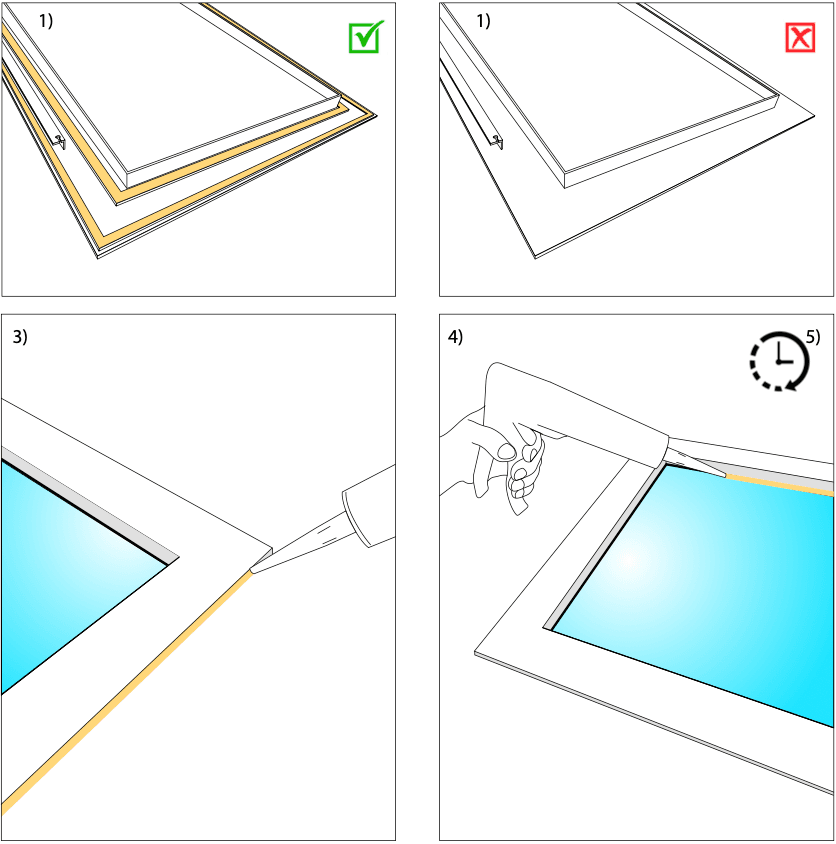
Caution - IP54 and Wet location ratings are only applicable when using dedicated trims and installed in horizontal orientation within recessed ceilings. Wall or Vertical applications does not maintain ratings.

  • 1. Ensure the trim is the dedicated IP54 or Wet location trim with additional dust and moisture protection gaskets.
  • 2. Install trim as per normal.
  • 3. Apply silicone caulk along the outer edges of the trim that meet the ceiling face.
  • 4. Apply silicone cault along the inner edges of the trim that meet the glass face.
  • 5. Wait for the silicone to cure fully according to the material’s guideline before subjecting the fixture to any.
Cleaning Process

NC Housing with Stud Wall in Portrait Orientation

ℹ️

NOTE

Wall Mount (WM): the New Construction (NC) Housing installs into a framed stud-wall niche in portrait orientation.

The NC Housing for Wall Mount is supplied without threaded rods and hanger bars (used for joist mounting). Ensure the housing matches the configuration shown below before installation.

NC Housing as supplied for Wall Mount, without threaded rods or hanger bars

NC Housing (as supplied for Wall Mount)

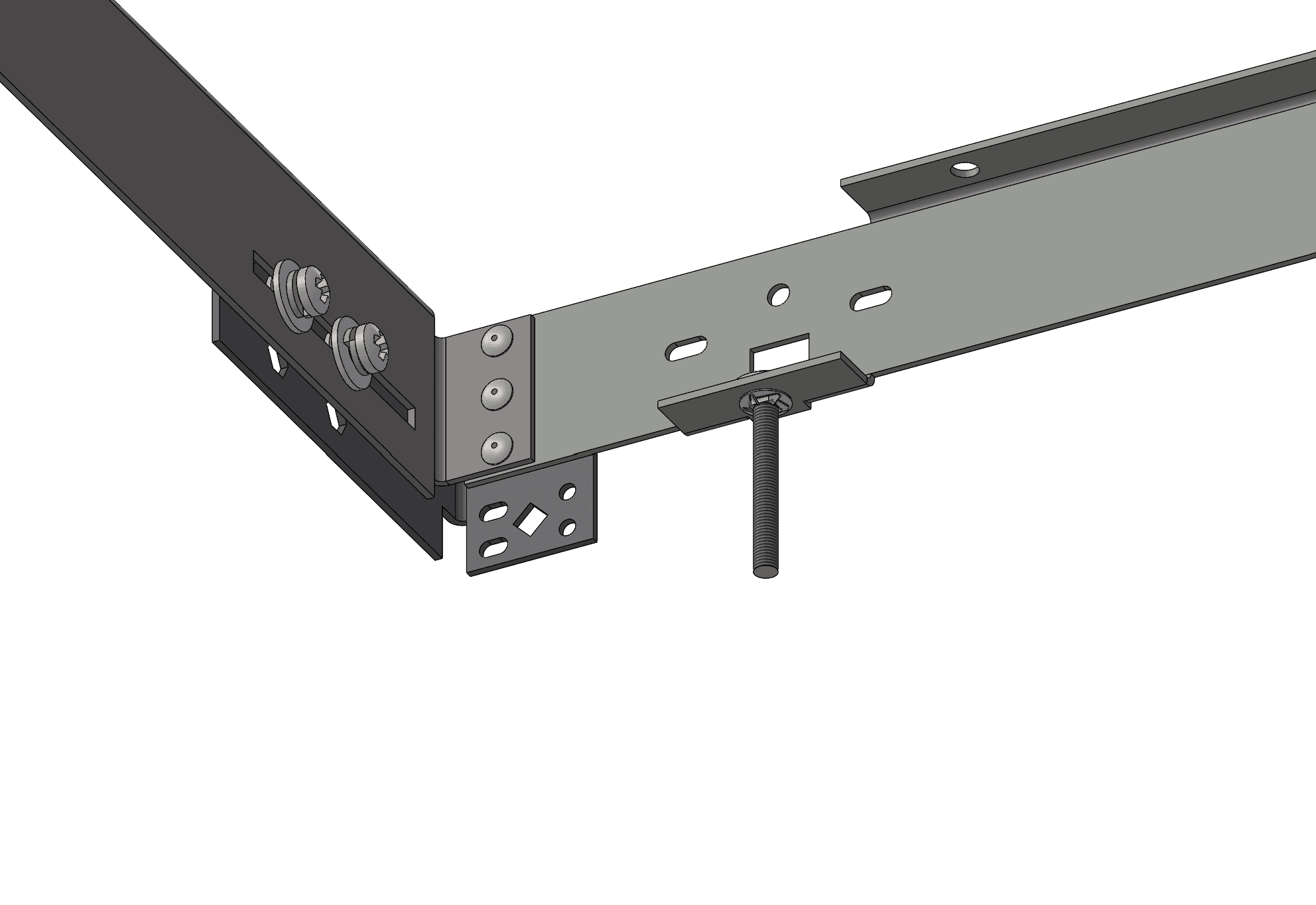
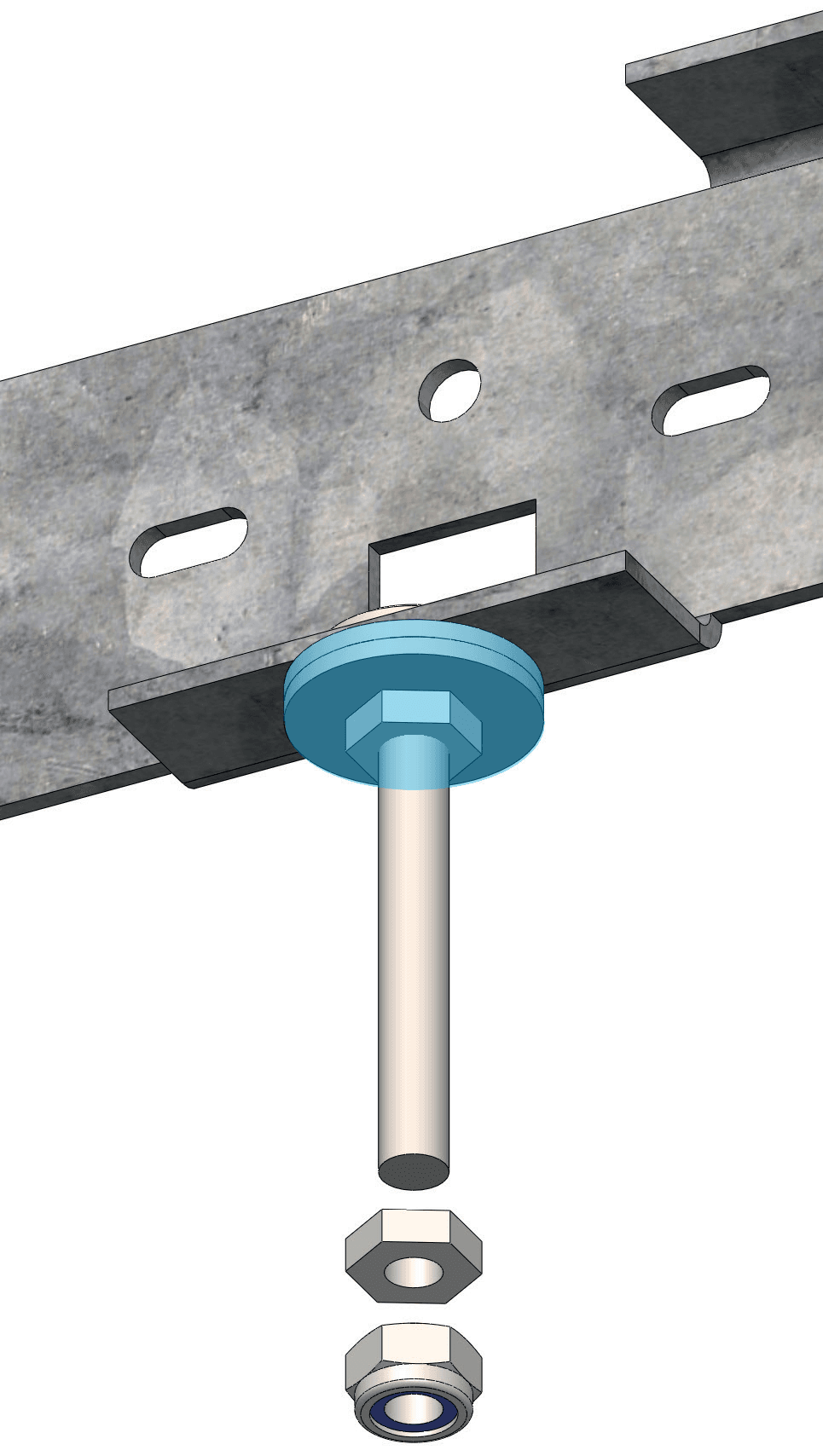
Adapt the Coach Bolt Mounting Points for Stud Wall

NC Housing showing four coach bolt mounting points
Coach bolt with captive washers

Before

Coach bolt with square washers and thin hex nut

After

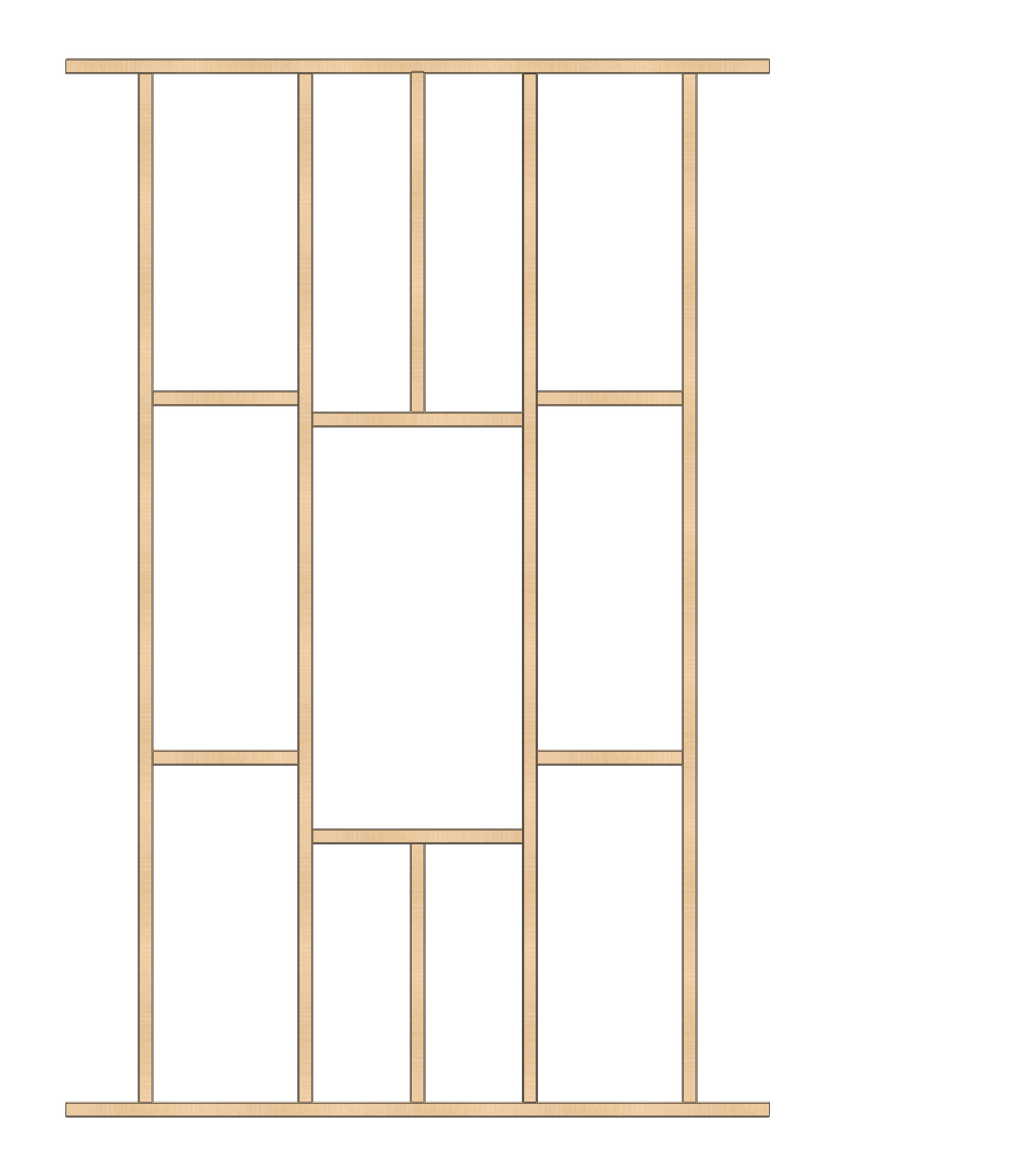
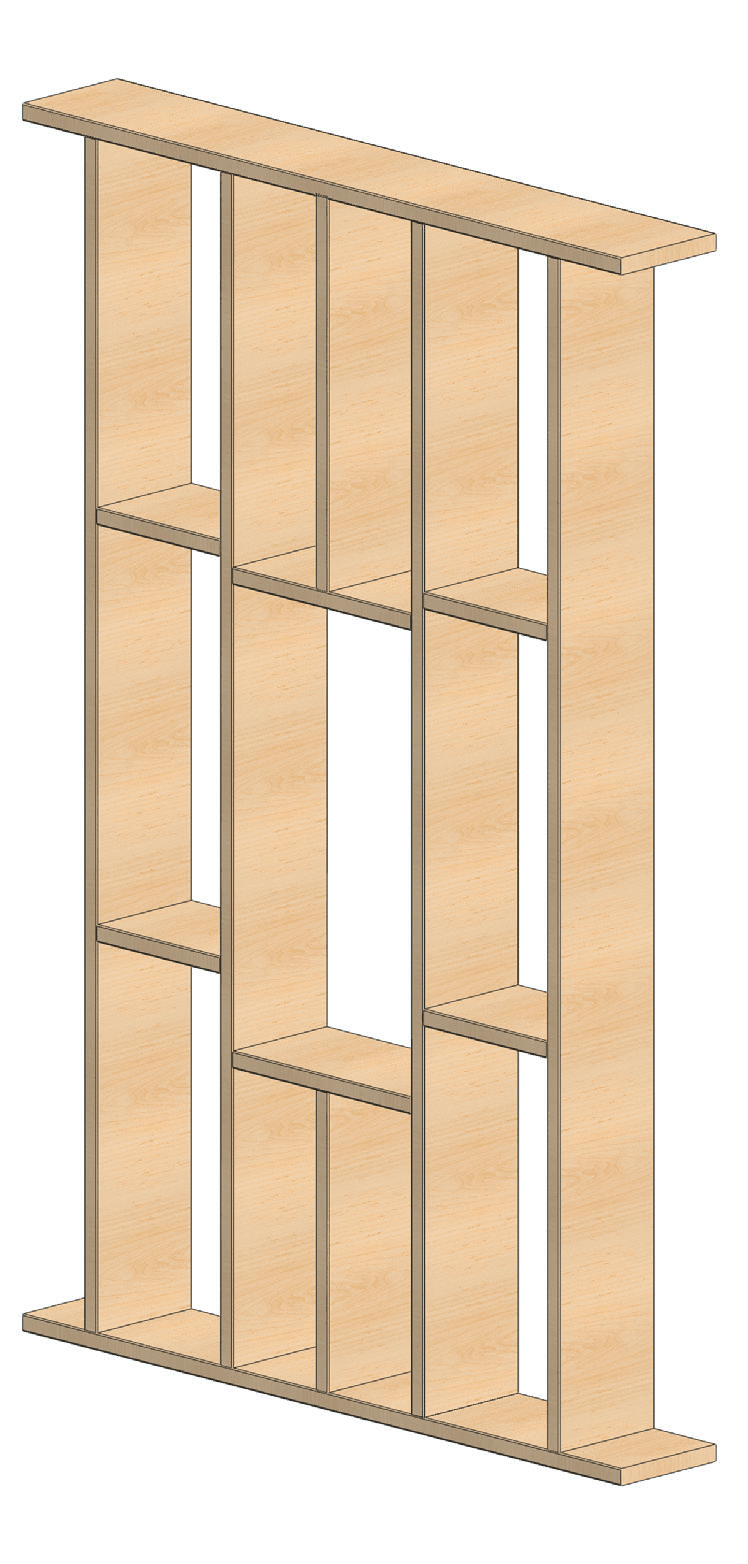
Prepare Stud-Wall Framing to Local Codes

Stud-wall framing with fixture niche

Install NC Housing into Niche

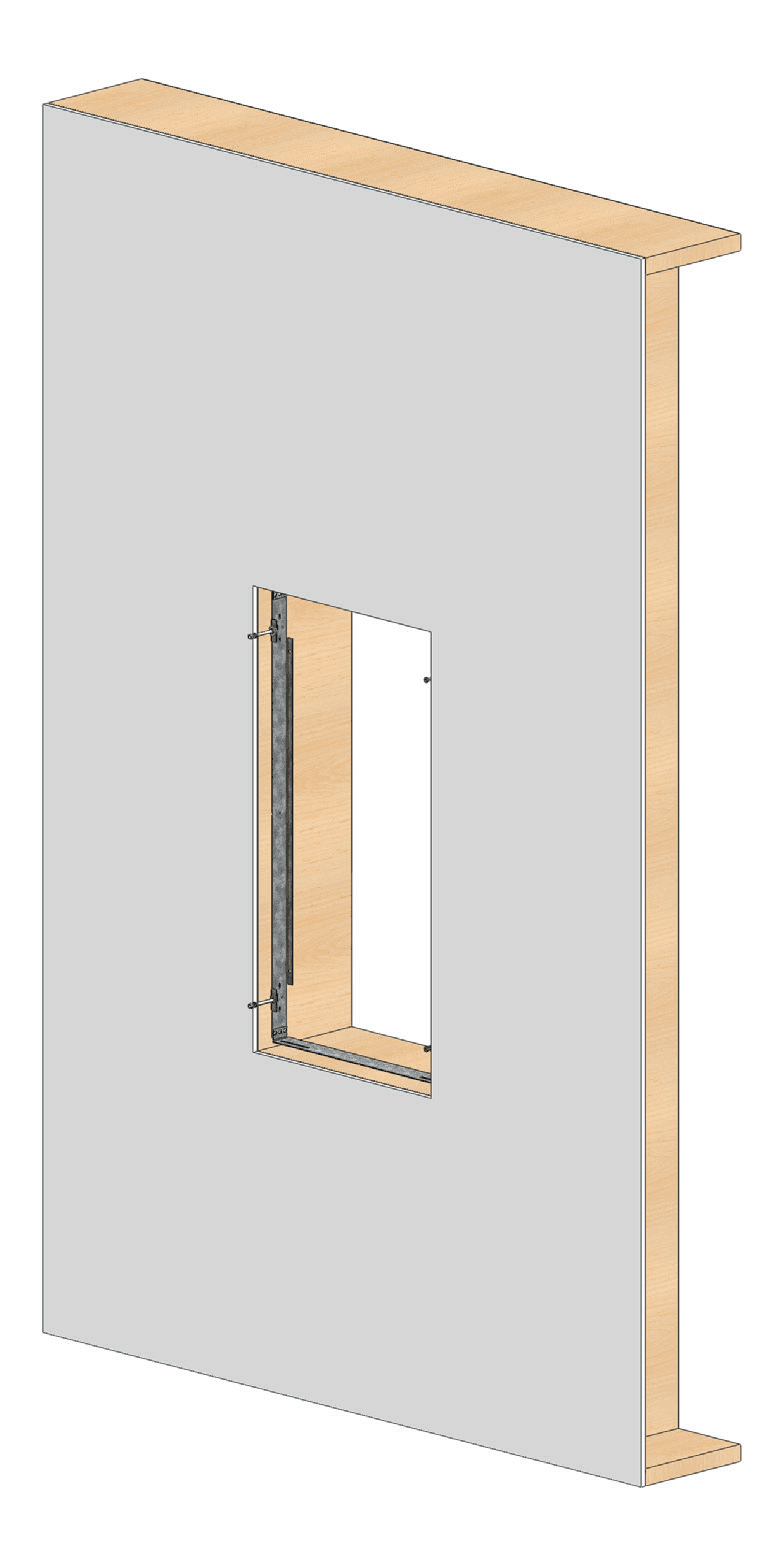
Install the NC Housing into the niche with 10x #10 x 1-1/2 in. wood screws (not supplied).

Stud-wall framing panel

Stud-wall

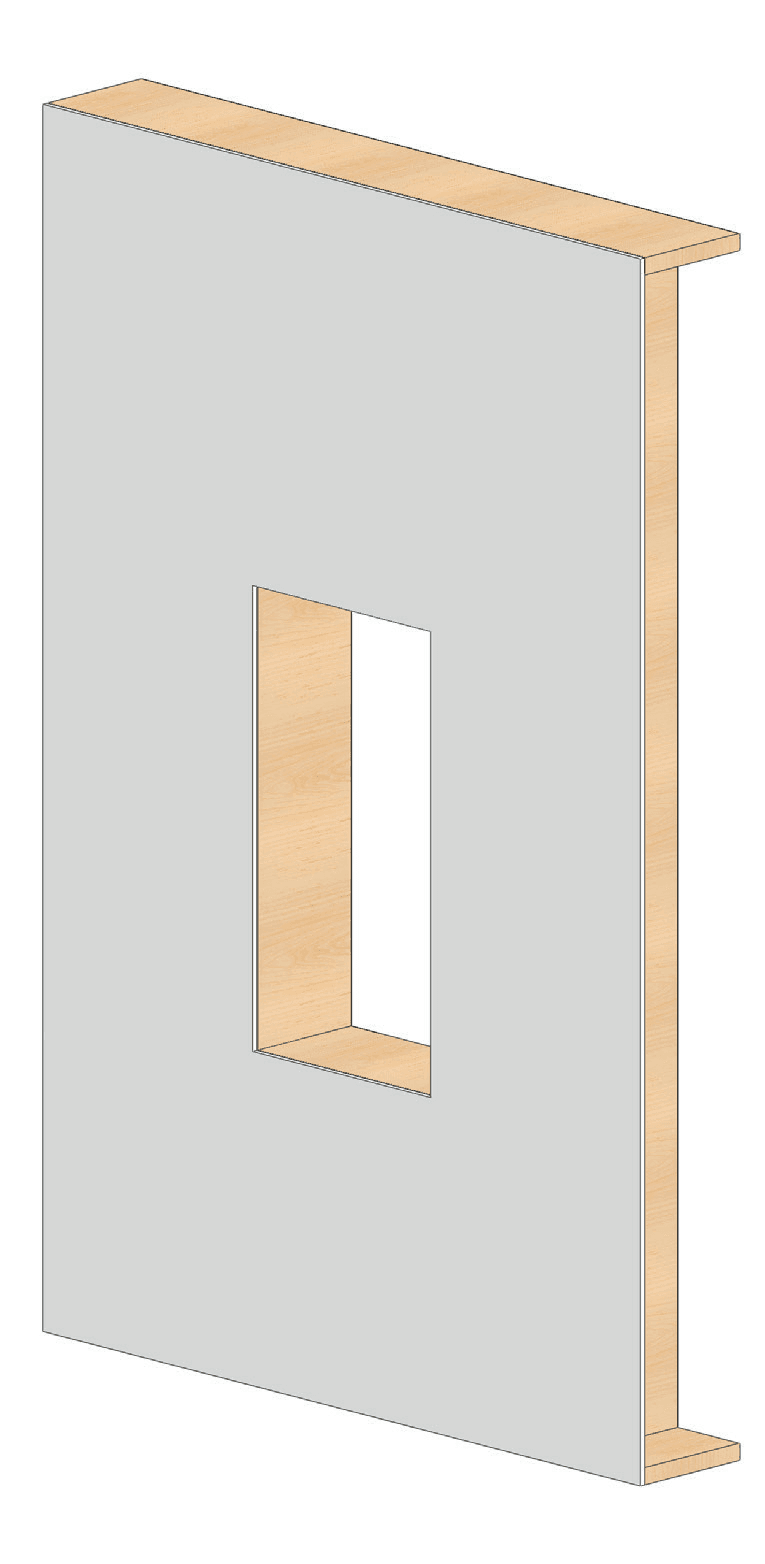
Drywall panel with fixture niche opening

Drywall

Wall with NC Housing installed in niche

NC Housing

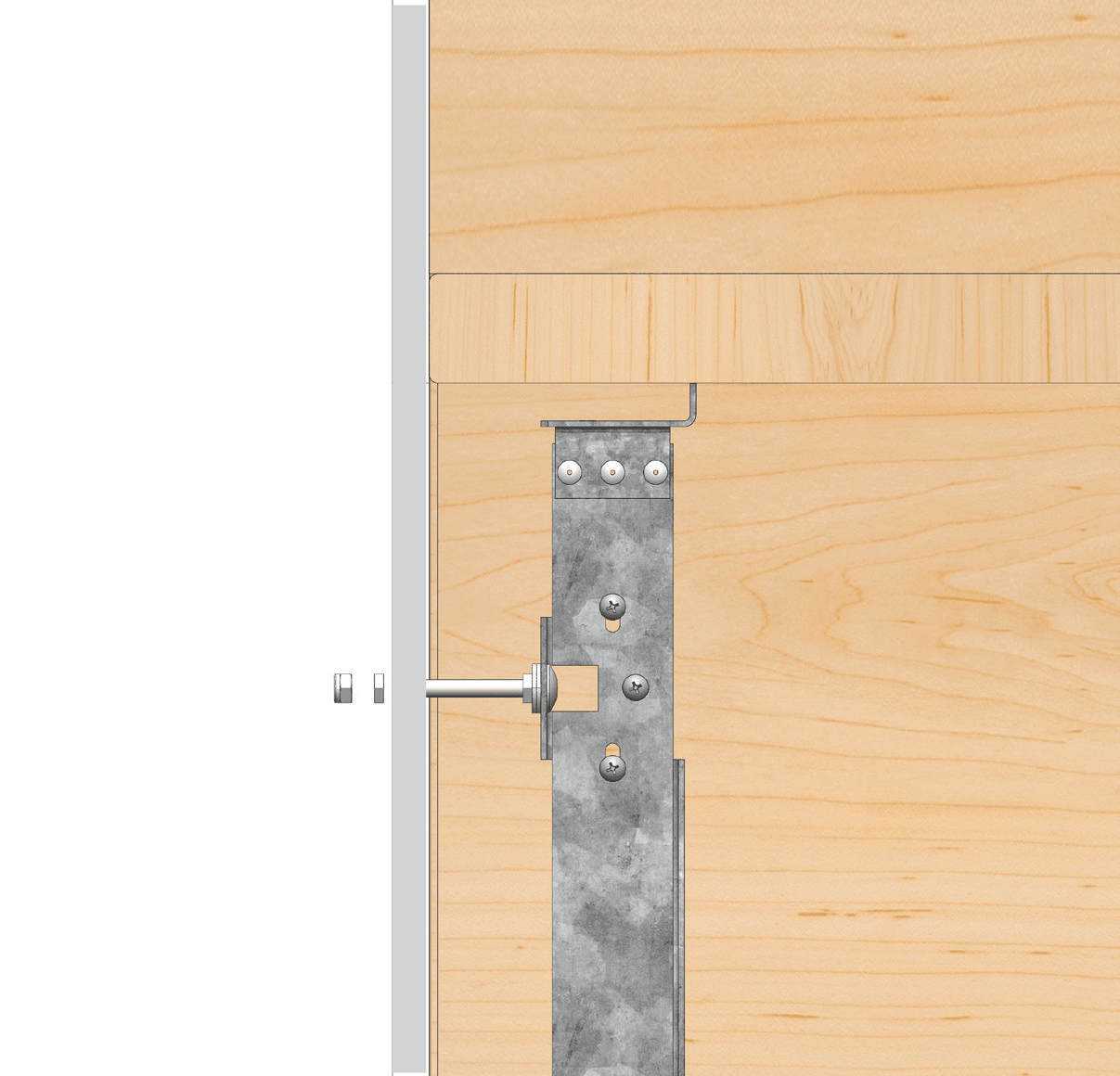
Close-up view of NC Housing fixed into niche

Close-up view

Cross section view of NC Housing in stud wall

Cross section view

Install the Fixture

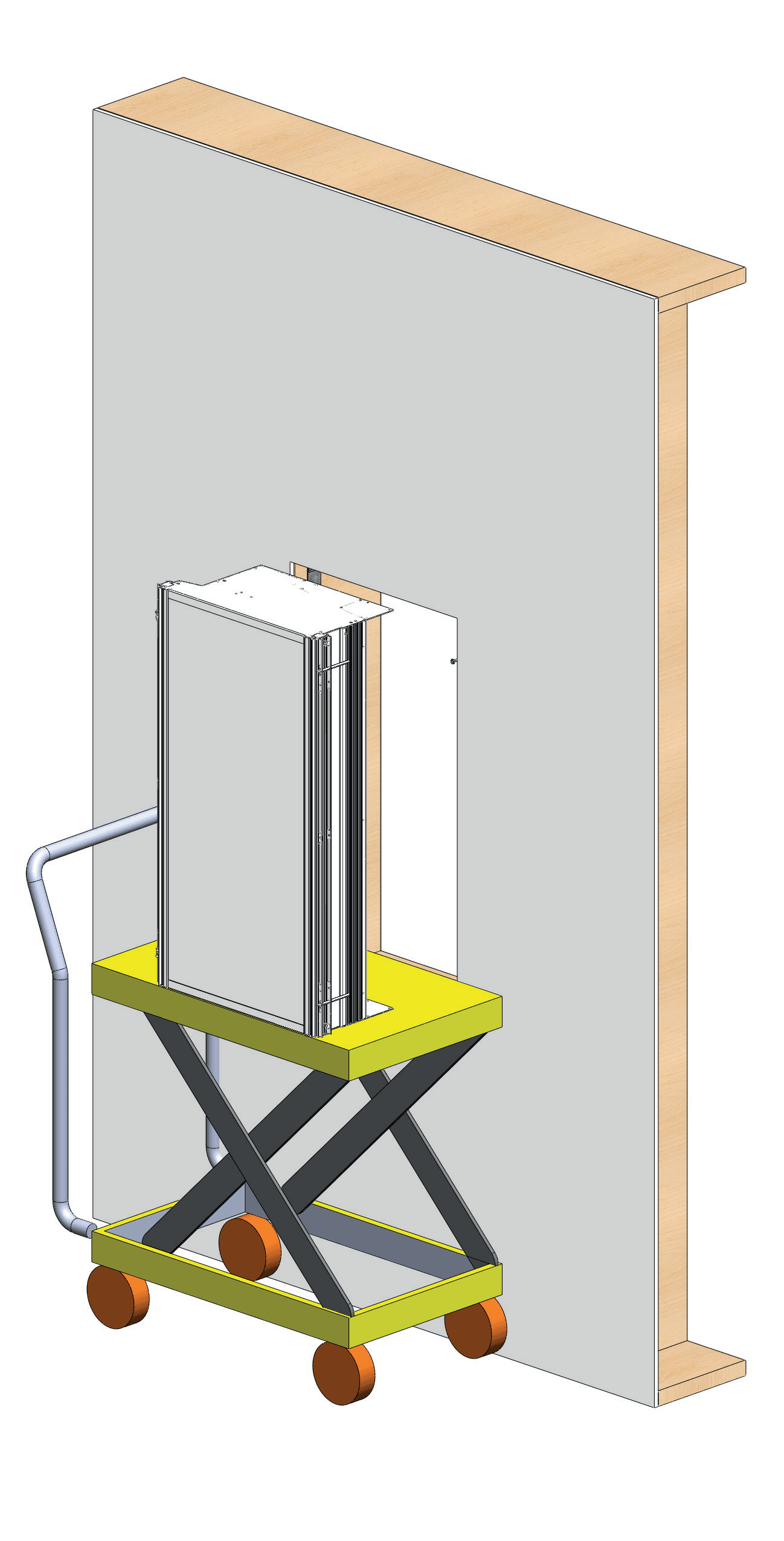
Place the fixture on a hoist or platform to slide into the niche. Ensure fixture orientation is correct using the Sun direction arrow sticker.

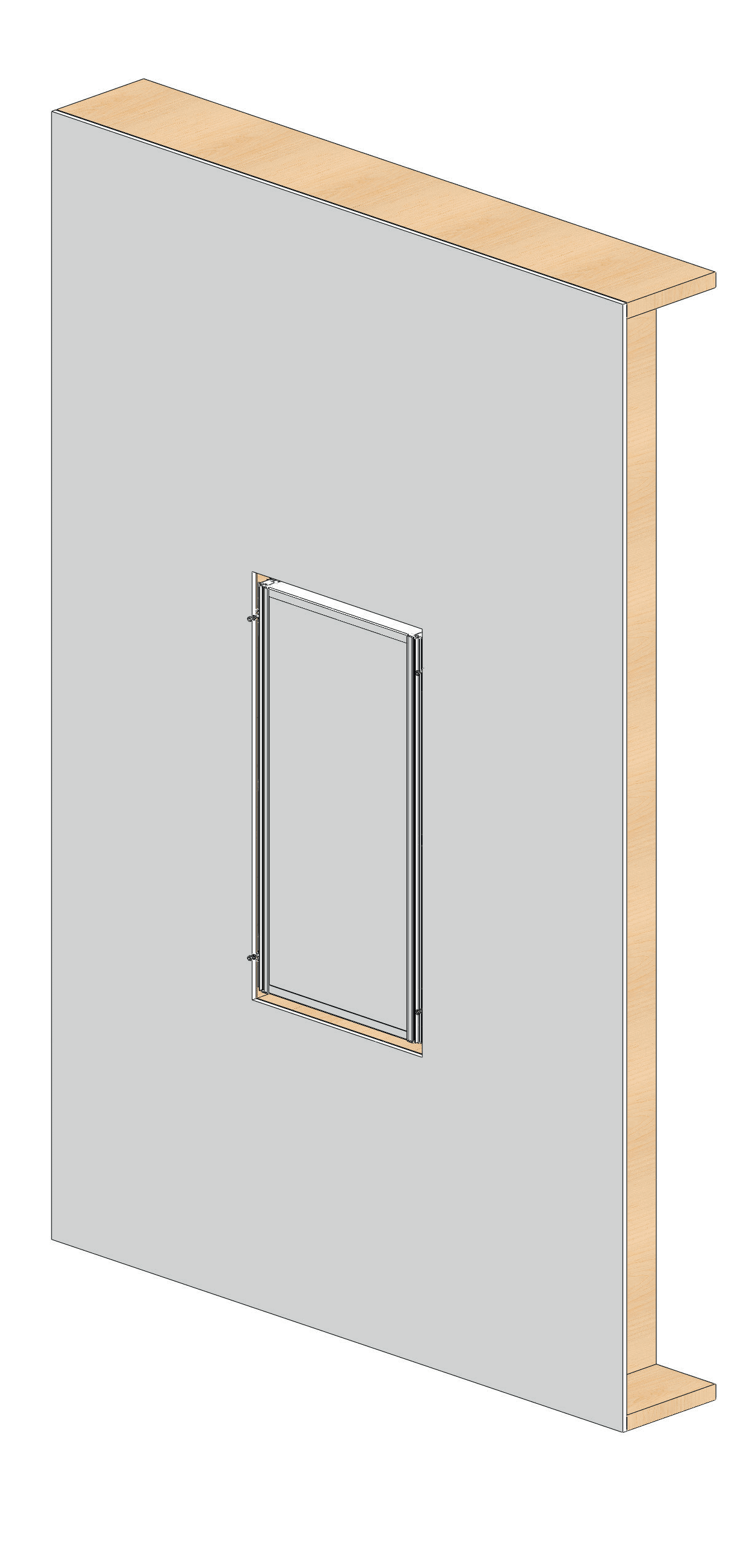
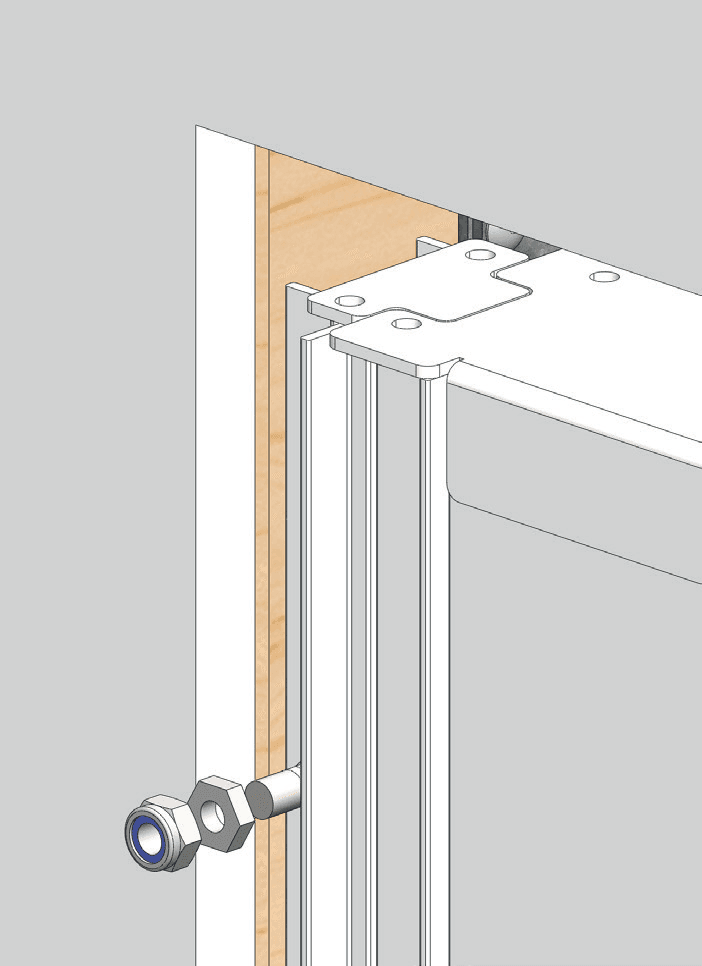
Install electrical wiring, then slide the fixture into place. The front of the fixture is to be flush with the front face of the drywall. Secure the fixture with the hex nuts provided.

Fixture on hoist in front of wall niche
Wall niche ready to receive fixture
Carriage bolt with thin nut and locknut securing fixture

Install Fixture Trim

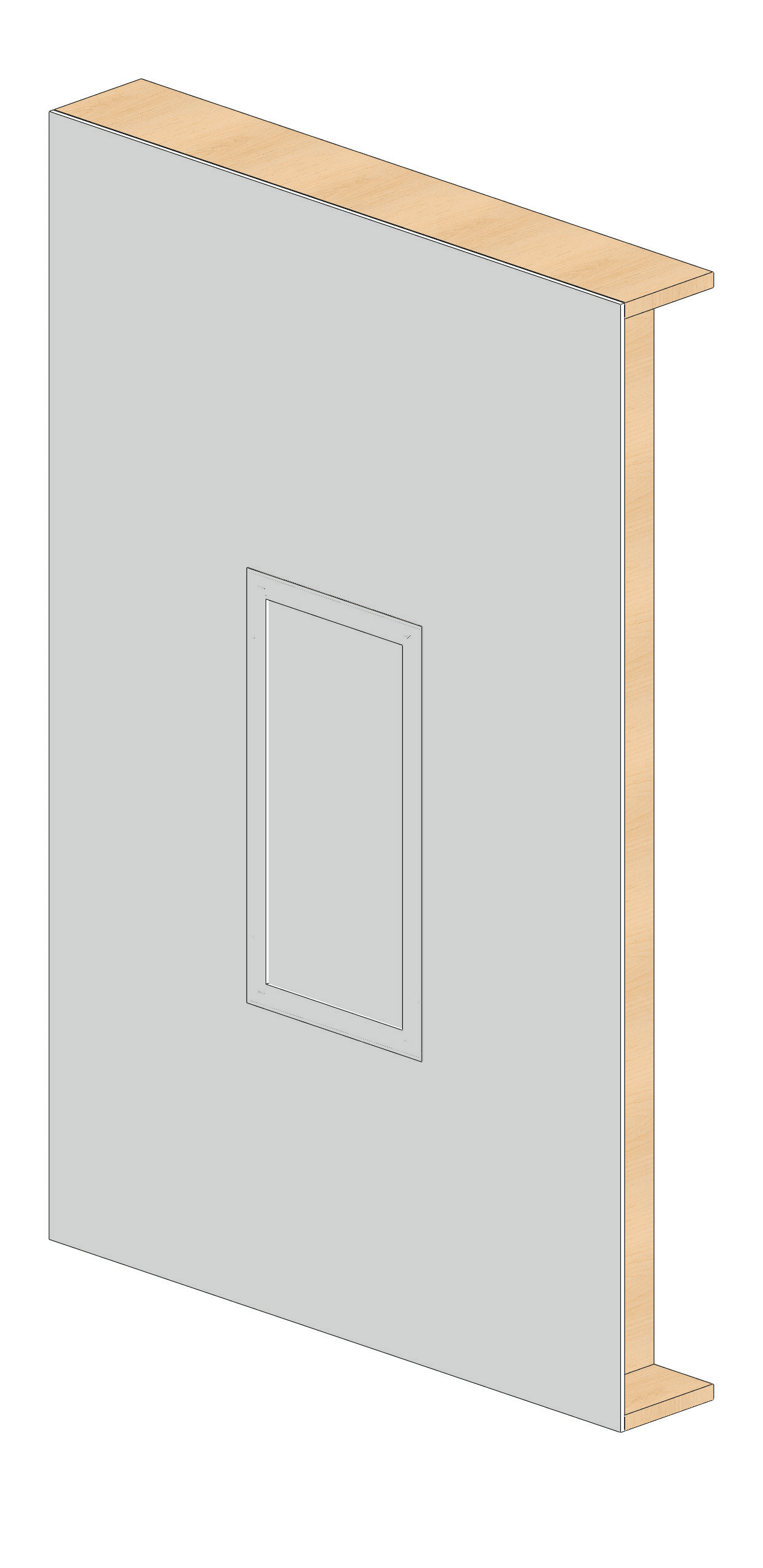
Install the fixture trim using long nose (needle nose) pliers. Grab one of the four aircraft wires hanging from the fixture, pull it down and slot it into the slots on the Bezel Trim. The wires are spring loaded and will pull up the trim. Repeat on all four aircraft wires to complete.

Aircraft Plier
Stud wall with fixture trim installed

Completed installation

A7 units outer surface is glass which has an anti-reflective optical coating typically found on camera lenses and eye glasses. This optical coating can be damaged if chemicals or abrasive cloths are used to clean the surface.

Do not use:
Glass or material cleaners Abrasive cloths
Do use:
Isopropyl alcohol (preferred) or soapy water Microfiber cloths
If in doubt, follow instructions for cleaning camera lenses and eyeglasses

Camera Lens Clean

Commissioning & Programming

Factory Pre-Commissioning. When ordered with factory pre-commissioning, the local time and geolocation are saved into the primary fixture before shipment. The primary fixture contains a non-rechargeable battery that maintains the clock for around 10 years (or indefinitely if power is maintained).

Programming Codes

The programming code in your spec determines the default behavior:

CodeDefault Behavior
P0000External Control Only — Fixture responds only to external signals (0-10V, DMX, DALI, or Casambi). No built-in schedule.
P0001Wall-Clock Schedule (8am–6pm) — Fixture uses a built-in wall-clock schedule when powered on. Time zone based on delivery address; daylight savings handled automatically. Schedule mode is overridden when an external control signal changes.
P0002Sunrise/Sunset Schedule — Fixture uses a built-in sunrise/sunset schedule based on the latitude and longitude of the delivery address.
CustomCustom programming codes can be created using Innerscene's Programming Tool and pre-loaded before shipping.

Note: For P0001 and P0002, external dimmer signals are ignored for the first second after power on. After that, an external change overrides the automated schedule.

For instructions on connecting to the fixture, editing the schedule, and managing groups, see the Controller & Studio App page that follows.

Controller & Studio App

Fixture Architecture

★ Primary Fixture

One fixture per installation is the primary. It carries a control daughter board that adds:

  • External control inputs (0-10V, DMX, DALI, Casambi)
  • Battery-backed real-time clock — keeps accurate time even when powered off
  • Time source and group coordinator for secondaries

⬢ Secondary Fixture

All other fixtures in a group are secondaries. They have the full controller built in and can run independently, but in a group they:

  • Sync schedule, CCT, and brightness with the primary
  • Receive time from the primary's battery-backed clock
  • Continue on last known schedule if the primary disconnects

Connecting to Your Fixture

To set the DMX address, edit the schedule, configure groups, or update firmware, connect to the Primary fixture from your phone, tablet, or laptop using one of the methods below.

Method 1 — WiFi Hotspot

Each fixture broadcasts its own WiFi access point. Works from any device with a browser — no app required.

  1. Open WiFi settings and look for Innerscene-XXXX (XXXX is unique per fixture).
  2. Connect using password innerscene.
  3. A captive portal opens automatically. If it doesn't, open http://172.30.0.1.

Tip: depending on the daughter board, the network may appear as Innerscene-cas-XXXX, Innerscene-0-10V-XXXX, Innerscene-DMX-XXXX, or Innerscene-DT-XXXX — same password and IP.

Method 2 — Innerscene Studio App

Bluetooth LE app for iOS, iPadOS, macOS, Android, and Windows. Discovers nearby fixtures automatically — no WiFi handshake.

  1. Install Innerscene Studio from your platform's app store.
  2. Open the app — it scans for nearby fixtures over BLE and lists them with name, group, signal strength, and live status.
  3. Tap the Primary (marked ★ if part of a group) and authenticate if prompted.
  4. Use the Home screen sliders, schedule editor, group settings, and firmware updates from inside the app.
QR code for Innerscene Studio user guide

Studio reference, screen-by-screen — same app for Circadian Sky and Virtual Sun.